How to Convert Excel to PDF
Short answer
To save Excel as a PDF, open the workbook, choose File, then Save As or Save a Copy, and pick PDF as the file type. Click Options to choose the active sheet, a selection or the entire workbook, then save. Before exporting, set the print area, orientation and Fit to page scaling, so columns don't spill onto extra pages.
Open Merge PDFKey takeaways
- Excel saves to PDF from File, then Save As, with PDF chosen as the file type.
- Options decides what's included: the active sheet, a selection, or the entire workbook.
- Page layout matters most. Set orientation, print area and scaling before you export.
- Microsoft notes that internal links in a spreadsheet are lost in the PDF, so check them.
Why Excel to PDF needs a little more care
Saving a Word document as a PDF is easy, because the document already has pages. A spreadsheet doesn't. It's a grid that can stretch for hundreds of columns and thousands of rows, and Excel has to decide where to cut it into pages. If you don't tell it how, you can end up with one column per page, a chart split in half, or 40 pages where you expected one.
The fix is to set up the page layout first, then export. This guide covers both, along with how to choose which sheets go into the PDF.
How to save Excel as a PDF on Windows
These are the steps Microsoft gives for Excel on Windows.
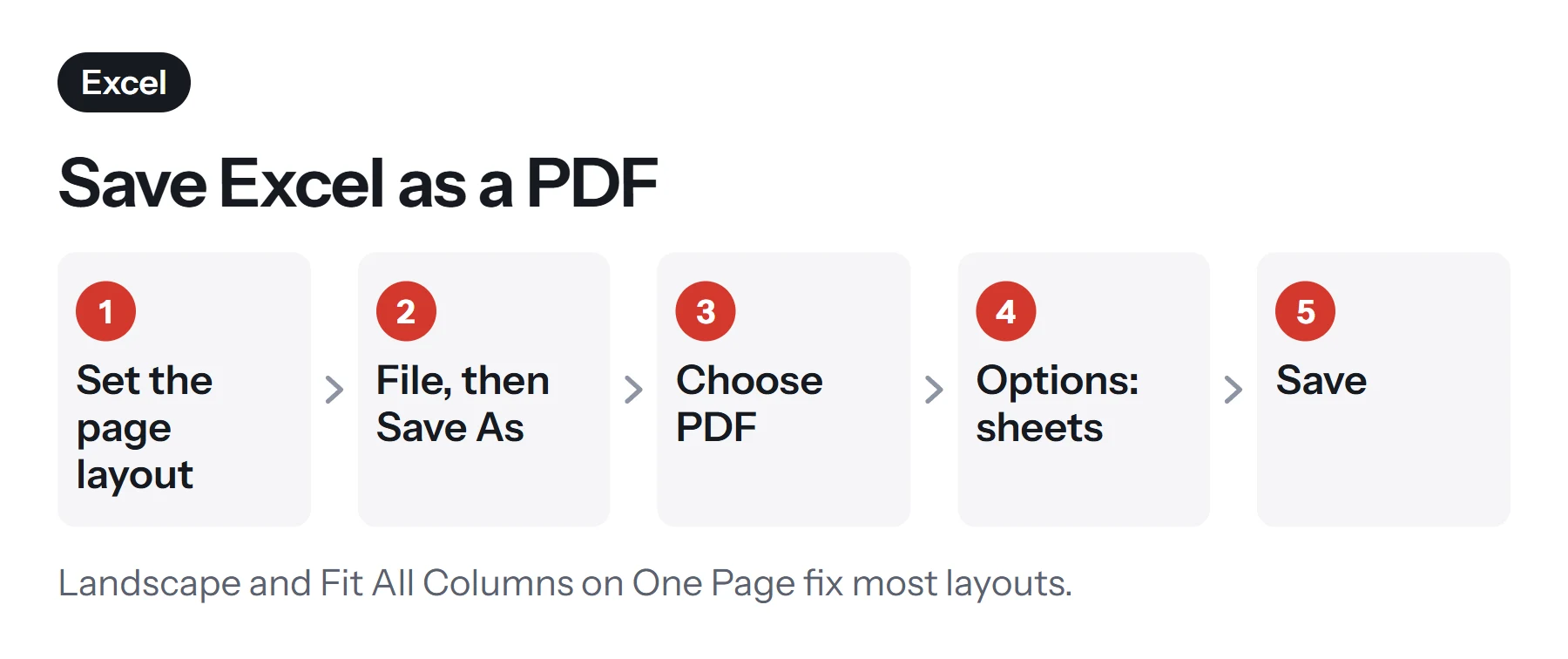
- Open the workbook and go to the sheet you want to save.
- Choose File, then Save As or Save a Copy. Choose a folder.
- Set Save as type to PDF.
- Choose the quality. Standard suits printing. Minimum size makes a smaller file for email and web.
- Click Options to choose what to include, as explained below.
- Click Save. Tick Open file after publishing if you want to check the PDF right away.
You can also use File, then Export, then Create PDF/XPS Document. It does the same thing.
What Options lets you choose
The Options dialog decides which part of the workbook ends up in the PDF.
| Option | What goes into the PDF | Use it when |
|---|---|---|
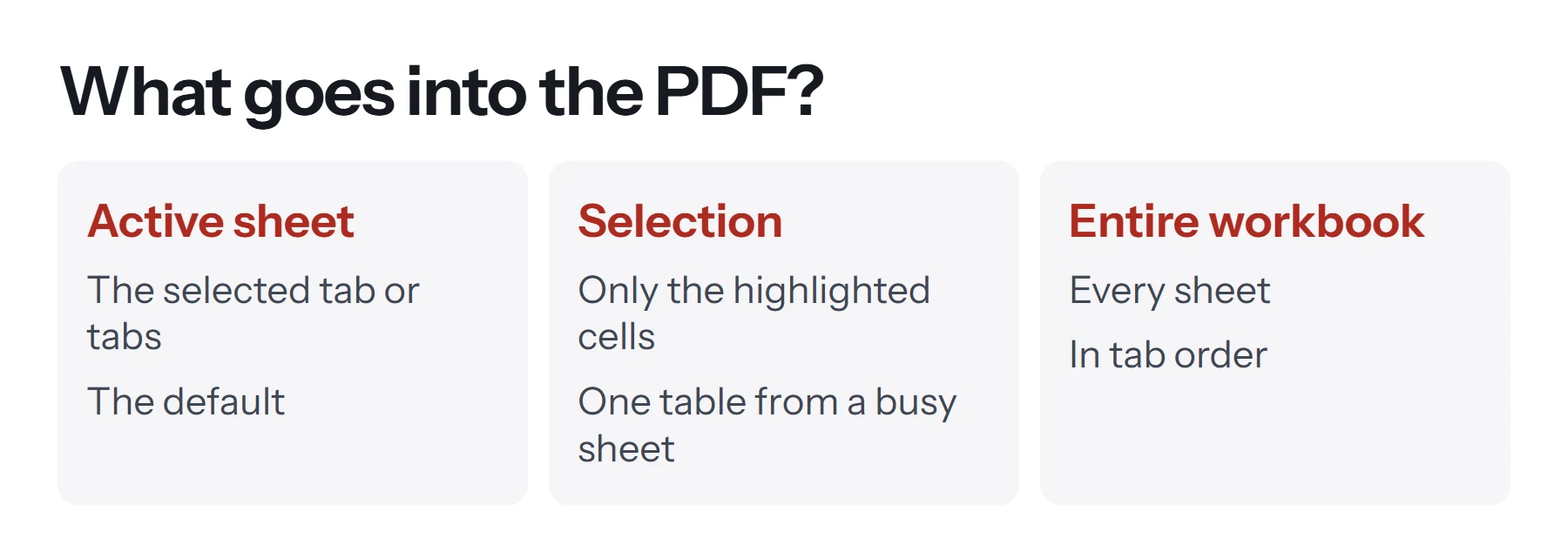
| Active sheet | The sheet or sheets currently selected | You need one tab, such as a summary |
| Selection | Only the cells you highlighted | You need one table from a busy sheet |
| Entire workbook | Every sheet, in tab order | You're sending the full report |
| Ignore print areas | All content, even outside the print area | Your print areas are out of date |
To include several specific sheets but not all of them, hold Ctrl and click their tabs before you save. Excel treats the grouped sheets as the active sheets. Remember to ungroup them afterward by clicking any single tab, so later edits don't change every grouped sheet at once.
How to save Excel as a PDF on a Mac
- Open the workbook.
- Choose File, then Save As.
- Set File Format to PDF.
- Choose Workbook or Sheet, if your version shows that choice.
- Click Export or Save.
You can also choose File, then Print, and use the PDF menu to choose Save as PDF. Exact labels vary between versions of Excel for Mac, so look for the same ideas if your menus differ.
How to set up the page layout before exporting
This is the step that makes the difference between a tidy PDF and a messy one. Use the Page Layout tab and the print preview, which shows exactly how the pages will be cut.
- Check the preview. Choose File, then Print. The preview shows each page as it will appear in the PDF.
- Choose the orientation. Wide tables almost always look better in Landscape.
- Set the scaling. In the print settings, choose Fit All Columns on One Page to keep the width on one page, or Fit Sheet on One Page for a small sheet.
- Set a print area. Select the cells you want, then choose Page Layout, then Print Area, then Set Print Area. Only those cells will be exported.
- Repeat header rows. Use Page Layout, then Print Titles, so your column headings appear at the top of every page.
- Adjust margins. Narrow margins give the table more room.
- Add page numbers. Page Setup lets you add a header or footer, with the page number and file name.
Which scaling option should you use?
| Setting | Result | Good for |
|---|---|---|
| No scaling | Actual size, cut across as many pages as needed | Long lists people will print |
| Fit all columns on one page | Full width, as many pages tall as needed | Most tables |
| Fit all rows on one page | Full height, as many pages wide as needed | Rarely useful |
| Fit sheet on one page | Everything on a single page | Small summaries and dashboards |
Be careful with Fit Sheet on One Page on a big sheet. Excel will shrink everything until it fits, and the text may become too small to read. Check the preview before you export.
How to save Excel as a PDF in Google Sheets or LibreOffice
If you don't have Excel, you can still convert the file for free.
Google Sheets: upload the .xlsx file to Google Drive, open it with Google Sheets, then choose File, then Download, then PDF. The export screen lets you choose the current sheet, the workbook or the selected cells, along with paper size, orientation, scaling and margins. Check the formatting, because some Excel features don't carry over.
LibreOffice Calc: open the workbook and choose File, then Export as PDF. You can choose a page range, the selection, or the whole workbook. LibreOffice is free and works on Windows, Mac and Linux.
How to save Excel as a PDF in Excel for the web
Excel for the web, which runs in your browser through Microsoft 365 or OneDrive, can also produce PDFs. Look under File for Export or Download as, then choose PDF. You can also use File, then Print, and pick the sheet or the whole workbook before printing to a PDF. Menu labels change from time to time, so if you don't see these options, the print route is the most reliable.
How to save just a chart or one table as a PDF
Sometimes you only want a single chart or table, for example to drop into a presentation or send to a manager.
- Select the cells that hold the table, or the cells around the chart.
- Set them as the print area with Page Layout, then Print Area, then Set Print Area.
- Choose landscape if the table is wide.
- Save as PDF, with Options set to Active sheet.
Another tidy approach is to copy the chart onto a new, empty sheet, resize it to fill a page, and export only that sheet. That gives you a clean page with nothing else on it.
How to make an Excel PDF easy to read
A PDF of a spreadsheet is often read on a screen, so a few touches help a lot.
- Use landscape for wide tables. It avoids tiny text and extra pages.
- Freeze nothing, repeat headers instead. Frozen panes don't exist in a PDF, but repeated header rows do the same job.
- Turn on gridlines or borders. Without them, numbers can float. Use Page Layout, then tick Print under Gridlines, or add borders to the table.
- Check charts. Make sure each chart sits fully on one page and isn't split across a page break.
- Hide working columns. Hide helper columns before exporting so they don't appear in the PDF.
- Name the sheets clearly. In a full workbook export, the order and content of the sheets is your reader's only guide.
What gets lost when you convert Excel to PDF
A PDF is a snapshot. It shows the values, not the workings.
| In Excel | In the PDF |
|---|---|
| Values and text | Shown as they appear |
| Formulas | Only their results |
| Charts | Shown as images |
| Comments and notes | Only if you choose to print them |
| Internal links to other cells or sheets | Lost, according to Microsoft |
| External web links | Usually kept |
| Filters and hidden rows | Hidden rows stay hidden |
Because formulas don't come across, send the original .xlsx file as well if the recipient needs to check or reuse the calculations.
How to combine and finish your Excel PDF
Spreadsheets often go out alongside other documents, such as a cover letter or a report.
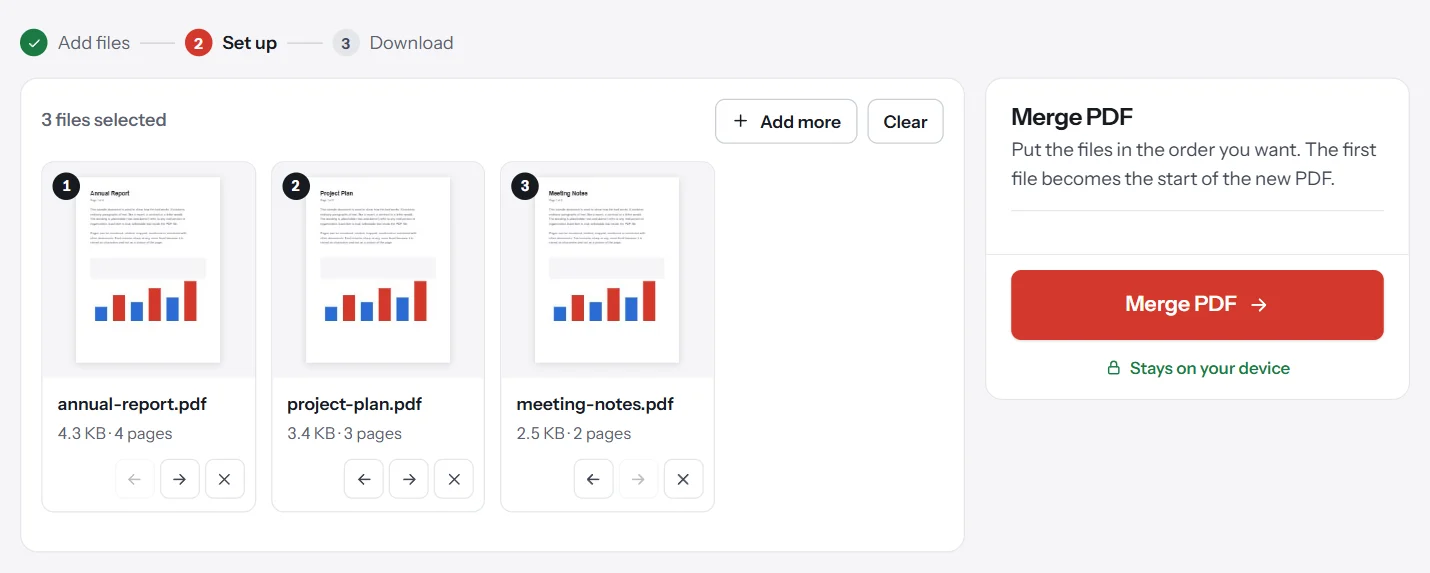
- Combine files. Save each document as a PDF, then join them with Merge PDF. Drag them into order before merging.
- Fix page orientation. If a landscape table sits sideways inside a portrait report, use Rotate PDF on just those pages.
- Match paper sizes. If the spreadsheet came out as US Letter but the report is A4, put every page on one size with Resize PDF.
- Shrink the file. Spreadsheets with many charts can be large. Compress PDF on the Light level keeps the numbers sharp and selectable.
These tools run in your browser, so financial data isn't uploaded. For more on choosing tools for sensitive files, see whether online PDF tools are safe.
Common problems when converting Excel to PDF
The PDF has dozens of blank or nearly empty pages. Excel is exporting cells you formatted but didn't fill in, or an old print area. Set a new print area, or delete unused rows and columns.
Columns are cut off. Switch to landscape and choose Fit All Columns on One Page.
Only one sheet came through. Excel exports the active sheet by default. Use Options, then Entire workbook.
The text is tiny. Fit Sheet on One Page shrank a large sheet too far. Fit the columns only, and let the rows run across several pages.
Some cells show #### instead of numbers. The column is too narrow for the value. Widen the column in Excel and export again.
Power View sheets don't appear. Microsoft notes that Power View sheets can't be saved as PDF files. Take a screenshot of the view, or export the data behind it instead.
Links stopped working. Links that point to other cells or sheets within the workbook are lost. Links to websites usually work.
Questions and answers
How do I save an Excel file as a PDF?
Choose File, then Save As or Save a Copy, set the file type to PDF, and click Save. Use Options first if you want the whole workbook rather than the current sheet.
How do I save an Excel sheet as a PDF on one page?
Before saving, go to the print settings and set scaling to Fit Sheet on One Page, or use Page Layout to fit the width to one page. Very large sheets may become too small to read, so check the result.
How do I save all Excel sheets in one PDF?
In the Save As dialog, choose PDF, click Options, and select Entire workbook. Each sheet appears in the PDF in tab order.
Why are my Excel columns cut off in the PDF?
The sheet is wider than the page. Switch to landscape, narrow the columns, set a print area, or scale the width to fit one page.
How do I convert Excel to PDF without Excel?
Upload the file to Google Sheets and choose File, then Download, then PDF. LibreOffice Calc, which is free, can also open Excel files and export them as PDFs.
Can I convert a PDF back to Excel?
Converting a PDF table back to Excel is unreliable. Ask for the original spreadsheet if you can. Otherwise, copy the table and paste it into Excel, then fix the columns.
Tools from this guide
How we checked this guide
We ran the PDF Lemon steps ourselves on the live tools. Steps for other apps come from each vendor's own help pages and are worded to survive small interface changes, but menu names can differ between versions.
Sources we used:
Related guides
- How to Scan a Document to PDF7 min read
- How to Change or Resize PDF Page Dimensions9 min read
- How to Convert Google Docs to PDF7 min read
- How to Open a PDF in Word7 min read
- How to Convert PDF to Google Docs7 min read