How to Change or Resize PDF Page Dimensions
Short answer
To resize a PDF's page dimensions, open PDF Lemon's Resize PDF, add your file, choose a size such as A4 or US Letter, and pick Fit to page. Check the preview, then download the new copy. Links and form fields stay in the file. To reduce the file's megabytes rather than its page size, use a PDF compressor instead.
Open Resize PDFKey takeaways
- Resize can mean two things: page dimensions (A4, US Letter) or file size (MB).
- PDF Lemon's Resize PDF changes the paper size for free and keeps links, form fields and bookmarks.
- Printing to a new PDF also works, but it usually drops links and form fields.
- Fit to page shows everything. Fill page covers the sheet but can cut off the edges.
Which kind of resize do you need?
"Resize a PDF" can mean two completely different things, and people often search for one when they need the other. So before doing anything, work out which you're after.
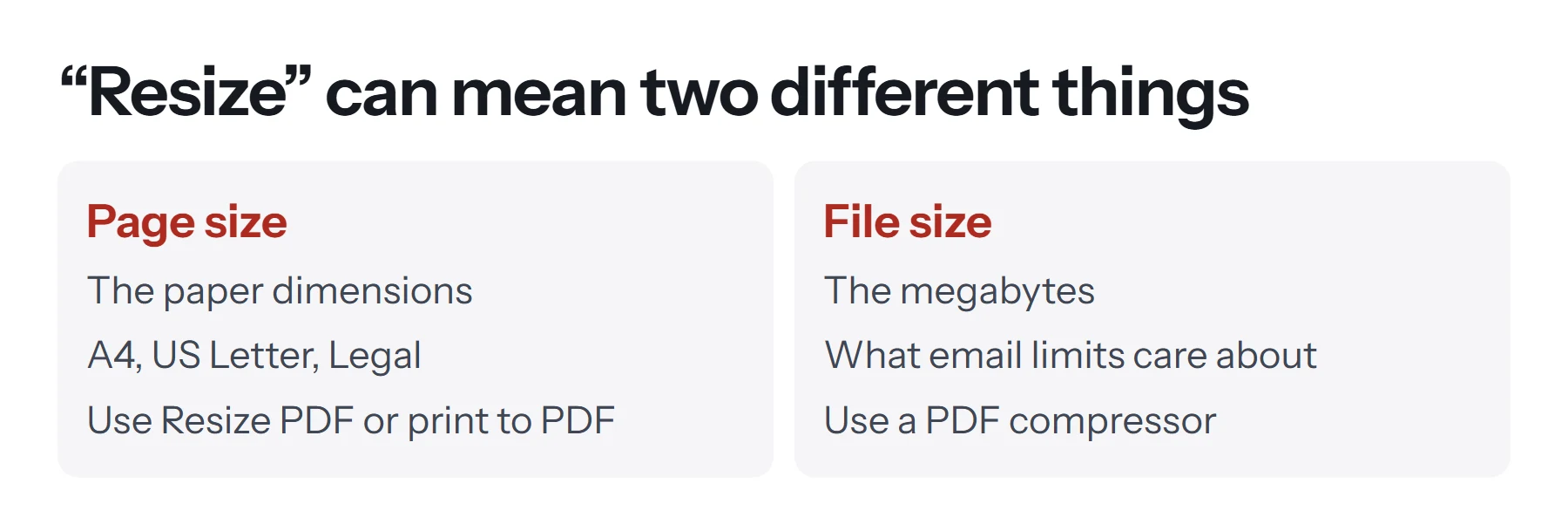
Page size is the physical dimension of each page, like A4 or US Letter. You'd change this when a printer, a portal or a client requires a particular format, or when you've mixed A4 and Letter pages in one document.
File size is how many megabytes the PDF takes up. You'd change this when a file's too large to email or upload. If that's your problem, you don't need this guide. Go straight to how to compress a PDF or use Compress PDF, because changing the paper size won't make much difference to the megabytes.
The rest of this guide is about page dimensions.
What are the common PDF page sizes?
PDF sizes are measured in points, where 72 points make an inch. Your reader may show the size in inches, millimeters or points.
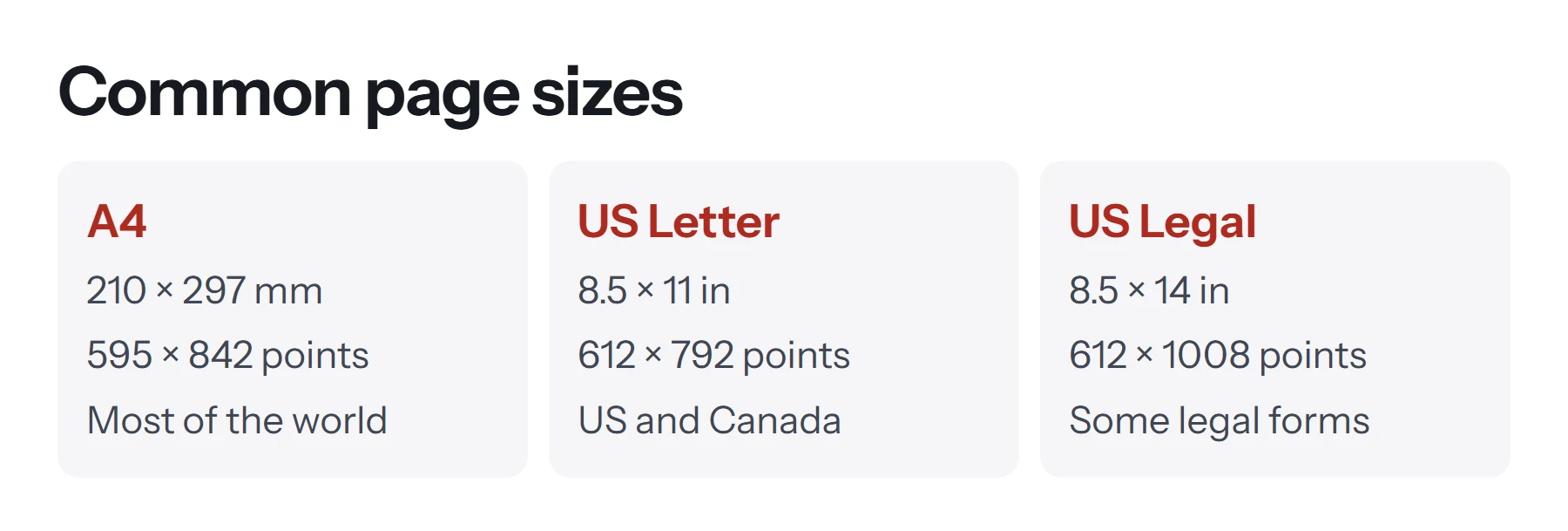
| Size | Millimeters | Inches | Points | Common use |
|---|---|---|---|---|
| A4 | 210 × 297 | 8.27 × 11.69 | 595 × 842 | Most of the world |
| US Letter | 216 × 279 | 8.5 × 11 | 612 × 792 | US and Canada |
| US Legal | 216 × 356 | 8.5 × 14 | 612 × 1008 | Some legal documents |
| A3 | 297 × 420 | 11.69 × 16.54 | 842 × 1191 | Posters, large charts |
| A5 | 148 × 210 | 5.83 × 8.27 | 420 × 595 | Booklets, notebooks |
| Tabloid | 279 × 432 | 11 × 17 | 792 × 1224 | Large print layouts |
How to find your PDF's current page size
In most PDF readers, you'll find it in the document properties.
- Adobe Acrobat Reader: choose File (or Menu), then Properties, and look for Page Size on the Description tab.
- Preview on a Mac: choose Tools, then Show Inspector, and look at the General tab.
- In a browser: open the print dialog. The preview often shows the size. Chrome's Document properties option in its viewer's menu also lists it.
A PDF can have different sizes for different pages, and that's common after merging files from different sources. So check several pages if the layout seems inconsistent.
How to resize a PDF online for free
PDF Lemon's Resize PDF changes the paper size in your browser, so your file isn't uploaded. A preview shows the first page on its new paper before you save.
- Open Resize PDF. Go to Resize PDF and select your file.
- Choose the new size. Pick A4, US Letter, US Legal, A3, A5 or Tabloid. For anything else, choose Custom size and enter a width and height in millimeters or inches.
- Set the orientation. Auto keeps upright pages upright and sideways pages sideways, which suits most documents.
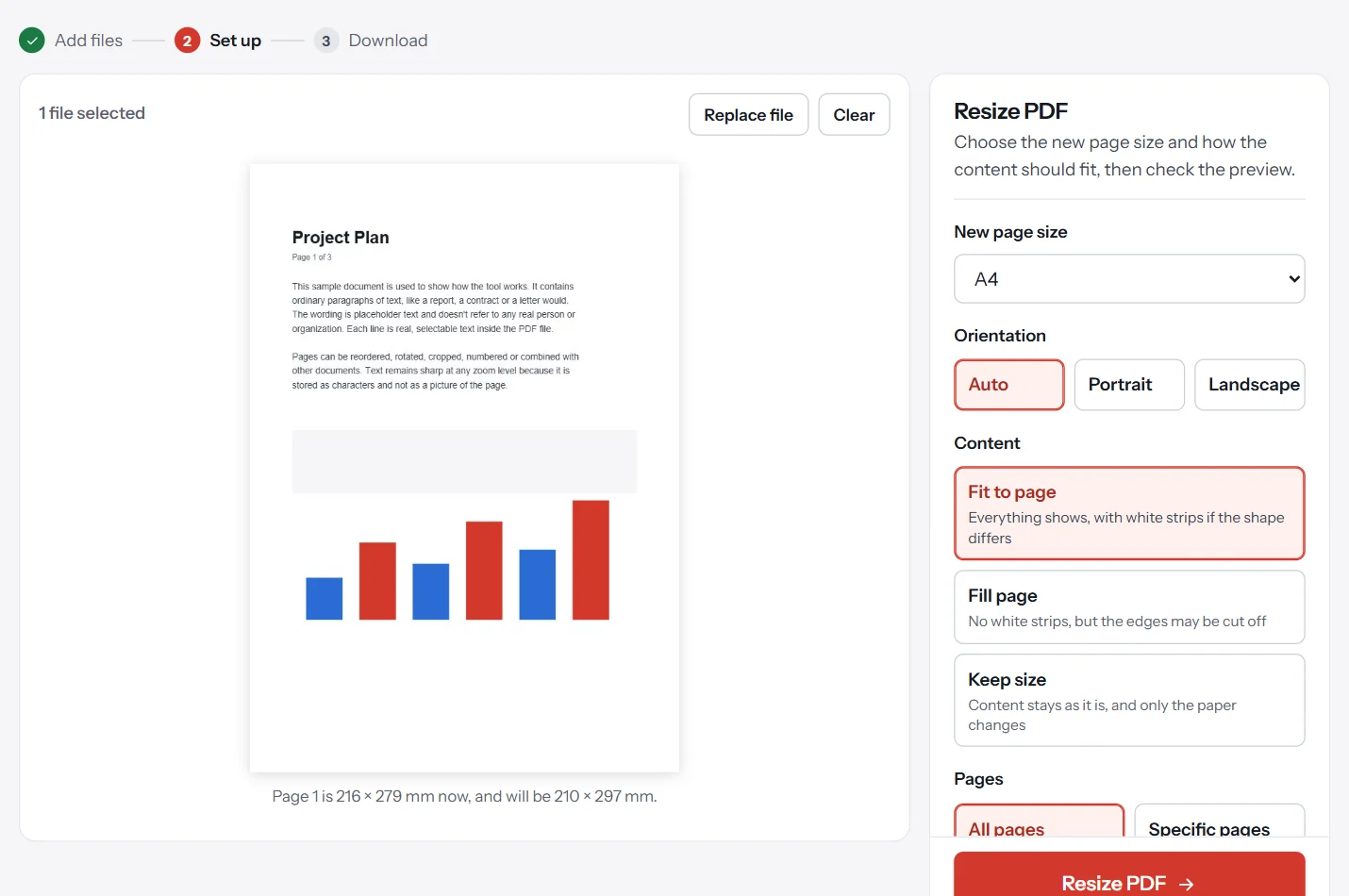
- Choose how the content fits. Fit to page is the safe choice. The table below explains the other two.
- Check the preview, then click Resize PDF.
- Download the new copy. Your original isn't changed. Open the copy and look through a few pages.
| Content option | What happens | Best for |
|---|---|---|
| Fit to page | Everything shows, scaled to fit. White strips appear if the shape differs | Most documents |
| Fill page | The content covers the whole sheet, and the edges may be cut off | Slides and full-page images |
| Keep size | The content stays as it is, and only the paper changes | Adding room around a page |
The tool changes the page itself rather than printing a new copy. Text stays selectable, and links, form fields and bookmarks stay in the file. Images aren't recompressed, so the file size barely changes.
How to resize a PDF by printing to PDF
If you'd rather use software you already have, printing works in almost any PDF reader. You "print" the document to a new PDF on the paper size you want, and the content scales to fit.
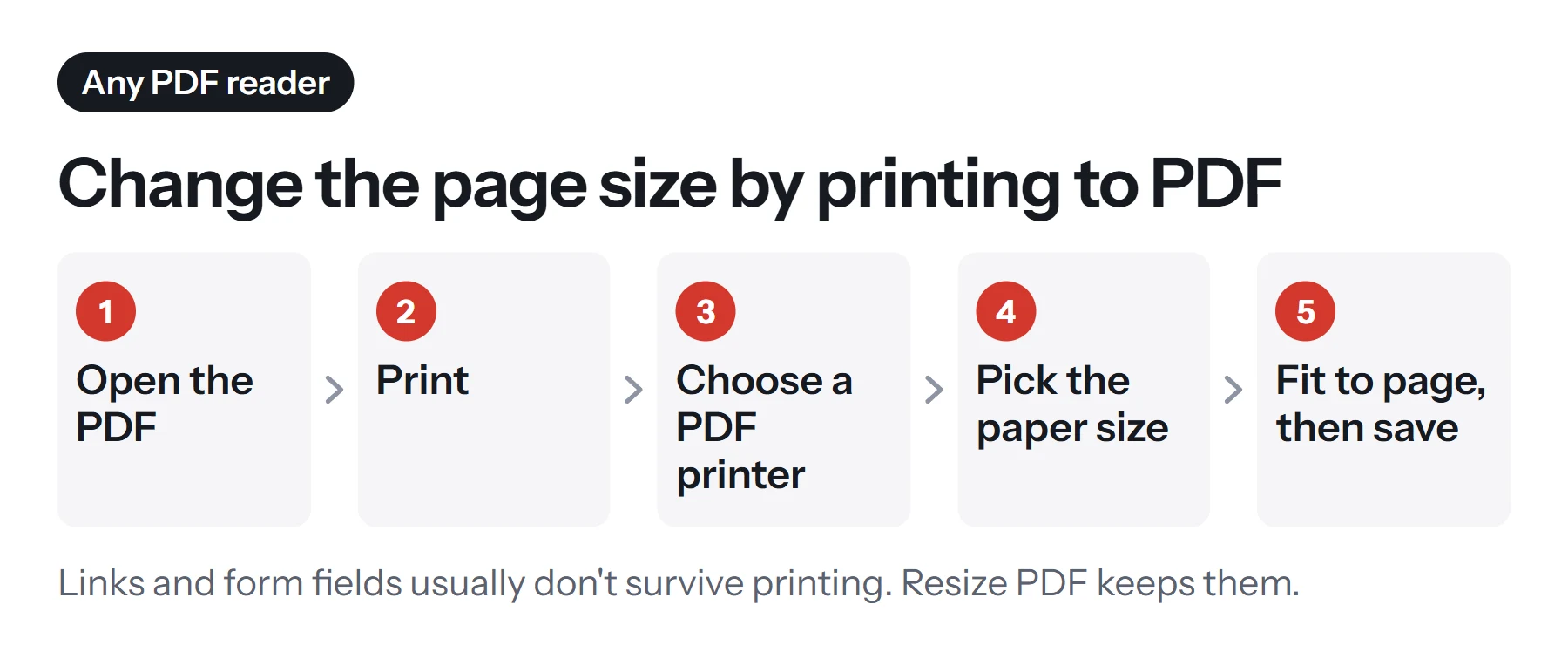
In Chrome or Edge
- Open the PDF by dragging it into a browser window.
- Press Ctrl+P or Cmd+P.
- Set the destination to Save as PDF.
- Open More settings and choose your Paper size.
- Choose the scale. Fit to page resizes the content. Default may leave it at its current size and crop or pad it.
- Click Save.
On Windows
- Open the PDF in your reader and press Ctrl+P.
- Choose Microsoft Print to PDF as the printer.
- Set the paper size, usually under Page Setup or the printer's Properties.
- Choose Fit or Fit to printable area in the sizing options.
- Click Print and choose a file name.
On a Mac
- Open the PDF in Preview and press Cmd+P.
- Choose a paper size from the Paper Size menu. To see it, click Show Details if the dialog is collapsed.
- Select Scale to Fit, and choose Print Entire Image.
- Open the PDF menu at the bottom left and choose Save as PDF.
What gets lost when you print to PDF?
Printing creates a fresh copy based on how the pages look, so some parts of the original don't always survive.
| Item | After printing to a new PDF | After PDF Lemon's Resize PDF |
|---|---|---|
| Page appearance | Kept, scaled to the new size | Kept, scaled to the new size |
| Selectable text | Usually kept | Kept |
| Links | Often lost | Kept |
| Bookmarks | Lost | Kept |
| Fillable form fields | Usually flattened into the page | Kept |
| Digital signatures | Lost | No longer valid, as with any change to a signed file |
| Image quality | May be slightly recompressed | Not recompressed |
Whichever method you use, always resize a copy rather than replacing your original. If a document has a certificate signature, ask the signer for a new copy instead of resizing it. And if you have the source file, changing the page size there is often cleaner still, as the next sections explain.
How to resize a PDF in Adobe Acrobat
The paid version of Acrobat offers more precise tools, including page-range options. Print production and page tools let you change the page boxes or scale pages without the print-to-PDF route, which can preserve more of the document's features. Exact menu names depend on your version, so look under the organize or edit tools. It's the better option if you do this regularly, or for professional print work with strict specifications.
How to resize a PDF at the source
If you've got the original document, this is the cleanest method. There's no scaling involved, and text simply reflows onto the new page size.
- In Word: go to Layout, then Size, choose your paper size, check the page breaks, then save as a PDF.
- In Google Docs: choose File, then Page setup, choose the paper size, then download the PDF.
- In PowerPoint: go to Design, then Slide Size, but look over your slides afterward, as elements can shift.
How to resize one page or fix a mixed-size PDF
Mixed sizes are common after merging. There are a few ways to handle this:
Make every page the same size. Open Resize PDF, choose one size, and leave the pages on All pages. Every page comes out the same size. This is the simplest fix.
Change only some pages. Choose Specific pages and enter the page numbers, such as 3 or 2, 5-7. The other pages stay exactly as they are.
Printing can fix mixed sizes too, but it applies to the whole document and has the limits described above.
Crop or resize: which do you need?
These two get confused, too. Cropping trims the edges and leaves the remaining content at the same scale. Resizing changes the paper size and scales the content to suit. If your problem is wide scanner margins, you want to crop it. If you need to change A4 to Letter, you want to resize it.
They also work well together. If you've got a page with very wide margins, cropping it first and then resizing it makes the content larger on the page and easier to read.
PDF Lemon has a tool for each job: Crop PDF for trimming, and Resize PDF for the paper size.
How to resize a PDF for printing
If you're preparing a file for a print shop, the requirements are stricter than for office printing. Ask for their specifications first, as they usually include some of the following.
- Trim size: the finished page size after cutting.
- Bleed: extra image area past the trim edge, often 3 mm or 0.125 inches, so that no white edge shows after cutting.
- Resolution: images at 300 DPI at the final printed size.
- Fonts: embedded in the file.
- Color: many printers prefer CMYK, or a specific PDF/X standard.
Print-to-PDF won't add bleed or handle color profiles. For professional jobs, go back to your design app and export with the printer's settings. For booklets or posters from an existing PDF, your print shop may be able to do the scaling for you, so ask them before spending time on it.
How to avoid quality problems
- Text and vector graphics stay sharp at any size, since they're drawn from instructions rather than pixels.
- Scanned pages and photos are made of pixels, so enlarging them can look soft. Shrinking them is safe.
- Watch for small margins when printing. A print dialog's fit option can shrink content to fit within the printable area, adding a white border. Choosing a Borderless setting, if your printer driver offers one, avoids this. Resize PDF doesn't add printer margins.
- A4 and Letter have different shapes. A4 is narrower and taller, so scaling between them leaves small white strips on two sides. That's normal, and most readers never notice.
- Check font sizes. Scaling down a dense document can make small print hard to read. Compare it at actual size.
How to resize a PDF on a phone
The simplest route is to open Resize PDF in your phone's browser, where the steps are the same as on a computer. On Android, you can also open the PDF, choose Print, select Save as PDF, and pick a paper size from the options. On iPhone, the print preview has fewer size controls. For a quick job, check the file first, because a PDF often prints fine on either A4 or Letter with the printer's fit-to-page setting, without changing the file at all.
Common problems when resizing a PDF
The size didn't change. In a print dialog, you may have left the scale at Default or Actual size. Choose Fit to page.
The content is cut off. In Resize PDF, choose Fit to page rather than Fill page or Keep size. In a print dialog, choose Fit or Shrink oversized pages.
There's a white border. If the new paper has a different shape, Fit to page leaves white strips. Choose Fill page if you can lose a little at the edges. In a print dialog, the border may be the printable area, so try a PDF printer with no margins.
The paper size I need isn't listed. In Resize PDF, choose Custom size. Most PDF printers let you define a custom size too. On Windows, look in the printer's Properties. On a Mac, choose Manage Custom Sizes in the Paper Size menu.
My links stopped working. Printing often removes them. Use Resize PDF on the original file instead.
The print option is greyed out. The PDF restricts printing. See how to remove a password from a PDF if you're authorized to change it.
The file got bigger. Printing can rewrite images less efficiently. If that happens, compress the new copy.
Questions and answers
How do I change a PDF from A4 to US Letter?
Open PDF Lemon's Resize PDF, choose US Letter, leave the content on Fit to page, and download the new copy. You can also print to a PDF with Letter as the paper size, but that often removes links.
How do I resize a PDF file to make it smaller?
If you mean megabytes, use a compressor such as PDF Lemon's Compress PDF. Changing the paper size hardly affects the file size, because the images inside stay about the same.
How do I change the page size of a PDF for free?
Use PDF Lemon's Resize PDF, which is free and runs in your browser. Chrome, Edge, Preview on a Mac, and Windows' Microsoft Print to PDF can also do it by printing to a new PDF.
Can I resize just one page in a PDF?
Yes. In Resize PDF, choose Specific pages and enter the page numbers. All the other pages stay as they are.
Does resizing a PDF reduce quality?
Real text and vector graphics stay sharp at any size. Images get scaled, so enlarging a small scan can look soft. PDF Lemon doesn't recompress anything, but printing to PDF may, so compare the result.
How do I find my PDF's page size?
In most readers, open File, then Properties, and look for Page Size. In Chrome, you can see it by opening the print preview. On a Mac, use Tools, then Show Inspector in Preview.
Tools from this guide
How we checked this guide
We ran the PDF Lemon steps ourselves on the live tools. Steps for other apps come from each vendor's own help pages and are worded to survive small interface changes, but menu names can differ between versions.
Sources we used:
Related guides
- How to Convert Excel to PDF7 min read
- How to Combine PDF Files into One7 min read
- How to Crop a PDF7 min read
- How to Create a PDF File7 min read
- How to Make a Fillable PDF Form7 min read