How to Create a PDF File
Short answer
To make a PDF, start with what you already have. From Word or Google Docs, use Save As, Export or Download and choose PDF. From photos, use an image to PDF tool. From any app that can print, choose Save as PDF or Microsoft Print to PDF in the print dialog. All of these methods are free.
Open JPG to PDFKey takeaways
- You don't need special software. Most apps can already save or print to PDF.
- Exporting with Save As keeps links and real text. Printing to PDF often loses links.
- Use JPG to PDF for photos and scans, and Text to PDF for plain text.
- Always open the finished PDF to check the layout, fonts and page count.
What's the easiest way to make a PDF?
You don't need to buy anything or install new software. A PDF is usually just another way to save something you've already got, and the best method depends on what you're starting with.
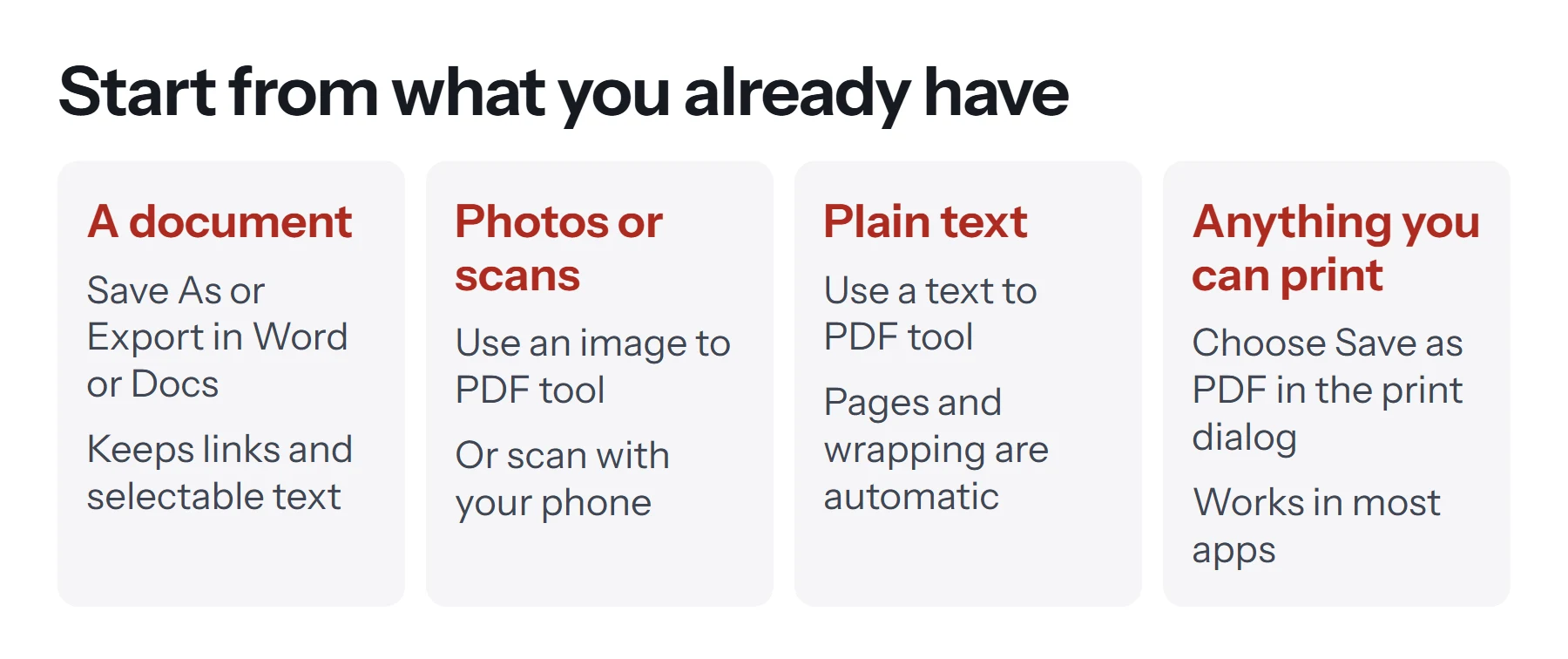
| You're starting with | Best method | Text stays selectable? |
|---|---|---|
| A Word document | File, Save As, PDF | Yes |
| A Google Doc | File, Download, PDF document | Yes |
| Photos or images | JPG to PDF | No, images stay pictures |
| Paper | Scan with your phone | Only with OCR |
| Plain text or notes | Text to PDF | Yes |
| A web page or email | Print, then Save as PDF | Usually |
| Several PDFs | Merge PDF | Yes |
How to make a PDF from a Word document
Word's own PDF export is the best route, since it preserves links and headings and keeps text selectable.
- Open your document in Word.
- Choose File, then Save As (or Save a Copy).
- Set the file type to PDF.
- Click Save. Your Word document stays as it is, and the PDF is a separate copy.
Our detailed guide on how to save a Word document as a PDF covers the options, including file size and bookmarks.
How to make a PDF from Google Docs
Google Docs has a direct route.
- Open your document.
- Choose File, then Download.
- Choose PDF document (.pdf). The file goes to your downloads folder.
See how to convert Google Docs to PDF for more detail, including how to deal with page breaks and margins.
How to make a PDF from pictures or photos
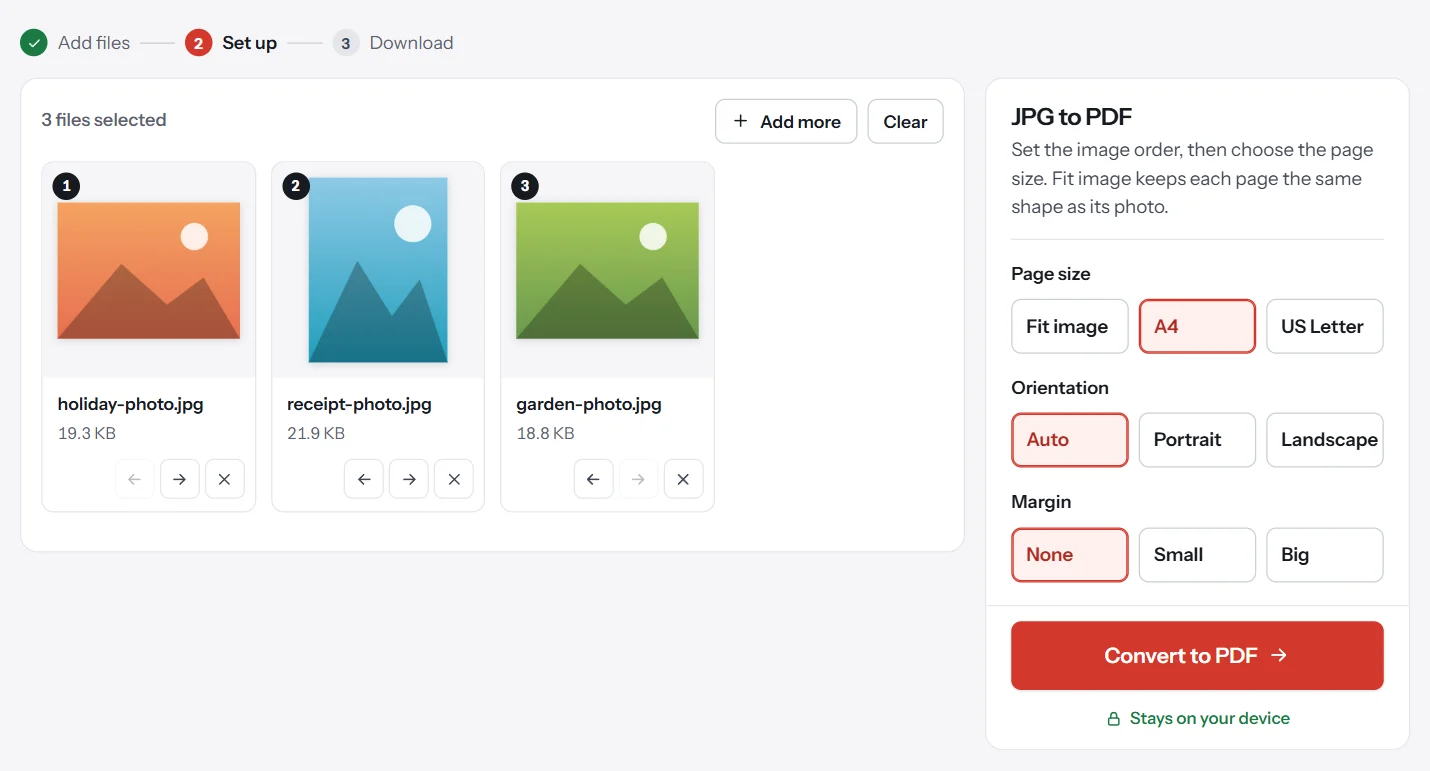
To turn photos, screenshots or scanned images into a PDF, use an image converter. It keeps every image in order and gives you control of the page size.
- Open the converter. Go to JPG to PDF, which also accepts PNG and WebP images.
- Add your images. They stay on your device.
- Arrange them. Drag them, or use the arrows on each image.
- Set the page size. Use Fit image, A4 or US Letter.
- Convert and download. You get one PDF, with one image per page.
Our full guide on how to turn a picture into a PDF has more, and there's a separate one for iPhone.
How to make a PDF from plain text
If you've got notes, a log file or text copied from somewhere, you don't need a word processor. Text to PDF takes a pasted block of text or a .txt file and creates a paginated, searchable PDF, wrapping long lines automatically. It's useful for quick notes and for code, which you can set in a monospace font so that columns stay aligned.
One limit to know about: this tool uses standard PDF fonts, which cover Latin letters only. Text in Urdu, Arabic, Hindi, Chinese and similar scripts won't come through, and the tool warns you if it detects any. For those languages, write in Word or Google Docs and export from there.
How to make a PDF from anything using Print to PDF
Nearly every app can print, and every major operating system can "print" to a PDF file instead of paper. This gives you a universal method for web pages, spreadsheets, receipts and apps with no export option.
On Windows: press Ctrl+P, choose Microsoft Print to PDF as the printer, click Print, then choose a name and location.
On a Mac: press Cmd+P, open the PDF menu at the bottom-left of the print dialog, and choose Save as PDF.
In Chrome, Edge or Firefox: press Ctrl+P or Cmd+P, set the destination to Save as PDF, and click Save.
This route has a catch: because you're producing a copy of the printed page, links and bookmarks often don't survive, and web pages may pick up odd page breaks. Use it when there's no proper export.
How to make a PDF from paper
You can create a PDF from a paper document without owning a scanner.
On iPhone or iPad: the Notes and Files apps both have a document scanner. Apple's support guide describes how to scan with your device's camera. In Files, tap the More button and choose Scan Documents. Position the page, and the app captures and straightens it, then saves a PDF.
On Android: the Google Drive app includes a scan feature, and some manufacturers build one into their camera or files app.
With a scanner: most office scanners can save directly to PDF. Choose 150 to 200 DPI for ordinary paperwork, or 300 DPI if you need fine detail. Grayscale will keep the file much smaller than color.
Scans are pictures of pages, so you can't select or search the text unless you've run OCR on them. Scanning apps often do this automatically, or you can use the Google Drive method in our guide on how to copy text from a PDF.
How to make a PDF from Excel or PowerPoint
Excel and PowerPoint have the same File, Save As, PDF route as Word, but each brings its own snags.
In Excel, the challenge is page layout, since a spreadsheet has no natural pages. Before exporting, go to Page Layout and set the print area, orientation and scaling. Fit to one page wide stops columns from spilling onto extra pages. Then choose File, Save As, PDF. Check the options if you want to export the whole workbook rather than the current sheet.
In PowerPoint, each slide becomes one page, which usually works straight away. In the options, you can choose handouts with several slides per page or include notes pages. Animations and video won't play in a PDF, so slides that rely on them may need a static version.
How to make a PDF from a web page or an email
To keep a copy of a web page, a receipt or a booking confirmation, use your browser's print dialog and choose Save as PDF. Look at the preview first, because websites vary widely in how they print. If headers and menus clutter the page, try the browser's reader mode before printing, or look for a printer-friendly link on the page itself.
Emails work the same way from the message's own print button. Our guide on how to save an email as a PDF covers Gmail, Outlook and Apple Mail, including what to do with attachments, which printing leaves behind.
How to make a PDF from several files
To create one PDF from a mix of sources, make each part into a PDF first, then combine them.
- Export or convert each part using the methods above.
- Open [Merge PDF](/merge-pdf/) and add all the files.
- Put them in order by dragging or using the arrows.
- Merge and download.
- Add page numbers with Add Page Numbers so that they run through the whole document.
See how to combine PDF files for more.
How to create a writable or fillable PDF
An ordinary PDF is a finished page. If you want people to type into it, it needs form fields, which are a separate feature you add on purpose. Our guide on how to make a fillable PDF form covers the options. If someone sent you a PDF that won't let you type, you don't need to create anything: just type on it with a text box.
Which PDF creation method keeps the most quality?
Exporting from the original app gives you the sharpest result, because text and charts stay as real text and vector shapes that look crisp at any zoom. Printing to PDF usually keeps text sharp as well, but it loses interactive features. Scanning or photographing paper gives the lowest quality, since every page becomes a picture. So if a digital original exists anywhere, use it rather than scanning a printout.
What makes a good PDF?
Whichever method you use, the same few things separate a professional file from a messy one.
- Real text wherever possible. Exporting beats scanning or photographing. Real text is searchable, sharp and small.
- A descriptive file name.
contract-acme-2026.pdftells people what it is, whereasscan0042.pdfdoesn't. - A proper title. Search engines and browser tabs often show the document's title rather than the file name. Set it with Edit Metadata.
- A sensible size. Email limits are real. If it's large, compress it.
- Embedded fonts. Most exporters handle this automatically, which is what keeps the layout intact on other people's devices.
For PDFs you plan to publish online, our guide on PDF SEO explains how to make them findable.
Why doesn't my PDF look right?
Fonts changed. A rare font may not embed properly. Check your export settings or switch to a common font.
Page breaks moved. This often happens when printing a web page. Try the page's own PDF or print button if it has one, or adjust the margins and scale in the print dialog.
Images look blurry. Your export may be set for the smallest size. In Word, for example, choose Standard rather than Minimum size.
The file is enormous. You probably included full-size photos. Reduce them or compress the finished PDF.
Links don't work. You probably used Print to PDF. Export with Save As or Download instead.
A page is sideways. Fix it in a few seconds with Rotate PDF.
Always open your PDF before sending it, since a quick look through catches nearly all of these problems.
Questions and answers
How do I create a PDF for free?
Use Save As or Export in your document app, or choose Save as PDF in the print dialog. Browser tools such as PDF Lemon's JPG to PDF and Text to PDF are also free, with no account needed.
How do I make a PDF on my phone?
On iPhone, scan paper with the Notes or Files app, or print any file to PDF using the share sheet. On Android, use Save as PDF in the print menu, or open PDF Lemon's JPG to PDF in your browser.
How do I make a PDF from a Word document?
In Word on the desktop, choose File, then Save As, pick PDF as the file type, and click Save. Your Word file stays as it was, with the PDF as a separate copy.
How do I make a PDF from pictures?
Add them to a JPG to PDF or PNG to PDF tool, set the order, and convert. Each image becomes one page of a single PDF.
How do I create a writable PDF?
A writable PDF has form fields people can type into. You add these in an editor such as Acrobat, or by exporting a form from an app that supports fields. See our guide on making a fillable PDF.
What's the difference between Save as PDF and Print to PDF?
Saving or exporting keeps real text, links and headings in most apps. Printing to PDF creates a copy of the printed page, which usually loses links and bookmarks.
Tools from this guide
How we checked this guide
We ran the PDF Lemon steps ourselves on the live tools. Steps for other apps come from each vendor's own help pages and are worded to survive small interface changes, but menu names can differ between versions.
Sources we used:
Related guides
- How to Create a PDF File on iPhone7 min read
- How to Save a Document as a PDF7 min read
- How to Convert PNG to PDF7 min read
- How to Turn a Picture into a PDF on iPhone7 min read
- How to Save an Email as a PDF7 min read