How to Turn a Picture into a PDF on iPhone
Short answer
To convert a picture to a PDF on iPhone, save the photo to the Files app, press and hold it, and choose Create PDF. Or open PDF Lemon's JPG to PDF in Safari, pick your photos and convert them, with more control over order and page size. For paper documents, the Notes and Files scanner creates a cleaner PDF.
Open JPG to PDFKey takeaways
- No app is needed. The Files app, Photos print preview and Safari can all make a PDF.
- For several photos with a set order and page size, a browser tool gives you the most control.
- To capture paper documents, use the scanner in Notes or Files rather than a regular photo.
- Photos in a PDF stay pictures, so text isn't selectable unless you add OCR.
Which method should you use?
Your iPhone can turn a picture into a PDF in several ways without any extra apps. The best choice depends on how many images you have and what they show.
| You have | Best method | Why |
|---|---|---|
| One or two photos | Files app | Built in and takes a few taps |
| Several photos, in a set order | JPG to PDF in Safari | Easy order, page size and margins |
| A paper document | Notes or Files scanner | Straightens pages and removes shadows |
| A screenshot | Files app or PNG to PDF | Keeps text sharp |
| Photos you don't want to move | Photos print preview | No need to save copies to Files |
How to convert a picture to PDF with the Files app
The Files app has a built-in Create PDF action, which is the simplest native route. Apple changes menus between iOS versions, so the exact words may differ slightly on your phone.
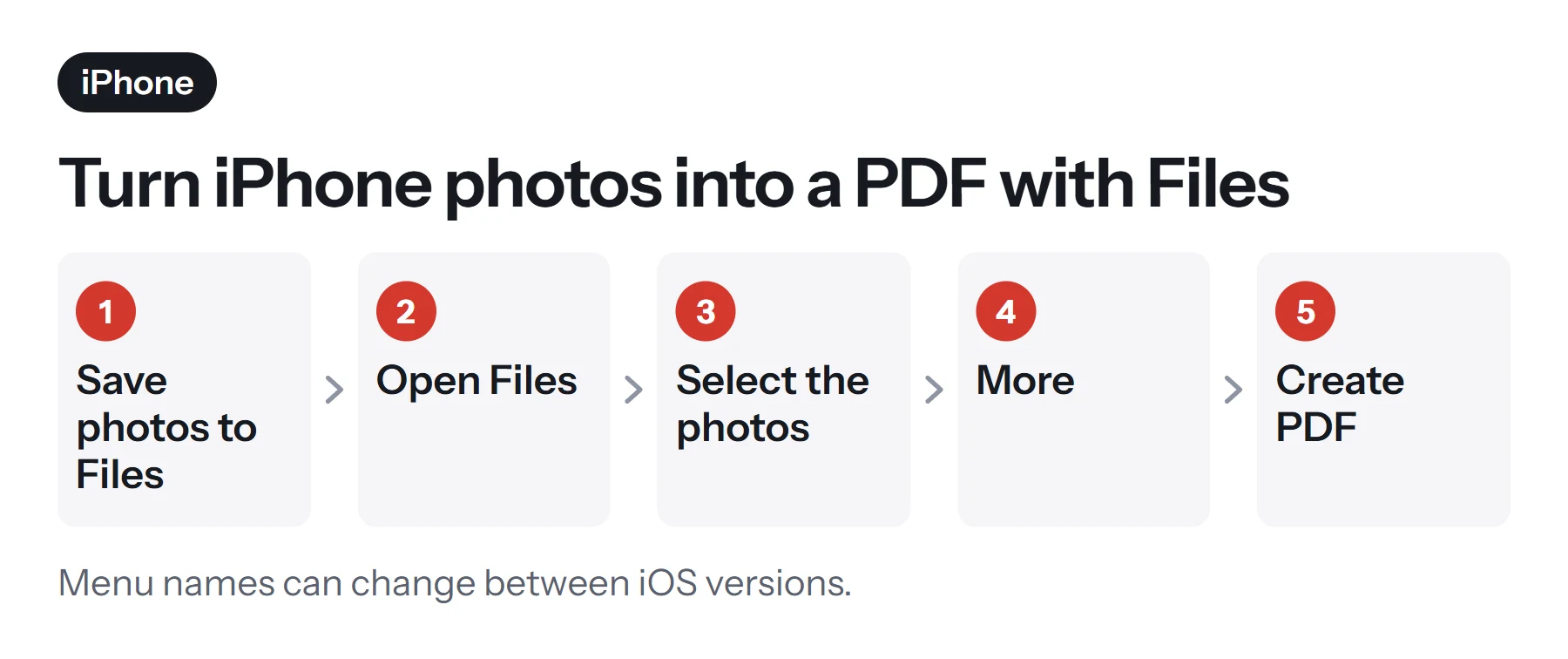
- Save your photo to Files. In the Photos app, open the picture, tap the Share button, and choose Save to Files. Pick a folder you'll remember.
- Open the Files app and go to that folder.
- Press and hold the photo. For several images, tap the More button (the three dots), tap Select, and choose them all.
- Choose Create PDF. For one photo, it's under Quick Actions. For several, tap More at the bottom of the screen and then Create PDF.
- Find your PDF. It appears in the same folder. Press and hold it to rename it.
With multiple photos, you get a single PDF, with one image per page, in the folder's current sort order. If the order is wrong, rename the images with numbers first or use the browser method below.
How to turn a picture into a PDF in Safari
A browser tool gives you what the Files app doesn't: drag-free ordering, page sizes and margins. PDF Lemon's converter runs inside Safari, and your photos stay on your phone rather than being uploaded.
- Open JPG to PDF. Go to PDF Lemon's JPG to PDF in Safari.
- Tap Select. Choose Photo Library, Take Photo or Choose File, then pick your pictures.
- Set the order. Use the arrow buttons on each image.
- Choose a page size. Fit image keeps each page the same shape as its photo. A4 and US Letter are better for documents you'll print or submit.
- Convert and save. Tap Convert to PDF, then Download PDF. Safari saves it to your Downloads folder in Files.
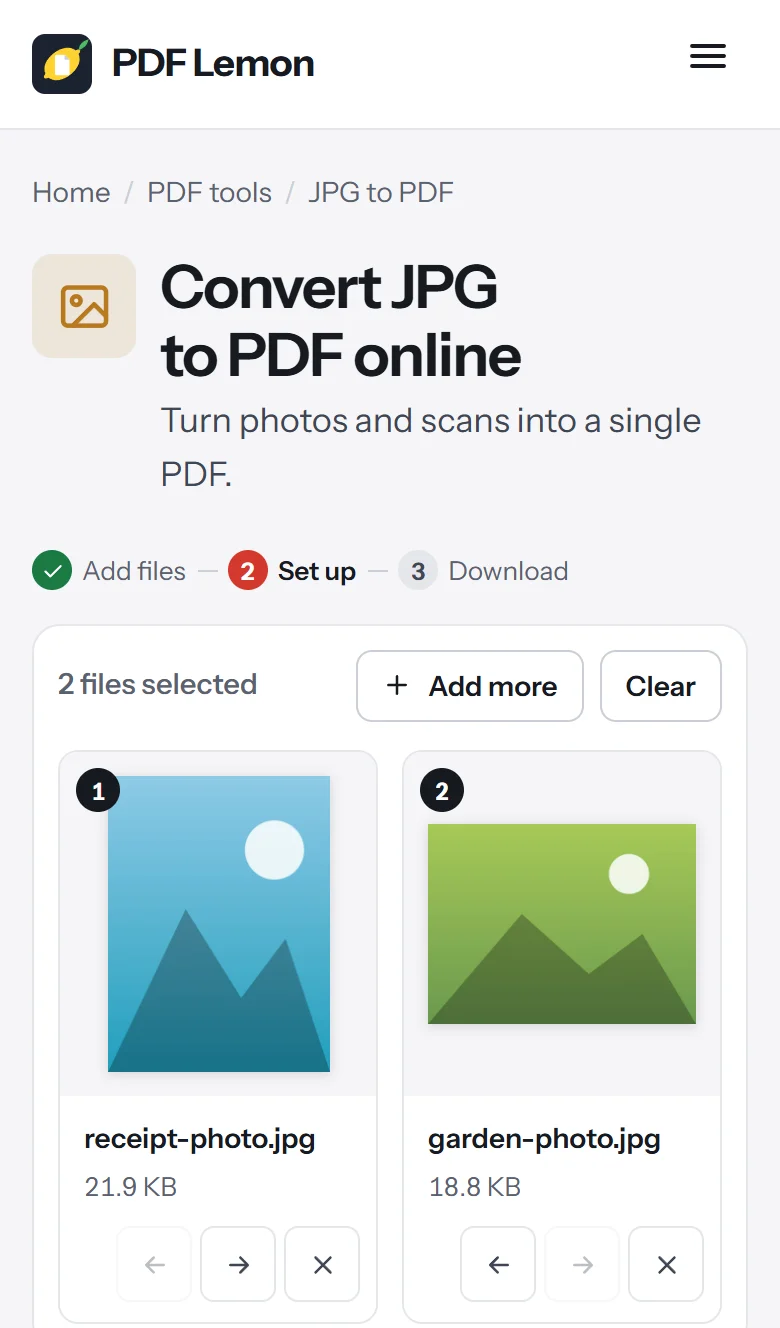
iPhone photos often store their rotation separately from the image. PDF Lemon reads that information and turns each page upright, so portrait shots don't come out sideways.
How to save a photo as a PDF using the Photos print preview
This older trick works without copying anything to Files, though it's a little hidden.
- Open the photo in the Photos app. To include several, tap Select in your library first.
- Tap Share, then scroll down and tap Print.
- Pinch outward on the preview. Spread two fingers on the page thumbnail, and it opens as a full-screen PDF.
- Tap Share again and choose Save to Files.
This method may resize the picture to fit a sheet of paper and can leave white space around it. It's handy in a pinch, but the other routes give you more control.
How to scan a document to PDF on iPhone
If you're photographing paper, such as a receipt, a form or a contract, don't use the regular camera. The scanner in Notes and Files detects the page edges, straightens the perspective and cleans up the background, and the results look far more professional.
In the Notes app:
- Open a note, or start a new one.
- Tap the attachment button and choose Scan Documents.
- Hold your phone over the page. It captures automatically, or you can tap the shutter button.
- Drag the corners to adjust the crop, then tap Keep Scan.
- Scan more pages if you need to, then tap Save.
- To get the PDF out, open the scan in the note, tap Share, and choose Save to Files or send it directly.
In the Files app: tap the More button at the top of the screen, choose Scan Documents, and follow the same steps. The PDF is saved directly to the folder you choose.
For best results, lay the page flat on a dark surface in good, even light, and avoid casting your own shadow across it.
How to make a PDF with several pictures in the right order
Getting the order right is the most common frustration with multi-photo PDFs. These are the options, from most to least control:
- Use [JPG to PDF](/jpg-to-pdf/). Arrange the images on screen, with numbered badges showing the final order.
- Rename the images in Files. Add numbers to the start of the names (
01 front,02 back) and sort by name, then use Create PDF. - Fix the order afterward. Open your finished PDF in Organize PDF and move pages using the arrow buttons.
You can also convert in batches and combine the results with Merge PDF. This helps if you're adding new photos to an existing document. Our guide on how to combine PDF files explains how.
What about HEIC photos?
iPhones normally save photos in a format called HEIC, which saves space but isn't as widely supported as JPG. Some people find that Create PDF behaves differently with HEIC files, and browser tools may not accept them directly. In practice, this rarely causes a problem in Safari, because iOS usually converts photos to JPG as you select them for a website.
If a file gets rejected, or you want to avoid the question altogether, change your camera format: go to Settings, Camera, Formats, and choose Most Compatible. New photos will then be saved as JPG. This makes files somewhat larger, but it makes them easier to use everywhere.
How to make your iPhone PDF smaller
A modern iPhone photo can run to several megabytes, so a PDF of ten photos can easily be too big for an email or an upload form. There are a couple of ways to deal with that:
- Compress the finished PDF. Open Compress PDF in Safari, pick the file from your Downloads, and start with the Recommended level. It'll show you the size before and after.
- Reduce the picture size first. When attaching photos in Mail, iOS offers to reduce the size. For PDFs, compressing after conversion is simpler.
- Use Preview on recent iOS versions. Apple's guide describes exporting and compressing PDFs in the Preview app on iPhone.
Our guide on how to compress a PDF covers what the levels mean and what size to aim for.
How to send your iPhone PDF
Once your PDF is ready, you've got several ways to send it. In Files, press and hold the PDF and tap Share, then choose Mail, Messages or AirDrop. In Mail, you can also tap the attachment button and browse to it in Files. If it's too large for an email, share a link through iCloud Drive or another service. See how to create a shareable PDF link.
How to check your PDF before sending it
A quick check on your phone can save you an awkward follow-up email.
- Tap through every page in the Files preview. Look for rotated pages and photos in the wrong order.
- Zoom in on small text. If it's a document, the writing should still be readable after compression.
- Check the file size. In Files, press and hold the PDF and choose Get Info.
- Look for anything private. Photos can capture more than you intended, such as other papers on the desk, so crop them first if needed.
- Rename the file. Something like
IMG_4821.pdfdoesn't tell the recipient much.
Is the text in my PDF selectable?
No, not by default. A photo of a document contains pixels, not letters, so putting it in a PDF doesn't change that. iOS can recognize text in photos with its Live Text feature, which lets you copy words directly from an image in the Photos app, and that's often all you need.
To turn the whole document into editable text, open the PDF with Google Docs through Google Drive, which runs text recognition on it. See how to copy text from a PDF for more.
Common problems on iPhone
"Create PDF" isn't there. The file must be in the Files app, not Photos. If it still doesn't appear, try another route, as menus vary between iOS versions.
The photo appears sideways. Use a tool that respects the photo's rotation data, such as JPG to PDF, or fix the page afterward with Rotate PDF.
I can't find the downloaded PDF. Safari saves to the Downloads folder in Files by default. Tap the download arrow in Safari's address bar to see recent downloads.
The PDF is too big to email. Compress it, or send a link to the file instead.
The photo has too much background. Crop it in Photos before converting, or crop the finished file with Crop PDF.
If you're doing the same job on a computer, our general guide on how to turn a picture into a PDF covers Windows and Mac.
Questions and answers
How do I save a photo as a PDF on my iPhone?
In Photos, tap Share, then Save to Files. Open Files, press and hold the photo, and choose Create PDF from the quick actions. The PDF appears next to the original.
How do I turn multiple pictures into one PDF on iPhone?
Select the photos in Files, tap More, then Create PDF. Or use PDF Lemon's JPG to PDF in Safari, which lets you set the order, page size and margins before converting.
Can I make a PDF on iPhone without an app?
Yes. Files, the Photos print preview and the Notes scanner all come with your iPhone, and browser tools don't need installing.
Why doesn't Create PDF appear on my iPhone?
The photo must be in the Files app, and options can vary by iOS version. Some people find HEIC photos behave differently from JPGs. Try the Photos print method, or a browser tool, instead.
How do I scan a document to PDF on iPhone?
In Notes, open a note, tap the attachment button, and choose Scan Documents. Or in Files, tap More, then Scan Documents. Position the page, and save it as a PDF.
Does converting a photo to PDF lower its quality?
Not noticeably. The print-preview route may resize the image to fit the page, while PDF Lemon embeds upright JPGs as they are. Very large photos make large PDFs, which you can compress afterward.
Tools from this guide
How we checked this guide
We ran the PDF Lemon steps ourselves on the live tools. Steps for other apps come from each vendor's own help pages and are worded to survive small interface changes, but menu names can differ between versions.
Sources we used:
Related guides
- How to Convert PNG to PDF7 min read
- How to Turn a Picture into a PDF7 min read
- How to Scan a Document to PDF7 min read
- How to Create a PDF File on iPhone7 min read
- How to Save an Email as a PDF7 min read