How to Copy Text from a PDF
Short answer
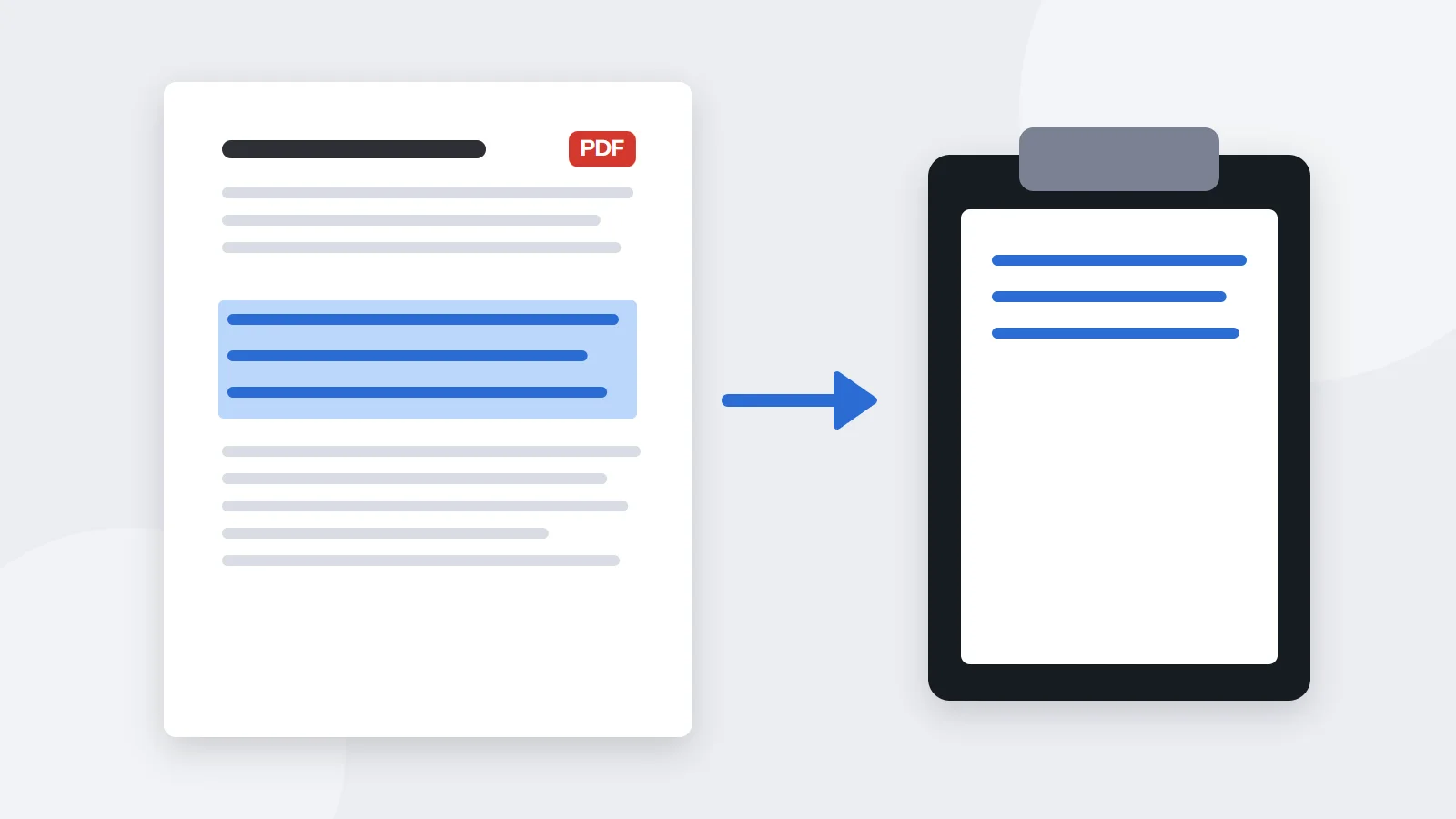
To copy text from a PDF, open it in a browser or PDF reader, drag across the text to select it, and press Ctrl+C on Windows or Cmd+C on a Mac. To get all the text at once, use PDF Lemon's PDF to Text. If you can't select anything, the PDF is probably a scan, which needs text recognition (OCR) first.
Open PDF to TextKey takeaways
- Selecting and copying works on any PDF with real text, in any reader.
- PDF to Text extracts every page at once, and your file stays on your device.
- Scanned PDFs have no text to copy until OCR has been run, such as through Google Drive.
- Paste with Keep Text Only to drop odd formatting, and always proofread what you paste.
How to copy text from a PDF in any reader
For most PDFs, copying text works just as it does on a web page.
- Open the PDF. Use your browser, Preview on a Mac, or any PDF reader.
- Select the text. Click at the start and drag to the end. In Acrobat Reader, make sure the Select cursor is active rather than the hand tool. On a Mac, Preview's text selection tool should be on.
- Copy it. Press Ctrl+C on Windows or Cmd+C on a Mac, or right-click and choose Copy.
- Paste it. Switch to your other app and press Ctrl+V or Cmd+V.
- Clean it up. Fix any line breaks, and proofread numbers and names.
To select whole lines more easily, try clicking at the start of a passage, then holding Shift and clicking at the end. That's more accurate than dragging across several pages.
How to copy all the text from a PDF at once
Selecting a long document by hand gets tedious, especially across dozens of pages. PDF Lemon's PDF to Text does it in one go.
- Open PDF to Text. Go to PDF Lemon's PDF to Text and add your file. It stays on your device.
- Click Extract text. The tool reads every page.
- Copy or download. Click Copy text, or download a
.txtfile.
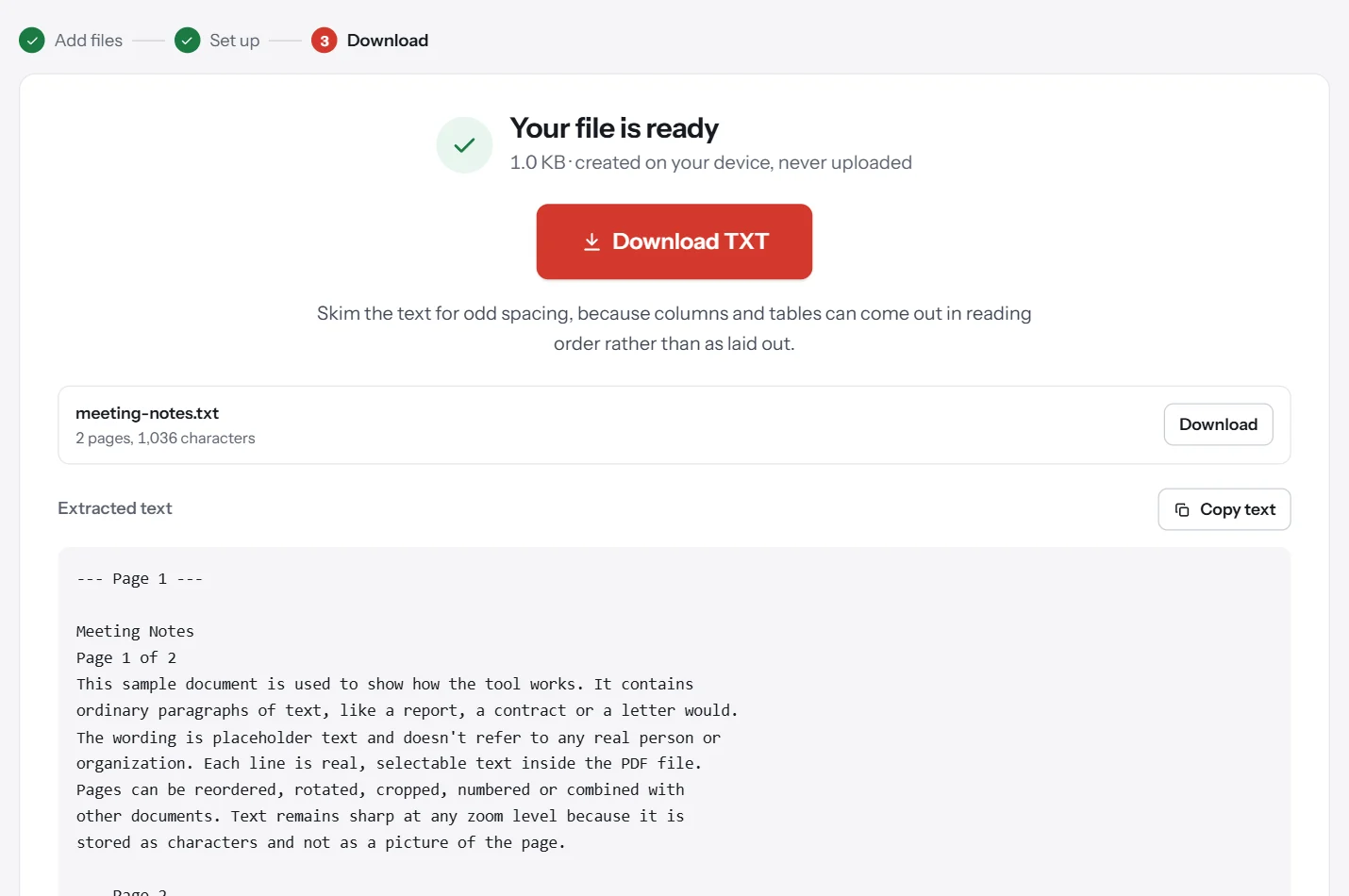
This route is useful for reusing a report's contents, feeding a document into an AI assistant, or searching long documents with your own tools. It keeps line breaks and page order, and adds markers between the pages.
You can also press Ctrl+A or Cmd+A in a reader to select the whole document, although this may pick up headers, footers and page numbers mixed into the text.
How to copy part of a PDF
For a specific section, use the methods above and then trim the result. Or narrow the source first:
- A few pages: use Extract Pages to save just those pages, then run PDF to Text on the result.
- One column on a two-column page: many readers select across both columns. In Acrobat Reader, try holding Alt while dragging to select a rectangular block. On a Mac, in Preview, try holding Option.
- A chart or image: text tools won't capture these. Take a screenshot, or use PDF to PNG to export the page as a picture, and crop it if needed.
Why can't you copy text from a PDF?
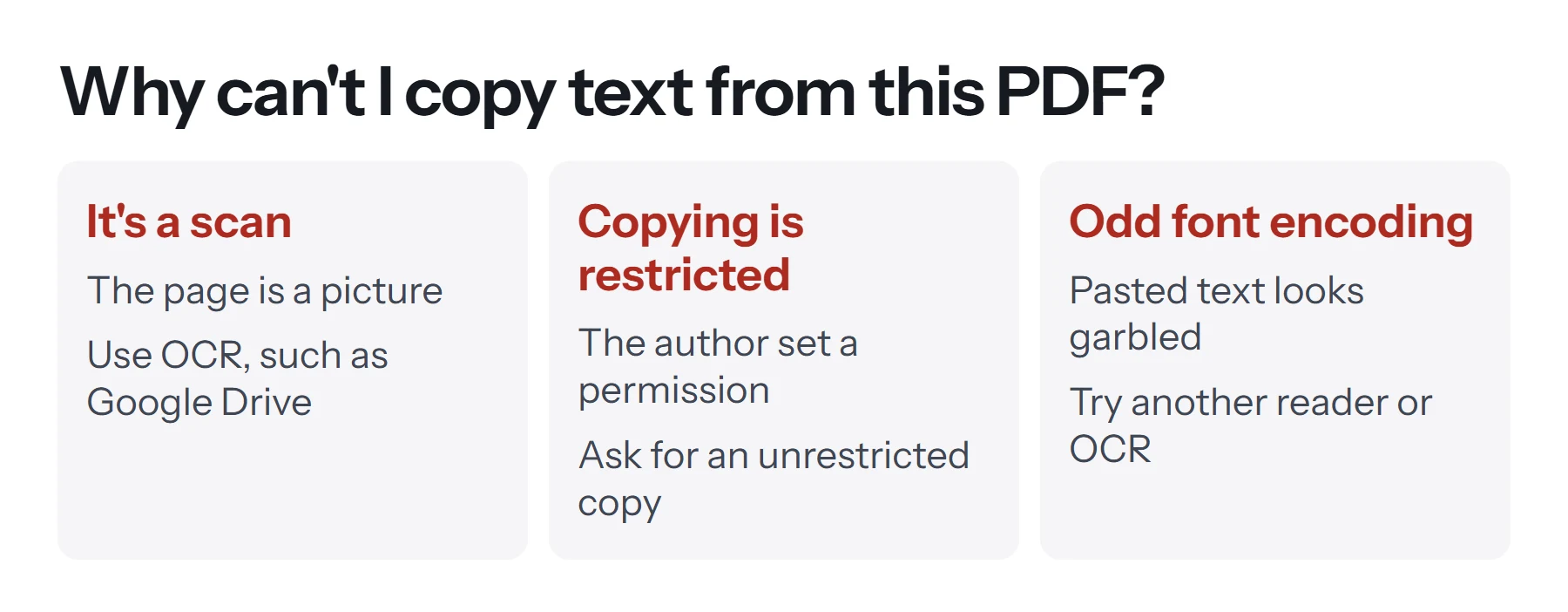
If selecting or copying doesn't work, there are three usual reasons, and each has its own fix.
The PDF is a scan
A scanned PDF is a picture of paper with no characters in it to select. When you drag across it, your cursor either selects the entire page as an image or nothing at all. If PDF to Text reports "no text layer found", that's what you've got. See the OCR section below.
Copying is restricted
The author may have set a permissions password that blocks copying. The file opens normally, but the copy command is greyed out or does nothing. In most readers, the document properties show whether copying is allowed.
Respect this if the document isn't yours. If you own it or have permission, ask the owner for an unrestricted copy, or see how to remove a password from a PDF. Note that Adobe warns that some third-party products don't honor these restrictions, so they're not a strong protection, but that doesn't make getting around them OK.
The text has an unusual encoding
Occasionally, you can select text, but it pastes as gibberish or random symbols. This happens when a PDF uses a font without a proper mapping from its shapes to real letters. It looks right on screen, but the underlying codes aren't normal characters. Trying another reader sometimes helps. If it doesn't, treat the page like a scan and use OCR.
How to copy text from a scanned PDF with OCR
Optical character recognition (OCR) reads the shapes of letters in an image and turns them into text. Google Drive includes this for free.
- Upload the PDF to Google Drive.
- Right-click it and choose Open with, then Google Docs.
- Wait a moment. Drive creates a new document with the recognized text, usually below an image of each page.
- Copy what you need, and proofread it against the original.
Google gives some advice for good results: use sharp images with even lighting, common fonts such as Arial or Times New Roman, and files of 2 MB or less. It warns that lists, tables, columns, footnotes and endnotes are unlikely to be detected.
Other options exist too. Word can attempt it when opening a PDF, Adobe Acrobat has a paid OCR tool, and many phones can select text in photos directly. On an iPhone, Live Text lets you select words in a photo, which can be the quickest way for a short passage.
PDF Lemon doesn't currently include OCR. Its PDF to Text tool reads real text that's already in the file.
How accurate is OCR?
It depends on the source. Crisp printed pages often come through nearly perfect. Faint photocopies, skewed pages, unusual fonts, small print and handwriting all reduce accuracy. Common errors include confusing l and 1, O and 0, and rn and m. Always check names, dates and figures by hand.
How to paste PDF text without the formatting problems
Pasted PDF text often arrives with awkward breaks, since a PDF stores each line separately rather than as a flowing paragraph. Here's how to fix common issues.
| Problem | Fix |
|---|---|
| Line breaks at the end of every line | In Word, replace ^p with a space (use ^p^p as a stand-in first to keep paragraph breaks) |
| Text takes on odd fonts or colors | Paste with Keep Text Only, or Ctrl+Shift+V in many apps |
| Hyphens in the middle of words | Search for hyphens at line ends and remove them |
| Columns run together | Copy one column at a time, using a block selection |
| Headers and page numbers mixed in | Delete them, or select smaller sections at a time |
| Strange symbols | Check for ligatures, such as "fi" pasted as one character, or use OCR |
How to copy a table from a PDF
Tables are the hardest thing to copy, because a PDF doesn't know they're tables. It only knows where each number sits on the page.
- Try a simple paste first. Select the table and paste it into Excel or Google Sheets. It may arrive in a single column.
- Split it into columns. In Excel, select the column, go to Data, then Text to Columns, and choose a delimiter such as a space.
- Try Excel's PDF import. Some versions of Excel can import tables from a PDF under Data, then Get Data. This often does a better job of recognizing rows and columns.
- Convert it first. Opening the PDF in Word can create a real table that you can then paste.
- Check every number. One misaligned row can throw off a whole column, so compare it with the PDF.
How to copy text from a PDF on your phone
On iPhone: open the PDF in Files or Safari. Press and hold a word, drag the handles to extend the selection, and tap Copy.
On Android: open the PDF in your viewer or in Chrome. Press and hold a word, drag the handles, and tap Copy. Some simple viewers don't support selection, so try another app if nothing happens.
In a mobile browser: open PDF to Text and pick your file. Then tap Copy text. This is often easier than selecting a lot of text with a finger.
How to copy text from a PDF into an AI assistant
Many people now paste PDF text into AI tools for summaries. PDF to Text gives you clean text for this. Remember that pasting sends the text to that service, so check its privacy terms before sharing anything confidential, and verify any summary against the original.
Can you copy text from a PDF legally?
Copying is technically simple, but the words may still belong to someone. For your own documents, there's no issue. For other people's work, short quotes with attribution are generally fine in many contexts, while reproducing large parts may not be. If you're using the text in academic work, cite the PDF properly. If a document has copying disabled, the owner is telling you something. When in doubt, ask them. This isn't legal advice.
Common problems when copying PDF text
The cursor only draws a box. The hand or snapshot tool is active, or it's a scan. Switch to the text selection tool.
The whole page is selected at once. It's a scan, so use OCR.
The copy option is greyed out. Copying is restricted by the document's permissions.
Pasted text looks like gibberish. The font has an unusual encoding. Try another reader, or use OCR.
Text from two columns is mixed up. Use a block selection, or copy one column at a time.
PDF to Text returns nothing. The file has no text layer, so it's a scan. Use the Google Drive method.
Only part of the page copies. Some PDFs mix real text with text inside images. Those images need OCR, too.
Questions and answers
How do I copy and paste from a PDF?
Open the PDF, drag to highlight the text, and press Ctrl+C or Cmd+C. In your other app, press Ctrl+V or Cmd+V. Use a plain-text paste option to remove stray formatting.
Why can't I copy text from my PDF?
It's most likely a scan, which is a picture of a page with no real text. Or the author may have restricted copying with a permissions password. Rarely, an unusual font encoding makes pasted text come out garbled.
How do I copy text from a scanned PDF?
Run OCR on it. Upload it to Google Drive, right-click it, and choose Open with, then Google Docs. On iPhones and some other devices, you can also select text in photos directly.
How do I copy all the text from a PDF at once?
Use PDF Lemon's PDF to Text, which extracts every page and offers a Copy text button. Or press Ctrl+A or Cmd+A in your reader, though that can include headers and page numbers.
How do I copy a table from a PDF into Excel?
Select and paste it, then use Excel's Text to Columns if it lands in one column. For better results, Excel's Get Data feature can import tables from a PDF in supported versions.
Why does the text have strange line breaks when I paste it?
PDFs store each line separately, so pasted text often breaks at the end of every line. Use find and replace to remove line breaks, or paste into a plain text editor and clean it up.
Tools from this guide
How we checked this guide
We ran the PDF Lemon steps ourselves on the live tools. Steps for other apps come from each vendor's own help pages and are worded to survive small interface changes, but menu names can differ between versions.
Sources we used:
Related guides
- How to Insert a PDF into Word7 min read
- PDF to JPG vs PNG: which should you choose?1 min read
- How to Convert PDF to Word7 min read
- How to Cite a PDF in APA, MLA, and Chicago7 min read
- How to Convert PDF to Google Docs7 min read