How to Crop a PDF
Short answer
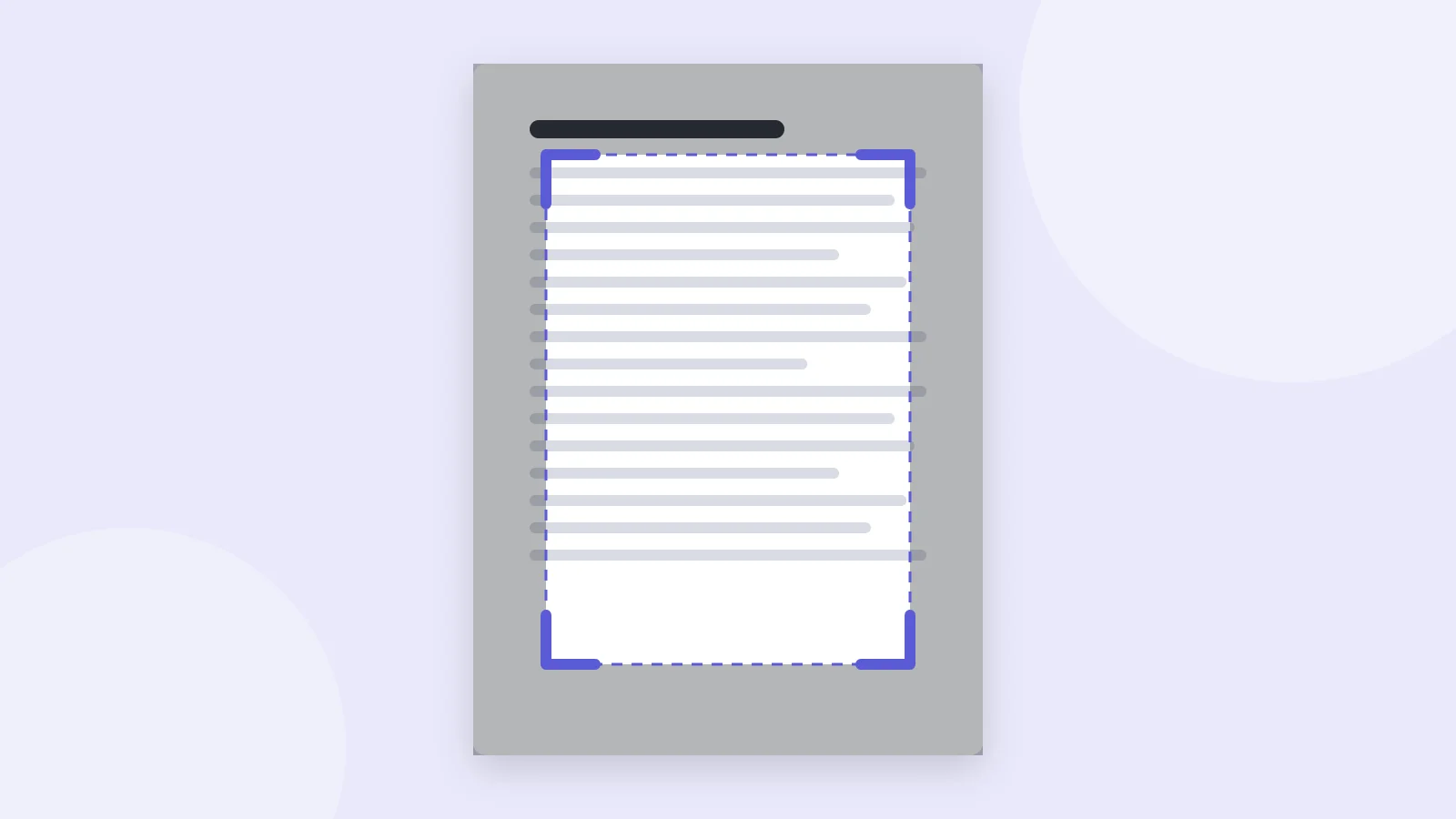
To crop a PDF, open PDF Lemon's Crop PDF tool, add your file and move the sliders until the clear area covers what you want to keep. Click Crop PDF to apply it to every page, then download the new file. On a Mac, Preview can crop too. Cropping usually hides the trimmed area rather than deleting it.
Open Crop PDFKey takeaways
- Cropping changes the visible area of a page. Text and graphics inside it stay sharp.
- Cropped content usually remains in the file, so don't crop to remove something confidential.
- Cropping trims a page, while resizing changes its paper size. They're different jobs.
- To remove whole pages rather than parts of a page, use a page removal tool.
How to crop a PDF online
Cropping a PDF means trimming the visible edges of its pages. The most common reasons are removing the wide margins a scanner leaves behind, cutting slides down to their content, and making a document easier to read on a phone or e-reader.
PDF Lemon's crop tool works in your browser with nothing to install, and your document stays on your device.
- Open Crop PDF. Go to PDF Lemon's Crop PDF and select your file, or drop it on the page.
- Move the sliders. Set how much to trim from the top, right, bottom and left. The preview darkens the part that will be hidden, leaving the area you'll keep clear.
- Check the preview. It shows the first page, so think about whether the same crop suits the rest of the document.
- Click Crop PDF. The same crop is applied to every page.
- Download and review. Open the new file and flip through several pages.
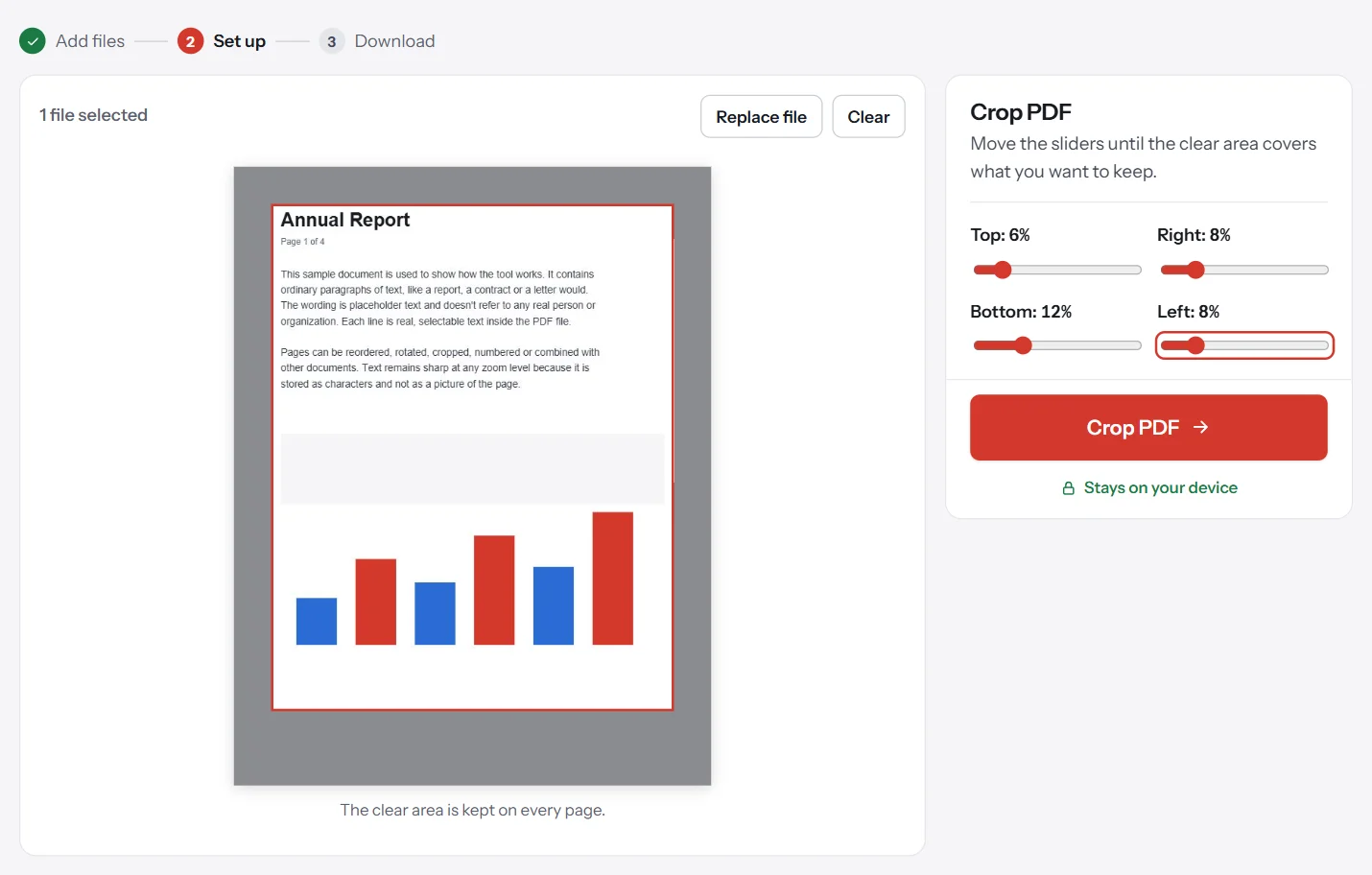
The sliders work as percentages of the page and follow the page as you see it on screen, including pages that have been rotated. If your pages are sideways, you may want to rotate them first so that "top" means what you expect.
How to crop a PDF on a Mac
Preview can crop a PDF without any extra software.
- Open the PDF in Preview.
- Select the area. Click the Rectangular Selection tool in the Markup toolbar (choose View, then Show Markup Toolbar if it's hidden), then drag a box around the area to keep.
- Choose Tools, then Crop. Preview trims the page to your selection.
- Save. Choose File, then Export as PDF to keep your original intact.
To crop several pages at once, show the thumbnails first (View, then Thumbnails), select the pages you want, and then crop.
How to crop a PDF in Adobe Acrobat
If you have the paid version of Acrobat, it offers precise control, including page-range choices and exact measurements. Open the PDF, go to the edit tools, and choose Crop Pages. Draw a rectangle around the area to keep, then double-click it to confirm the settings and choose which pages it applies to. Menu names can differ between Acrobat versions. Acrobat's cropping is best suited to print work, where you might be setting exact page boxes.
Crop vs resize: what's the difference?
People often search for one when they mean the other, and they produce very different results.
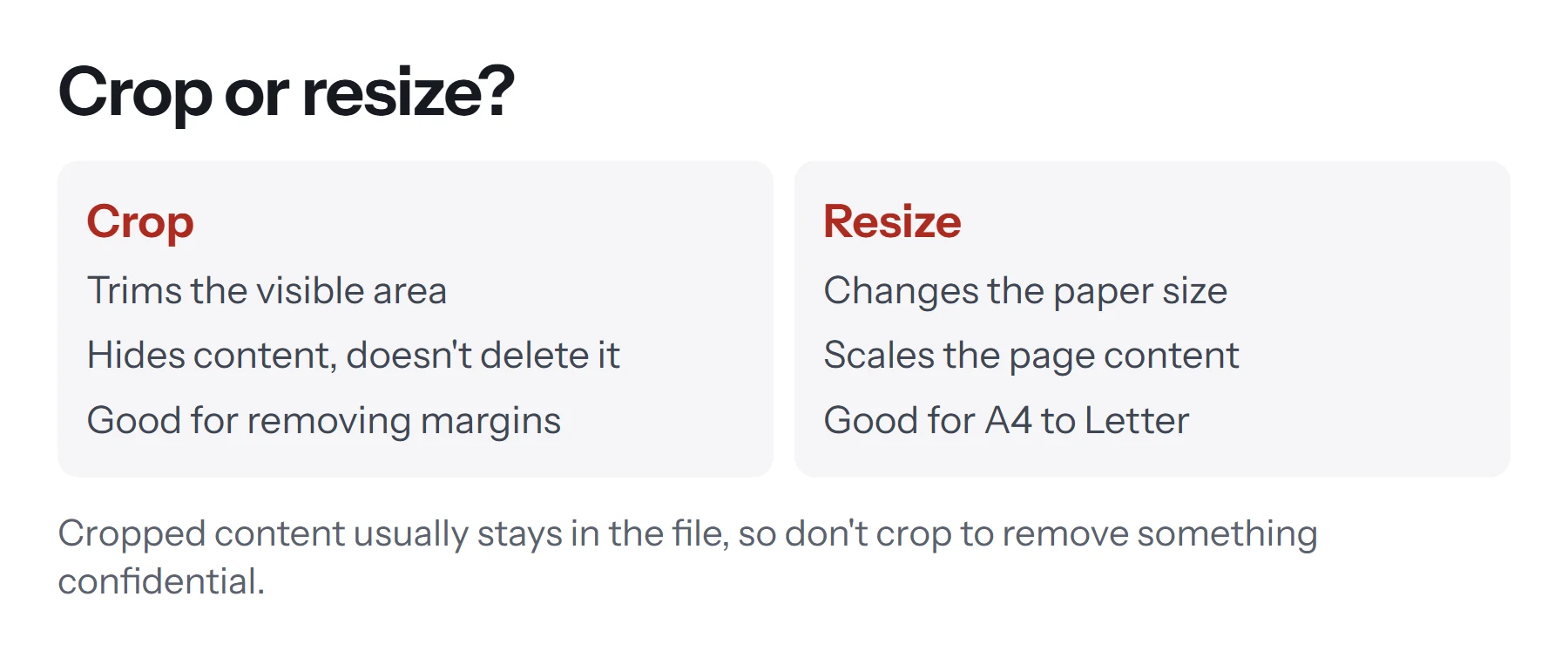
| Cropping | Resizing | |
|---|---|---|
| What changes | The visible area of each page | The paper size |
| Content size | Stays the same | Scaled up or down |
| Page gets | Smaller, by removing edges | Larger or smaller overall |
| Typical use | Removing scanner margins | Changing A4 to US Letter |
| File size | Barely changes | Barely changes |
So if a client needs a US Letter document instead of A4, you need to resize the PDF, rather than crop it. Our guide on how to resize a PDF explains the options. And if the problem is that the file is too large to email, neither helps, as the images are still there. In that case, compress the PDF.
Does cropping delete the content?
Usually not, and this is the most important thing to know about cropping. A PDF page has several boundaries, called page boxes, that tell software which part of the page to show. Cropping typically changes those boundaries and leaves the content underneath alone.
So the trimmed area often still exists in the file. In many cases, text in that hidden area can still be found by searching it or extracting it, and the crop can be undone in an editor.
Don't crop a PDF to hide names, account numbers or anything confidential. The content can usually still be recovered. To remove sensitive material safely, edit the source document and export a new PDF, or use a dedicated redaction tool, then check the result.
This also explains why cropping barely changes the file size. Everything is still in there.
How to crop only some pages
PDF Lemon's tool applies one crop to every page, which is what you want for scanner margins. If only some pages need cropping, there's a simple workaround using three free tools.
- Separate the pages. Use Extract Pages to save the pages that need cropping as their own PDF.
- Crop that file. Run it through Crop PDF.
- Put it back together. Use Merge PDF and the original document's other pages. Remove Pages helps if you need to drop the uncropped versions first.
Preview and Acrobat can do this more directly by letting you select the pages you want to crop.
When is cropping useful?
Here are the jobs where cropping is the right tool, along with a sensible approach for each.
- Removing scanner margins. Scanners often capture a gray or black border around the page. Trim until the edge is gone.
- Reading on a phone or e-reader. Wide academic margins waste screen space. Crop them off, and the text appears larger when the page fills the display.
- Cutting a slide down to its content. Trim away a template's header or footer to use a slide in a report.
- Isolating a figure. Crop in tight on a chart, then export it as an image for your document or presentation.
- Removing old headers and footers. Trimming can hide a running header, as long as you're not relying on this to protect information.
How to crop one image or chart out of a PDF
Sometimes you don't want a smaller PDF at all. You just want one chart or photo from a page, to use in a slide or a report. Here's the cleanest method:
- Pull out the page. Use Extract Pages to save the page with the chart on it.
- Crop tightly. Trim it with Crop PDF until only the chart shows.
- Save it as an image. Run the result through PDF to PNG at 300 DPI for a crisp picture.
You can also take a screenshot, which is quicker but limited to your screen's resolution. Zoom in first, so you capture more detail.
How much should you crop?
There's no universal setting, but these starting points may help.
| Situation | Try trimming |
|---|---|
| Scanner border | 1–3% per edge |
| Wide academic margins | 8–12% on the sides |
| Slides with a template header | 10–15% from the top |
| Page for a phone screen | 5–10% per edge |
Start small and check several pages. Scanned pages rarely sit in exactly the same spot, so a crop that's perfect on page one may clip text on page nine. Leave a little breathing room rather than cropping tight to the text, since text right up against the page edge is hard to read and may get clipped if someone prints it.
Should you crop before or after other edits?
Order matters more than you'd expect. Rotate first, since the crop follows how each page appears. Remove unwanted pages next, so that the preview's first page represents the rest. Crop before adding page numbers or watermarks, because those tools position themselves relative to the page edges, and a later crop could cut them off.
How to check a cropped PDF
Spend a minute on this before you send the file.
- Flip through every page, or at least several from different parts of the document. Look for clipped words and cut-off page numbers.
- Print a test page if the document will be printed. Printers often can't reach the page edge, so a very tight crop may lose its outer edge on paper, and the print dialog may scale it.
- Check the page size. A cropped page has smaller dimensions, which some portals and printers don't accept. Check their requirements if you're submitting the file somewhere formal.
Common problems when cropping a PDF
The crop cuts off some text. Pages vary, especially in scans. Reduce the trim and check again, or crop different sections separately.
The page didn't change in another viewer. Most viewers respect the crop, but some tools can show the full original page because the hidden content is still there. If that's a problem, exporting to a new PDF through a print dialog usually flattens the crop into the page.
"Top" isn't the top. Some PDFs store pages rotated. PDF Lemon's sliders follow the page as displayed, so check the preview, and rotate the PDF first if needed.
The file size didn't drop. That's normal. Cropping hides content but doesn't remove it. To reduce the size, compress the file.
It says the crop would remove the whole page. The values for opposite sides add up to too much. Use smaller numbers.
It says the PDF is protected. Cropping needs access to the document's structure. If you're authorized to change it, see how to remove a password from a PDF.
Cropping a PDF on a phone
Phones can handle this as well. Open Crop PDF in your mobile browser, and select the file from your device. The sliders work with a finger, and the preview updates as you go. The screen is small, though, so check the output carefully, preferably on a bigger display if the document matters. On iPhone, you can also use the markup tools in the Files or Preview apps, where available in your iOS version.
If what you want is to remove whole pages rather than trim their edges, it's a different task altogether. Use Remove Pages, or see how to split a PDF to divide a document into separate files.
Questions and answers
How do I crop a PDF for free?
Open PDF Lemon's Crop PDF, add your file, set how much to trim from each edge, and download the result. It's free, needs no account, and your file stays on your device.
How do I crop a PDF on a Mac?
Open it in Preview, drag a selection with the Rectangular Selection tool, and choose Tools, then Crop. This crops the current page unless you select more pages in the thumbnail sidebar.
How do I crop a PDF in Adobe Acrobat?
Open the PDF in Acrobat, use the Edit tools and choose Crop Pages, draw the area to keep, and confirm which pages it applies to. Crop tools generally require the paid version.
Does cropping a PDF remove the content permanently?
Usually not. Most tools hide the trimmed area by changing the page boundaries, and the content stays in the file. Don't rely on cropping to remove private information.
Can I crop just one page of a PDF?
Yes, with a tool such as Preview or Acrobat that lets you select pages. PDF Lemon applies the same crop to every page, so to crop just one, extract that page, crop it, then merge it back.
How do I cut off pages of a PDF?
If you want to remove whole pages rather than trim their edges, use Remove Pages or Split PDF. Cropping only changes the visible area within each page.
Tools from this guide
How we checked this guide
We ran the PDF Lemon steps ourselves on the live tools. Steps for other apps come from each vendor's own help pages and are worded to survive small interface changes, but menu names can differ between versions.
Sources we used:
Related guides
- How to Convert Excel to PDF7 min read
- How to Print a PDF7 min read
- How to Change or Resize PDF Page Dimensions9 min read
- How to Remove a Signature from a PDF7 min read
- How to Edit a PDF on Mac for Free8 min read