How to Remove a Signature from a PDF
Short answer
How you remove a signature from a PDF depends on its type. A drawn or typed signature added as an annotation can be selected and deleted in Preview or Acrobat Reader. A certificate-based digital signature can be cleared only by the person who signed it. A signature flattened into the page needs an editor, or an unsigned copy of the original.
Open Remove PagesKey takeaways
- First work out which kind of signature it is: an annotation, a digital certificate, or part of the page.
- Annotation signatures can usually be selected and deleted in the app that added them.
- Only the signer can clear a certificate-based digital signature, usually in Acrobat.
- Covering a signature with a white box hides it but doesn't remove it from the file.
Before you start: should you remove this signature?
There are plenty of good reasons to remove a signature from a PDF. You might have signed in the wrong place, signed the wrong version, or want a clean copy of a form to fill in again. Businesses often need to strip a signature from a template before reusing it.
But a signature also records someone's agreement. Removing another person's signature from a signed contract, or altering a signed document and passing it off as the original, can be fraud. If the document isn't yours to change, ask the sender for an unsigned copy instead. This guide assumes you're removing your own signature, or one from a document you're authorized to change.
Which kind of signature is it?
The method depends entirely on how the signature was added. There are three common types.
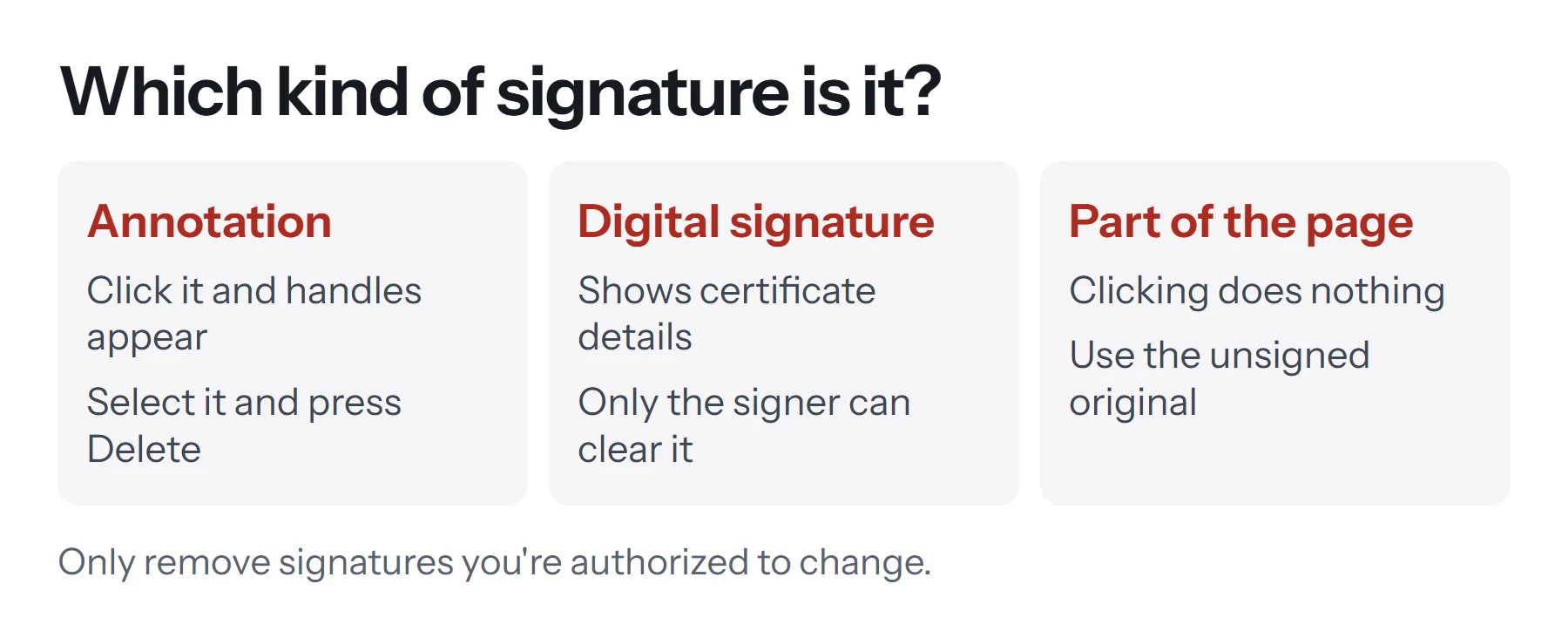
| Type | How to recognize it | Can you remove it? |
|---|---|---|
| Annotation | Click it, and a box with handles appears | Yes, select and delete it |
| Digital signature | A signature panel or blue bar mentions certificates or validity | Only the signer can clear it |
| Flattened into the page | Clicking does nothing, and it behaves like the printed text | Only with an editor, or from an unsigned copy |
To check, open the PDF and click directly on the signature. If you can move it, it's an annotation. If your reader shows a signature panel, or a message says the document is signed and valid, it's a digital signature. If nothing happens, it's part of the page.
How to remove an annotation signature
Most quick signatures are annotations. They're added by tools such as Preview's signature feature, Acrobat Reader's Fill & Sign, or a browser's draw tool.
In Preview on a Mac:
- Open the PDF in Preview.
- Click the signature. A box with handles appears around it.
- Press Delete.
- Save the file, or choose File, then Export as PDF, to keep the original.
In Adobe Acrobat Reader:
- Open the PDF.
- Click the signature you added with Fill & Sign.
- Choose the delete or trash icon, or press Delete.
- Save the file.
In a browser such as Chrome or Edge: if you drew the signature with the pen, use the Eraser tool or undo, then download the file with your changes.
After saving, close and reopen the file to confirm the signature is gone.
How to remove a certificate-based digital signature
A digital signature is different from a picture of a signature. It's cryptographic data linked to the signer's Digital ID, and it proves the document hasn't changed since signing. Because of that, it can't just be deleted by anyone.
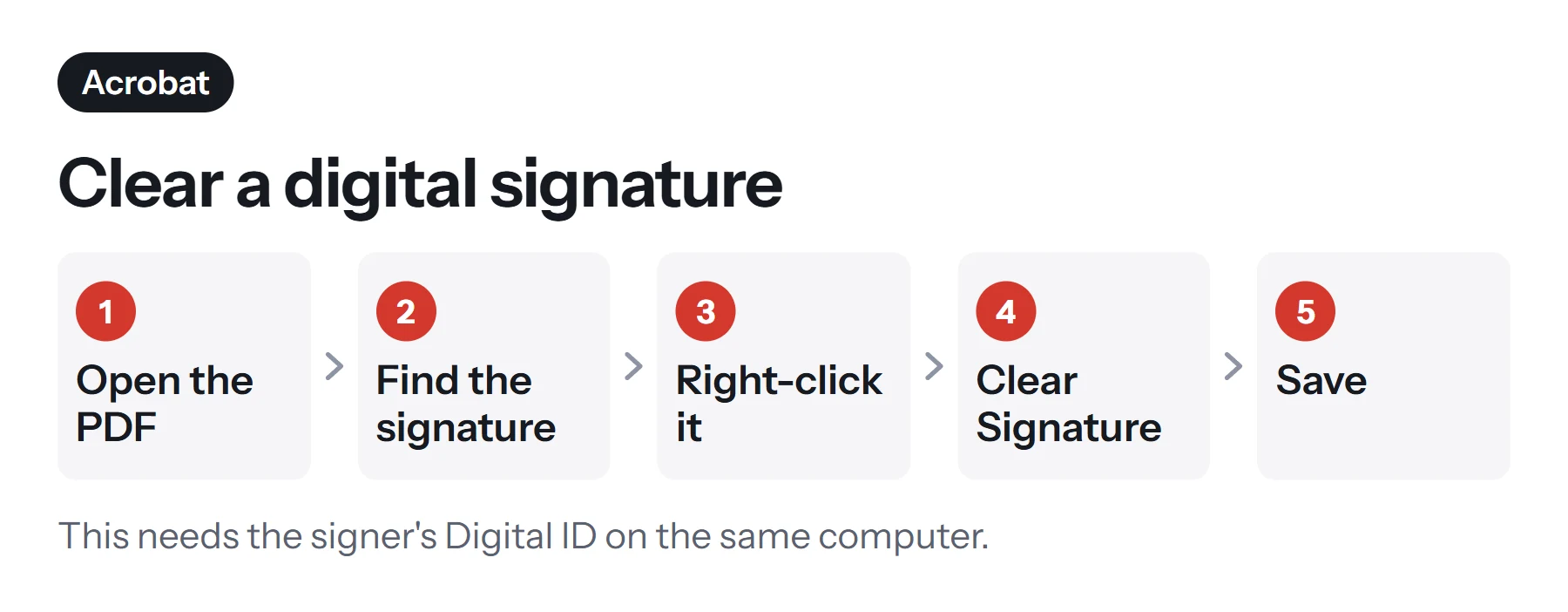
If you're the signer:
- Open the PDF in Adobe Acrobat on the computer where your Digital ID is installed.
- Find the signature field.
- Right-click it and choose Clear Signature.
- Save the file.
If the option is greyed out, the document may have been signed by someone else, signed later by another person, or certified, which locks it against changes. Adobe's help pages on digital signatures and certifying PDFs explain how these protections work.
If you're not the signer, you can't remove the signature cleanly, and you shouldn't try. Ask the signer to clear it, or ask the sender for the unsigned document. Our guide on how to digitally sign a PDF explains how certificate signatures work.
Removing the empty signature field
Clearing a digital signature usually leaves the empty signature field on the page. In Acrobat's paid version, the Prepare a Form tool lets you select the field and delete it. If you don't need any of the form fields, flattening the PDF also removes the empty box from interactive use.
How to remove a signature that's part of the page
If the signature was flattened, scanned, or printed and rescanned, it's no longer a separate object. It's drawn into the page, like the rest of the text. Your options are limited.
Go back to the unsigned original. This is by far the best route. Check your sent emails, downloads, or the shared folder for the version before signing.
Use a full PDF editor. Paid editors such as Adobe Acrobat can sometimes select the signature as an image object and delete it, if it was added as an image rather than a scan. With a scan, the whole page is one image, so you can't isolate the signature.
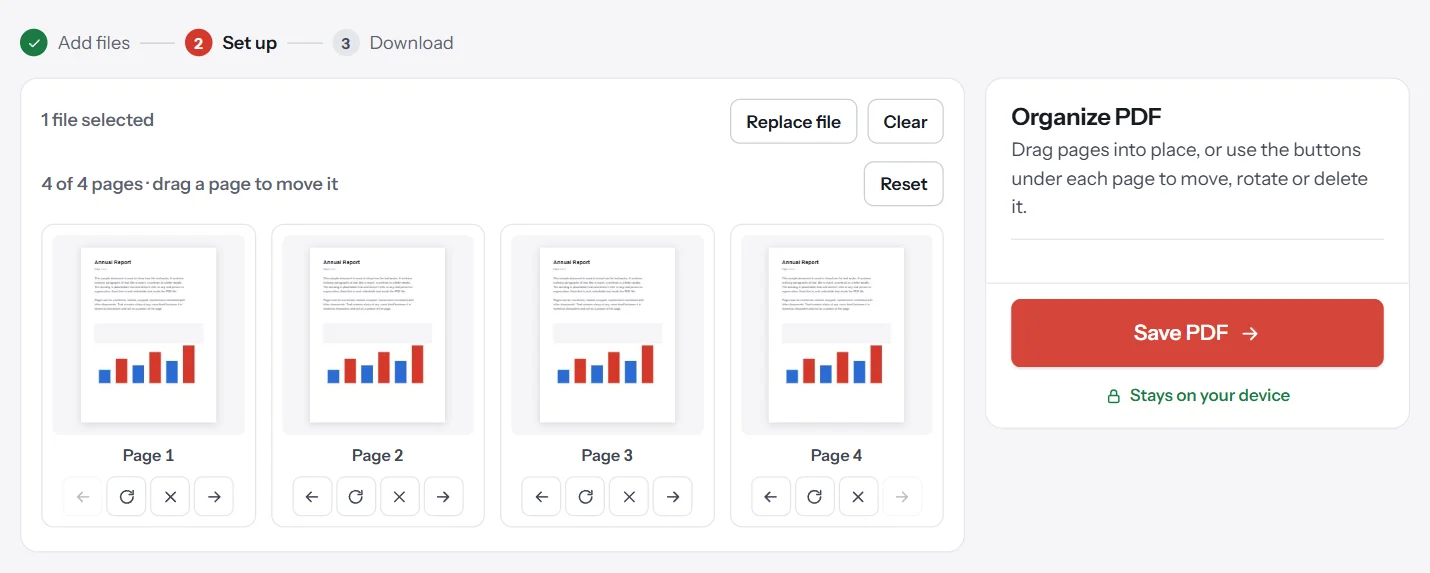
Replace the page. If the signature is on its own page, such as a signature page at the end of a contract, remove that page with Remove Pages, then add a fresh, unsigned page from the original with Organize PDF or Merge PDF.
Why a white box isn't removal
It's tempting to draw a white rectangle over the signature. It does hide it on screen and on paper, but the signature is still inside the file underneath. Anyone with an editor can move the box, and some tools can extract the hidden content. For anything sensitive, a cover-up isn't enough. Use the unsigned original instead.
How to remove a signature and sign again
A common reason to remove a signature is to sign again correctly. Once you have a clean copy:
- Open [Sign PDF](/sign-pdf/) and select the unsigned document.
- Draw or type your signature in the panel.
- Click the page where it belongs, and set the size.
- Save the PDF and check the result.
PDF Lemon works in your browser, so your document and signature aren't uploaded. Our guide on how to sign a PDF covers the options and the legal side. If the other party needs a certificate signature, Sign PDF isn't enough, and you'll need a Digital ID.
How to remove a signature from a fillable form field
Some forms have a text field labeled for a signature, where someone typed their name. That isn't a real signature object, just form data.
- Open the form in a browser, Preview or Acrobat Reader.
- Click the field and delete the text.
- Save a copy and reopen it to confirm the field is empty.
If the form was flattened after filling, the typed name is now part of the page and can't be cleared this way. You'll need the unflattened version. This is one reason to keep an unflattened copy of every form you fill in, as our guide on how to fill out a PDF form suggests.
How to remove a signature on an iPhone or iPad
If you signed using Markup in the Files or Mail app, open the PDF again in Files and tap the Markup button. Tap the signature to select it, then tap Delete in the menu that appears, and tap Done. If the signature can't be selected, it was saved into the page, and you'll need your unsigned copy.
What removing a signature does to the document
| Action | Effect on the file |
|---|---|
| Deleting an annotation signature | The signature disappears. The rest of the page is unchanged |
| Clearing a digital signature | The certificate is removed, and the field becomes empty |
| Covering a signature with a box | It's hidden, but still in the file underneath |
| Removing a signature page | That whole page is gone, including any other content on it |
| Re-signing a cleaned copy | Creates a new, separate signed version |
Whichever route you take, keep a note of what you changed and why, especially for business records. If a signed document is ever questioned, a clear trail of versions protects everyone.
When to ask for a new document instead
Sometimes removing a signature is more trouble than it's worth, or simply not your call. Ask the sender for a fresh, unsigned copy when:
- The signature belongs to someone else, such as a landlord, employer or client.
- The document is digitally signed or certified by another person.
- The file is a scan, so the signature can't be separated from the page.
- Several people have signed, and changing one signature affects the others.
A short email asking for the unsigned version is quicker than any workaround, and it leaves a clear record that the change was agreed.
How to keep a reusable unsigned copy
To avoid this problem in future, save two copies whenever you sign:
- The unsigned original, named clearly, such as
lease-unsigned.pdf. - The signed copy, such as
lease-signed-2026-11-09.pdf.
Store them together. If you need to change something, you'll always have a clean starting point. For forms you fill in often, keep a blank master copy and work on duplicates.
Common problems when removing a signature
Clear Signature is greyed out. You're not the signer, your Digital ID isn't available on this computer, or the document is certified. Use the signer's computer, or ask for an unsigned copy.
The signature came back after saving. You may have saved to a temporary file or a different location. Use Save As with a new name and reopen it to check.
Deleting the signature broke other signatures. Signatures applied after yours depend on the document staying the same. Clearing an earlier signature can invalidate later ones, so coordinate with the other signers.
The document says it's been modified since signing. Any change to a digitally signed PDF, including removing an annotation, can mark the signature as invalid. That's the system working as intended.
I can only find a scanned copy. A scan has the signature baked into the image. Ask the sender for the digital original, or rescan an unsigned paper copy.
Questions and answers
How do I delete my signature from a PDF?
If you added it as an annotation, open the PDF in the app you used, click the signature, and press Delete. Then save the file. If it was flattened, go back to your unsigned copy.
How do I remove a digital signature from a PDF?
Open the PDF in Adobe Acrobat, right-click the signature field, and choose Clear Signature. Only the signer, with access to their Digital ID, can do this.
Why can't I select the signature?
It has probably been flattened into the page, so it's part of the content rather than a separate object. You'll need a full PDF editor or the original unsigned document.
Is it legal to remove a signature from a PDF?
Removing your own signature, or one from a document you're authorized to change, is fine. Removing someone else's signature to change or reuse a signed agreement can be fraud. If in doubt, ask for a new copy.
Can I remove a signature without Adobe Acrobat?
For annotation signatures, yes. Preview on a Mac and many browsers let you delete annotations. For certificate signatures, the signer usually needs Acrobat or the app that applied it.
What if the signature is on its own page?
Remove that page with a page tool, such as PDF Lemon's Remove Pages, and keep the rest of the document. Check that no other content sits on that page first.
Tools from this guide
How we checked this guide
We ran the PDF Lemon steps ourselves on the live tools. Steps for other apps come from each vendor's own help pages and are worded to survive small interface changes, but menu names can differ between versions.
Sources we used:
Related guides
- How to Edit a PDF on Mac for Free8 min read
- How to Split a PDF into Separate Files7 min read
- How to Crop a PDF7 min read
- How to Edit a PDF8 min read
- How to Insert Images into a PDF8 min read