How to Insert Images into a PDF
Short answer
To add a picture to a PDF page, open PDF Lemon's Add Image to PDF, select your PDF, choose a JPG, PNG or WebP image, and click the page where it belongs. Drag to move or resize it, then save. To add a picture as its own new page, convert it with JPG to PDF and combine the files with Merge PDF.
Open Add Image to PDFKey takeaways
- Adding an image to an existing page and adding it as a new page are two different jobs.
- PDF Lemon's Add Image to PDF places a picture on any page for free, without uploading your file.
- It can repeat a logo on every page, and transparent PNGs stay transparent.
- If you still have the source document, inserting the image there and re-exporting gives the best result.
Do you want the picture on a page or as a new page?
This is the first thing to settle, because the two jobs call for different tools. Adding an image to an existing page means placing it alongside what's already there, like a logo in a corner or a photo in a blank space. Adding it as a new page means the picture gets its own page in the document, like a scanned receipt attached to an expense report.
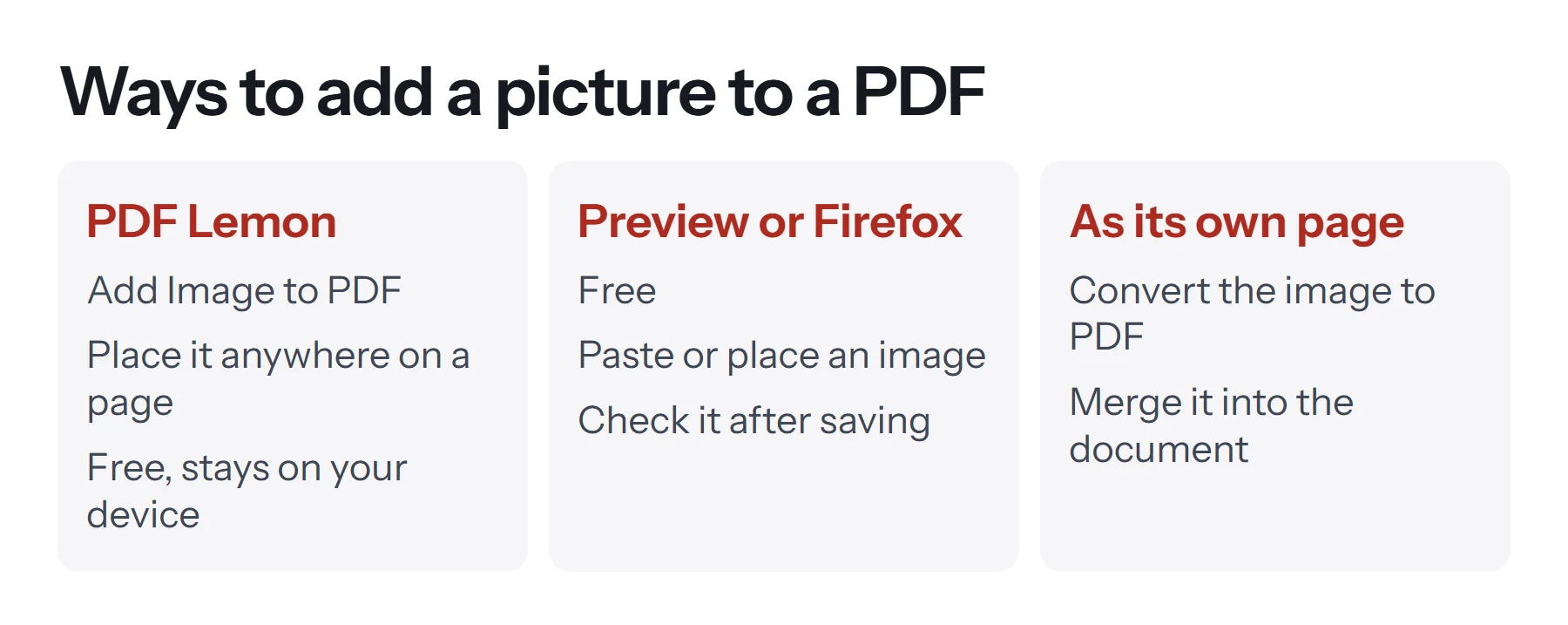
| You want to | Best free method | Paid option |
|---|---|---|
| Add a picture as a new page | JPG to PDF and Merge PDF | Acrobat |
| Place a photo on an existing page | Add Image to PDF, Firefox viewer or Mac Preview | Acrobat |
| Add a signature image | Sign PDF or Preview | Acrobat |
| Add a logo to every page | Add Image to PDF with Repeat on every page | Acrobat's watermark tool |
| Add a text mark to every page | Add Watermark | Acrobat |
How to add a picture to a PDF page online
PDF Lemon's Add Image to PDF places a picture on any page in your browser. It's free, and neither your PDF nor your image is uploaded.
- Open Add Image to PDF. Go to Add Image to PDF and select your PDF.
- Choose your image. Pick a JPG, PNG or WebP file in the panel. You can also paste a screenshot, or drop a file onto the page.
- Click the page. The picture appears, centered where you clicked. Use Next to reach other pages.
- Move and resize it. Drag the picture to move it, and drag its corner to change the size. The Image width slider does the same, which is handy on a phone.
- Add more if you need to. Click again for another copy, or choose a different image first.
- Save. Click Save PDF, then open the download to check it.
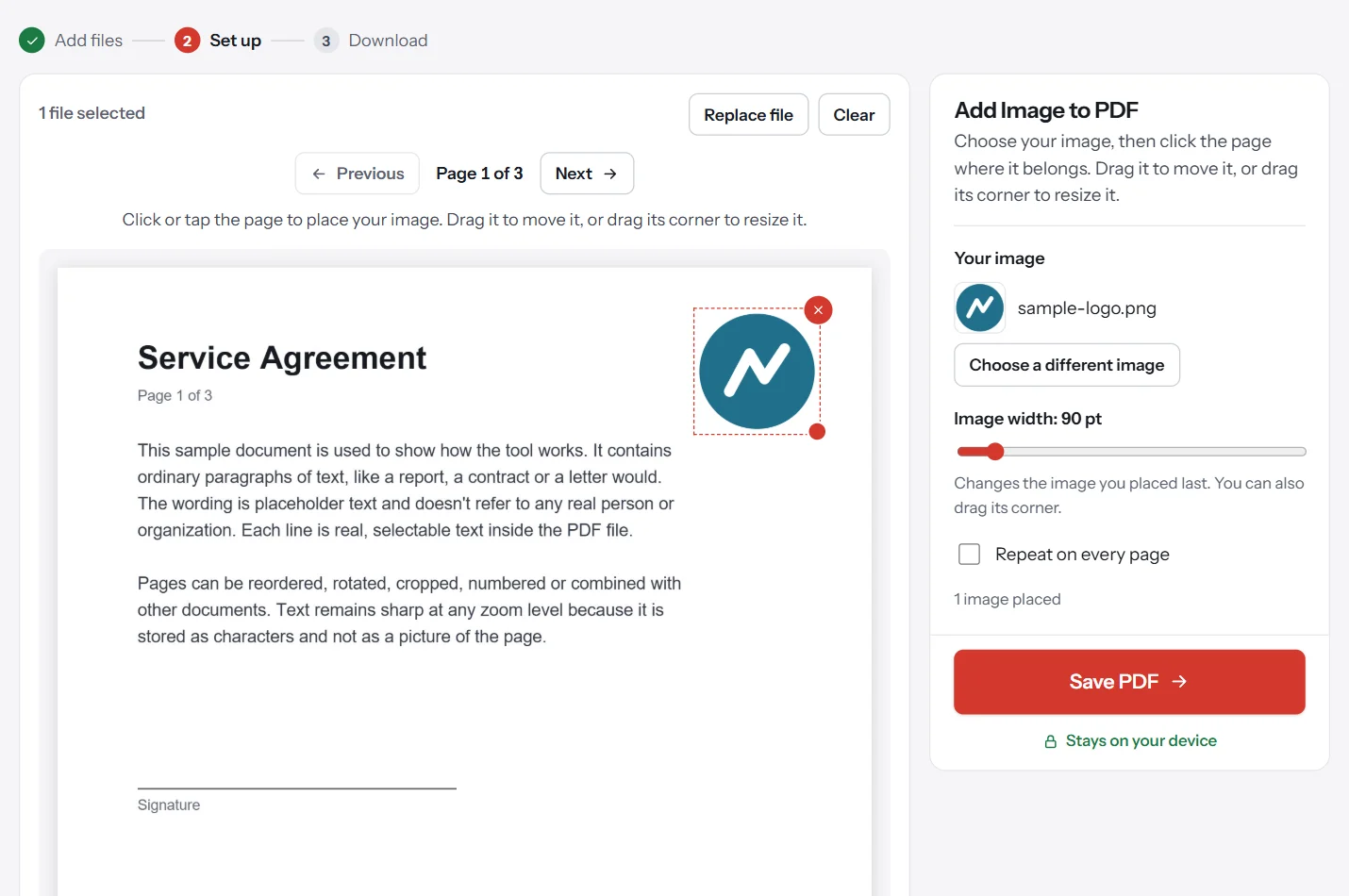
The picture is drawn into the page, so it looks the same in every PDF reader, and the text around it stays selectable. JPGs and PNGs are embedded as they are, without recompressing them, and transparent backgrounds stay transparent.
How to add a picture to a PDF as a new page
This route is free and works on any device. It keeps the rest of your document exactly as it is, because nothing is redrawn.
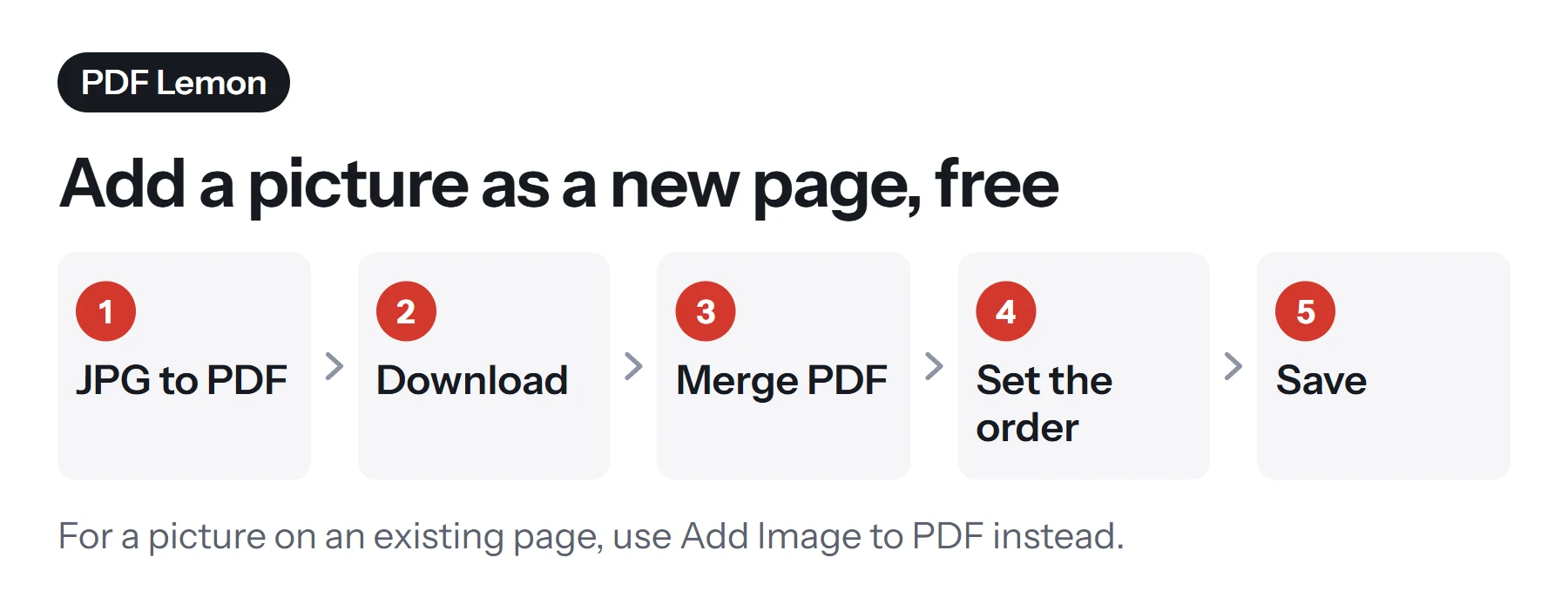
- Convert the image. Open JPG to PDF, add your picture, and choose a page size. Use A4 or US Letter to match the rest of your document. It accepts JPG, PNG and WebP.
- Download the new PDF.
- Open Merge PDF. Go to Merge PDF and add your document and the new file.
- Set the order. Drag the files so the picture comes at the right point. To place it in the middle of a document, see the next section.
- Merge and download.
How to put the new page in the middle
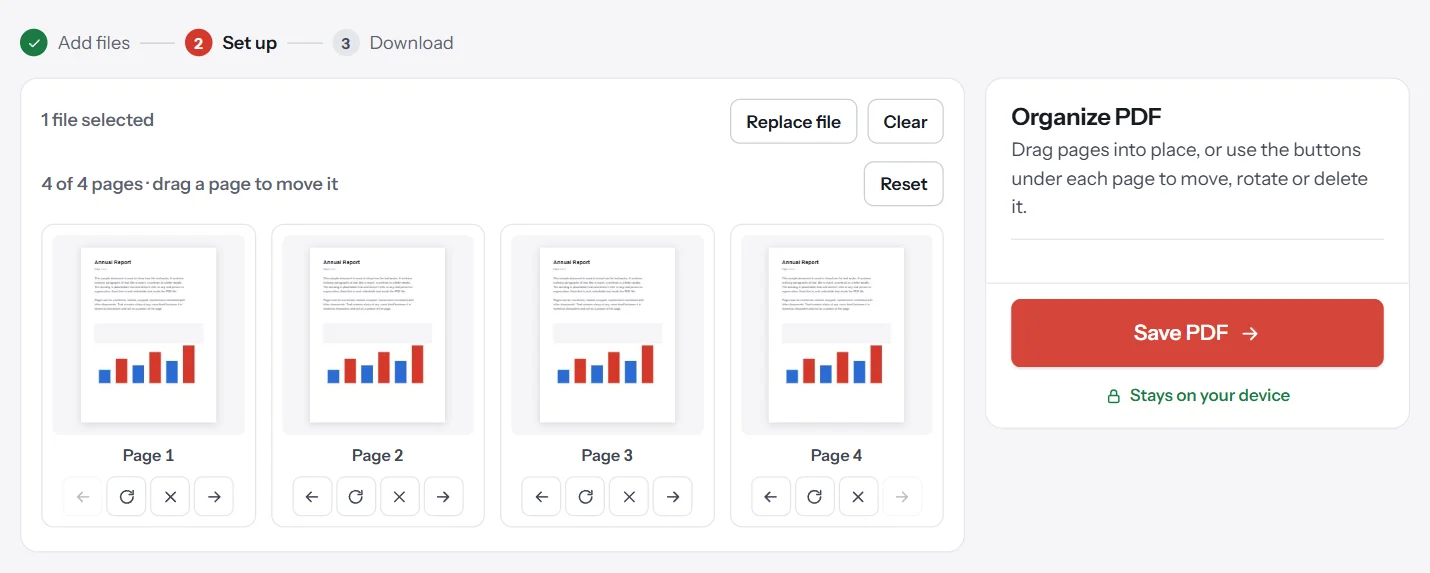
Merging adds whole files one after another. To get a picture between pages 3 and 4, merge the files first, then open the result in Organize PDF and drag the new page's thumbnail to the right position.
How to insert an image onto a PDF page in Firefox
Firefox's built-in PDF viewer can add images directly to a page, and it's free. It's one of the easiest options on Windows and Linux.
- Open the PDF in Firefox. Drag the file into a Firefox window.
- Click the image button in the viewer's toolbar and choose Add image.
- Choose your picture. It appears on the page.
- Move and resize it. Drag it into position, and pull the corners to change the size.
- Save. Click the save or download button in the toolbar. Open the saved file to confirm the image is there.
The viewer also lets you add text and draw, so it's handy for a quick combined edit. Features can change between Firefox versions, so check Mozilla's help page if the toolbar looks different.
How to add a picture to a PDF on a Mac
Preview doesn't have an obvious image button, but you can paste a picture onto a page.
- Open your picture in Preview, press Cmd+A to select it, then Cmd+C to copy it.
- Open your PDF in Preview and go to the right page.
- Press Cmd+V. The picture appears on the page.
- Drag and resize it, using the handles at its corners.
- Save the file, or use File, then Export as PDF to keep the original.
Pasted images behave like annotations. Some other viewers may show them differently, so check the result in a browser as well. To lock it into the page, export or print a new PDF from Preview. See how to edit a PDF on Mac for free for the rest of Preview's tools.
How to insert an image into a PDF with Adobe Acrobat
Acrobat's paid version offers the most control. The steps are simple:
- Open the PDF in Acrobat.
- Choose the edit tool. Select Edit a PDF or the edit option in the toolbar.
- Choose Add image. Then pick your picture.
- Click the page to place it, and drag the corners to resize it.
- Save the file.
Acrobat treats the image as a real page object, so you can rotate it, replace it, or crop it later. To put a logo on every page, its watermark or header tools can apply an image across all pages at once. Exact menu names depend on your version.
How to add a picture using the source document
If you've still got the Word, Google Docs or design file behind the PDF, this is usually the best method. Insert the image normally, let the text flow around it, and export a new PDF. Nothing is covered up, nothing's misaligned, and the file remains clean. See how to save a Word document as a PDF or how to convert Google Docs to PDF.
If you don't have the source, you can convert the PDF to Word, insert the picture and export it again. But do compare the result with the original, because layouts can shift.
How to add a logo to a PDF
Logos need a little more care than photos, because they often appear on every page and you want them to look crisp.
- Use a PNG with a transparent background, so that the logo doesn't sit in a white box on colored pages.
- Use a generous resolution. A logo that prints 2 inches wide needs at least 300 pixels across, and 600 is better.
- Keep it out of the text area. Check that it doesn't collide with headers on any page.
- Add it at the source if you can. A logo in a Word header appears on every page automatically.
To put a logo on every page of a finished PDF, open Add Image to PDF, place the logo once, and tick Repeat on every page. It's saved at the same position on all pages, including sideways ones. If a text mark will do the job, Add Watermark can stamp your company name on every page instead, with control over size, opacity and angle.
How to add a signature image to a PDF
A scan of your signature is one specific kind of picture, and it has its own tools. Sign PDF lets you draw or type a signature and place it anywhere, and Add Image to PDF places a scan of one. Preview can capture a signature using your Mac's camera. Firefox accepts a signature image too. Our guide on how to sign a PDF covers these along with the legal questions.
How to prepare an image for a PDF
A few minutes of preparation pays off in sharpness and file size.
| What to check | Why it matters | What to do |
|---|---|---|
| Resolution | Low-res images look blurry when enlarged | 150 DPI at final size for screens, 300 DPI for print |
| File format | PNG is sharper for graphics, JPG smaller for photos | Choose by content |
| File size | Phone photos are large and swell the PDF | Resize to the size you'll need |
| Rotation | Phone photos may store rotation separately | Check it once it's placed |
| Background | Colored or white boxes can look wrong | Use a transparent PNG for logos |
| Crop | Extra background distracts | Crop before inserting |
To work out the pixels you need, multiply the printed width in inches by the DPI. A 4-inch-wide photo at 300 DPI needs 1,200 pixels across.
What does adding an image do to the file size?
Each image adds roughly its own size to the PDF, so one phone photo can add several megabytes. If the file becomes too large to send, you've got a few choices. Resize the picture before you insert it, which is the best fix. Or run the finished file through Compress PDF. Be aware that its stronger levels turn pages into images, which also makes text non-selectable, so try the Light level first. Our guide on how to compress a PDF has the details.
Can you replace an image in a PDF?
Replacing a picture is a true editing job, and free tools don't handle it well. Acrobat can swap an image directly. Without it, you could use Add Image to PDF to place a new image on top of the old one, as long as it fully covers it. Bear in mind that the old image still exists in the file underneath, so don't rely on this to hide anything sensitive. The cleanest fix is to change the source document and export again.
How to add a picture to a PDF on a phone
Open Add Image to PDF in your phone's browser, select the PDF, choose your photo and tap the page. Use the Image width slider to set the size, as it's easier than dragging a corner on a small screen. For a new page, open JPG to PDF in the browser, then combine the result with Merge PDF.
Common problems when adding images to a PDF
The picture doesn't appear in another app. Tools such as Preview may add it as an annotation, which some viewers don't display. Export a new PDF or print to PDF to lock it into the page, or add it with Add Image to PDF, which draws it into the page.
The image is blurry. It's probably too small for the space. Use a higher-resolution original, and don't stretch it.
The image covers important text. Drag or resize it. If there's no room, consider adding it as its own page.
The save button doesn't keep my changes. Use the viewer's own save or download button, and reopen the file to check. If the PDF is protected, see how to remove a password from a PDF.
The file is too big now. Compress it, or resize the image and insert it again.
The new page is a different size. Set the page size in JPG to PDF to match your document. If it's already merged, see how to resize a PDF.
Questions and answers
How do I add a picture to a PDF for free?
Open PDF Lemon's Add Image to PDF, select the PDF, choose your picture, click the page and save. It's free with no account. To add the picture as a new page instead, use JPG to PDF and Merge PDF.
How do I insert an image into a PDF without Acrobat?
PDF Lemon's Add Image to PDF works in your browser, and Firefox's viewer and Mac Preview can place images too. If you have the original document, add the image there and export a new PDF, which usually gives the cleanest result.
How do I add a logo to every page of a PDF?
In PDF Lemon's Add Image to PDF, place the logo once and tick Repeat on every page. It's saved at the same position on all pages. Acrobat's watermark tool can also place an image on every page.
Can PDF Lemon put a picture on an existing PDF page?
Yes. Add Image to PDF places a JPG, PNG or WebP on any page. You can drag it, resize it and add more than one. It can't replace or remove pictures that are already in the PDF.
How do I add a photo to a PDF on my iPhone?
Open Add Image to PDF in your phone's browser, select the PDF, choose your photo and tap the page. The Files app's markup tools may also offer an add-photo option, depending on your iOS version.
Why does my image look blurry in the PDF?
The image may be low resolution for the size you've placed it at, or the tool may have compressed it. Use a larger original, and avoid stretching it beyond its natural size.
Tools from this guide
How we checked this guide
We ran the PDF Lemon steps ourselves on the live tools. Steps for other apps come from each vendor's own help pages and are worded to survive small interface changes, but menu names can differ between versions.
Sources we used:
Related guides
- How to Turn a Picture into a PDF7 min read
- How to Sign a PDF Electronically7 min read
- How to Fill Out a PDF Form7 min read
- How to Annotate and Write on a PDF8 min read
- How to Create a PDF File7 min read