How to Fill Out a PDF Form
Short answer
To fill out a PDF form, open it in a browser or PDF reader and click a field. If a cursor appears, type your answers and save a copy. If nothing happens, the form isn't fillable, so add text boxes on top using a tool such as PDF Lemon's Edit PDF. Before sending, reopen the saved file to confirm your answers are there.
Open Edit PDFKey takeaways
- Fillable forms let you click and type in any browser or reader.
- Flat and scanned forms need text boxes placed on top, which you can do for free.
- Save a copy, then reopen it. Answers that don't save are the most common form problem.
- If a form shows a "please wait" message, open it in Adobe Acrobat Reader instead of a browser.
Start by finding out what kind of form you have
The method depends on whether the PDF has real form fields. Open the form in your browser and click on a blank line.
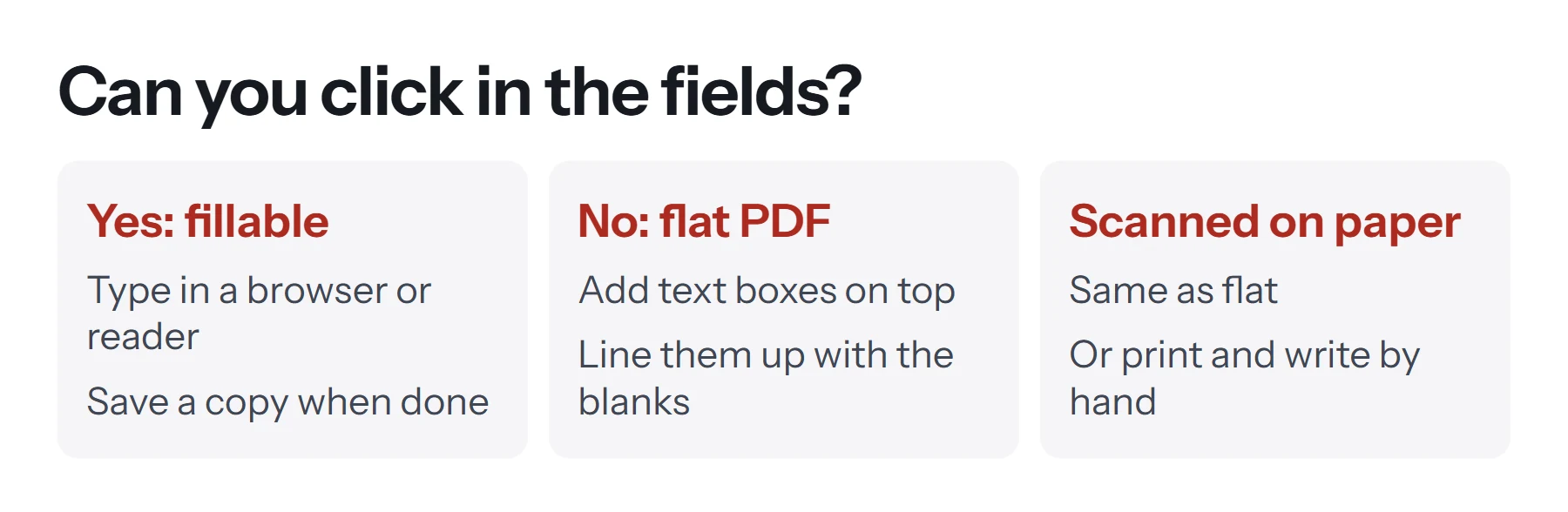
- A cursor appears, or the field highlights: it's fillable, so follow the first method below.
- Nothing happens: it's a flat PDF, so the blanks are just lines printed on the page. Use the second method.
- The whole page looks like a photo of paper: it's a scan. Use the second method too.
How to fill out a fillable PDF form
This is the simple case. Any modern browser or PDF reader can handle it.
- Open the form. Drag it into Chrome, Edge or Firefox, or open it in Preview on a Mac or Adobe Acrobat Reader.
- Click the first field and type your answer.
- Press Tab to jump to the next field, and Shift+Tab to go back.
- Tick checkboxes and choose options. Click to tick, and use menus where they appear.
- Save a copy. Use your viewer's Save or Download button. In Chrome, select Download and choose With your changes. On a Mac, Preview's File, then Save or Export as PDF does this.
- Reopen the saved copy to confirm your answers are there. Never skip this.
Firefox's viewer can fill in text fields, checkboxes and radio buttons. Preview adds an AutoFill feature in recent macOS versions: Apple says that with macOS 14.2 or later, it can insert your name, address and other contact details, though it won't work with every PDF.
How to fill out a PDF form that isn't fillable
For flat PDFs and scans, you add your answers on top of the page. Your result looks the same as a typed form.
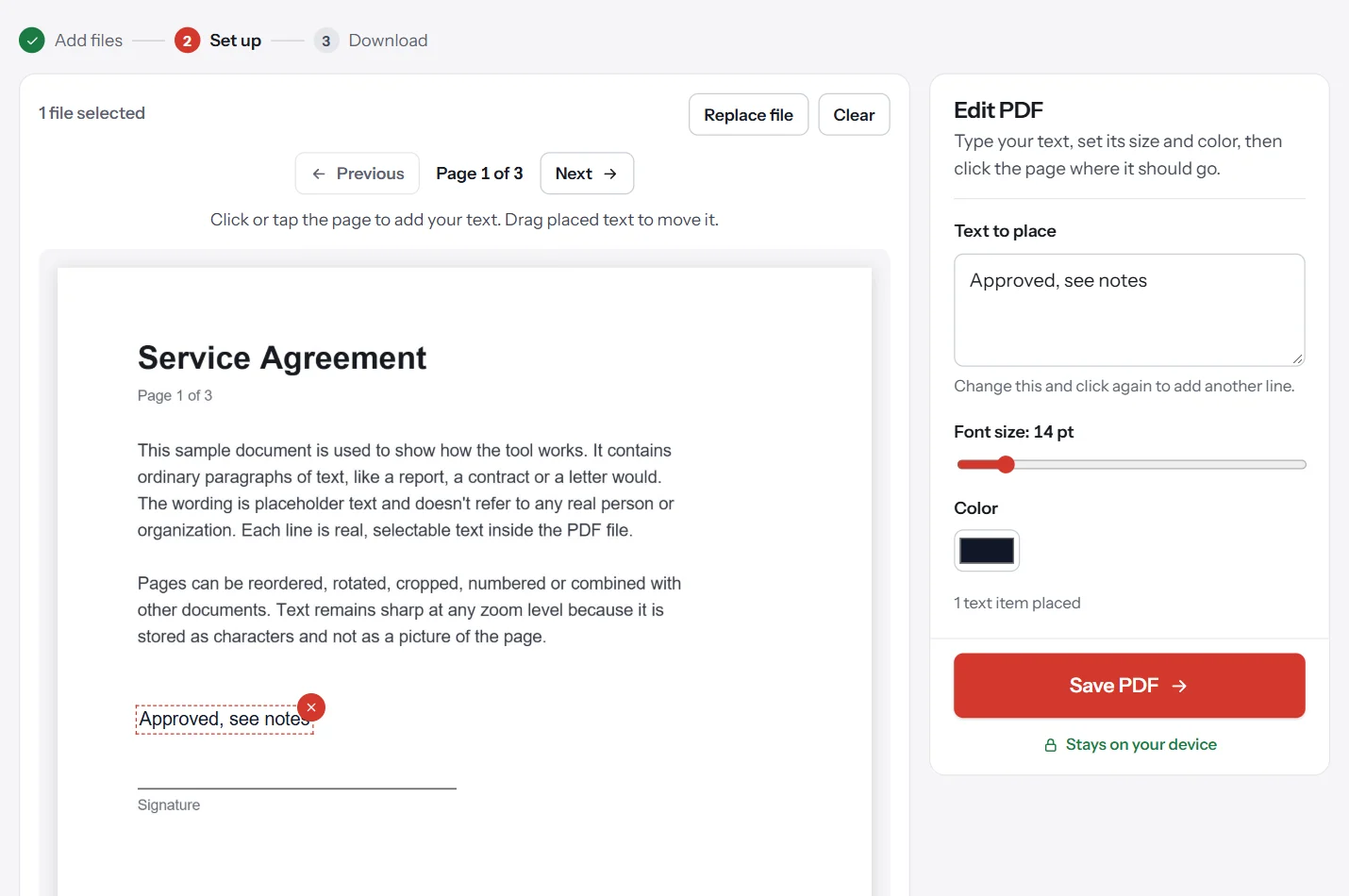
- Open Edit PDF. Go to PDF Lemon's Edit PDF and select your form. It stays on your device.
- Type your first answer in the panel. Set the font size to about 10 to 12 points.
- Click the blank line on the page. Drag the text to fine-tune its position.
- Repeat for each blank. Change the text in the panel, then click the next spot. Use Next for other pages.
- Save your PDF. Click Save PDF, then check the downloaded copy.
For ticks in boxes, type a capital X and place it inside the box. Keep answers in one font and size for a tidy look. Text you add this way becomes part of the page, so it looks the same in every viewer.
Preview, Chrome and Firefox have text tools as well. See how to type on a PDF for those steps.
How do your options compare?
| Tool | Fillable fields | Flat forms | Signature | Cost |
|---|---|---|---|---|
| Chrome or Edge | Yes | Add text tool | Draw | Free |
| Firefox | Yes | Add text tool | Type, draw or image | Free |
| Mac Preview | Yes, with AutoFill | Text box | Trackpad, camera or phone | Free |
| Adobe Acrobat Reader | Yes, including complex forms | Fill & Sign tool | Yes | Free |
| PDF Lemon | Adds text on top | Yes | Sign PDF | Free |
How to fill out a PDF form on a phone
Forms are harder on a small screen, but they're doable.
On iPhone or iPad: tap the PDF in Files or Mail. Tap a field to type if it's fillable. For flat forms, tap the markup button, then the plus button, and choose Add Text. Recent versions of iOS may also offer AutoFill Form in the markup or Preview tools.
On Android: open the form in a PDF app. Chrome and many built-in viewers can display it, and some let you fill in fields. If yours doesn't, install Adobe Acrobat Reader or Google's PDF tools. For flat forms, open Edit PDF in your browser.
Turn your phone sideways for more room, and double-check the alignment by zooming out before you save. A long form is much easier on a computer if you've got access to one.
How to get a form finished the right way
A completed form usually needs a few extra steps. It's worth following them in this order.
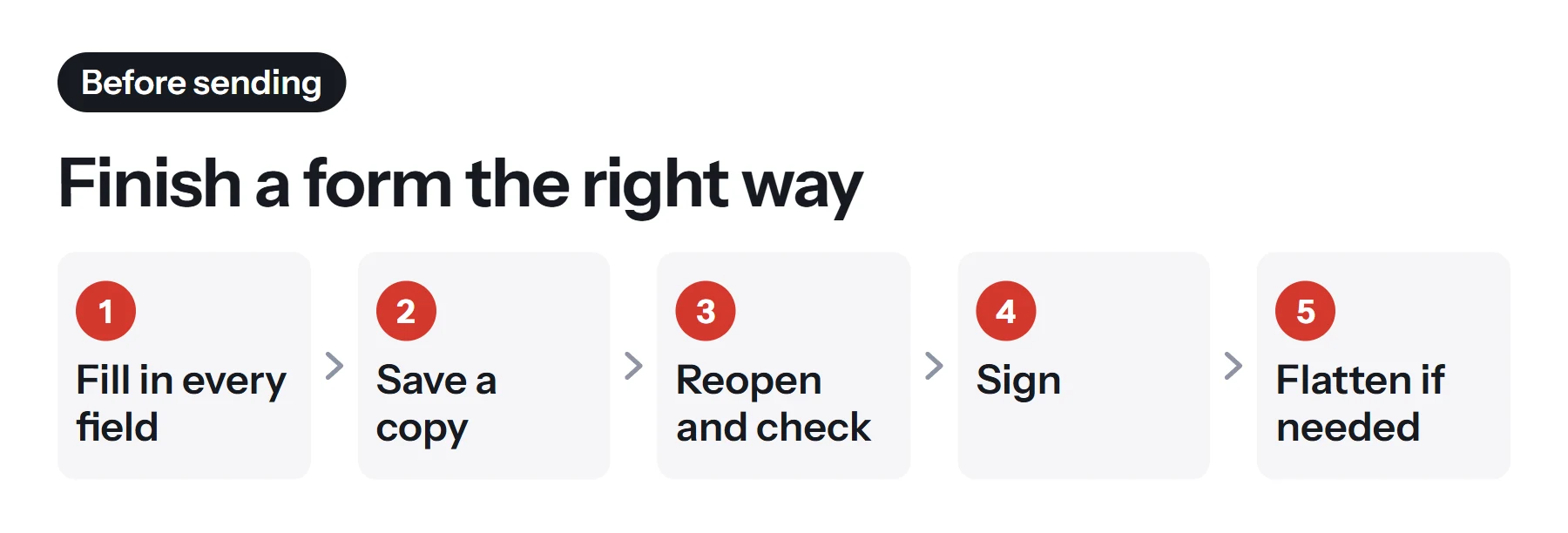
- Fill in every field and check it against the instructions.
- Save a copy with a clear name, such as
visa-form-jane-example.pdf. - Reopen and check. Close the file, reopen it, and read through your answers.
- Sign it. Use Sign PDF for a drawn or typed signature. See how to sign a PDF for the options.
- Flatten if needed. Flatten PDF locks your answers into the page, so they look the same in every viewer and can't be casually changed. Keep an unflattened copy if you might need to change something.
- Add attachments. If the form needs supporting documents, combine them with Merge PDF.
- Check the size. If there's an upload limit, compress the file using the Light level first.
Why flatten a form?
Different viewers can display form field values differently, and in some apps, they may not appear at all, especially when a form is printed or previewed in an email. Flattening turns answers into ordinary page content, so what you see is what the recipient sees. This is especially useful before emailing a form or uploading it to a portal.
But check the instructions first. Some organizations need the fields to remain live, so that they can process the answers automatically.
Tips for filling out official forms
Government, immigration, tax and legal forms deserve extra care.
- Download a fresh copy. Get the form from the official site, and confirm you've got the current version.
- Use the app they recommend. Many official forms say which reader to use. Some only work in Adobe Acrobat Reader.
- Save often. Some long forms don't save progress automatically.
- Follow the formatting rules. Dates, capitals and field lengths may all have requirements.
- Don't flatten without checking. As mentioned, some forms need their fields to be left live.
- Keep your own copy of the final version and any confirmation you receive.
- Think about privacy. Forms often hold ID numbers and addresses. Use tools that keep your file on your device, and see whether online PDF tools are safe.
What should you do with a "please wait" message?
Some forms show a page saying "Please wait... If this message is not eventually replaced..." instead of the form. This means it was built using an older technology called XFA, which most browsers and many viewers can't display. Download the file to your computer, then open it in Adobe Acrobat Reader on a desktop computer. That usually solves the problem, since browsers can only show the placeholder page.
Can you edit a form you've already completed?
Yes, if it's not flattened. Reopen your saved copy, click the field, and change it. Answers added as text boxes through Preview can usually be adjusted the same way. If you used Edit PDF or flattened the form, your answers are now part of the page, and the simplest fix is to start over from your blank copy. This is why it's worth keeping the original form untouched.
How to fill out a PDF form with handwriting
Sometimes a form has to be completed by hand, or you may simply prefer it. Print it at actual size, not scaled to fit, as official forms can have precise layouts. Use black or dark blue ink, and write clearly in capitals if the form asks you to.
To send it back, scan it rather than photographing it casually. The scanner in the Notes or Files app on iPhone, or the Google Drive app on Android, straightens the page and removes shadows. Scan every page in order, and check that the handwriting is legible. A scanned form can be large, so compress it if there's an upload limit, and zoom in afterward to confirm that it's still readable. If you're combining the scan with supporting documents, use Merge PDF.
You can also write on a form with a stylus on a tablet. iPads and many Android tablets let you draw directly on a PDF using their markup tools, which gets you the handwritten look without any paper.
Common problems when filling out PDF forms
My answers disappeared. You may have closed the file without saving, or your viewer might not have saved form data. Use its Save or Download with changes option, then reopen to check.
The recipient says the form is blank. Their viewer may not be showing form fields. Flatten the form and resend it, which puts the answers into the page.
I can't click in the fields. The form is flat. Use text boxes.
The text doesn't fit in the field. Long answers can get cut off. Use a shorter wording, or add a text box for the rest. In some fields, the font shrinks automatically.
My text is misaligned. Zoom in when placing it, and check each page, since scanned pages can vary.
The form is locked. It may have editing restrictions. Form filling is often still allowed. If not, ask the sender for a usable copy, or see how to remove a password from a PDF if you're authorized.
Special characters don't appear. Edit PDF's standard fonts cover Latin letters only, and they warn you if text can't be drawn. Field fonts vary too, so try another reader.
Questions and answers
How do I fill in a PDF form on my computer?
Open it in Chrome, Edge, Firefox or Preview, and click a field to type. Use Tab to move between fields. If you can't click into anything, use Edit PDF to add text boxes.
How do I fill out a PDF form that isn't fillable?
Add text on top. Open it in PDF Lemon's Edit PDF, type your answer, click where it belongs and drag it into position. Repeat for each blank, then save.
Why won't my PDF form save my answers?
Some viewers need you to use their own save or download button with changes included. Save a copy, reopen it to check, and if it fails, try Adobe Acrobat Reader or another viewer.
How do I fill out a PDF form on my phone?
Open it in your phone's browser or PDF app, tap a field, and type. For forms with no fields, open Edit PDF in your browser, type in the panel, and tap the page.
How do I sign a PDF form after filling it in?
Use Sign PDF to add a drawn or typed signature, or the signature tools in Preview or Acrobat Reader. If it has a certificate signature field, you'll need a Digital ID.
Can I print a PDF form and fill it in by hand?
Of course, if the recipient accepts it. Print, complete it in dark ink, and scan it with your phone. Check whether they prefer typed forms, as handwriting can be harder to process.
Tools from this guide
How we checked this guide
We ran the PDF Lemon steps ourselves on the live tools. Steps for other apps come from each vendor's own help pages and are worded to survive small interface changes, but menu names can differ between versions.
Sources we used:
Related guides
- How to Sign a PDF Electronically7 min read
- How to Digitally Sign a PDF8 min read
- How to Type on a PDF7 min read
- How to Make a Fillable PDF Form7 min read
- How to Annotate and Write on a PDF8 min read