How to Type on a PDF
Short answer
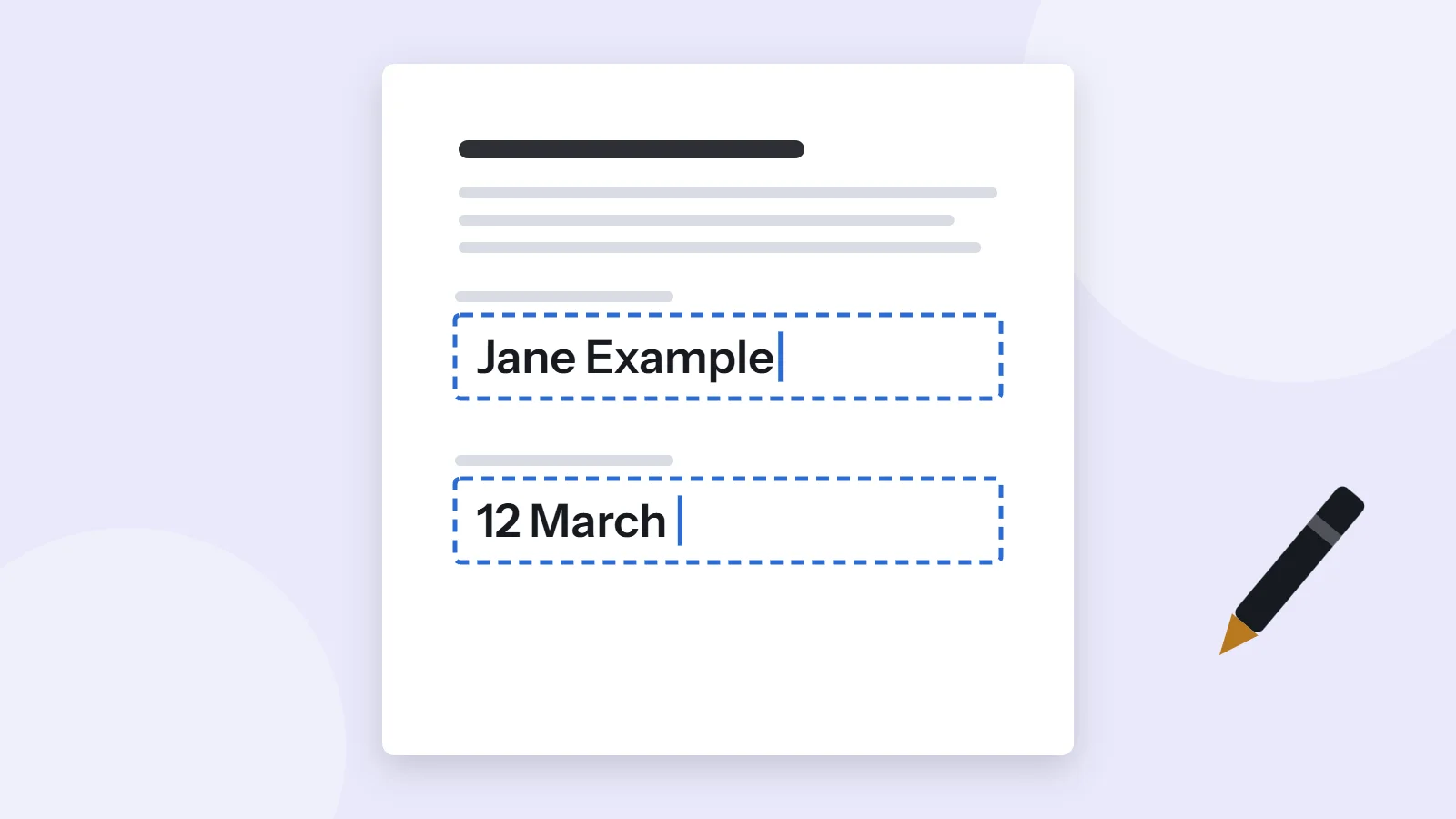
To type on a PDF, first click where you want to write. If it's a fillable form, you can type right away in any browser or PDF reader. If nothing happens, open it in a tool such as PDF Lemon's Edit PDF, type your text in the panel, click the page where it belongs, and save. Both methods are free.
Open Edit PDFKey takeaways
- Fillable PDFs let you click a field and type. Flat PDFs need a text box added on top.
- Any PDF can take typed text, including scans, as long as the file isn't locked.
- Typing on a PDF adds new text. It doesn't change the words already on the page.
- PDF Lemon's Edit PDF and Chrome, Firefox and Preview all add text for free.
First, work out what kind of PDF you have
Whether you can simply start typing depends on how the PDF was made. Open the file in your browser or PDF reader and click on a blank line. What happens next tells you which type you have.
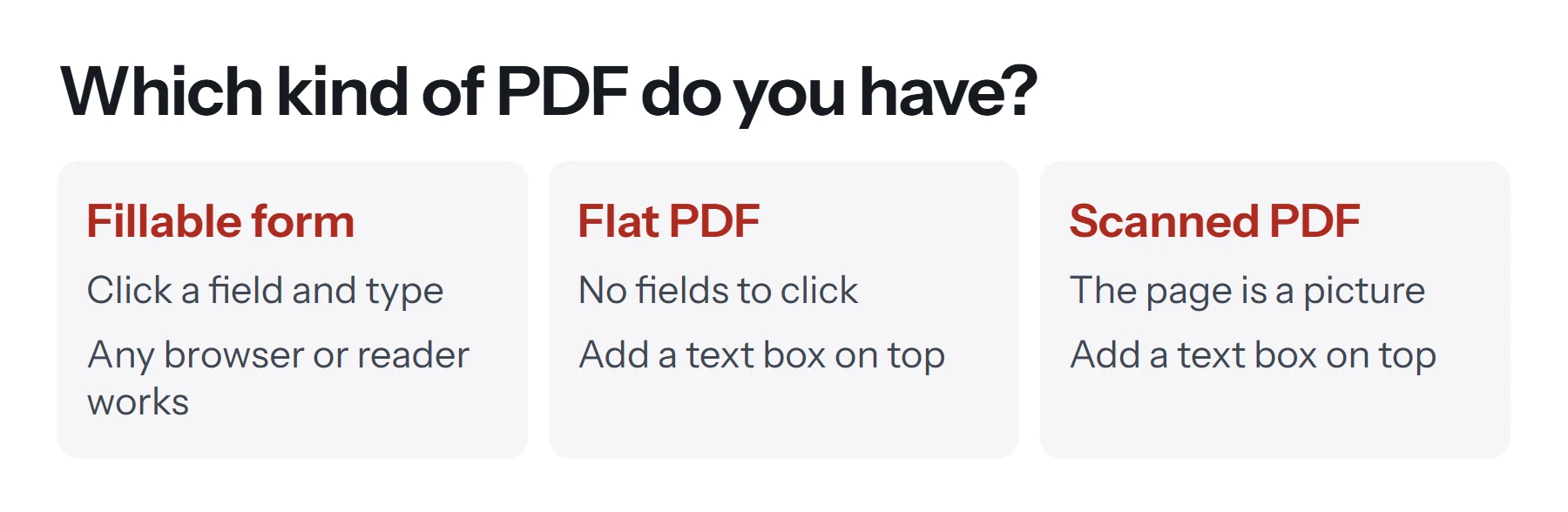
- A cursor appears or the field highlights: it's a fillable form. Just type.
- Nothing happens, but you can select words on the page: it's a flat PDF. The lines and boxes are printed on the page. You'll need to add a text box.
- Nothing happens, and clicking selects the entire page or nothing at all: it's a scanned PDF, a picture of paper. You'll need to add a text box here too.
How to type on a fillable PDF
This is the easy case, and you don't need any special tool.
- Open the PDF. Chrome, Edge, Firefox, Safari, Preview and Acrobat Reader all handle ordinary forms.
- Click a field and type. Press Tab to jump to the next field.
- Tick boxes and pick options by clicking them.
- Save a copy. In Chrome and Edge, use the download or save button at the top right. On a Mac, use File, then Export as PDF in Preview, or Save.
- Reopen the copy to confirm that your answers are saved.
Our guide on how to fill out a PDF form goes into more detail, including how to deal with forms that don't save properly.
How to type on a PDF that isn't fillable
For flat PDFs and scans, you add a text box on top of the page. This works on nearly any PDF, whether or not it has form fields.
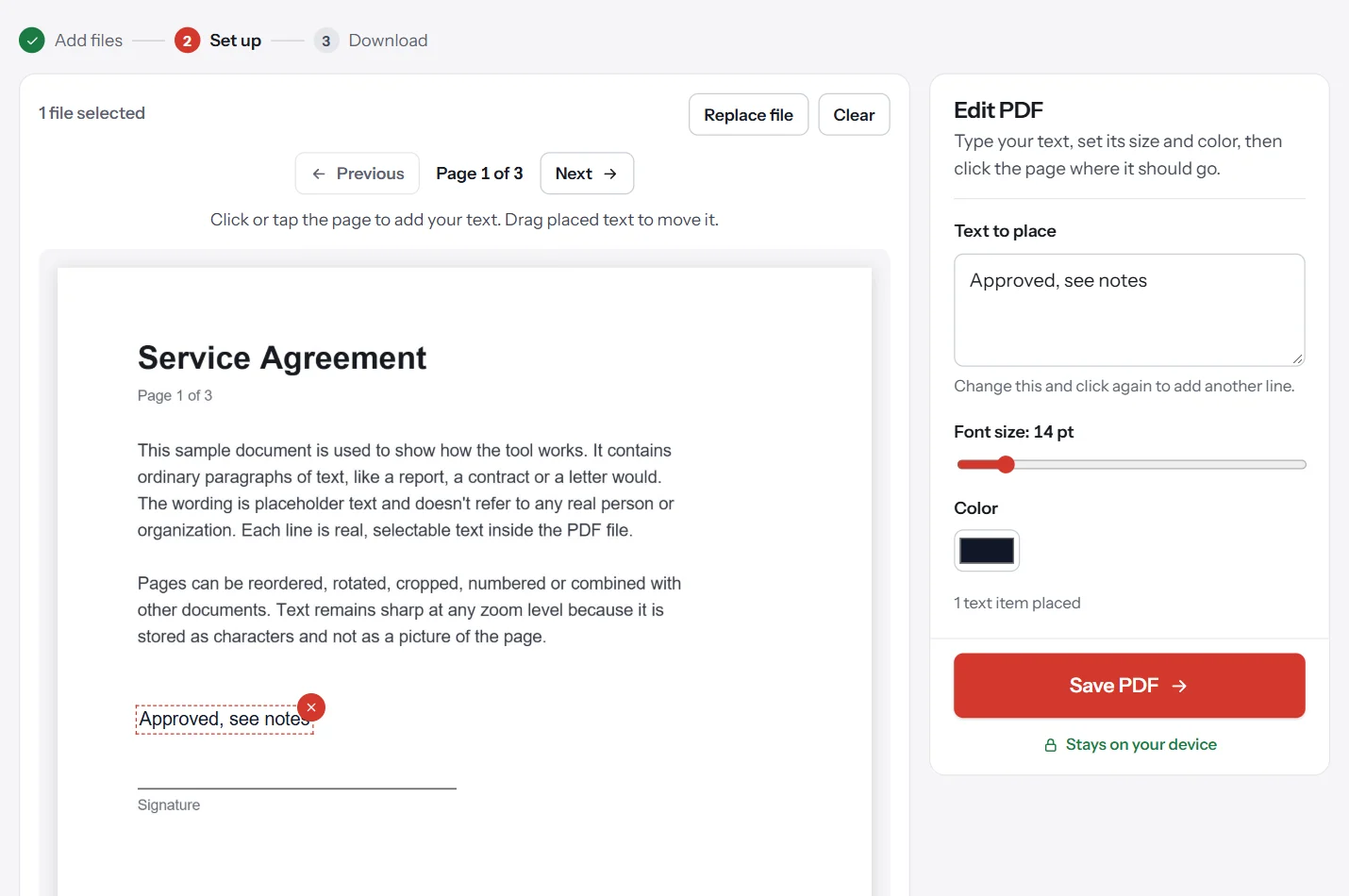
- Open Edit PDF. Go to PDF Lemon's Edit PDF and select your file. It stays on your device.
- Type your text. Enter it in the panel on the right. Press Enter to start a new line.
- Set the size and color. Try 10 to 12 points for forms. Dark text works best.
- Click the page. The text appears where you click. Drag it to line it up.
- Repeat for each blank. Change the text in the panel, then click the next spot. Use Next to move to other pages.
- Click Save PDF and download your copy.
How to type on a PDF in your browser's viewer
If you'd rather not leave your PDF reader, several browsers have this built in.
In Chrome: open the PDF, select Add text in the toolbar, choose a font, style and color, then click where the text should go. When you've finished, select Download and choose With your changes.
In Firefox: the PDF viewer has a text button in its toolbar. Click it, then click on the page and type. Firefox can also draw and add images.
In Edge: the PDF toolbar includes an Add text option. Click it, then click the page.
In Preview on a Mac: choose View, then Show Markup Toolbar, click the Text tool, type, and drag the box into place. Apple suggests this approach when a form won't let you type directly into it. See how to edit a PDF on Mac for more.
How do these options compare?
| Tool | Cost | Fonts and colors | Works on phones | File stays on your device |
|---|---|---|---|---|
| PDF Lemon Edit PDF | Free | Size and color | Yes | Yes |
| Chrome viewer | Free | Several fonts and colors | Limited | Yes |
| Firefox viewer | Free | Size and color | Limited | Yes |
| Mac Preview | Free | Many fonts | Mac only | Yes |
| Adobe Acrobat Reader | Free app | Basic | Yes | Depends on features used |
| Adobe Acrobat | Paid | Full | Yes | Depends on features used |
How to type on a PDF on a phone
Phones work fine for quick jobs such as adding a name and date.
In any mobile browser: open Edit PDF, choose your file, type in the panel, and tap the page. Then drag the text with your finger to adjust it.
On iPhone: open the PDF in Files, tap the markup button, tap the plus button, and choose Add Text. Double-tap the text box to type.
On Android: your PDF viewer may have an annotate option, depending on your phone. If it doesn't, the browser method works on any device.
The screen is small, so zoom out to check alignment before saving. Long forms are usually easier on a computer.
How to make typed text look right
The difference between tidy and sloppy usually comes down to small details.
- Match the size. Compare your text with the printed labels. Forms usually use 9 to 12 points.
- Use black or dark blue. Bright colors can look odd and may be hard to read when printed or faxed.
- Place it just above the line. Text should sit on a blank line like handwriting, not on top of the line.
- Keep answers short. Typed text doesn't wrap on its own, so press Enter to break long answers into lines, or shrink the font.
- Zoom in. Line up against the printed blanks at a higher zoom level.
Note that Edit PDF uses a standard font similar to Helvetica, and it covers Latin characters. If your text includes Urdu, Arabic, Hindi or Chinese, the tool warns you that those letters can't be drawn. For those languages, type in Word or Google Docs, and insert or export from there.
How to type over existing text
A lot of people searching for how to type on a PDF really want to replace words already on the page. Free tools generally can't do that, because of how PDFs store text at fixed positions. There are a few workarounds:
- Edit the source. If you have the original document, change the words there and export again. This is the cleanest fix.
- Convert to Word. Word can open a PDF as an editable document, though the layout may shift. See how to convert PDF to Word.
- Cover and retype. In Preview, add a white rectangle over the old text, then a text box on top. It looks right, but the old words are still underneath and can be found. Don't use this for anything confidential.
- Use a paid editor. Acrobat and others can change text in place.
Our guide on how to edit a PDF compares these in more detail.
How to add a date, tick or initials
Small marks are often all a form needs, and each has a simple trick.
- Dates: type them in the format the form asks for. If it doesn't say, writing the month as a word, as in 5 November 2026, avoids confusion between countries.
- Ticks and crosses: a capital X at the same size as the box looks neat and prints clearly. Place one, then repeat it for other boxes.
- Initials: type them like any other text, or use Sign PDF to place a handwritten version on each page.
- Corrections: text placed with PDF Lemon becomes part of the page once saved, so keep your original and place it again if you make a mistake.
How to lock your typed text
Text you add with Edit PDF becomes part of the page, so it can't be accidentally changed in a normal reader. Answers typed into form fields are different: they stay editable, and they may display differently depending on the reader. To lock them, run the finished file through Flatten PDF. It turns the answers into ordinary page content, which keeps them from being changed and makes them look the same everywhere.
Flatten only after you've checked everything, as the answers can't be edited afterward. Keep an unflattened copy if you might need to change them.
How to create a PDF that others can type on
If you're preparing a document for other people, you don't want them to have to add text boxes. Give them a real fillable form. That means adding form fields with an editor, and our guide on how to make a fillable PDF form shows how. PDF Lemon doesn't currently create form fields, but it can help you prepare a document by cropping or merging pages before you add them elsewhere.
Common problems when typing on a PDF
Nothing happens when I click. It's a flat PDF. Use a text tool rather than clicking the line directly.
My typed text disappeared after saving. Some viewers don't save form entries unless you use their save or download button with changes included. Reopen the file to check, and use Download, then With your changes in Chrome.
The text shows up in one app but not another. Annotation handling varies between apps. Flatten the file, or use a tool that draws text into the page, as PDF Lemon does.
Letters appear as question marks. The font doesn't support those characters. For non-Latin scripts, use a different route, such as exporting from Word.
It says the PDF is protected. The author restricted editing. Ask them for an editable copy, or see how to remove a password from a PDF if you're authorized.
The text is misaligned on other pages. Each page may be scanned at a slightly different angle or position, so check placement on every page, not just the first one.
Questions and answers
How can I type on a PDF for free?
Open it in PDF Lemon's Edit PDF, type your text, click the page and save. Chrome and Firefox have Add text tools in their PDF viewers, and Preview does the same on a Mac.
Why can't I type on my PDF?
It's probably a flat PDF, where the lines and boxes are only printed on the page. Use a tool that adds a text box. If saving is blocked, the file may have editing restrictions.
How do I type over existing text in a PDF?
Most free tools can't replace existing words. You can cover old text with a white shape and type on top, but the old words stay hidden in the file. To really change them, edit the source document or convert the PDF.
How do I make a PDF typeable?
To let others type into it, add form fields using an editor such as Acrobat. See our guide on making a fillable PDF. To type on one yourself, you don't need fields, just a text box tool.
Can I type on a PDF on my phone?
Yes. Open Edit PDF in your phone's browser, type your text in the panel, and tap the page. On iPhone, the Files app's markup tools also include a text option.
Can I type on a scanned PDF?
Yes. A scan is just an image of a page, and new text sits on top of it like on any other page. Use a text box tool and line it up with the blanks.
Tools from this guide
How we checked this guide
We ran the PDF Lemon steps ourselves on the live tools. Steps for other apps come from each vendor's own help pages and are worded to survive small interface changes, but menu names can differ between versions.
Sources we used:
Related guides
- How to Sign a PDF Electronically7 min read
- How to Fill Out a PDF Form7 min read
- How to Annotate and Write on a PDF8 min read
- How to Digitally Sign a PDF8 min read
- How to Highlight Text in a PDF7 min read