How to Edit a PDF
Short answer
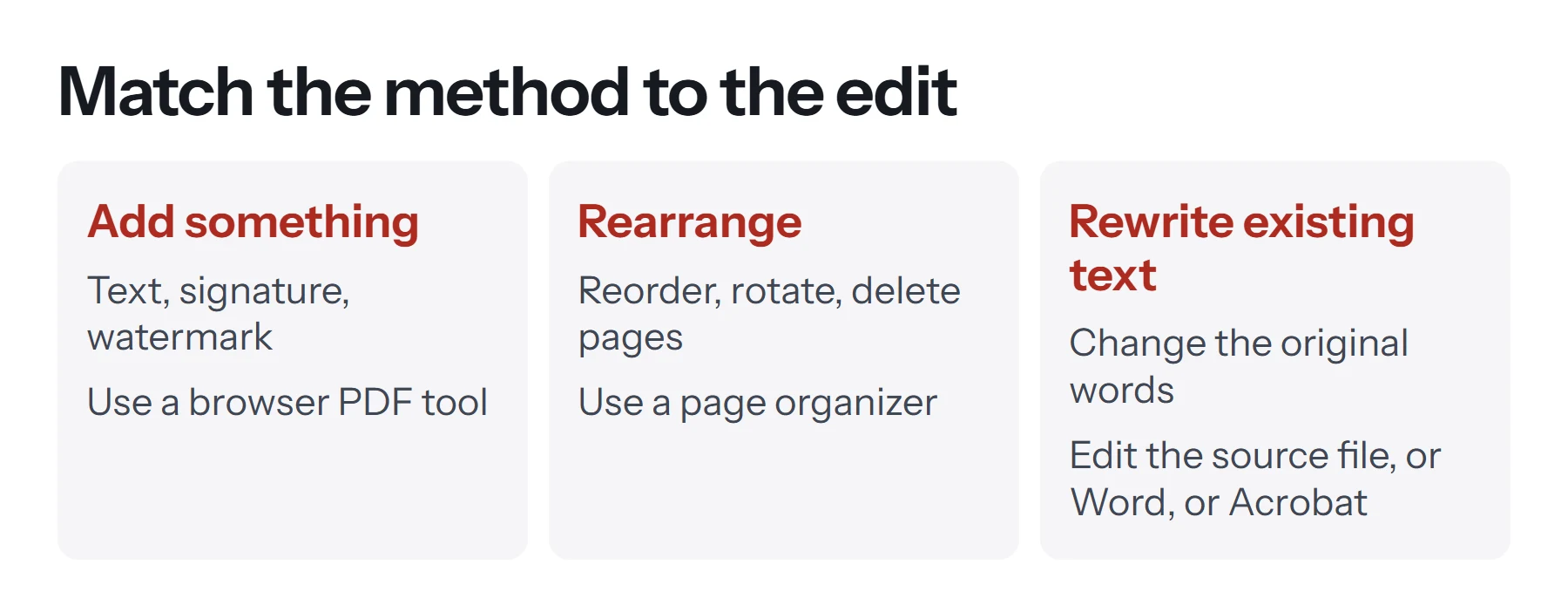
To edit a PDF for free, first decide what kind of edit you need. To add text or a signature, use a free tool such as PDF Lemon's Edit PDF or your browser's PDF viewer. To reorder or delete pages, use a page organizer. To rewrite existing text, edit the original document, or convert the PDF in Word and then export it again.
Open Edit PDFKey takeaways
- PDF edits fall into three groups: adding things, rearranging pages, and rewriting existing text.
- Adding and rearranging are easy and free. Rewriting existing text is the hard part.
- If you have the original Word or Docs file, editing it and re-exporting gives the cleanest result.
- Hiding text under a white box doesn't remove it. Don't use this for private information.
Why editing a PDF is different from editing a Word file
PDFs have a reputation for being impossible to edit, and it comes down to how they're built. A Word file stores flowing paragraphs: delete a sentence, and the rest of the text moves up. A PDF stores characters at exact positions on a page. It knows where each word goes, but it has no real concept of a paragraph that should reflow.
So the answer to "how do I edit a PDF?" depends entirely on what you want to change. Most edits fit one of three groups, and two of them are easy.
How to add text to a PDF
Adding new text is the most common edit, and it's free. It covers filling in a form that won't let you type, adding a date or name, or leaving a note.
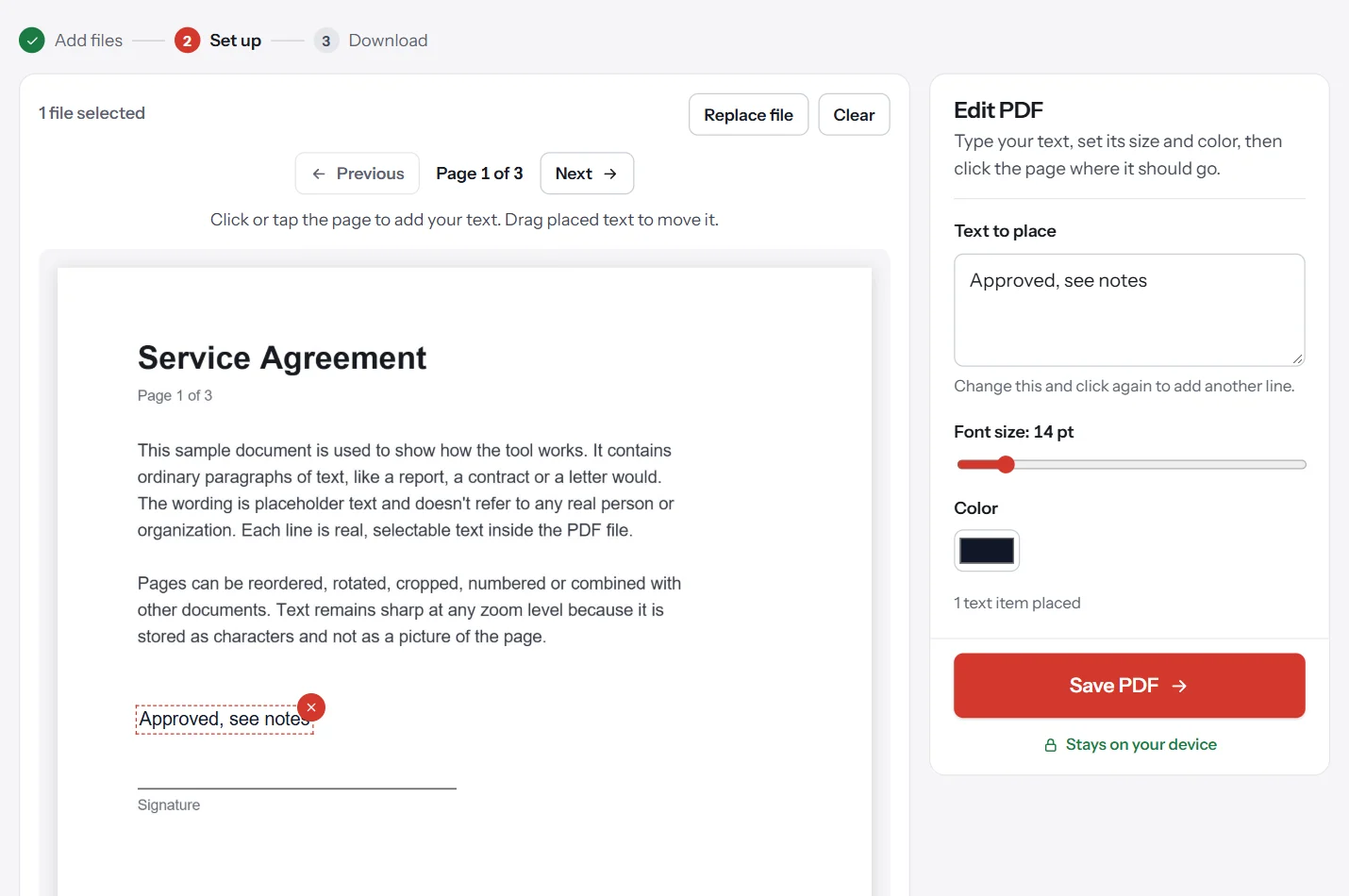
- Open your PDF in an editor. Go to PDF Lemon's Edit PDF and select your file. It stays on your device.
- Type your text. Enter the words in the panel and set the size and color.
- Click the page. The text appears where you click. Drag it to adjust the position.
- Add more if needed. Use the page controls to move through the document and repeat.
- Save. Click Save PDF and download your edited copy.
You have other free options too. Chrome's built-in viewer has an Add text tool, where you pick a font and color and click the page. Firefox's viewer can add text, draw and insert images. On a Mac, Preview does the same through its Markup toolbar, which we cover in how to edit a PDF on Mac for free.
For more on this specific job, see how to type on a PDF.
How to add a signature, watermark or page numbers
These are also "add" edits, and each has its own tool, which gives you more control than a text box.
- Signature: Sign PDF lets you draw or type a signature and place it on any page. Our guide on how to sign a PDF covers the legal side.
- Watermark: Add Watermark stamps text such as DRAFT or CONFIDENTIAL across every page.
- Page numbers: Add Page Numbers numbers pages automatically in the position and format you choose.
- Images: Add Image to PDF places a picture or logo on any page, and can repeat it on every page. See how to insert images into a PDF for other methods.
How to rearrange, delete or rotate PDF pages
Page-level edits don't touch the content of the page at all, so there's no risk to the formatting. Text stays selectable and images keep their quality.
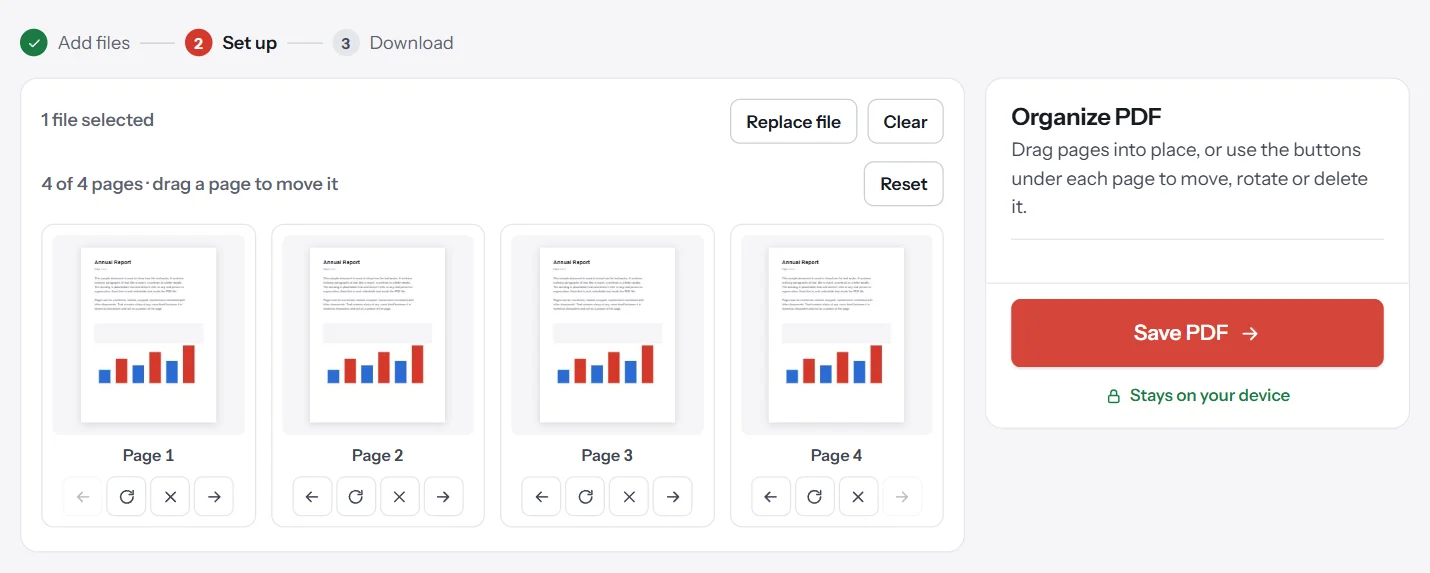
- Reorder pages: drag thumbnails in Organize PDF.
- Delete pages: type the page numbers in Remove Pages.
- Rotate pages: fix sideways scans with Rotate PDF.
- Trim margins: use Crop PDF.
- Add pages from another file: use Merge PDF. See how to combine PDF files.
- Pull out some pages: use Extract Pages or Split PDF.
How to change the existing text in a PDF
This is the genuinely difficult edit, and no free browser tool does it well. Here are your options, in the order we'd try them.
1. Edit the source file
Before anything else, look for the original. If the PDF came from a Word document, a Google Doc or a design file, change the words there and export a new PDF. You'll get a perfect result in a couple of minutes, because nothing gets converted. See how to save a Word document as a PDF or how to convert Google Docs to PDF.
2. Convert to Word, edit, and export
Word can open a PDF and turn it into an editable document, and Microsoft says this works best for files that are mostly text. A page full of charts may come through as one image, and tables and columns can shift. Make your changes, save it as a PDF again and compare the pages against the original. See how to convert PDF to Word.
3. Use Google Docs
Upload the PDF to Google Drive, right-click it and open it with Google Docs. It's free, and it also runs text recognition on scanned pages. Google warns that lists, tables, columns and footnotes may not be detected, so expect to reformat. It suits simple documents.
4. Use a paid PDF editor
Adobe Acrobat and similar editors can change text in place while trying to keep the layout. If this is a regular part of your work, it's probably worth paying for. For a one-off job, try the free routes first.
How do you choose the right method?
Use this table to find the quickest route for your job.
| You want to | Best free method | Formatting risk |
|---|---|---|
| Fill in a blank or add a note | Edit PDF or browser viewer | None |
| Sign a document | Sign PDF | None |
| Remove or reorder pages | Organize PDF | None |
| Fix a typo, and you have the source | Edit the source and re-export | None |
| Fix a typo, with only the PDF | Word conversion | Medium |
| Rewrite whole sections | Word conversion, then check carefully | High |
| Change a scanned document | OCR in Google Docs, then retype | High |
How to edit a PDF on your phone
Phones are good at quick additions and poor at heavy editing, simply because of the screen size. For most mobile jobs, you won't need to install an app.
Open Edit PDF or Sign PDF in your phone's browser and pick the file from your device. Type your text in the panel, then tap the page where it should go. Placed items can be dragged into position with a finger. On a phone, page previews are small, so pinch to zoom out and check the alignment before you save.
On iPhone, the Files and Preview apps offer markup tools too. On Android, your phone's PDF viewer may let you annotate, depending on the manufacturer. If you need to rewrite text, wait until you're at a computer, because comparing a converted document against the original on a small screen is slow and it's easy to miss errors.
How to edit PDF forms
Forms deserve a mention of their own, since they account for a large share of PDF editing. There are two kinds, and the method differs.
A fillable form has interactive fields. Click a field and type, in nearly any browser or PDF reader. A flat form only looks like a form, as its lines and boxes are part of the page. Clicking does nothing, so add text boxes on top instead, using the method at the top of this guide. Our guide on how to fill out a PDF form walks through both.
If you're the one creating the form and you'd like people to type into it, see how to make a fillable PDF form.
Does editing change the PDF's file size?
Adding a few lines of text adds almost nothing. Adding a signature or image adds a little more, depending on the image. Converting a PDF to Word and back can change the size noticeably in either direction, because images may be recompressed and fonts handled differently. If your finished file is too large to send, compress it as a final step, once all your edits are done, since some compression levels turn pages into images and make later edits harder.
How do you edit a scanned PDF?
A scanned PDF is a photograph of paper, so there's no text to edit, only pixels. To test yours, try to select a word. If you can't, it's a scan.
You can still add text, signatures, page numbers and watermarks on top, exactly as above, because those work on any PDF. To change the words themselves, you need optical character recognition (OCR), which reads the picture and works out the letters. Opening the file with Google Docs from Google Drive is a free way to do this. Check the results closely, since OCR often confuses similar characters, and it does best with sharp images and common fonts.
If you only need the words, try how to copy text from a PDF.
How to avoid formatting problems
Most PDF editing disasters come from a few avoidable mistakes.
- Keep the original. Save edits as a new file. PDF Lemon always creates a new copy and never changes your source file.
- Avoid round trips when you can. Converting PDF to Word and back is the main cause of layout damage. If you only need to add something, don't convert at all.
- Match the font. A similar font and size make additions far less obvious.
- Compare the pages. After any conversion, look at the old and new versions side by side, paying attention to tables, headers and page breaks.
- Check the file size. Conversions can inflate files. If the result is too big to send, see how to compress a PDF.
- Flatten when finished. Flatten PDF locks form answers into the page.
Covering text with a white box doesn't remove it. The words often stay in the file and can still be selected or searched. To remove private information properly, delete the page or correct the source file and export a new PDF.
Why can't I edit my PDF?
It's a scan. You can add to the page, but you can't change the existing words without OCR.
It's protected. The author may have set a password that restricts editing. If you're authorized to change it and know the password, see how to remove a password from a PDF. PDF Lemon shows a clear message when a file is protected.
Your tool only annotates. Most free viewers can place new text on a page but can't change the words already there. That's a limit of the tool rather than a problem with your file.
The file is damaged. If it won't open at all, download it again, or open it in another reader and save a fresh copy.
Questions and answers
How can I edit a PDF for free?
Use a free tool that matches your edit. PDF Lemon adds text, images, signatures, page numbers and watermarks and can reorder pages, all in your browser. Chrome and Firefox can add text to a PDF too, and Macs include Preview.
Can I edit the existing text in a PDF?
Only with certain tools. Word can convert a PDF to an editable document, and paid editors such as Acrobat can change text in place. Free annotation tools only add new text on top.
How do I edit a PDF without Adobe?
Browser tools, Mac Preview, Word and Google Docs all work without Adobe. Choose based on whether you need to add content, rearrange pages or rewrite text.
Why can't I edit my PDF?
The file may be a scan with no real text, it may have editing restrictions set by a password, or your tool may only support annotations. Each has a different fix, which this guide explains.
How do I edit a scanned PDF?
A scan is a picture of each page. You can add text on top right away. To change the words, run it through OCR first, for example by opening it with Google Docs in Google Drive, then fix what the OCR got wrong.
Will editing a PDF ruin the formatting?
Adding text, signatures or page numbers won't change the rest of the page. Converting to Word and back is the risky route, because the layout can shift, especially with tables and columns.
Tools from this guide
How we checked this guide
We ran the PDF Lemon steps ourselves on the live tools. Steps for other apps come from each vendor's own help pages and are worded to survive small interface changes, but menu names can differ between versions.
Sources we used:
Related guides
- How to Edit a PDF on Mac for Free8 min read
- How to Annotate and Write on a PDF8 min read
- How to Type on a PDF7 min read
- How to Combine PDF Files into One7 min read
- How to Insert Images into a PDF8 min read