How to Compress a PDF and Reduce File Size
Short answer
To compress a PDF, open a compressor such as PDF Lemon's Compress PDF, add your file, choose a level and download the smaller copy. Scans and photo-heavy PDFs shrink the most, because images take up most of their size. Then zoom in on small print to check it's readable. Text-only PDFs may barely change, since they're already compact.
Open Compress PDFKey takeaways
- Images cause most PDF bloat, so scans and photo-heavy files shrink the most.
- Stronger compression makes smaller files but softens fine detail, so check the result.
- PDF Lemon's Recommended and Strong levels turn pages into images, which makes text non-selectable.
- If compression isn't enough, remove pages, go grayscale or split the file.
How to compress a PDF online
Compressing a PDF takes under a minute. PDF Lemon's compressor runs inside your browser, which also means the file stays on your device, a real advantage for contracts and IDs.
- Open Compress PDF. Go to PDF Lemon's Compress PDF and select your file. You can add several at once.
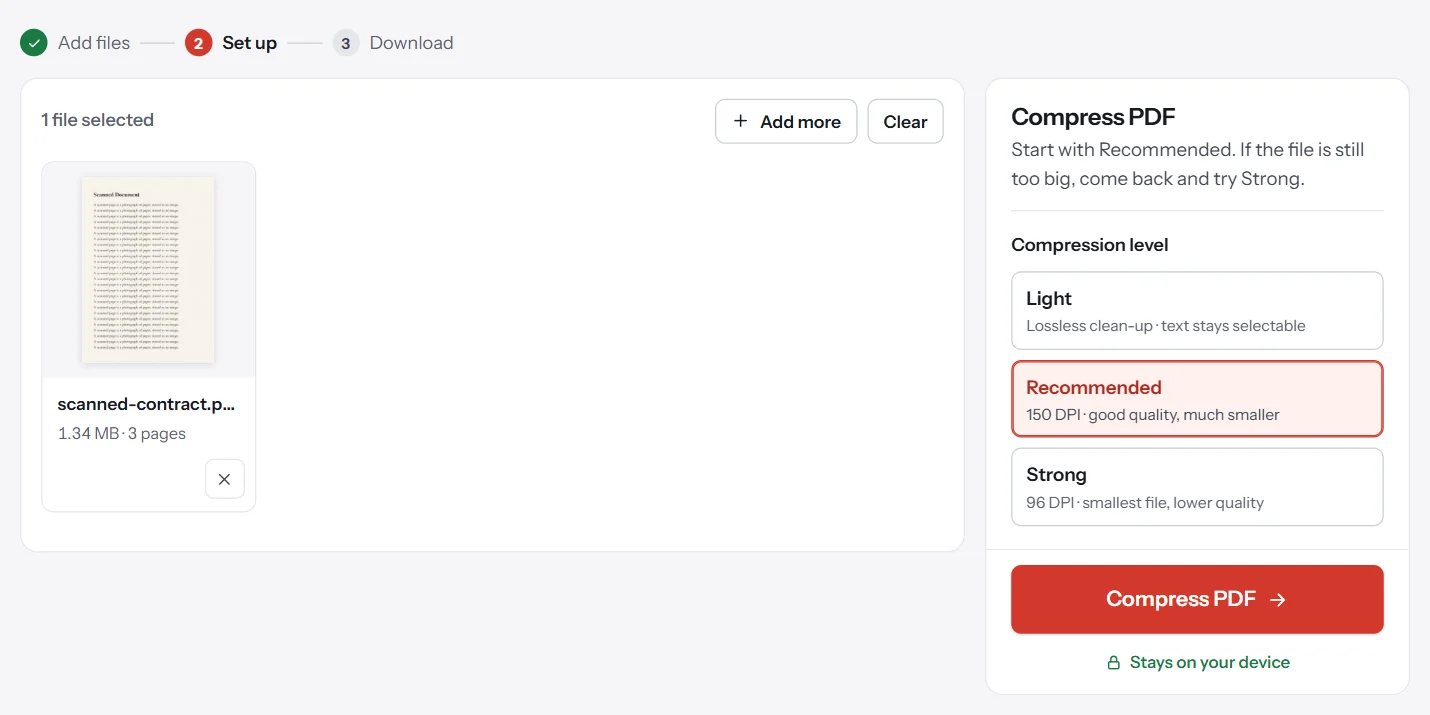
- Choose a level. Start with Recommended.
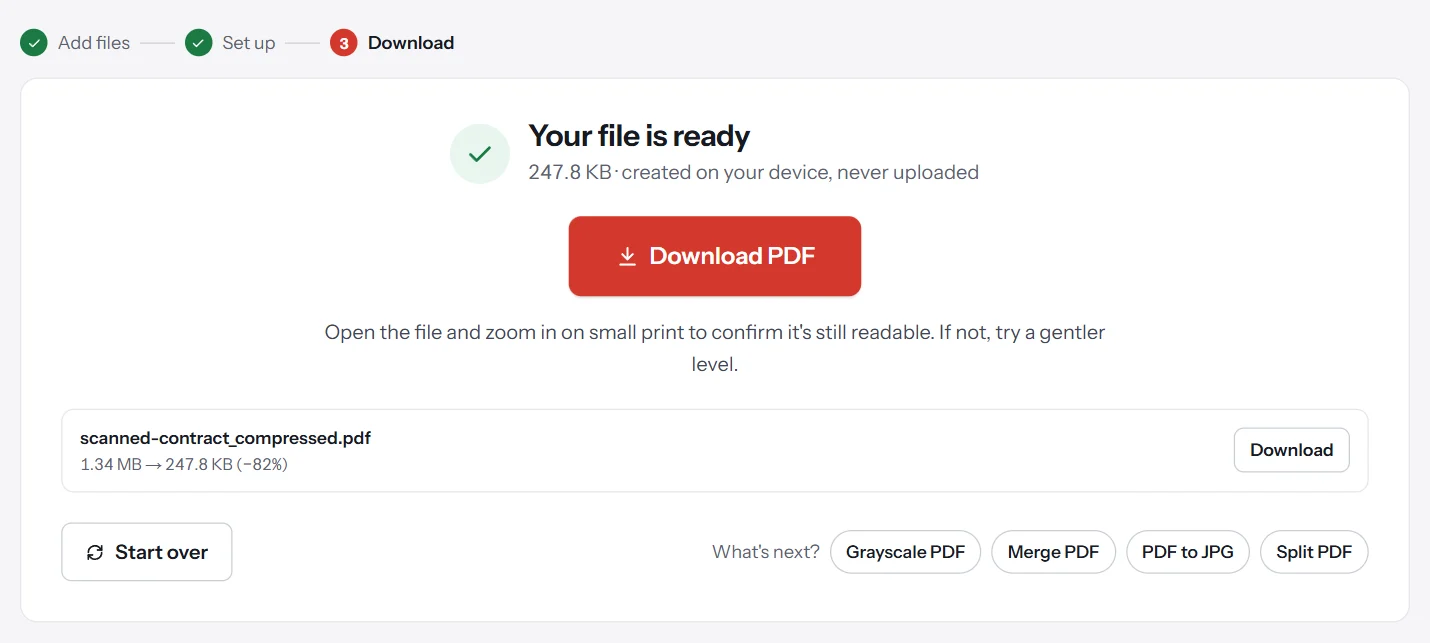
- Click Compress PDF. The tool shows the old and new sizes when it's done.
- Check the result. Open the file and zoom in on the smallest text.
- Download it, or try another level. If it's still too big, go back and pick Strong.
Which compression level should you choose?
Compression is a trade-off between size and detail, so the best level depends on what the file is for.
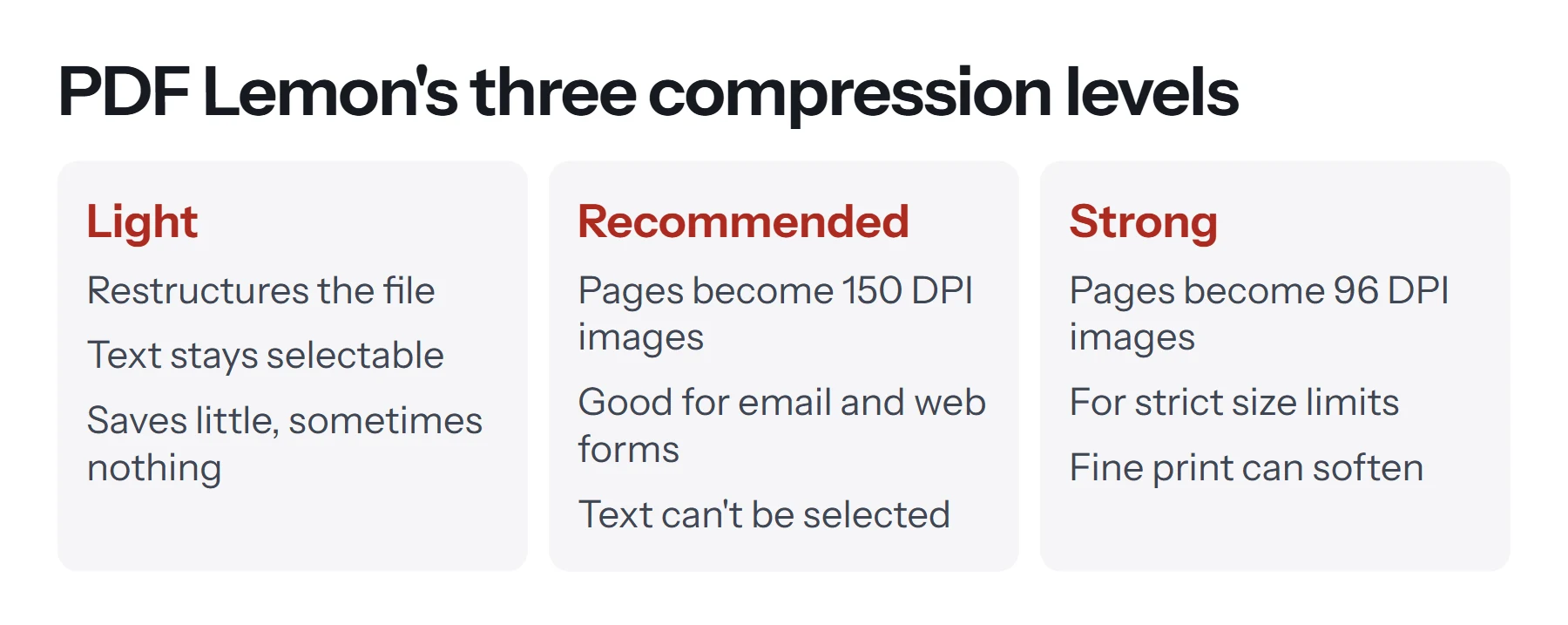
Light restructures the file without touching the images. Text stays selectable and nothing gets blurrier, but it saves little and sometimes nothing. Use it when the PDF has to stay searchable.
Recommended redraws each page as a 150 DPI image. This is the right starting point for scans and image-heavy PDFs being sent by email or uploaded to a form. It usually looks fine on screen and for ordinary printing.
Strong redraws each page at 96 DPI with heavier compression. Use it when you must hit a strict limit, and check that fine print is still readable.
Recommended and Strong turn each page into an image, so text can no longer be selected or searched. Keep your original file if you might need that later. If compression wouldn't make the file smaller, PDF Lemon gives you the original back rather than a bigger file.
How much smaller will it get?
It depends entirely on what's in the file, which is why we don't promise a percentage. In our own test, a 1.4 MB, four-page sample scan shrank about 20% on Recommended and about 79% on Strong. A scan made at a higher resolution has more to lose and usually shrinks more. A text-only PDF exported from Word may not shrink at all. The tool reports the exact before and after for your file, so you don't have to guess.
Why are some PDFs so large?
Images are almost always the reason. Text is cheap to store, while pictures aren't.
- Scans store a full photograph of every page. A page scanned at high resolution in color can run to several megabytes, while a page of real text is often only kilobytes.
- Photos taken on a phone can be several megabytes each, and a PDF built from them keeps all of it.
- Repeated merges can leave duplicate resources behind.
- Embedded fonts and leftover editing data add smaller amounts.
That explains the common puzzle of a 40-page report that's a few hundred kilobytes next to a 10-page phone scan of 20 MB.
How to reduce PDF size without losing quality
If you can't afford any quality loss, compression shouldn't be your first move. Try these first, since none of them affects how the remaining pages look.
Remove pages you don't need
Blank backs of scanned pages, duplicates and long appendices all add weight. Delete them with Remove Pages or Organize PDF. It's lossless, and it's often the quickest win.
Split the file
If a portal accepts several attachments but limits each one, split the PDF into parts. Every page keeps its full quality.
Export it again from the source
If you still have the original Word, PowerPoint or design file, export it again with a smaller-size preset, such as Word's Minimum size option. This usually beats compressing a finished PDF, because you avoid compressing images a second time. See how to save a Word document as a PDF.
Share a link instead
When the recipient only needs to read the document, you don't have to shrink it at all. Upload it to cloud storage and send a link. See how to create a shareable PDF link.
How to compress a PDF on a Mac
Preview can do this with no extra software:
- Open the PDF in Preview.
- Choose File, then Export.
- Open the Quartz Filter menu and choose Reduce File Size.
- Save the copy under a new name.
Apple warns that the result may be lower in quality than the original. This filter doesn't let you choose a level, and it can make images look rough, so compare the two. If you don't like the result, use a browser tool instead.
How to compress a PDF on Windows and phones
Windows has no built-in PDF compressor, so a browser tool is the simplest route, with nothing to install. The same goes for Android and iPhone. Open Compress PDF in your mobile browser and pick the file from your device. Phones have less memory than computers, so very large files are better handled on a computer.
What size limits should you aim for?
| Where the file is going | Typical limit | What to try |
|---|---|---|
| Gmail attachment | 25 MB | Recommended, or send a link |
| Work email | Often 10–20 MB | Recommended |
| Job or government portal | Often 1–5 MB per file | Recommended, then Strong |
| University submission | Varies, often small | Check the rules, then Strong or split |
These are common figures rather than rules, so check the limit you're actually working with. The form's own error message usually tells you.
How to compress a PDF to under 1 MB
Reaching a hard limit like this calls for several techniques together, in this order:
- Delete anything unnecessary. Fewer pages is the most effective change there is.
- Convert to grayscale. If color doesn't matter, Grayscale PDF removes it. It works especially well for contracts and forms.
- Compress at Strong. Then zoom in and check that small print is readable.
- Split as a last resort. Two readable files beat one that can't be read.
Long scanned documents may not reach 1 MB at a readable quality. If the words matter more than the page's appearance, you could also recreate the document as real text and export it as a new PDF.
What does compression do to links, forms and bookmarks?
This catches people out, and it's worth checking before you compress a working document. How much survives depends on the level you choose.
| Feature | Light | Recommended and Strong |
|---|---|---|
| Selectable text | Kept | Lost, because pages become images |
| Links | Kept | Lost |
| Bookmarks | Kept | Lost |
| Form fields you can type in | Kept | Lost; answers already entered appear as part of the image |
| Page size and order | Kept | Kept |
So, if you're sending a scan to be read or printed, the stronger levels are fine. If you're sending a form someone still needs to fill in, or a report that depends on its links, use Light, or reduce the size some other way.
What does DPI mean for PDF size?
DPI, or dots per inch, measures how much detail an image holds for each inch of page. Double the DPI and you get four times the pixels, so it has a huge effect on file size. Screens need relatively little: 96 to 150 DPI usually looks fine for reading. Ordinary office printing looks good at around 150 to 200 DPI. Professional printing usually asks for 300 DPI.
That's why a scan made at 600 DPI "just to be safe" produces such a big file. If you control the scanner, a setting of 150 to 200 DPI in grayscale is plenty for most paperwork and will save you from having to compress later.
Compressing a PDF vs zipping it
Putting a PDF in a ZIP file is a different thing altogether. Zipping packages the file for transfer, and the recipient must unzip it to read it. PDFs are already compressed internally, so zipping usually saves very little. Compressing the PDF changes the file itself and it stays a normal PDF. To get around an email limit, compress the PDF or send a link. A ZIP is more useful for sending several documents in one bundle.
How to check your compressed PDF
Never send a compressed file without opening it first.
- Zoom to 100% or more and read the smallest text.
- Check signatures, stamps and handwriting, since these often degrade first.
- Look at photos and charts. Faint lines and light gray text can disappear.
- Check the page count against the original.
- Test text selection if the recipient may need to search or copy it.
If something looks wrong, go back to your original and use a gentler level. Don't compress a file that's already been compressed, because the damage adds up.
Common problems when compressing a PDF
The file barely shrank. It's probably mostly text already. Light mode can't do much for a PDF like this. If you need it smaller, try Recommended or Strong, but note that this can even produce a larger file for text-only PDFs. In that case, the tool keeps your original.
Text looks blurry. The level is too strong for that document. Use Recommended rather than Strong, or try Light.
I can't select text anymore. This is expected with Recommended and Strong. Run Light on the original instead.
It says the file is protected. Compression needs access to the contents. If you're authorized to change the file, see how to remove a password from a PDF.
It stops on a very large file. Your device has run out of memory. Close other tabs, use a computer rather than a phone, or split the PDF first.
Questions and answers
How can I reduce a PDF's file size for free?
Use a free compressor such as PDF Lemon's Compress PDF, or Preview's Reduce File Size filter on a Mac. Choose a level, then check the result. PDF Lemon runs in your browser, so the file isn't uploaded.
How do I make a PDF smaller to email?
Compress it with the Recommended level first, then try Strong if it's still too big. Gmail's limit is 25 MB and many workplaces set lower limits. If it's still too large, split it or share a link instead.
Does compressing a PDF reduce quality?
It depends on the method. Lossless clean-up doesn't, but it saves little. Image compression lowers resolution, which is usually fine on screen but can be noticeable when you zoom in or print large.
How do I compress a PDF to under 1 MB?
Try Strong compression, remove pages you don't need, and convert to grayscale if color isn't required. A long scanned document may not reach 1 MB at a readable quality, so splitting it may be the answer.
Why didn't my PDF get smaller?
PDFs that are mostly text are already compact, so there's little to remove. PDF Lemon keeps your original if compressing wouldn't make the file any smaller.
Can I compress a PDF on a Mac without any extra software?
Yes. Open it in Preview, choose File, then Export, and pick Reduce File Size from the Quartz Filter menu. Apple notes the result may be lower in quality than the original, so check it closely.
Tools from this guide
How we checked this guide
We ran the PDF Lemon steps ourselves on the live tools. Steps for other apps come from each vendor's own help pages and are worded to survive small interface changes, but menu names can differ between versions.
Sources we used:
Related guides
- How to Split a PDF into Separate Files7 min read
- How to Open a PDF in Word7 min read
- How to Convert PDF to Google Docs7 min read
- How to Change or Resize PDF Page Dimensions9 min read
- How to Combine PDF Files into One7 min read