How to Open a PDF in Word
Short answer
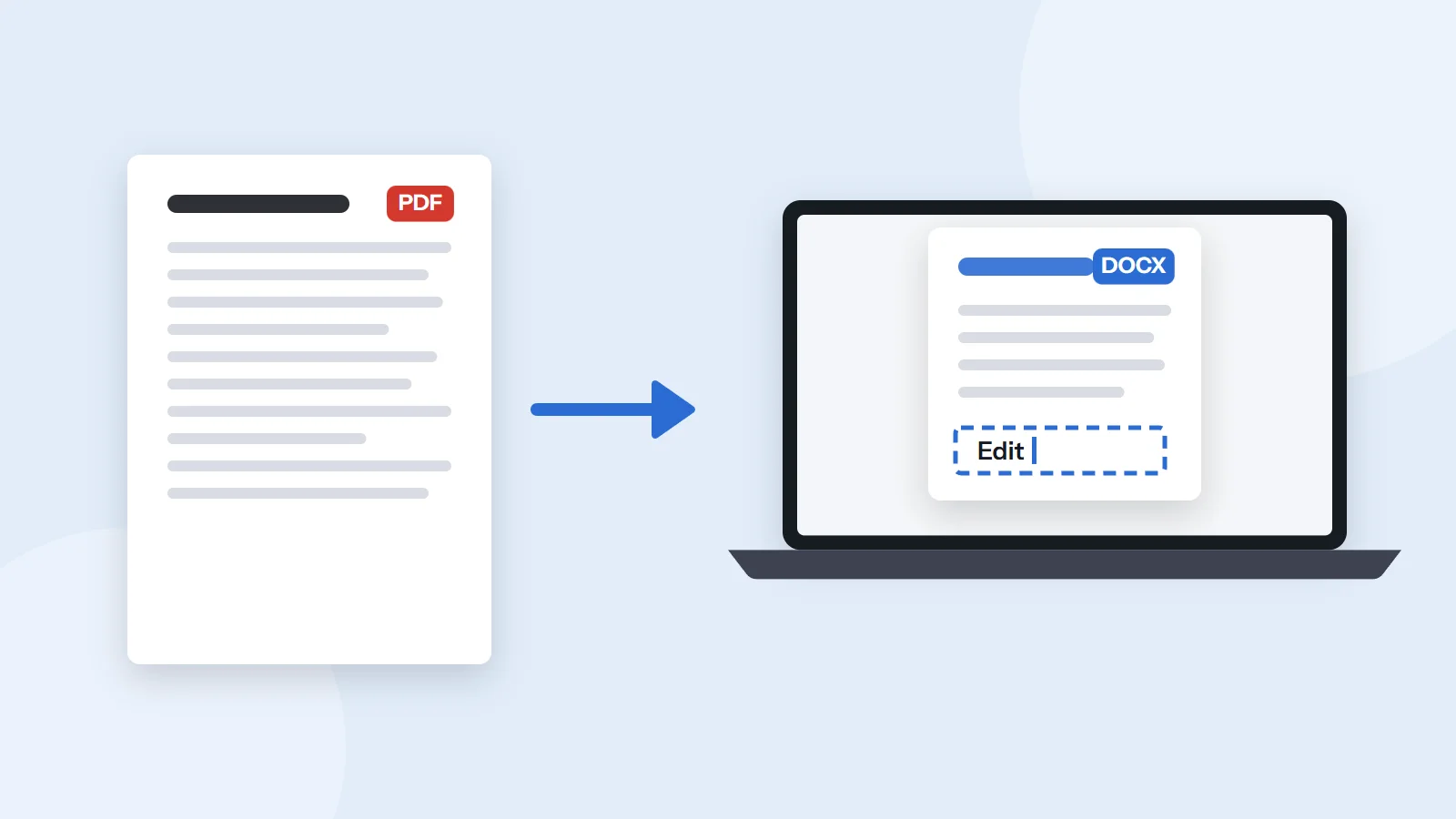
To open a PDF in Word, start Word, choose File, then Open, and select the PDF. Word warns that it will convert a copy into an editable document, so click OK. Your original PDF isn't changed. Text-heavy files convert well, while scans, complex tables and heavily designed pages may need tidying afterward.
Open PDF to TextKey takeaways
- Word opens a PDF by converting a copy into an editable document. The original PDF stays as it is.
- Conversion works best on documents that are mostly text, such as letters, reports and contracts.
- Tables with cell spacing, footnotes, comments and bookmarks often don't convert cleanly.
- If you only need the words, extracting the text can be faster than fixing a converted layout.
What happens when you open a PDF in Word?
Word can open a PDF, but not in the way it opens its own files. A PDF stores every character, line and picture at a fixed position on the page. A Word document stores flowing paragraphs, styles and tables. So when you open a PDF in Word, it doesn't simply display the file. It reads the PDF and rebuilds it as a new, editable document. Microsoft calls this converting a copy, and the important point is that your original PDF isn't touched.
This matters because the result depends on how the PDF was made. A clean report exported from Word converts very well. A scanned letter, a brochure with columns, or a spreadsheet saved as a PDF may come out with odd spacing, broken tables, or whole pages turned into pictures.
How to open a PDF in Word on Windows
These steps work in Word for Microsoft 365 and in recent standalone versions such as Word 2021 and 2024.
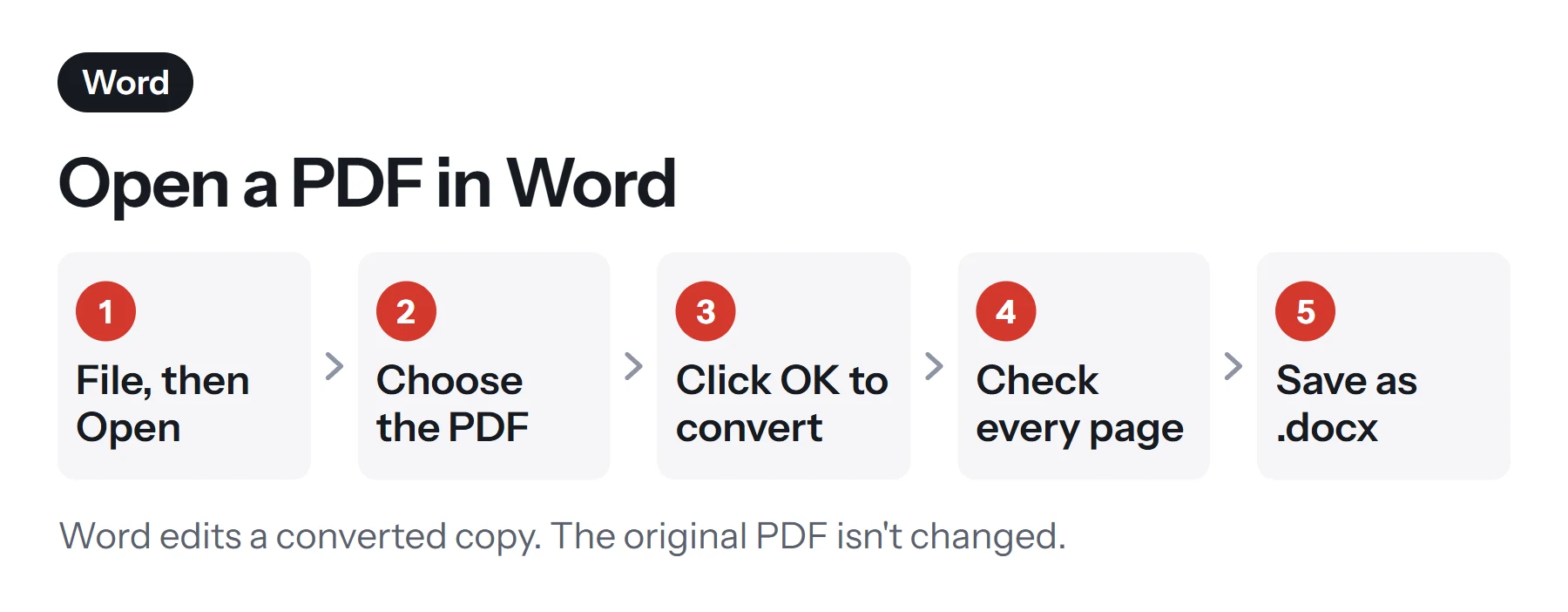
- Open Word. Start with a blank screen or any document.
- Choose File, then Open. Select Browse if you need to look in a specific folder.
- Select your PDF and click Open. You may need to change the file type filter to All Files or PDF Files if the PDF doesn't appear.
- Click OK on the message. Word explains that it will convert the PDF into an editable document and that the original won't change.
- Check the result. Scroll through the whole document before you start editing, so that you know what needs fixing.
- Save it. Choose File, then Save As, and keep the Word Document (.docx) format. That way you don't overwrite anything.
You can also right-click the PDF in File Explorer, choose Open with, and pick Word. If Word isn't listed, choose Choose another app and look for it there. Double-clicking a PDF usually opens it in your default PDF reader instead, which is fine for viewing but doesn't make it editable.
How to open a PDF in Word on a Mac
Word for Mac follows the same idea. Open Word, choose File, then Open, and select the PDF. If your version offers to convert it, accept, then review the document and save it as a .docx file. Menu names can differ slightly between versions, so if you don't see the option, update Word, or use one of the alternatives below.
If you only have Pages, it can't convert a PDF into an editable document. Preview can open the PDF and let you copy text from it, and our guide on how to copy text from a PDF explains how to do that cleanly.
Which PDFs convert well, and which don't?
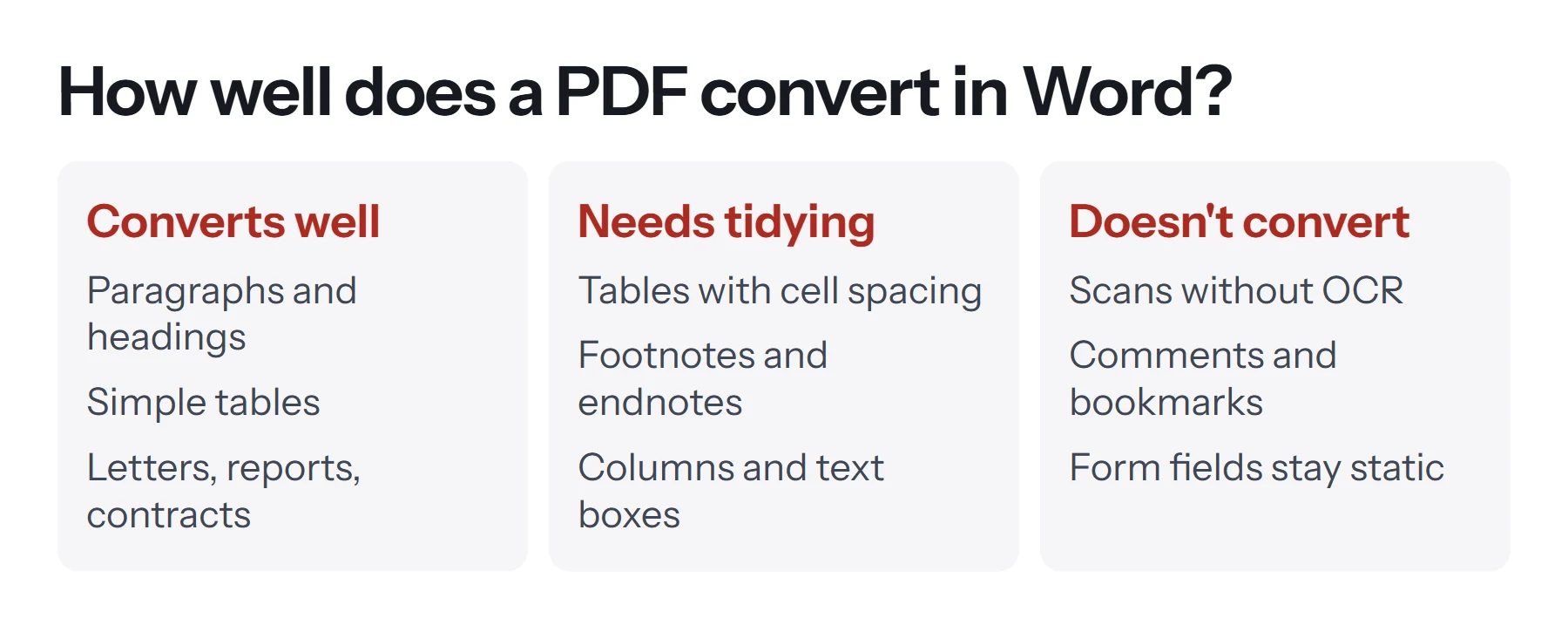
Microsoft says conversion works best for documents that are mostly text, such as business, legal or scientific documents. It also lists several elements that may not convert properly. This table brings them together.
| PDF content | Result in Word | What to do |
|---|---|---|
| Plain paragraphs and headings | Usually converts well | Check fonts and spacing |
| Simple tables | Usually editable | Check column widths |
| Tables with cell spacing | Often break apart | Rebuild the table in Word |
| Footnotes and endnotes | May turn into normal text | Re-insert them with Word's tools |
| Charts and heavy graphics | A page may become one image | Keep that page as an image |
| Comments and bookmarks | Not carried over | Read them in a PDF reader first |
| Scanned pages | Pictures, not text | Use OCR first |
| Forms and form fields | Fields don't stay interactive | Rebuild the form, or fill in the PDF |
Microsoft's list of elements that may not convert well also includes page colors and borders, tracked changes, frames, audio and video, PDF tags, and effects like glow or shadow. If your PDF relies on any of these, opening it in a PDF reader is the better way to view it.
How to fix common formatting problems after opening
A converted document almost always needs a few minutes of tidying. Work through these in order.
- Turn on formatting marks. Click the ¶ button on the Home tab. You'll see stray line breaks, section breaks and spaces that cause odd layouts.
- Remove manual line breaks. PDFs often end every line with a break. Use Find and Replace to replace manual line breaks with a space, then put paragraph breaks back where they belong.
- Apply styles. Select each heading and apply Heading 1 or Heading 2. This fixes the look and makes the navigation pane work.
- Rebuild broken tables. If a table has come in as separate text boxes, it's usually quicker to insert a new table and paste the values in.
- Check the fonts. If the PDF used fonts you don't have, Word substitutes others. Select all the text and set one font to restore consistency.
- Compare page by page. Microsoft notes that line and page breaks may not match the original. Compare the two side by side for long or legal documents.
How to open a scanned PDF in Word
A scanned PDF is a photograph of each page. Word can display it, but often the result is images rather than editable text. To edit the words, the file needs optical character recognition (OCR) first.
The free route is Google Drive. Upload the PDF, right-click it, choose Open with, then Google Docs. Google turns the text in the scan into an editable document, which you can download as a Word file. Google recommends files of 2 MB or less, text at least 10 pixels high, and pages the right way up. If your scan is sideways, use Rotate PDF first. If it's too big, split it into parts. Our guide on how to convert a PDF to Google Docs covers this step by step.
Paid editors such as Adobe Acrobat include their own OCR as well.
When should you skip Word and extract the text instead?
Sometimes you don't need the layout at all, only the words. For example, you might want to quote a few paragraphs, reuse a description in a new document, or paste a list into a spreadsheet. In those cases, fixing a converted layout is wasted effort.
PDF Lemon's PDF to Text pulls all the text out of a digital PDF in your browser, without uploading the file. Copy the result and paste it into Word, where it takes on your document's own styles.
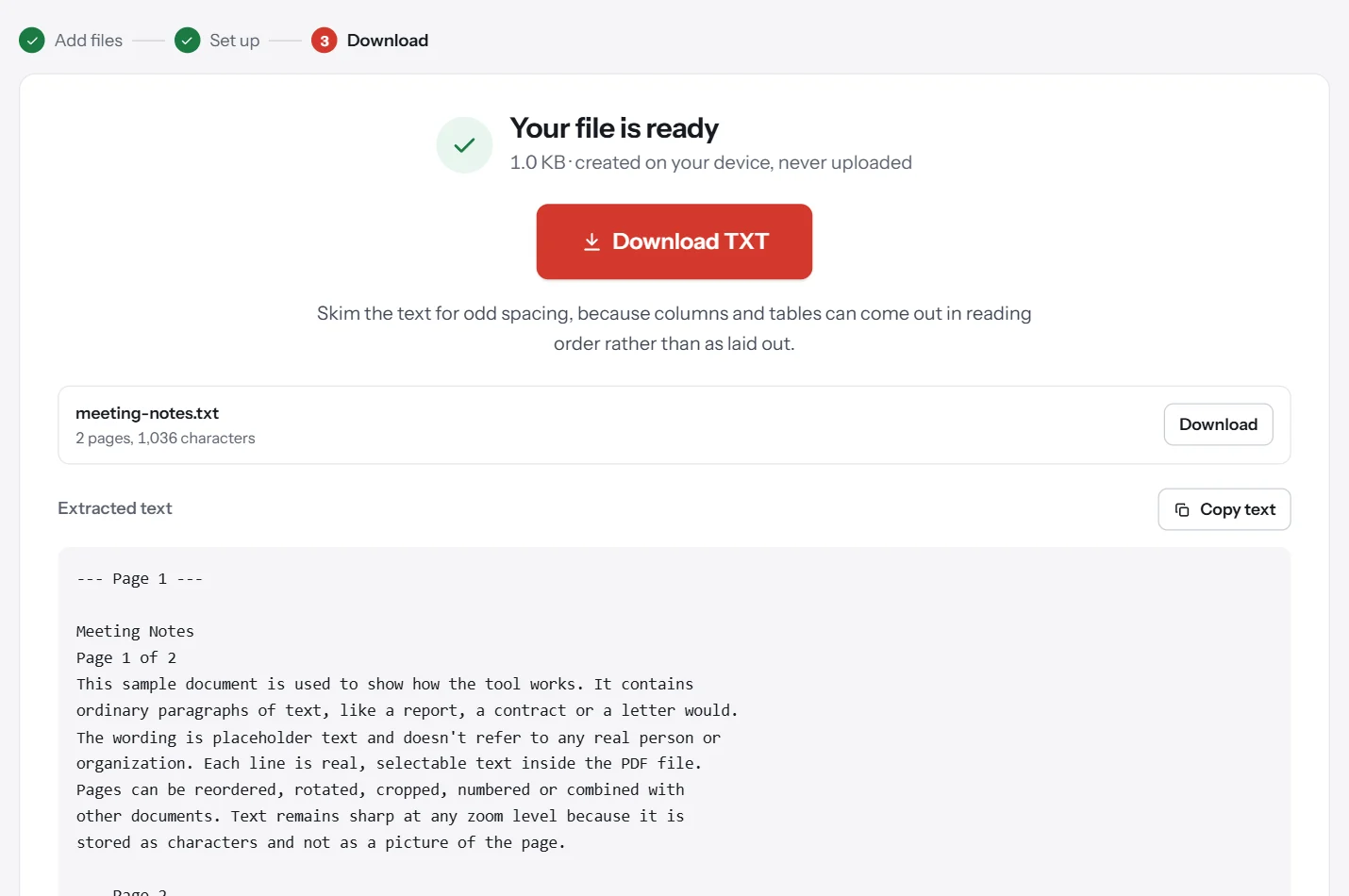
This works on PDFs that contain real text. If PDF to Text reports that no text was found, the file is a scan, and you'll need OCR as described above.
How to open a PDF in Word for the web
Word for the web is designed for Word files, and converting PDFs is mainly a desktop feature. If you store files in OneDrive, opening a PDF there usually shows it in a viewer rather than as an editable document. For a full conversion, use the Word desktop app, or the Google Docs method above, which runs in any browser.
Open, insert or convert: which do you need?
These three jobs are easy to mix up, and they have different results.
| You want to | Use | Result |
|---|---|---|
| Edit the PDF's text in Word | File, then Open | An editable copy of the PDF |
| Show a PDF inside a Word document | Insert, then Object | The PDF appears as an object or icon |
| Get the words only | PDF to Text or copy and paste | Plain text you can format |
If you want to place a PDF inside a report rather than edit it, see how to insert a PDF into Word. For a full comparison of conversion tools, including paid ones, read how to convert a PDF to Word.
How to save your work afterward
Once you've finished editing, decide what you need to send.
- To keep editing later, save it as a Word document (.docx).
- To share a final version, choose File, then Save As, and pick PDF. Our guide on how to save a Word document as a PDF covers the options.
- To keep a record, store the original PDF alongside your edited version, so you can always compare them.
If the new PDF is too large to email, run it through Compress PDF, starting with the Light level, which keeps the text selectable.
Common problems when opening a PDF in Word
Word says it can't open the file. The PDF may be protected with a password or restrictions. Open it in a PDF reader with the password, save an unprotected copy, and open that in Word. See how to remove a password from a PDF if you're authorized to do so.
Pages come in as pictures. Those pages were mostly graphics, or the PDF is a scan. Use OCR for scans, or keep the images and retype the few lines you need.
The text is jumbled or in the wrong order. PDFs with columns or text boxes can convert in an unexpected order. Copy the text into a clean document section by section instead.
It takes a very long time. Large PDFs with many images take a while to convert. Split the file and open only the pages you need.
Fonts look wrong. Word substituted missing fonts. Choose a single font for the whole document, or install the original font if you have a license for it.
My edits disappeared. You may have saved over a temporary copy, or closed without saving. Always use Save As and pick a folder you can find again.
Questions and answers
How do I open a PDF as a Word document?
In Word, choose File, then Open, and select the PDF. Click OK when Word says it will convert the file. You can then edit it and save it as a .docx document.
Why does my PDF look different when opened in Word?
A PDF stores items at fixed positions, while Word uses flowing paragraphs. Word rebuilds the layout using rules, so line breaks, spacing and tables can shift, and some pages may come in as images.
Can Word open a scanned PDF?
It can open one, but a scan is a picture of each page, so the text may not become editable. Run the scan through OCR first, for example with Google Docs, then work on the result.
Does opening a PDF in Word change the original file?
No. Word makes a converted copy and leaves the PDF untouched. Save your edits as a new Word file, or export a new PDF when you're done.
How do I open a PDF in Word without losing formatting?
No conversion is perfect. Start from the original Word file if anyone has it. Otherwise, open the PDF in Word, compare it page by page with the original, and fix tables and spacing before you share it.
Can I open a PDF in Word on a phone?
Mobile Word is designed for Word documents, and PDF conversion is mainly a desktop feature. For a quick text grab on a phone, copy the text from the PDF, or use PDF to Text in your browser.
Tools from this guide
How we checked this guide
We ran the PDF Lemon steps ourselves on the live tools. Steps for other apps come from each vendor's own help pages and are worded to survive small interface changes, but menu names can differ between versions.
Sources we used:
Related guides
- How to Convert PDF to Google Docs7 min read
- How to Convert Excel to PDF7 min read
- How to Scan a Document to PDF7 min read
- How to Compress a PDF and Reduce File Size7 min read
- What Is a PDF Reader?7 min read