How to Scan a Document to PDF
Short answer
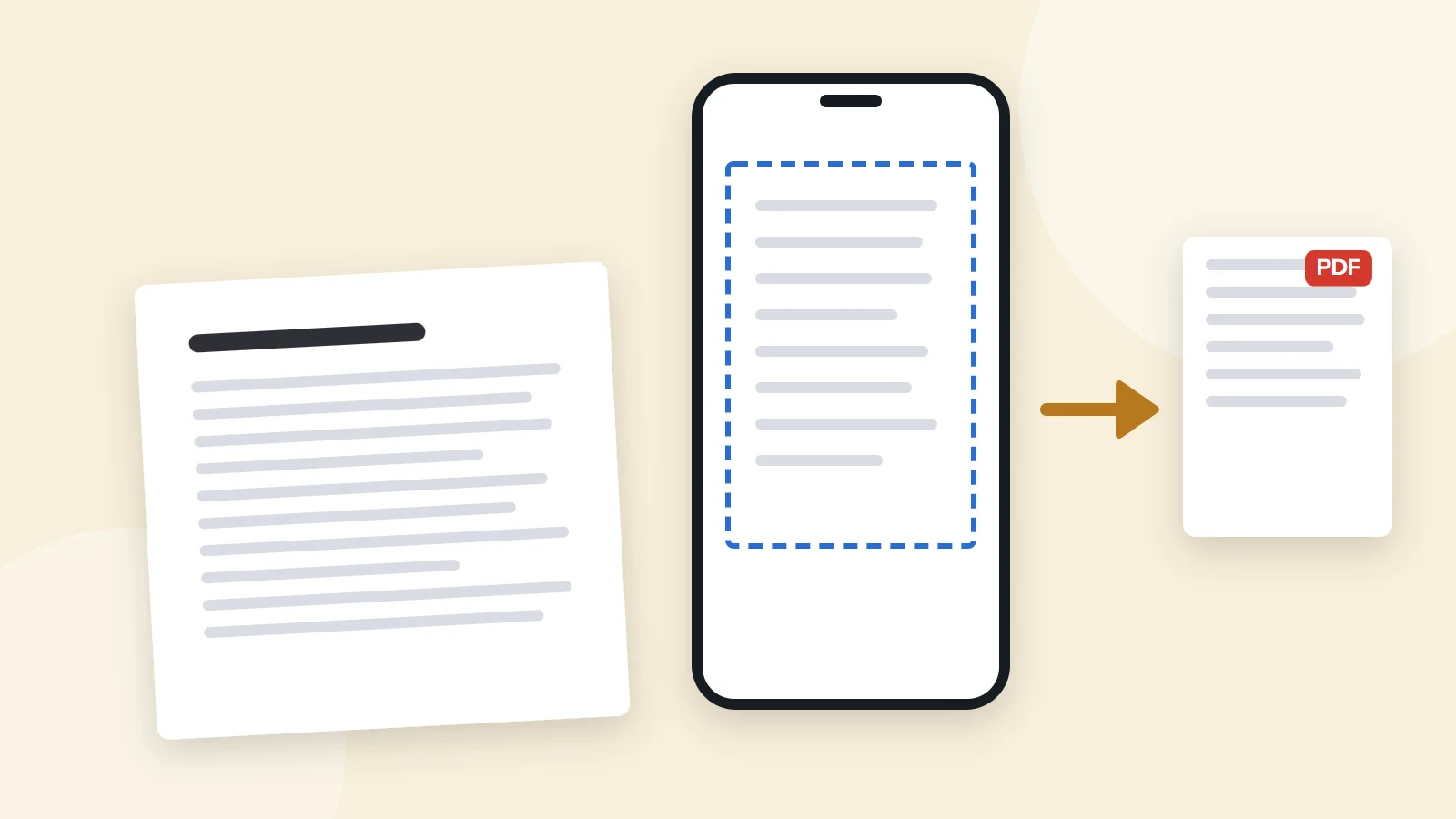
To scan documents to PDF with a phone, open the Files or Notes app on iPhone, or the Google Drive app on Android, choose Scan, and capture each page. The app straightens the pages and saves them as one PDF. With a scanner, choose PDF as the file format and tick the option to combine pages into one document.
Open JPG to PDFKey takeaways
- Your phone is a good scanner. iPhone's Files and Notes apps and Google Drive on Android all save PDFs.
- Scan every page of a document into one PDF, rather than one file per page.
- Good light, a dark background and a flat page matter more than the camera.
- Name scans clearly, check every page, and compress them if they're too big to send.
What's the easiest way to scan documents to PDF?
You don't need a scanner. A modern phone camera, paired with a scanning app, produces clean PDFs that are good enough for most purposes, including job applications, receipts, contracts and school forms. The app finds the edges of the page, flattens the perspective, cleans up the background and saves everything as one PDF.
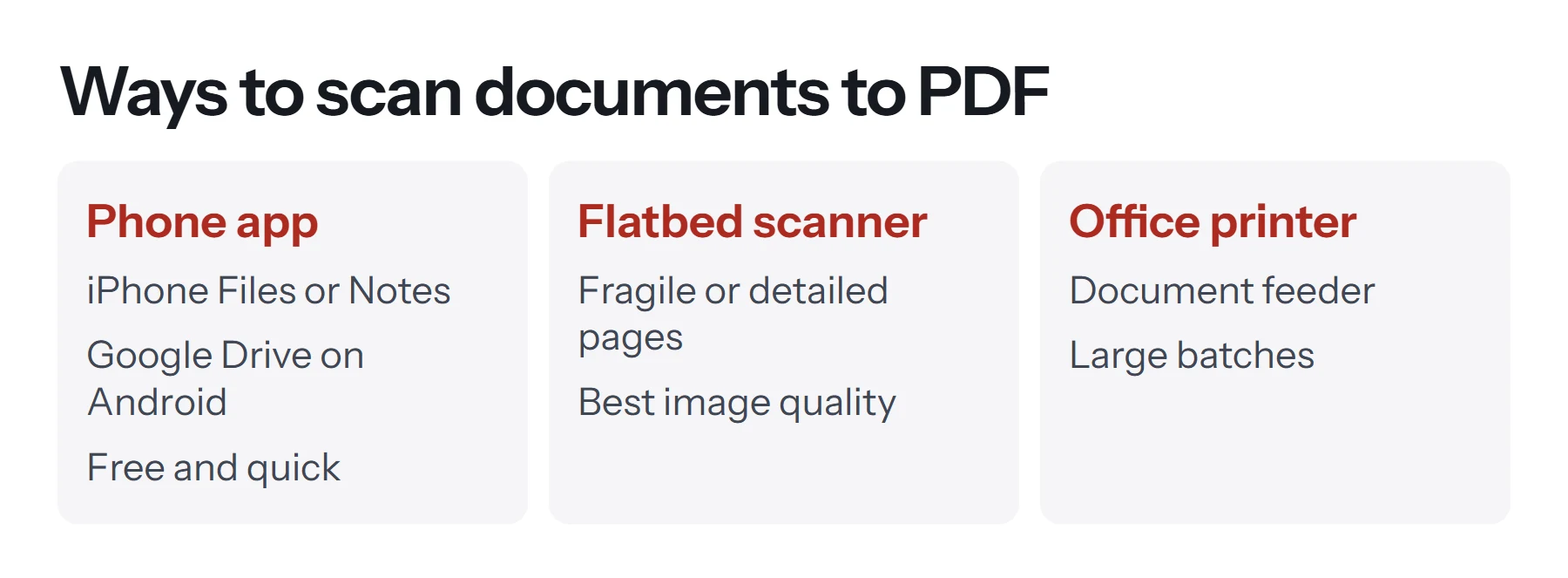
A flatbed or office scanner is still better for some jobs: large batches, fragile originals, anything that needs to look perfect when printed, and documents where every detail of small print matters.
| Method | Best for | Cost |
|---|---|---|
| iPhone Files or Notes | Everyday documents, multi-page scans | Free |
| Google Drive on Android | Everyday documents, searchable PDFs | Free |
| Flatbed scanner | Fragile or detailed originals | Hardware |
| Office multifunction printer | Large batches with a document feeder | Hardware |
| Photos plus a converter | Pictures you've already taken | Free |
How to scan documents to PDF on an iPhone
Apple builds a document scanner into the Files and Notes apps. Files is the simplest, because it saves the PDF straight to a folder.
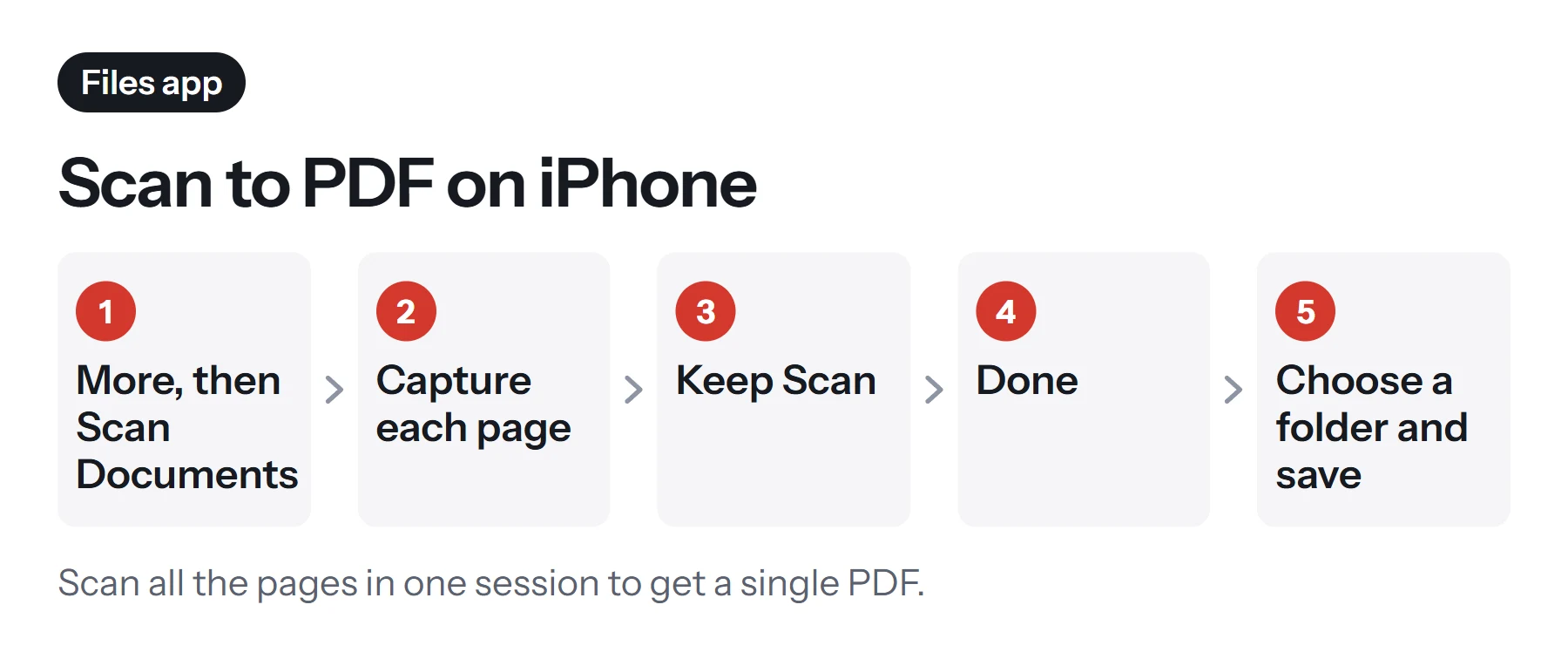
- Open the Files app and go to the folder where you want the scan.
- Tap More, the circle with three dots, then Scan Documents.
- Point the camera at the page. In Auto mode, it captures by itself when the page is steady. In manual mode, tap the shutter button or press a volume button.
- Adjust the corners if needed, then tap Keep Scan.
- Scan the next page. Keep going until every page is captured.
- Tap Done, choose a location, and tap Save.
In Notes, open a note, tap the attachment button, then Scan Documents, and follow the same steps. The scan stays inside the note, and you can share it as a PDF from there. Apple's help page also explains how to sign a scanned document using Markup in Notes.
How to scan documents to PDF on Android
Google Drive includes a scanner that saves searchable PDFs.
- Open the Google Drive app.
- Tap the add button, then Scan. On some versions, there's a camera button in the corner instead.
- Capture the page. Drive finds the edges automatically.
- Adjust the crop or color if needed, and tap the plus button to add more pages.
- Tap Done to save the PDF to Drive.
Google says the scanner saves documents such as receipts, letters and billing statements as searchable PDFs, so you can find words in them later. Many Android phones also have a scanning mode in the camera app or the built-in Files app, and the options vary by manufacturer.
How to scan to PDF with a scanner or office printer
- Place the document face down on the glass, or face up in the document feeder for multiple pages.
- Open the scanning software. This might be the printer's own app, the Windows Scan app, or Image Capture on a Mac.
- Choose PDF as the format. Some software calls it the file type or document type.
- Set color and resolution. Grayscale or black and white at 200 to 300 DPI suits most text.
- Combine pages. Look for an option such as Combine into single document or Multi-page PDF.
- Scan and save.
If your scanner software only saves images, don't worry. Scan the pages as JPGs, then combine them into one PDF as described below.
How to turn photos of documents into a PDF
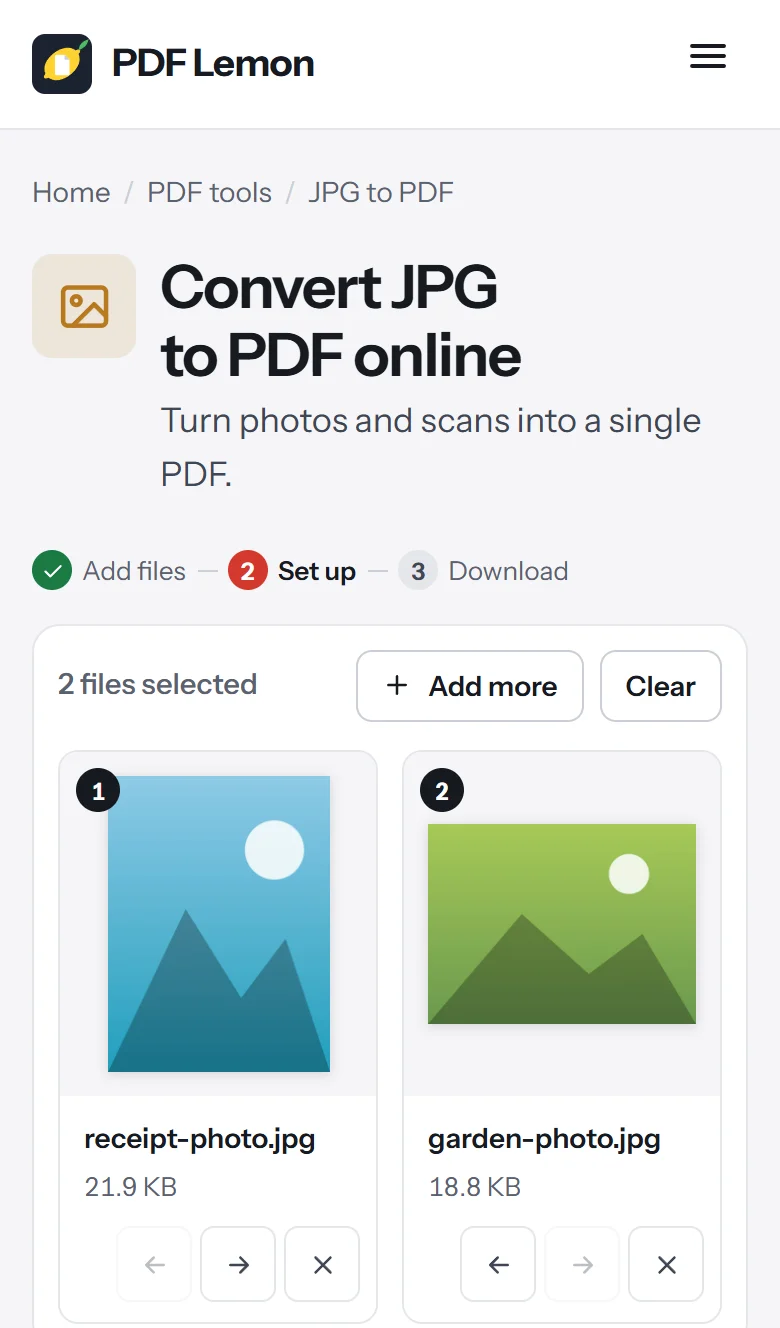
If you've already taken photos of the pages, you can turn them into a PDF without rescanning. PDF Lemon's JPG to PDF combines several photos into one PDF in your phone's or computer's browser, without uploading them.
- Open JPG to PDF and select your photos.
- Put them in order. Drag them, or use the arrow buttons on a phone.
- Choose A4 or US Letter so every page is the same size.
- Click Convert to PDF and save the file.
Phone photos are often taken at an angle, so a dedicated scanner app gives a flatter result. But for receipts and quick records, photos work fine. Our guide on how to make a picture a PDF has more detail.
Tips for clear, readable scans
Most bad scans come down to light and angle, not the camera.
- Use even light. Daylight from a window is ideal. Avoid a single lamp, which casts shadows across the page.
- Use a dark background. A dark table helps the app find the page edges.
- Flatten the page. Smooth out folds, and hold curling pages flat at the edges.
- Hold the phone parallel. Shoot from directly above, not at an angle.
- Turn off the flash for glossy paper, which reflects it.
- Check every page before you save. It's easy to miss a page or capture one twice.
- Keep the document upright. If a page is sideways, rotate it in the app, or afterward with Rotate PDF.
Which settings suit different documents?
| Document | Color | Resolution | Tip |
|---|---|---|---|
| Letters and contracts | Grayscale | 200 to 300 DPI | Scan every page, including blank backs with notes |
| Receipts | Grayscale | 300 DPI | Small print fades, so scan soon after purchase |
| ID documents | Color | 300 DPI | Check that the photo and numbers are sharp |
| Forms you'll fill in again | Black and white | 300 DPI | Clean lines make typing on them easier |
| Photos and artwork | Color | 300 DPI or more | Use a flatbed scanner if you can |
Phone apps usually choose these settings for you, but most offer a color, grayscale or black-and-white filter after capture. Pick the simplest one that still looks right, because it also keeps the file small.
Is it safe to scan documents with a phone?
Scanning on your phone is as private as the place you save the file. Scans saved to Files or Notes stay on your phone, and in iCloud if you use it. Scans in Google Drive are stored in your Google account. Be careful with sensitive documents such as passports, bank statements and medical letters. Don't leave them in shared folders, and delete old copies you no longer need. When you need to combine or compress them, tools that work on your device avoid uploading the file again.
How to sign a scanned document
Once your paper is a PDF, you can sign it without printing again. On iPhone, open the scan in Notes or Files, tap Markup, then the plus button, then Signature. On a computer, use Sign PDF to draw or type your signature and place it on the page. Our guide on how to sign a PDF covers the options.
How to name, organize and check your scans
A scan you can't find later is not much use. A simple routine helps.
- Name it straight away. Use what it is and the date, such as
electricity-bill-2026-10.pdf. - Check the page count against the paper original.
- Zoom in on small print, signatures and numbers to make sure they're legible.
- Keep scans in one place, such as a Scans folder with subfolders by year or topic.
- Shred or store the paper according to how important it is. Keep originals of legal documents, such as wills and certificates.
How to make a scanned PDF smaller
Scans are images, so they're often several megabytes per page, which is too big for many email and upload limits.
- Scan in grayscale for text documents. Color files are much larger.
- Use a sensible resolution. 200 to 300 DPI is enough for text.
- Compress afterward. Compress PDF on the Recommended level usually reduces a scan a lot while keeping it readable. Zoom in to check the result.
- Split long scans. If a portal has a page or size limit, split the PDF into parts.
Our guide on how to compress a PDF explains each level and its trade-offs.
How to make a scanned PDF searchable
A scanned PDF is a picture of each page, so you can't search it or copy text from it unless the scanner ran OCR. Google Drive's scanner does this automatically. Otherwise, upload the PDF to Google Drive, right-click it, and choose Open with, then Google Docs, which extracts the text. Our guide on how to convert a PDF to Google Docs covers this. For copying text from scans, see how to copy text from a PDF.
How to scan multiple documents into one PDF
If you scanned several documents separately, combine them with Merge PDF. Drag the files into order, merge them, and use Organize PDF to move or remove individual pages. Add page numbers afterward with Add Page Numbers if the combined file is long.
Common problems when scanning documents to PDF
The pages are skewed or curved. Hold the phone directly above the page and flatten it. Most scanner apps let you drag the corners to correct the angle.
There's a dark shadow across the page. Move to more even light, or turn so that your body doesn't block it.
Each page saved as a separate file. On a scanner, look for a multi-page or combine option. Otherwise, merge the files afterward.
The PDF is too large to email. Compress it, scan in grayscale, or lower the resolution.
The text is blurry. The phone focused on the background, or moved. Tap the page to focus, hold still, and scan again.
I can't search the PDF. It has no text layer. Run it through OCR as described above.
Questions and answers
How do I scan multiple pages into one PDF?
On a phone, keep scanning in the same session and the app adds each page to one document. On a scanner, choose PDF and tick combine into a single document. If you've already got separate files, merge them.
How do I scan a document to PDF on my iPhone?
Open the Files app, tap More, then Scan Documents. Capture each page, adjust the corners, tap Keep Scan, then Done, and choose where to save. Notes has the same scanner.
How do I scan to PDF on Android?
Open the Google Drive app, tap the add button, then Scan. Capture each page, adjust the crop, and tap Done to save a PDF to Drive. Some phones also have a scanner in the camera app.
Why is my scanned PDF so large?
Scans are images, and high resolution or color makes them big. Scan text documents in grayscale at 200 to 300 DPI, or compress the PDF afterward.
Can I search the text in a scanned PDF?
Only if it has been through OCR. Google Drive's scanner makes searchable PDFs, while some other apps save plain images. You can run a scan through Google Docs to extract the text.
What resolution should I scan documents at?
For text documents, 200 to 300 DPI is plenty. Use 300 DPI or more for small print, signatures and anything you might print again. Photos may need higher.
Tools from this guide
How we checked this guide
We ran the PDF Lemon steps ourselves on the live tools. Steps for other apps come from each vendor's own help pages and are worded to survive small interface changes, but menu names can differ between versions.
Sources we used:
Related guides
- How to Save a Document as a PDF7 min read
- How to Create a PDF File on iPhone7 min read
- How to Convert PNG to PDF7 min read
- How to Turn a Picture into a PDF on iPhone7 min read
- How to Convert Excel to PDF7 min read