How to Convert PNG to PDF
Short answer
To convert a PNG to a PDF online, open PDF Lemon's PNG to PDF tool, add one or more images, set their order and page size, then click Convert to PDF. PNG images are embedded without quality loss, and the conversion runs in your browser. Windows, Mac and iPhone also have built-in ways to save a PNG as a PDF.
Open PNG to PDFKey takeaways
- A browser tool is the quickest route on any device, especially for several images at once.
- Windows can print a PNG to PDF, and Mac Preview can export one, with nothing extra to install.
- PNGs keep their sharpness when embedded in a PDF, which suits screenshots and diagrams.
- Text in a PNG doesn't become selectable. It stays a picture unless you run OCR.
How to convert PNG to PDF online
The quickest method on any device is a browser tool, because it works the same on a laptop, a Chromebook or a phone, with nothing to install. PDF Lemon's converter runs inside your browser, so your image is never uploaded.
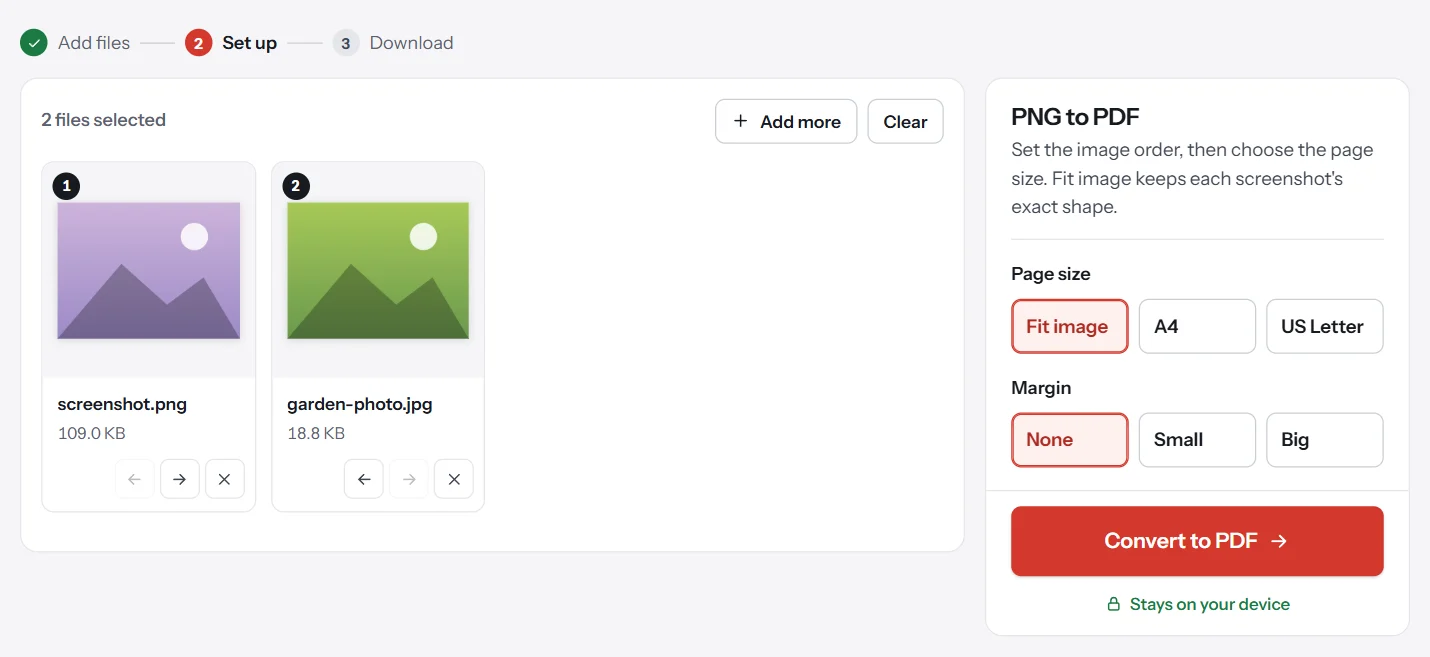
- Open PNG to PDF. Go to PDF Lemon's PNG to PDF tool and select your image, or drop it on the page. You can also paste a screenshot directly with Ctrl+V or Cmd+V.
- Add more images if you need to. Each image becomes one page. JPG and WebP files work too.
- Set the order. Drag the images, or use the arrow buttons on each one.
- Choose a page size. Fit image matches each page to its picture. A4 and US Letter use standard paper.
- Convert and download. Click Convert to PDF and save the file.
Which page size should you pick?
This setting decides how the image sits on the page, and it's the only choice that really matters.
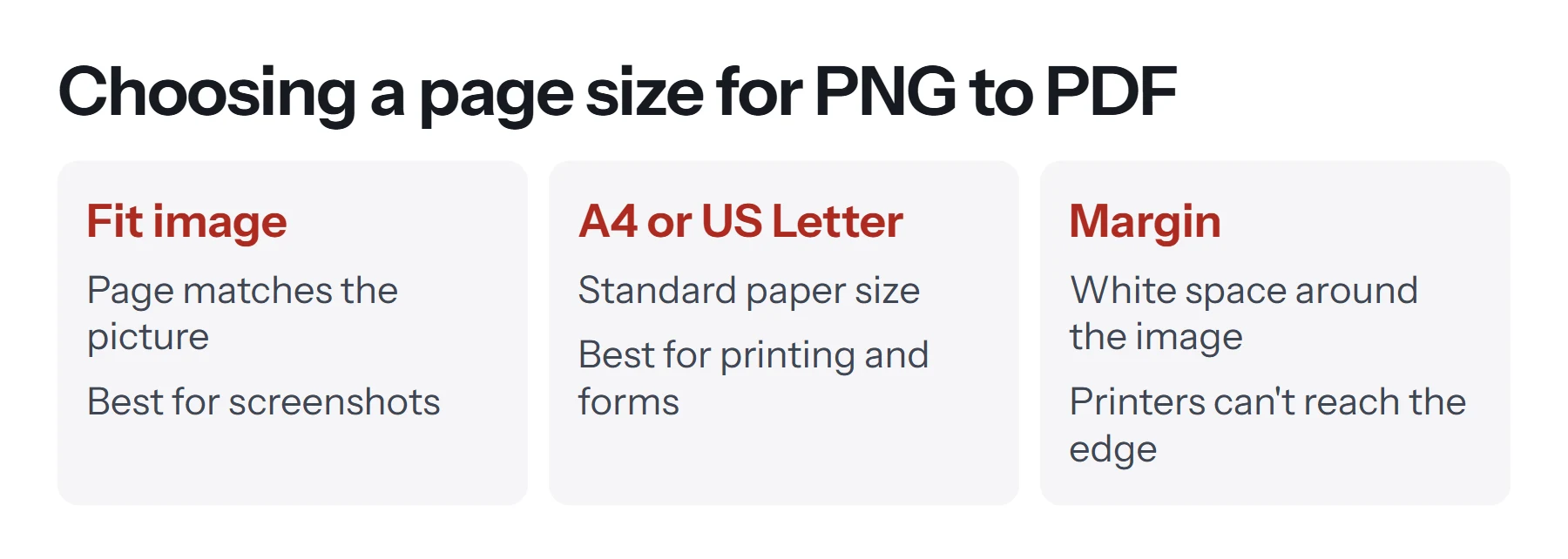
Choose Fit image for screenshots and graphics you'll view on screen, since it leaves no white space around them. Choose A4 or US Letter when you plan to print it or submit it as a standard document. Add a margin when printing, because most printers can't reach the very edge of the paper.
With A4 or US Letter, the Auto orientation turns a wide image's page sideways, so landscape screenshots fill the page instead of sitting small in the middle.
How to change a PNG to a PDF on Windows
Windows 10 and 11 include a virtual printer that saves anything printable as a PDF, so you don't need any other software.
- Open the image. Double-click the PNG to open it in the Photos app.
- Choose Print. Click the print icon or press Ctrl+P.
- Select the PDF printer. Choose Microsoft Print to PDF in the printer list.
- Check the layout. Set the paper size and choose how the picture fits the page.
- Save. Click Print, then choose a name and folder.
This method suits a single image well. To combine several, select them in File Explorer, right-click, and choose Print. Windows sends them all to the same PDF. The order and fit are harder to control than in a dedicated tool.
How to save a PNG as a PDF on a Mac
Preview does this without any extra software.
- Open the PNG in Preview. It's usually the default for images.
- Choose File, then Export as PDF.
- Name the file and click Save.
For several images, select them all in Finder and open them together in Preview. They appear as thumbnails in the sidebar. Drag them into order, select them all, then choose File, Print, and use the PDF menu at the bottom of the dialog to save a single PDF.
How to turn a PNG into a PDF on iPhone or Android
On iPhone, save the image to the Files app, press and hold it, and look for Create PDF under quick actions. Our guide on how to turn a picture into a PDF on iPhone covers this and the other routes.
On Android, open PNG to PDF in your mobile browser and pick images from your gallery. Many Android phones can also print an image to PDF using the print option in the share or menu screen, though the exact steps vary by manufacturer.
Which method is best?
| Method | Best for | Combines images | Page size control |
|---|---|---|---|
| PNG to PDF in a browser | Any device, several images | Yes | Fit, A4, Letter, margins |
| Windows print to PDF | One image on Windows | Yes, less control | Through print settings |
| Mac Preview | Images on a Mac | Yes | Through print settings |
| iPhone Files | Photos already on your phone | Yes | Limited |
Why use PNG in a PDF at all?
PNG is a lossless image format, so it stores every pixel exactly. That makes it excellent for:
- Screenshots, where small text must stay crisp.
- Diagrams and charts, with flat color and sharp lines.
- Logos and graphics that would show fuzzy halos as JPGs.
When a PNG is embedded in a PDF properly, that sharpness is kept. It's why screenshots turned into a PDF report can look far cleaner than the same screenshots saved as JPGs first.
The trade-off is size. Lossless images are bigger, and full-page PNG photographs can produce a large PDF. If your image is a photo, JPG usually makes more sense. See our comparison of JPG and PNG for PDF pages, or use JPG to PDF.
What happens to transparent backgrounds?
PNG supports transparency, and PDF pages are normally white, so transparent areas look white in the finished file. A logo on a transparent background therefore appears on a white page, which is usually what you want. If you need a colored background, add it to the image in an editor before converting.
What resolution does your PNG need for printing?
On screen, nearly any PNG looks fine. On paper, the pixel count starts to matter, because a printed page needs far more detail than a screen shows. Print quality is measured in dots per inch (DPI). Here's how many pixels a full page needs.
| Page size | 150 DPI (acceptable) | 300 DPI (sharp print) |
|---|---|---|
| A4 | 1240 × 1754 pixels | 2480 × 3508 pixels |
| US Letter | 1275 × 1650 pixels | 2550 × 3300 pixels |
To check an image's size, open its properties on Windows, or use Get Info on a Mac. If it's much smaller than these figures, it will look soft when printed at full page, and no converter can fix that. Either use a higher-resolution original or print it smaller by adding margins.
How to convert a PNG to a PDF with Google Docs
If your files are already in Google Drive, you can use Google Docs as a converter. Open a new document, choose Insert, then Image, and upload your PNG. Resize it on the page, then choose File, Download, and PDF document. This takes more clicks than a dedicated converter and adds the page margins from your document, but it's useful when you want to add a heading or a caption alongside the image. It's also a simple way to turn several screenshots into a short illustrated report.
See how to convert Google Docs to PDF for the export options.
How to convert a screenshot to a PDF
Screenshots are the most common PNGs people convert, and there's a shortcut. Take the screenshot, open PNG to PDF, and paste it directly with Ctrl+V or Cmd+V. There's no need to save a file first. Paste again to add another page. This is handy for capturing an order confirmation, an error message for a support ticket, or a set of steps for a colleague.
Before you share it, look over the screenshot for anything private that was in view: browser tabs, email addresses, or account numbers in the corner of the screen. Cropping the image before you paste it is the safest fix, since the PDF keeps the whole picture.
How to check your PDF after converting
A quick look now saves embarrassment later. Open the file and check that:
- The pages are in the right order. It's easy to mix up screenshot names.
- Nothing is cut off. Print-to-PDF routes can crop the edges if the fit setting is wrong.
- Small text is readable. Zoom in to 100%. If it looks soft, the original image may have been low resolution, and converting it can't add detail.
- The file size is sensible. If it's too large to send, try how to compress a PDF.
Is the text in my PNG selectable after converting?
No. A PNG is a picture of text, and putting it inside a PDF doesn't change that. You can't select, search or copy those words until they've been through optical character recognition.
If you need the words, opening the PNG with Google Docs from Google Drive is a free way to do this. Google's converter accepts PNG, and it works best on sharp images with common fonts. Then export the result as a PDF if you need one.
Common problems when converting PNG to PDF
The image looks blurry in the PDF. If it looks sharp as a PNG but soft in the PDF, your viewer may be scaling it. Zoom to 100% to check. If the original is small, enlarging it on an A4 page will always look soft. Try Fit image instead.
There's a big white border. You're probably using A4 or Letter with a small image. Switch to Fit image, or remove the margin.
The page is sideways. Use Auto orientation so that wide images get landscape pages, or choose Portrait or Landscape yourself. You can also fix the finished file with Rotate PDF.
A file was skipped. The tool accepts PNG, JPG and WebP. If you have an iPhone HEIC photo, convert it to JPG first. On most iPhones, sharing a photo to Files or changing the camera's format setting will do it.
The PDF is too big to email. Each lossless image adds its full size to the file. Compress it after converting, or use JPGs in place of PNGs when the images are photographs.
What to do next
Once you have your PDF, you can keep working on it in the same place. Merge it with other documents, add page numbers if it has become a report, or compress it to make it easier to send. Each step creates a new file, so your original stays untouched.
Questions and answers
How do I change a PNG to a PDF for free?
Open PDF Lemon's PNG to PDF tool, add your image and click Convert to PDF. It's free, needs no account, and your file stays on your device.
How do I turn a PNG into a PDF on Windows?
Open the PNG in Photos, choose Print, select Microsoft Print to PDF as the printer, then choose where to save the file.
How do I save a PNG as a PDF on a Mac?
Open the PNG in Preview and choose File, then Export as PDF. To combine several images, select them in Finder, open them together in Preview, then print to PDF.
Does converting PNG to PDF reduce quality?
Not with a tool that embeds the PNG as it is, as PDF Lemon does. Print-to-PDF routes may scale the picture to fit the paper, so check the result if pixel-perfect quality matters.
What happens to a transparent PNG in a PDF?
Transparent areas normally appear white on the PDF page, because that's the color of the page behind them.
Can I combine several PNGs into one PDF?
Yes. Add them all to PNG to PDF, drag them into order, and convert. Each image becomes one page of a single PDF.
Tools from this guide
How we checked this guide
We ran the PDF Lemon steps ourselves on the live tools. Steps for other apps come from each vendor's own help pages and are worded to survive small interface changes, but menu names can differ between versions.
Related guides
- How to Turn a Picture into a PDF on iPhone7 min read
- How to Save an Email as a PDF7 min read
- How to Turn a Picture into a PDF7 min read
- How to Save a Document as a PDF7 min read
- How to Scan a Document to PDF7 min read