How to Turn a Picture into a PDF
Short answer
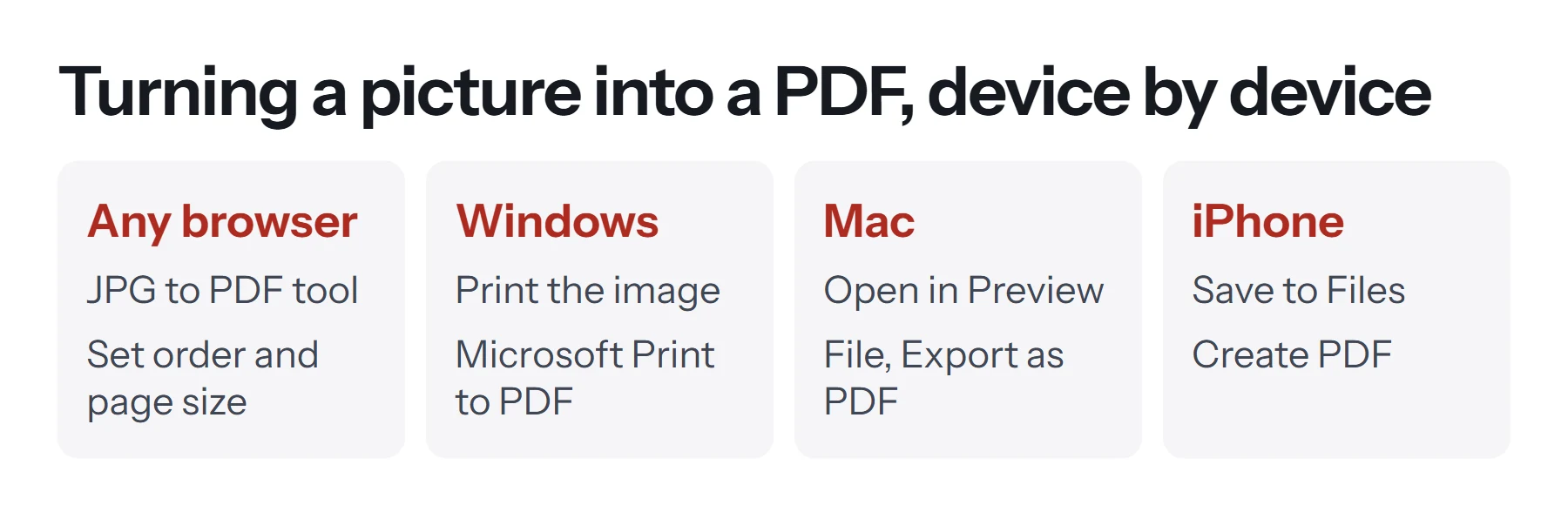
To make a picture a PDF, open PDF Lemon's JPG to PDF in any browser, add your images, set the order and page size, and click Convert to PDF. It accepts JPG, PNG and WebP, and your pictures stay on your device. On Windows, you can also print an image to PDF, and on a Mac, Preview can export one.
Open JPG to PDFKey takeaways
- A browser tool works on every device and handles several images in the order you choose.
- Windows and Mac can both convert a picture to PDF without any extra software.
- Fit image keeps the picture's shape. A4 or US Letter is better for printing.
- Pictures stay pictures, so text in them isn't selectable unless you run OCR.
What's the easiest way to turn a picture into a PDF?
If you only do this now and then, the easiest way is a browser tool, because the steps are the same on any device and you don't have to install anything. Windows and Mac also have built-in routes, which are useful for a single image.
How to convert an image to PDF online
PDF Lemon's converter runs inside your browser, so your photos aren't uploaded anywhere. That's useful for pictures of IDs, receipts and other private documents.
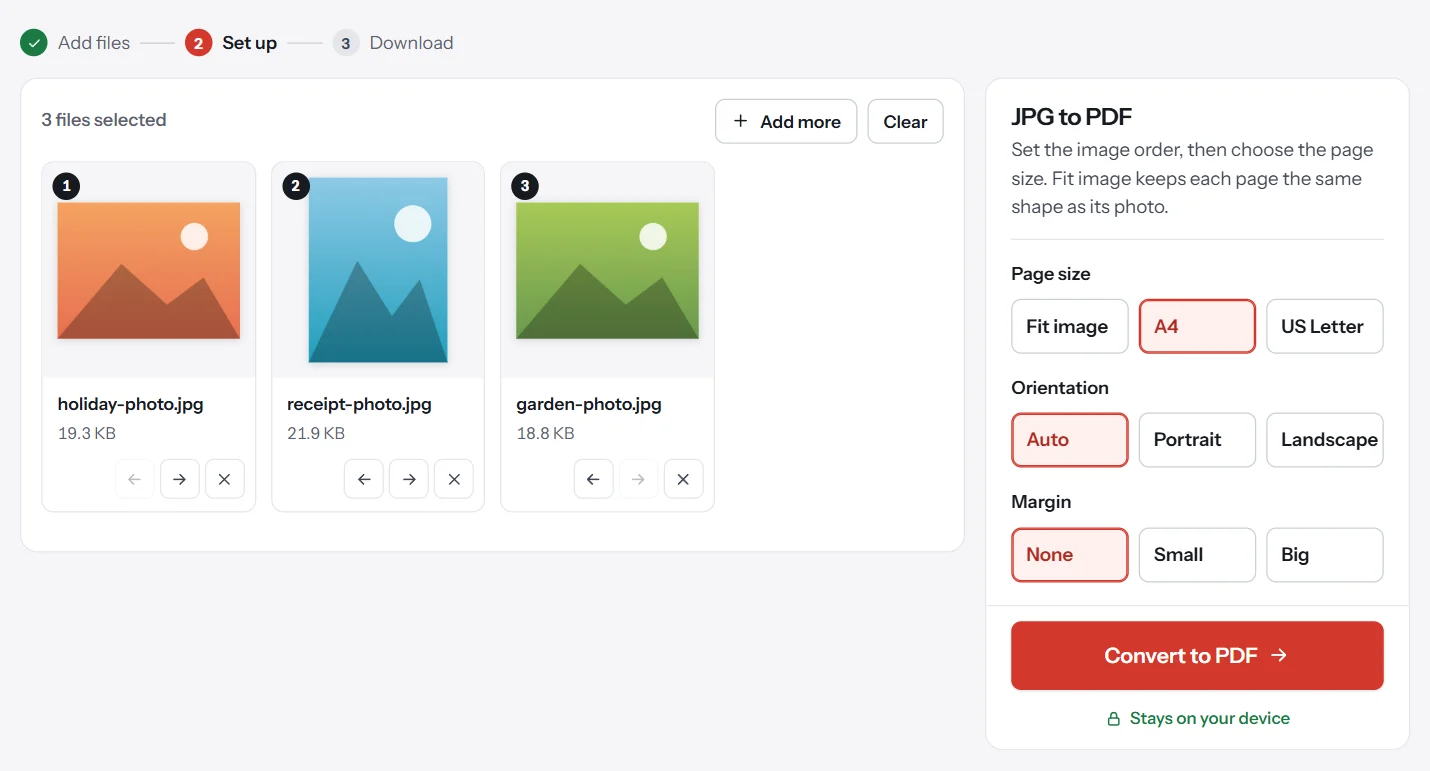
- Open JPG to PDF. Go to PDF Lemon's JPG to PDF and select your pictures, or drop them on the page. It accepts JPG, PNG and WebP.
- Put them in order. Drag the images or use the arrows on each one. The numbers show the page order.
- Choose a page size. Fit image matches each page to its picture. A4 and US Letter use standard paper.
- Set the orientation and margin. Auto turns each page to suit its image. Add a margin if you plan to print.
- Convert and download. Click Convert to PDF and save your file.
PDF Lemon also reads the rotation information stored in phone photos, so pictures that look upright on your phone don't come out sideways in the PDF.
Which page size should you choose?
| Setting | Choose it when | Result |
|---|---|---|
| Fit image | You'll view it on screen, or the shapes vary | No white space, and pages match each picture |
| A4 | You're printing or submitting outside North America | Standard pages, with the image scaled to fit |
| US Letter | You're printing or submitting in the US or Canada | Standard pages, with the image scaled to fit |
| Margin: small or big | You're printing | White border that keeps content away from the paper's edge |
How to save a picture as a PDF on Windows
Windows 10 and 11 include a virtual printer that creates PDFs.
- Open the picture. Double-click it to open it in Photos.
- Press Ctrl+P, or click the print icon.
- Choose Microsoft Print to PDF as the printer.
- Pick the paper size and fit. Fit to frame or Shrink to fit determines how the image fills the page.
- Click Print, then choose a name and folder.
For several images, select them all in File Explorer, right-click, and choose Print. They go into one PDF, although the order follows the selection and is harder to control.
How to make a picture a PDF on a Mac
- Open the picture in Preview.
- Choose File, then Export as PDF.
- Name it and click Save.
To combine images, select them in Finder and open them together, so that they appear in the sidebar of one Preview window. Drag them into order, select them all (Cmd+A in the sidebar), then choose File, Print. Open the PDF menu at the bottom of the dialog and choose Save as PDF.
How to turn a picture into a PDF on your phone
On iPhone, the Files app has a Create PDF action, and Safari can run JPG to PDF. We've written a separate guide on how to turn a picture into a PDF on iPhone with all the steps.
On Android, open JPG to PDF in your browser and pick images from your gallery. Many phones can also print to PDF: open the image, find Print in the menu or share options, and choose Save as PDF as the printer. The exact steps vary between manufacturers. Google's Drive app also has a scanner for paper documents.
JPG, PNG or WebP: does the format matter?
The format of your picture affects the size and sharpness of the PDF, so it's useful to know the differences.
| Format | Good for | Effect on the PDF |
|---|---|---|
| JPG | Photos | Smaller files, embedded as is |
| PNG | Screenshots, charts, logos | Sharp edges and larger files |
| WebP | Images saved from websites | Converted to high-quality JPEG first |
| HEIC | iPhone photos | Often converted by iOS on selection; otherwise convert to JPG first |
If you're starting with screenshots, see our specific guide on how to convert PNG to PDF. If you ever need to go the other way, there's PDF to JPG, and our comparison of JPG and PNG for PDF pages explains which to pick.
How to photograph a document for a clean PDF
A lot of people convert pictures because they've photographed paperwork. A few small changes make a big difference in how the result looks.
- Use a scanner app if you can. iPhone's Notes and Files apps and the Google Drive app detect page edges and straighten them automatically.
- Use good, even light. Daylight from a window works well. Avoid the flash, as it creates a bright glare spot.
- Hold your phone directly above the page. Shooting at an angle makes the page look like a trapezoid.
- Lay the paper flat on a dark surface. This gives the camera a clear edge to find.
- Fill the frame. The more of the picture the page takes up, the sharper the text will be.
- Check for shadows. Your own arm and phone can easily cast one across the page.
How to keep the PDF's file size down
Modern phone cameras produce large files, so a PDF made from them can quickly grow too big to email. Several photos can easily add up to tens of megabytes.
Here's the simplest approach: convert first, then shrink the result with Compress PDF. Start with Recommended. For documents, you could also make it black and white with Grayscale PDF, since color adds a lot of data and contributes nothing on a form or letter. Our guide on how to compress a PDF explains the levels and the usual size limits.
If you control how the photos are taken, reducing the camera's resolution or using a scanner app that saves smaller files can help too.
How to convert a picture to a PDF for a form or application
Application portals often have specific requirements for uploaded photos of documents, such as IDs, certificates and proof of address. Here's how to meet the common ones.
- File type: convert to PDF as above, and name the file clearly.
- Size limit: portals often accept only 1 to 5 MB. Check the limit, and compress the file if necessary.
- Both sides of a card: add the front and back as two images in one PDF.
- Legibility: zoom in and confirm that every number can be read, because a rejected document can delay your application.
How to check your PDF before sending it
Take a moment to look through the finished file.
- Check the order. It's easy to mix up the front and back of a form.
- Check the rotation. If a page is sideways, fix it with Rotate PDF.
- Zoom in on the text. It should be readable at 100%.
- Look around the edges. Trim any background with Crop PDF.
- Look for private details. Things like other papers, reflections or account numbers in the background can be easy to miss. Remember that cropping hides content rather than deleting it, so if something truly private is in the picture, crop the image itself before converting.
Can the text in a picture be searched?
Not automatically. A picture of words is still just a picture when it's inside a PDF, so you can't select or search for anything. To make it searchable, run optical character recognition (OCR). Google Drive can do this for free: upload the image, right-click it, and open it with Google Docs. The text appears below the picture in a new document, ready to edit. It works best on sharp, evenly lit images with common fonts, and you should always proofread the output.
Then you can download that document as a PDF, which gives you real, selectable text.
How to add a picture to an existing PDF
Turning a picture into its own PDF is one job. Adding a picture to a document you already have is another. If it can go on its own page, convert it and use Merge PDF to add it to the document. If it needs to sit on an existing page, for example a logo in a corner, use Add Image to PDF. Our guide on how to insert images into a PDF covers the options.
Common problems when converting pictures to PDF
The image is sideways. Phones store rotation separately, and some converters ignore it. PDF Lemon reads it, but if a page is still wrong, use Rotate PDF.
There's a lot of white space around the picture. You're using a fixed paper size with a small image. Switch to Fit image or remove the margin.
The picture looks blurry. A small image on a big page will always look soft. Use the highest-resolution original you have, or a smaller page size.
A file was skipped. Only JPG, PNG and WebP are accepted. Convert other formats, such as HEIC or TIFF, to JPG first, or export them from your photo app.
The PDF is too big to send. Compress it, or share a link to the PDF instead of attaching it.
The pages are in the wrong order. Rearrange them before converting, or fix the finished file with Organize PDF.
Questions and answers
How do I convert a photo to a PDF for free?
Open PDF Lemon's JPG to PDF, add your photo, choose a page size, and click Convert to PDF. It's free with no account, and the image stays on your device.
How do I save a picture as a PDF on Windows?
Open the image in Photos, press Ctrl+P, choose Microsoft Print to PDF as the printer, click Print, and choose where to save it.
How do I make a picture a PDF on a Mac?
Open the image in Preview and choose File, then Export as PDF. To combine images, open them together in Preview, select them in the sidebar, and print to PDF.
How do I combine multiple pictures into one PDF?
Add them all to JPG to PDF, drag them into order, and convert. Each image becomes one page of a single PDF.
Does converting an image to PDF reduce its quality?
Not with PDF Lemon, which embeds upright JPG and PNG files as they are. Print routes may scale an image to fit the page, so check those if detail matters.
What's the best format for scanned documents?
A PDF is usually best for documents because it keeps several pages together, and it opens the same on any device. For a single photo you want to display, JPG is simpler.
Tools from this guide
How we checked this guide
We ran the PDF Lemon steps ourselves on the live tools. Steps for other apps come from each vendor's own help pages and are worded to survive small interface changes, but menu names can differ between versions.
Related guides
- How to Convert PNG to PDF7 min read
- How to Turn a Picture into a PDF on iPhone7 min read
- How to Insert Images into a PDF8 min read
- How to Scan a Document to PDF7 min read
- How to Create a PDF File on iPhone7 min read