How to Convert Google Docs to PDF
Short answer
To convert a Google Doc to a PDF, open the document, choose File, then Download, and select PDF document (.pdf). The PDF saves to your downloads folder, and your Google Doc stays editable. On a phone, open the three-dot menu, tap Share & export, then Save as, and choose PDF. It's free and keeps links and formatting.
Open Merge PDFKey takeaways
- File, Download, PDF document is the standard route, and it keeps links working.
- Your Google Doc doesn't change. The PDF is a separate copy, so you'll need to re-download after edits.
- On phones, the option is under Share & export in the Docs app.
- To send a PDF directly, use File, Email, Email this file, and choose PDF as the format.
How to convert a Google Doc to PDF on a computer
Google Docs has a built-in export that takes about ten seconds and needs nothing else.
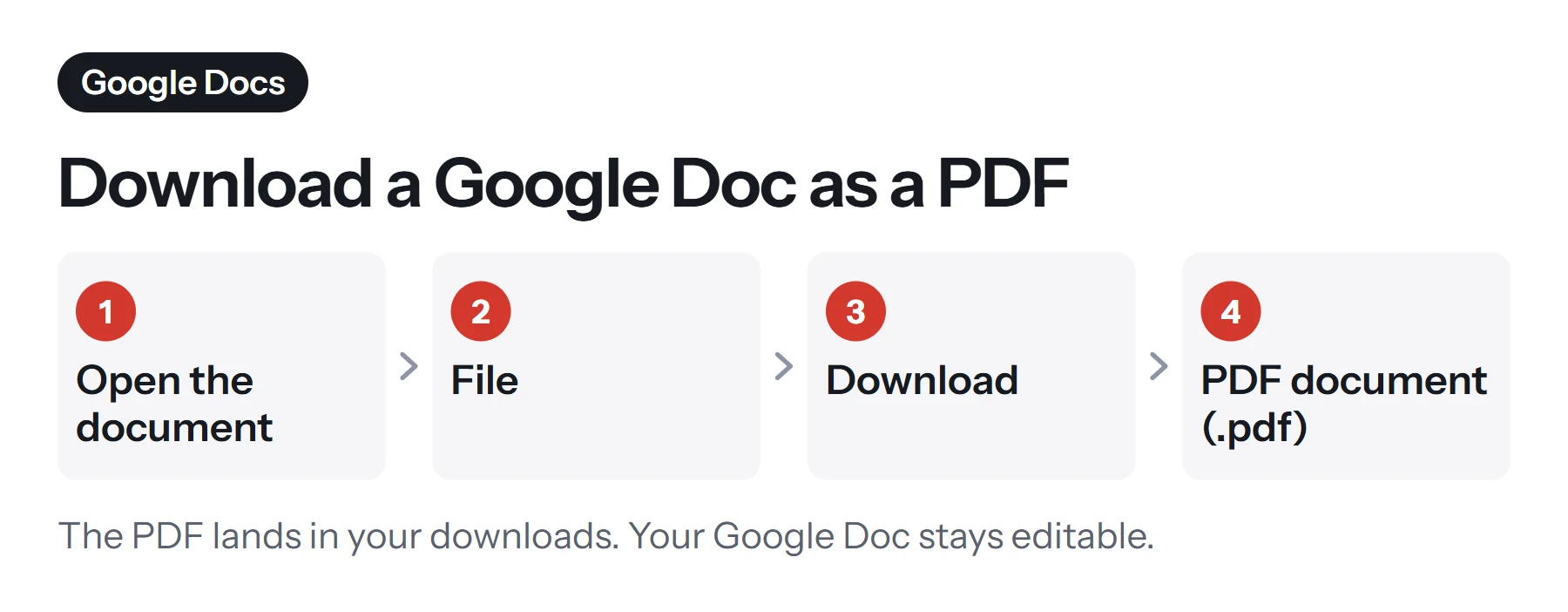
- Open your document in Google Docs.
- Choose File in the menu at the top left.
- Choose Download.
- Click PDF document (.pdf). The file saves to your browser's downloads folder with the same name as the document.
Your Google Doc doesn't change. The PDF is a snapshot taken at that moment, so if you edit the document later, you'll need to download a fresh PDF.
How to turn a Google Doc into a PDF on your phone
The menus differ on mobile, and that's what catches people out.
In the Google Docs app (Android or iPhone):
- Open the document.
- Tap the three-dot menu at the top right.
- Tap Share & export, then Save as.
- Choose PDF Document, then tap OK.
- Share or save the file. The app opens the PDF, and you can send it or save it from there.
There's also a Send a copy option in the same menu, which lets you pick PDF and go straight to the share sheet. It's handy when you just want to email the document. Menu names change from time to time, so look for "share" or "export" if yours is different.
Other ways to save a Google Doc as a PDF
Print to PDF
Choose File, then Print, or press Ctrl+P or Cmd+P. In the print dialog, choose Save as PDF as the destination. Docs hands off to your browser's print screen. Google's help page suggests this approach for large files in Chrome. You get more control over margins and page ranges, although you might lose some features.
Email it directly
If you're making a PDF just to send it, you can skip the download.
- Choose File, then Email, then Email this file.
- Pick PDF in the format list.
- Add a recipient and message, then click Send.
It arrives as an attachment, sent from your Gmail account.
Publish a link instead
If people only need to read it, sharing the Doc itself may be better, since they'll always see the latest version. Click Share and set the access. Our guide on how to create a shareable PDF link explains when a PDF link is the right choice instead.
How to convert many Docs at once
In Google Drive, select several Docs, right-click, and choose Download. By default, these download in Word format, so to get PDFs in bulk, use Google Takeout's export settings or convert them one by one. For a handful of documents, one at a time is fine, and you can then bring them together with Merge PDF.
How do these methods compare?
| Method | Keeps links | Best for | Device |
|---|---|---|---|
| File, Download, PDF | Yes | Most documents | Computer |
| App: Share & export, Save as | Yes | Phones and tablets | Phone |
| File, Print, Save as PDF | Usually | Page ranges and custom margins | Computer |
| File, Email, Email this file | Yes | Sending right away | Computer |
How to prepare a Google Doc before converting
Google Docs is forgiving on screen, and a PDF is less so. A quick check catches most problems.
- Set the page size. Choose File, then Page setup, and pick A4 or Letter. Docs defaults to Letter in many regions, and that can surprise A4 users when printing.
- Check page view. If you use the Pageless format, the document has no page breaks on screen, and exporting may split it awkwardly. Switch to Pages in Page setup to see the real layout.
- Use real headings. Apply Heading 1 and Heading 2 from the styles menu. They structure the document and help with navigation and accessibility.
- Add page numbers. Choose Insert, then Page numbers. Otherwise, you can add them to the PDF later.
- Resolve comments and suggestions. They don't appear in a normal PDF download, but it's still wise to accept or reject suggestions so that you're exporting the right text.
- Add image descriptions. Select an image, choose Image options, and add alt text.
- Update the table of contents. Click it, then the refresh icon, so that page numbers are accurate.
How to keep formatting intact
Most mismatches between Docs and the finished PDF have a few causes, and they're easy to fix.
| Issue | Likely cause | Fix |
|---|---|---|
| Images move or overlap text | Text wrapping or a "fixed position" | Set images In line with text where possible |
| Fonts look different | Unusual web fonts | Use a common font, or check the result in the PDF |
| Tables split awkwardly | Rows break across pages | Right-click, Table properties, and untick Allow row to overflow across pages |
| Empty last page | Extra blank lines at the end | Delete them, or remove the page later with Remove Pages |
| Margins are too small | Page setup margins | Set them to 1 inch or 2.54 cm |
| Colored page background missing | Print settings | Set the page color in Page setup and turn on background graphics in the print dialog |
Then open the PDF before you send it. Check the page count, click a link, and look at any images.
What can you do with the PDF afterward?
Once you have your PDF, you can continue with free browser tools. They run on your device, so the file isn't uploaded anywhere.
- Combine it with other PDFs using Merge PDF. See how to combine PDF files.
- Sign it with Sign PDF. See how to sign a PDF.
- Shrink it with Compress PDF. Docs with many images can be large. See how to compress a PDF.
- Add a watermark with Add Watermark if it's still a draft.
- Set the title with Edit Metadata, which helps if you're publishing it. A PDF's title usually comes from your document's name, so name your Doc properly too.
How to make a fillable PDF from a Google Doc
A common hope is that a form built in Google Docs will become fillable in the PDF. It won't. Docs exports flat pages, so checkboxes and blank lines become just shapes on the page. For a form people complete online, consider Google Forms. To get a true fillable PDF, export it from Docs and add fields with an editor. See how to make a fillable PDF form.
How to go the other way: PDF to Google Docs
You can also turn a PDF into an editable Google Doc. Upload it to Google Drive, right-click it, and choose Open with, then Google Docs. Drive converts it, and it also runs text recognition on scans. Google warns that lists, tables, columns and footnotes may not survive, and suggests files of 2 MB or less for the best results. So this suits simple documents, and complex ones may be better handled in other ways. See how to convert PDF to Word for a comparison.
How to convert a Google Doc to PDF without losing images
Images usually come through without trouble, but there's a right way to place them. Images set In line with text stay with their paragraphs. Those set to Fix position on page can land in odd places if text above them changes. Insert images at a reasonable size too, since very large originals inflate the PDF for no visible benefit. Then zoom in on the finished PDF to check that charts and screenshots are still sharp.
Why choose a PDF over sharing the Google Doc?
Sharing the Doc itself is often easier, but there are times when a PDF is the right choice.
- You need a final version. A PDF won't change after you send it, while a Doc can.
- The recipient has no Google account, or works somewhere that blocks Google.
- You're submitting it somewhere. Portals, employers and universities often require a PDF.
- The layout matters. A PDF looks the same on any device.
- You want an offline copy for your records.
Share the Doc when you're still collaborating, and send a PDF when it's done.
Common problems when converting Google Docs to PDF
The download doesn't start. Your browser may be blocking it. Check for a blocked download icon in the address bar, or try the Print route.
The file is too large. Big images are usually the cause. Compress the PDF, or compress images before inserting them. Google suggests the print route for very large documents in Chrome.
Text is cut off. Something is wider than the page, often a table or an image. Resize it, or change the margins.
There's a blank page at the end. Delete empty paragraphs at the end of the Doc.
A font has changed. Some decorative fonts don't embed as expected. Try a common font, or check the document on another computer.
The PDF downloads with an odd name. It takes its name from your document's title. Rename the Doc first.
I can't find the Download option. The owner may have disabled downloading for viewers. Ask them for edit access or a PDF copy.
The phone app doesn't show PDF. Update the app. If it's still missing, open the document in your phone's browser with the desktop site, or use Send a copy.
Questions and answers
How do I save a Google Doc as a PDF?
Open the document, choose File, then Download, and select PDF document (.pdf). The file goes to your browser's downloads folder.
How do I make a Google Doc a PDF on my phone?
In the Google Docs app, open the document, tap the three-dot menu, then Share & export, then Save as, choose PDF Document, and tap OK. Then share or save the new file.
How do I save a Google Doc as a PDF to Google Drive?
Download it as a PDF, then upload it to Drive. Or use your browser's print dialog, choosing Save to Google Drive as the destination if it's available.
Why does my Google Doc look different as a PDF?
Common causes include custom fonts, images set to wrap around text, and content that spills past a page's edge. Check the page setup, and look at the print preview first.
Can I email a Google Doc as a PDF?
Yes. Choose File, then Email, then Email this file, and pick PDF as the format. Docs sends the attachment from your Gmail account.
Do links still work when a Google Doc is converted to PDF?
Yes. Using File, Download keeps links clickable in the PDF. Printing to PDF from another app can drop them, so Download is the better route.
Tools from this guide
How we checked this guide
We ran the PDF Lemon steps ourselves on the live tools. Steps for other apps come from each vendor's own help pages and are worded to survive small interface changes, but menu names can differ between versions.
Sources we used:
Related guides
- How to Convert a Word Document to PDF7 min read
- How to Combine PDF Files into One7 min read
- Are online PDF tools safe to use?1 min read
- How to Create a Shareable PDF Link7 min read
- How to Save a Document as a PDF7 min read