How to Combine PDF Files into One
Short answer
To combine PDF files, open PDF Lemon's Merge PDF in any browser, add your files, drag them into the order you want, and click Merge PDF. You get one PDF containing every page, and the files never leave your device. On a Mac, Preview can combine PDFs too, and on an iPhone, the Files app has a Create PDF option.
Open Merge PDFKey takeaways
- A browser-based merger works the same on Windows, Mac, Linux, iPhone and Android.
- Merging doesn't change quality, because pages are copied as they are.
- Set the file order first. Rotate, then merge, then number pages and compress.
- The merged file is about as large as all the originals added together.
How to combine PDF files online
Combining, or merging, PDFs joins several documents into a single file. A browser tool is the quickest way, because it works identically on any computer or phone, and you don't have to install anything.
- Open Merge PDF. Go to PDF Lemon's Merge PDF and click Select PDF files, or drop your files on the page. Two is the minimum, and you can add more at any point.
- Put them in order. Drag the cards, or use the arrow buttons on each file. The numbered badges show the final order. On a phone, the arrows are easier.
- Remove anything extra. Use the X button on a card to take a file out.
- Click Merge PDF. Every page from every file is joined into one document.
- Download and check. Open the file and confirm the order.
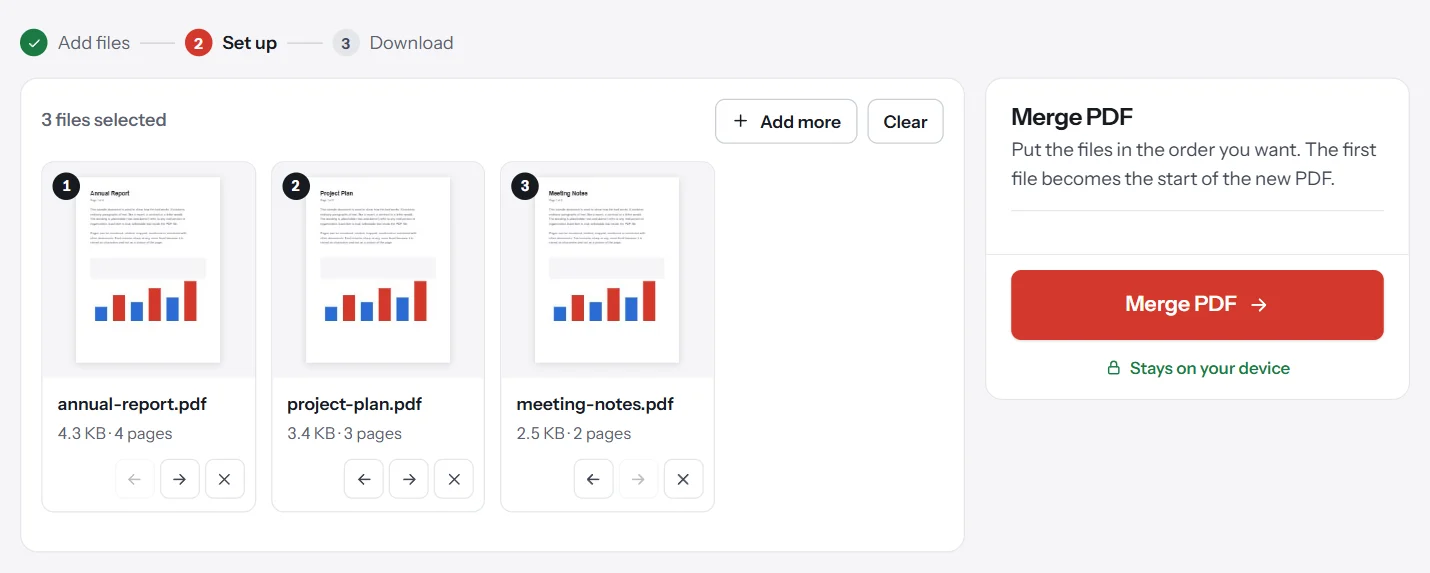
Your files aren't uploaded anywhere. The merging happens inside your browser, which matters if you're combining things like tax documents, contracts or medical records.
How to merge PDF files on a Mac
Preview can merge PDFs, though the process isn't obvious the first time.
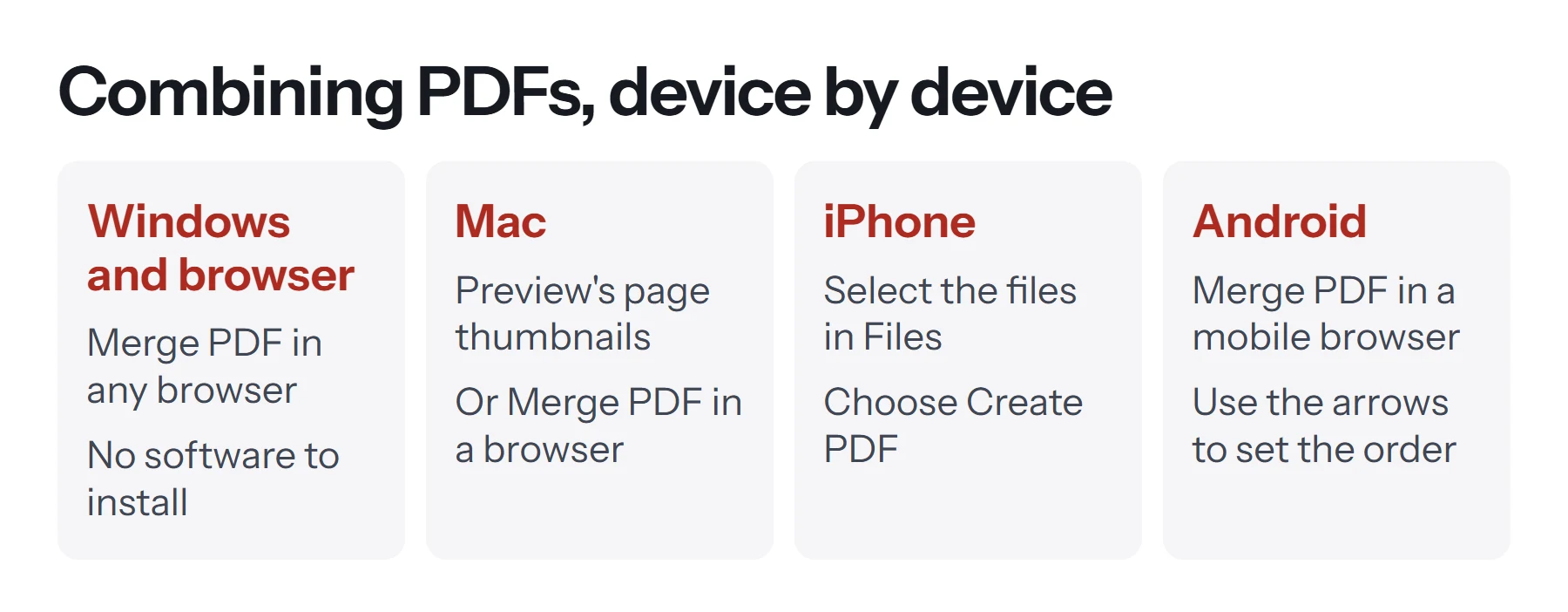
- Open the first PDF in Preview.
- Show the sidebar. Choose View, then Thumbnails.
- Add another PDF. Drag the second PDF from Finder into the thumbnail sidebar, dropping it where you want its pages to go.
- Rearrange pages if needed by dragging thumbnails.
- Save a new copy. Choose File, then Export as PDF, so that your first file stays unchanged.
Drop the file between thumbnails, rather than onto a page, or you may only add its first page. This method suits two or three documents. For more than that, a merger where you can see every file at once is easier.
How to combine PDFs on Windows
Windows doesn't come with a PDF merger. Your options are:
- A browser tool. Merge PDF runs in Edge, Chrome or Firefox, with no installation and no admin rights, which is useful on work computers.
- Adobe Acrobat. The paid version has a Combine Files tool that also handles Office files and offers more options.
- Other desktop PDF apps, many of which limit merging in their free versions.
Be wary of downloading unfamiliar "free PDF merger" programs, especially on a work computer. Installers from unknown sites are a common way to pick up unwanted software.
How to combine PDFs on iPhone and Android
On iPhone or iPad:
- Open the Files app and find your PDFs.
- Tap Select and choose the files.
- Tap More (the three dots), then Create PDF.
The new file appears in the same folder. Order follows how Files sorts them, so rename them with numbers beforehand (such as 1-cover, 2-report) if the order matters.
On Android, open Merge PDF in your browser and pick files from your device. Use the arrow buttons to set the order, since dragging is awkward on a touchscreen.
Which method should you use?
| Method | Cost | Order control | Good for |
|---|---|---|---|
| Merge PDF | Free | Drag or arrows | Any device, many files |
| Mac Preview | Free | Drag thumbnails | Two or three files, page-level changes |
| iPhone Files | Free | Sort order | Quick merges on the go |
| Adobe Acrobat | Paid | Full control | Mixing PDFs and Office files, keeping bookmarks |
How to combine PDFs in the right order
Most merging mistakes come from file order. A few habits prevent them.
- Name files with numbers. Prefixes like
01-,02-and03-keep them in order when you select them all at once. - Check the preview. The thumbnail on each card shows the first page, so you can see at a glance whether the cover is first.
- Merge and review before you add page numbers. Numbering first means starting over if the order changes.
- Keep your originals. Merging creates a new file and doesn't touch the originals, so you can always redo it.
If you need to rearrange individual pages rather than whole files, merge everything first, then open the result in Organize PDF and drag the thumbnails around.
How to combine only some pages
You don't always want every page. Maybe you need the summary from one report and the appendix from another. There are two ways to handle it:
Extract, then merge. Use Extract Pages on each document to keep only the pages you want, then add those new files to Merge PDF. This suits cases where you're taking a few pages from many files.
Merge, then prune. Combine everything, then use Organize PDF to delete and reorder pages visually, or Remove Pages if you already know the page numbers. This suits cases where you're keeping most pages.
How to combine images and PDFs together
Merge PDF only accepts PDFs, so convert any images first. JPG to PDF turns photos into a PDF, with one image per page. Then merge that file with your other documents.
The same applies to Word files and other formats: save them as PDFs first, then merge. This gives you a chance to check that each part looks right before it goes into the final file.
What should you do after merging?
Merging is often just one step. Here's a good order for a polished document, as each step builds on the last.
- Rotate any sideways pages with Rotate PDF. It's easiest to do this before merging, but you can do it afterward as well.
- Merge in the order you want.
- Reorder or remove pages with Organize PDF.
- Add page numbers with Add Page Numbers, so they run through the whole document.
- Set the title with Edit Metadata, especially if you'll publish it.
- Compress with Compress PDF if it's too large to send. Do this last, because stronger levels turn pages into images.
How many PDF files can you combine?
PDF Lemon sets no limit on the number of files, because the work happens on your device. The real limit is your device's memory. In our testing, a 400-page merge finished in under two seconds on a desktop computer. Phones have much less memory, so very large jobs are better done on a computer. If a big merge fails, combine the files in smaller groups and then merge those results together.
File size matters more than page count. Ten scanned documents of 50 MB each will strain a device far more than a thousand pages of plain text.
How to combine PDF files in Adobe Acrobat
If you've got a paid Acrobat subscription, its Combine Files tool has some extras. You can mix PDFs with Word, Excel, PowerPoint and image files in a single step, as Acrobat converts them as it goes. It also has options for keeping bookmarks and for building a PDF portfolio, which keeps documents separate inside one container.
Open Acrobat, choose the combine tool, add your files, drag them into order, and click Combine. The exact menu wording depends on your version. For straightforward merging of existing PDFs, you don't need to pay for this.
Should you merge PDFs or send them separately?
Merging isn't always the right call. A single file is ideal when the documents belong together: a job application, an expense report, or a contract with its schedules. People can't lose one of the attachments, and everything prints in order.
Separate files are better when different people need different parts, when each document might be updated on its own, or when the recipient's system expects one file per item. Check the instructions if you're submitting to a portal, since many ask for specific documents to be uploaded individually. If the problem is really about file size limits, a shareable link may suit you better than either.
What happens to links, bookmarks and forms when merging?
It helps to know what carries over, particularly with formal documents.
| Item | After merging |
|---|---|
| Text and images | Unchanged |
| Page size and rotation | Unchanged, even if files differ |
| Links on a page | Generally kept |
| Bookmarks (the outline) | Not carried over in PDF Lemon |
| Page numbers printed on the page | Unchanged, so they may no longer run in sequence |
| Digital signatures | No longer valid, as the document has changed |
The last row is important. If a document has been digitally signed, merging it breaks that signature's validity. Merge first and sign afterward, or send the signed document separately. Visual signatures are just part of the page and carry over without any issue.
Common problems when merging PDFs
The Merge button is greyed out. You need at least two files. Click Add more to select another one.
It says a PDF is protected. Password-protected files can't be merged until the protection is removed. Open the file in your reader, enter the password, and save an unprotected copy. See how to remove a password from a PDF.
It says a file couldn't be read. The file is damaged or isn't really a PDF. Download it again, or open it in another reader and save a fresh copy.
The merged file is huge. Size adds up. Run it through Compress PDF, or check whether one of the inputs is a very large scan.
Pages are different sizes. A mix of A4 and US Letter stays mixed, because merging doesn't resize anything. If this matters, run the merged file through Resize PDF to put every page on one paper size. See how to resize a PDF for details.
Some pages appear sideways. Each page keeps its rotation. Use Rotate PDF or the rotate button in Organize PDF.
It stops partway on a large job. Your device has run out of memory. Close other tabs, or merge in smaller batches and then merge the results.
Questions and answers
How do I combine PDF files for free?
Add them to PDF Lemon's Merge PDF, arrange the order and click Merge PDF. There's no cost or account, and the files stay on your device.
How do I merge PDF files on Windows?
Windows has no built-in merger, so the simplest route is a browser tool such as Merge PDF. It runs in Edge, Chrome or Firefox and doesn't need admin rights.
How do I combine PDFs on a Mac?
Open the first PDF in Preview, choose View, then Thumbnails, and drag the other PDFs into the sidebar. Then choose File, then Export as PDF, to save a combined copy.
Can I combine PDFs on my iPhone?
Yes. In the Files app, select the PDFs, tap More, and choose Create PDF. The order follows the sort order in Files, so check it before merging.
Does merging PDFs reduce quality?
No. Pages are copied without re-compressing them, so text stays sharp and selectable and images keep their resolution.
Can I combine only certain pages from each PDF?
Yes. Use Extract Pages to pull out the pages you need from each file, then merge the results. Or merge everything, then remove or reorder pages with Organize PDF.
Tools from this guide
How we checked this guide
We ran the PDF Lemon steps ourselves on the live tools. Steps for other apps come from each vendor's own help pages and are worded to survive small interface changes, but menu names can differ between versions.
Sources we used:
Related guides
- How to Convert a Word Document to PDF7 min read
- How to Convert Google Docs to PDF7 min read
- How to Change or Resize PDF Page Dimensions9 min read
- How to Create a Shareable PDF Link7 min read
- Are online PDF tools safe to use?1 min read