How to Convert a Word Document to PDF
Short answer
To save a Word document as a PDF, open it in Word, choose File, then Save As (or Save a Copy), set the file type to PDF, and click Save. Your Word file stays unchanged, and the PDF is a new copy. This keeps links, headings and selectable text. On Word for the web, use the File menu's PDF option.
Open Merge PDFKey takeaways
- Word has built-in PDF export, so you don't need another converter.
- Save As keeps links and headings. Printing to PDF often loses them.
- Standard quality suits printing, while Minimum size makes smaller files for sending online.
- Check page breaks, fonts and images in the PDF, because that's what your reader will see.
How to save a Word document as a PDF in Word
Word's built-in export is the best option for nearly everyone. It's already installed, it keeps your formatting, and your document doesn't get sent to anybody's server.
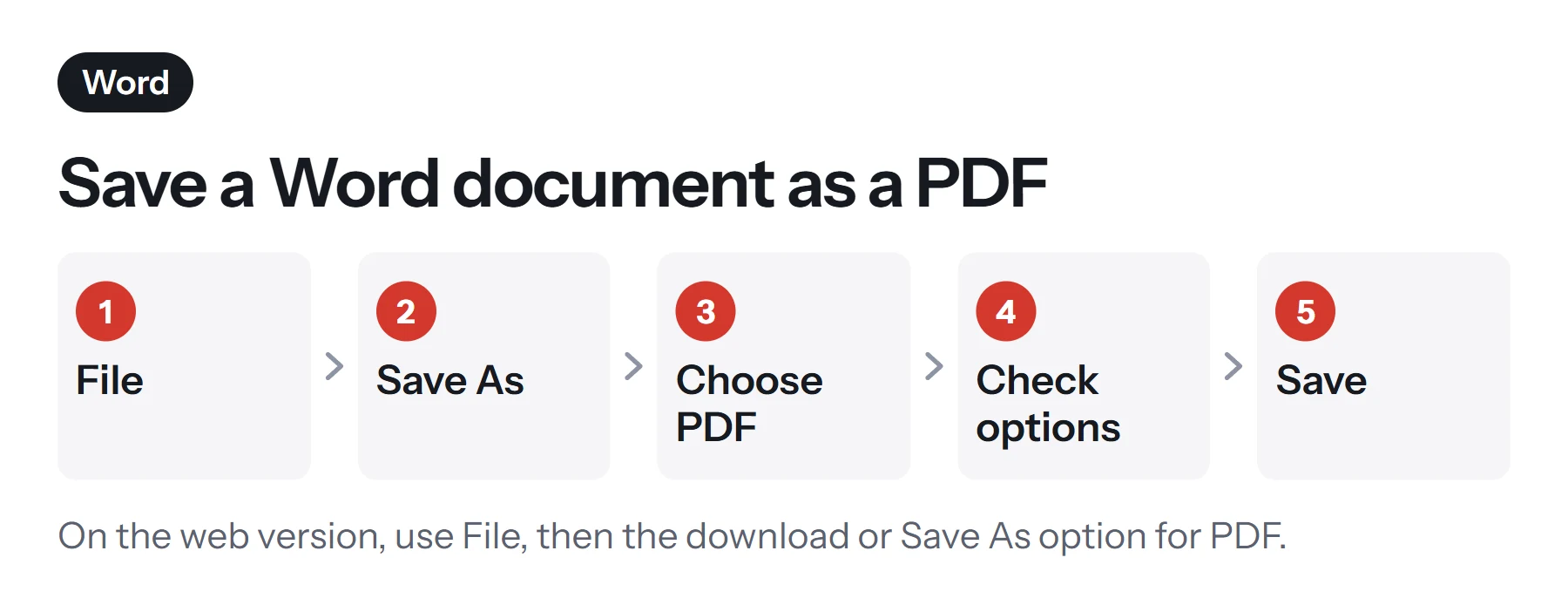
- Open your document in Word and finish your edits.
- Choose File, then Save As. If your document is saved in OneDrive, you may see Save a Copy instead. They do the same job here.
- Pick where to save it, and give it a clear name.
- Set the file type to PDF. Use the Save as type menu on Windows or File Format on a Mac.
- Choose the quality. On Windows, Standard is best for printing, and Minimum size suits sending online.
- Click Save. Word creates the PDF and, by default, opens it so you can check it.
Your .docx file stays exactly as it was. Keep it, since it's far easier to make future changes there than in the PDF.
Useful options on Windows
Click Options in the Save As dialog to reveal some helpful settings.
| Option | What it does | When to use it |
|---|---|---|
| Page range | Exports only certain pages | Sending a single chapter or a section |
| Include markup | Shows or hides tracked changes and comments | Turn off for final copies |
| Create bookmarks using headings | Adds a clickable outline | Long reports and manuals |
| Document structure tags | Helps screen readers | Leave on for accessibility |
| ISO 19005-1 compliant (PDF/A) | Creates an archival PDF | Long-term records, or if requested |
| Encrypt the document with a password | Adds an open password | Sensitive documents |
Before you share a document, make sure Include markup is off, or your tracked changes and comments may be visible in the PDF. It's one of the most common and embarrassing mistakes people make.
How to save a Word document as a PDF on a Mac
- Open the document in Word for Mac.
- Choose File, then Save As.
- Open the File Format menu and choose PDF.
- Pick the optimization. Best for electronic distribution and accessibility keeps links and tags. Best for printing may not.
- Click Export or Save.
If you're distributing the file electronically, choose the first option, since it's the one that keeps links working.
How to convert Word to PDF in Word for the web
If you only use Word in a browser, the PDF option is in the File menu. Microsoft's own wording varies a bit between updates, but look under File, then Save As or Export, for Download as PDF. The file then appears in your browser's downloads.
Microsoft notes that this creates a basic PDF that preserves the layout. For extras such as bookmarks, it recommends the desktop app.
How to convert a Word document to PDF without Word
If someone sent you a .docx and you don't have Word, there are free ways to do this.
With Google Docs:
- Upload the file to Google Drive.
- Open it with Google Docs. Double-click it, or right-click and choose Open with, then Google Docs.
- Choose File, Download, then PDF document (.pdf).
Complex Word formatting can shift a little in Google Docs, so check the result. Our guide on how to convert Google Docs to PDF covers this in more detail.
With LibreOffice: this free desktop suite opens Word files and has File, then Export As, then Export as PDF. It's a good choice if you'd prefer your files to stay on your computer.
With Word's free mobile app: on a phone or tablet, open the document in the Word app, choose Share or the file menu, and pick the PDF option.
PDF Lemon doesn't convert Word files. Doing this properly needs layout software that can't yet run privately in a browser, and we don't upload your documents to a server. Once you have a PDF, though, you can use any of our tools on it.
Save As PDF vs Print to PDF: which is better?
Both make a PDF, and they look similar at first glance. They're quite different under the hood.
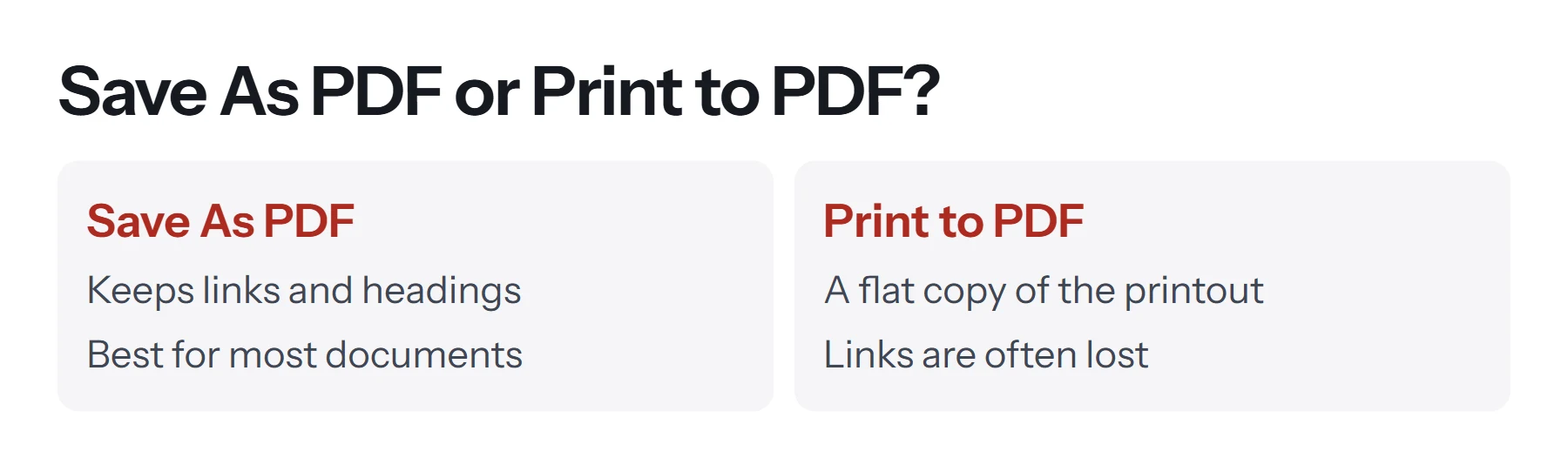
| Save As PDF | Print to PDF | |
|---|---|---|
| Links | Kept | Often lost |
| Bookmarks and headings | Can be kept | Lost |
| Selectable text | Yes | Yes |
| Accessibility tags | Can be kept | Usually lost |
| Use it when | You're making any normal PDF | There's no other export, or Save As fails |
Use Save As by default. Only fall back on printing when you've got no other choice.
How to prepare a Word document for PDF
Most PDF problems actually start in the Word file, and it's easier to fix them there.
- Use real heading styles. Heading 1 and Heading 2 give you bookmarks, and they help screen readers and search engines.
- Update fields. Press Ctrl+A, then F9 on Windows to refresh your table of contents and page numbers. Stale numbers are a common error.
- Accept or remove tracked changes. Go to Review and resolve them all, then remove comments.
- Add alt text to images. Right-click an image and choose View Alt Text. It's good for accessibility and for AI and search tools alike.
- Inspect the document. On Windows, choose File, Info, Check for Issues, then Inspect Document to find hidden text and personal details.
- Set document properties. Add a proper title under File, then Info. This often becomes the PDF's title.
- Think about fonts. Common fonts convert most reliably. If yours is unusual, you can turn on Embed fonts in the file in Word's options.
How to make the PDF smaller
If the PDF comes out too big, try these in order:
- Choose Minimum size in the Save As dialog on Windows.
- Compress the pictures in Word. Select an image, choose Picture Format, then Compress Pictures, and pick a lower resolution, such as 150 PPI. Tick the option to apply it to all pictures.
- Resize images before inserting them. A photo straight from a phone can be many times larger than it needs to be.
- Compress the finished PDF. Use Compress PDF. The Light level keeps text selectable and links working. See how to compress a PDF.
How to keep your table of contents working
In a long report, a clickable table of contents is one of the most useful things a PDF can have. It only works if a few things are in place. Build the table with Word's own tool, under References, then Table of Contents, rather than typing it by hand. Apply heading styles to your section titles, because that's what the table reads. Then, in the export options on Windows, tick Create bookmarks using: Headings, which also adds a navigation panel in PDF readers.
After exporting, click a few entries to confirm they jump to the right pages. Then check the page numbers themselves, since they may be out of date if you edited the document after building the table. Press F9 in the table to refresh it, then export again.
What to do after exporting
The PDF is often just the start. Here are some common next steps, all available in your browser.
- Combine it with other files using Merge PDF. See how to combine PDF files.
- Add page numbers with Add Page Numbers if the Word file doesn't have them.
- Sign it with Sign PDF. See how to sign a PDF.
- Mark it as a draft with Add Watermark.
- Change its title or author with Edit Metadata.
- Protect it. See how to password protect a PDF.
How to check your PDF
Always open the PDF and go through it, because this is what your reader will see.
- Check the page count, and look for an unexpected blank page at the end.
- Check page breaks. Headings shouldn't be stranded at the bottom of a page.
- Test the links by clicking a few of them.
- Look at images and charts for blurriness or shifted positions.
- Check that comments and tracked changes aren't showing.
- Try selecting some text, which confirms it's real text and hasn't become a picture.
Can you turn the PDF back into Word?
You can, but it's rarely as clean as the original. Keep your .docx file for future edits. If it's lost, Word can convert the PDF back, though you may need to tidy up the layout.
Common problems when converting Word to PDF
There's an extra blank page. There's probably a stray paragraph or page break at the end of the Word file. Turn on formatting marks (the ¶ button), delete it, and export again. Or remove the page from the PDF with Remove Pages.
The fonts changed. The font may not allow embedding, or it may be missing on that computer. Switch to a common font, or turn on font embedding.
The layout shifted. You may be converting on a different computer or app from the one that made the document, as Word layouts can vary with printers and fonts. Export from the original computer if you can.
Images look blurry. Word may be compressing them. Choose Standard rather than Minimum size, or look in File, Options, Advanced, and turn off image compression.
Comments appear in the PDF. Set Include markup to off, or switch the view to No Markup before exporting.
The PDF option is missing. On very old Word versions, you may need a free add-in or an update. Google Docs or LibreOffice work as alternatives.
Questions and answers
How do I convert a Word document to PDF for free?
If you have Word, use File, then Save As, and choose PDF. It's included. Without Word, upload the file to Google Drive, open it with Google Docs, and use File, Download, PDF document.
How do I save a Word document as a PDF on a Mac?
In Word for Mac, choose File, then Save As, and select PDF in the File Format list. You can also use File, Print, then choose Save as PDF, though that may not keep links.
How do I make a Word document a PDF without changing the formatting?
Use Word's own Save As PDF rather than an online converter, and embed fonts in your document if they're unusual. Then check the PDF page by page.
Why are the links in my PDF not working?
You probably used Print to PDF, which often drops links. Use File, Save As, and pick PDF. Check that the links work in Word first.
Does PDF Lemon convert Word to PDF?
No. Converting Word files properly needs software that PDF Lemon doesn't run in the browser. Word's built-in export is free and more accurate. You can use PDF Lemon's tools on the resulting PDF.
How do I make the PDF smaller?
In Word's Save As dialog on Windows, choose Minimum size. Or compress the pictures in Word before exporting. You can also compress the finished PDF, using the Light level to keep text selectable.
Tools from this guide
How we checked this guide
We ran the PDF Lemon steps ourselves on the live tools. Steps for other apps come from each vendor's own help pages and are worded to survive small interface changes, but menu names can differ between versions.
Sources we used:
Related guides
- How to Create a Shareable PDF Link7 min read
- How to Convert Google Docs to PDF7 min read
- How to Save an Email as a PDF7 min read
- How to Combine PDF Files into One7 min read
- Are online PDF tools safe to use?1 min read