How to Save an Email as a PDF
Short answer
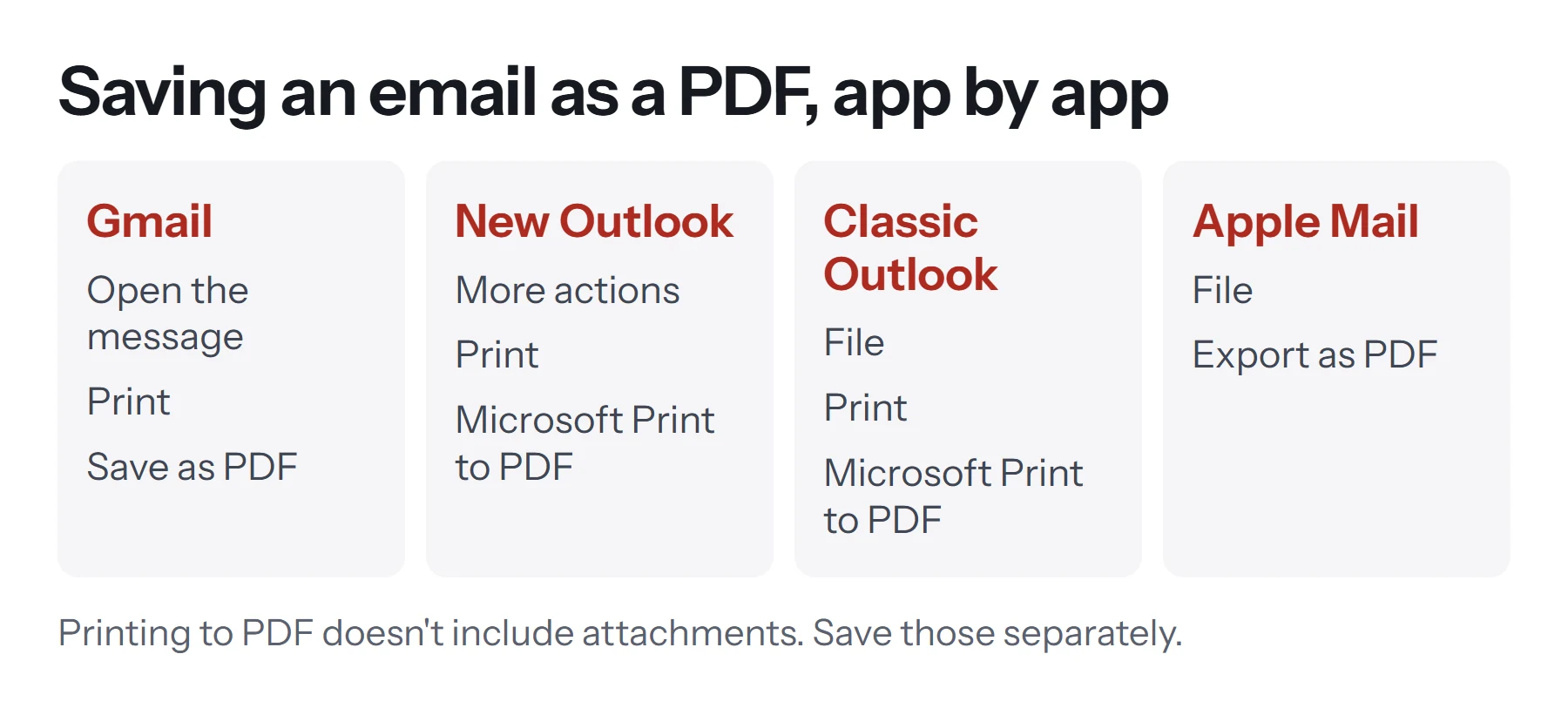
To save an email as a PDF, open the message and use your email app's Print option, then choose Save as PDF or Microsoft Print to PDF as the printer. This works in Gmail, Outlook, Yahoo and most other email apps. Apple Mail also has a direct Export as PDF command. Attachments aren't included, so save those separately.
Open Merge PDFKey takeaways
- Printing to PDF works in nearly every email app, on the web or on a computer.
- New Outlook has no PDF option under Save As, so use Print and Microsoft Print to PDF.
- Attachments aren't included. Save them separately, and merge them into one PDF if needed.
- For legal or compliance records, keep the original message file too, as a PDF lacks some technical details.
Why save an email as a PDF?
An email in your inbox depends on your mailbox staying the same. Turning a message into a PDF gives you a self-contained copy you can file, forward or print. People commonly do this for order confirmations, flight bookings, payment receipts, job offers, written agreements and anything they might need to show someone later.
The method is nearly identical in every email app: print the message, but send it to a PDF rather than a printer.
How to save an email as a PDF in Gmail
- Open the email in Gmail on your computer.
- Click Print. Use the printer icon at the top right of the message, or click the three-dot menu beside the message and choose Print. The first method prints the entire conversation, while the second prints a single message.
- Choose Save as PDF. In the print dialog, set the destination to Save as PDF.
- Click Save, then choose a name and folder.
Gmail adds a header with your name and the message details at the top of the page. This is normal, and it's useful because it records who sent what and when.
How to save an Outlook email as a PDF
Microsoft has three versions of Outlook in use at the moment, and the steps differ a little. Microsoft notes that new Outlook has no PDF option in its Save as command, which trips up a lot of people.
New Outlook and Outlook on the web
- Open the message.
- Select More actions (the three dots), then Print.
- Choose Microsoft Print to PDF as the printer. On a Mac or in a browser, choose Save as PDF.
- Click Print, then choose a folder and file name.
Classic Outlook for Windows
- Open the message.
- Choose File, then Print.
- Select Microsoft Print to PDF from the printer list.
- Click Print, and choose where to save the file.
There's a known catch here. If your organization applies sensitivity labels to mail, printing to PDF may be blocked. If that happens, talk to your IT team rather than trying to get around it, because the block is there for a reason.
Outlook on a Mac
Open the message, press Cmd+P, click the PDF menu in the print dialog, and choose Save as PDF.
How to save an email as a PDF in Apple Mail
On a Mac, Mail has a dedicated command.
- Select the message.
- Choose File, then Export as PDF.
- Name it and click Save.
On iPhone or iPad:
- Open the message and tap the reply arrow.
- Tap Print.
- Pinch outward on the preview with two fingers. The page opens as a PDF.
- Tap Share and choose Save to Files.
How to save an email as a PDF in other email apps
Yahoo Mail, Proton Mail, Thunderbird and most other email services have a Print option, usually in a menu marked with three dots or More. Open it, then choose Save as PDF in your browser's print dialog, or Microsoft Print to PDF on Windows.
On Android, in the Gmail app, open the message, tap the three-dot menu at the top of the message (not the one beside the reply button), and choose Print. Then choose Save as PDF as the printer, and tap the PDF button to save.
How to save an email with attachments as a PDF
Printing only captures the message, so attachments get left behind. To keep everything together, add a couple of steps.
- Save the email as a PDF using the steps above.
- Download each attachment to the same folder.
- Convert anything that isn't a PDF. Use JPG to PDF for photos, and see how to save a Word document as a PDF for Word files.
- Combine them. Open Merge PDF, add all the files, put the email first, and click Merge PDF.
- Number the pages with Add Page Numbers if you want the bundle easy to refer to.
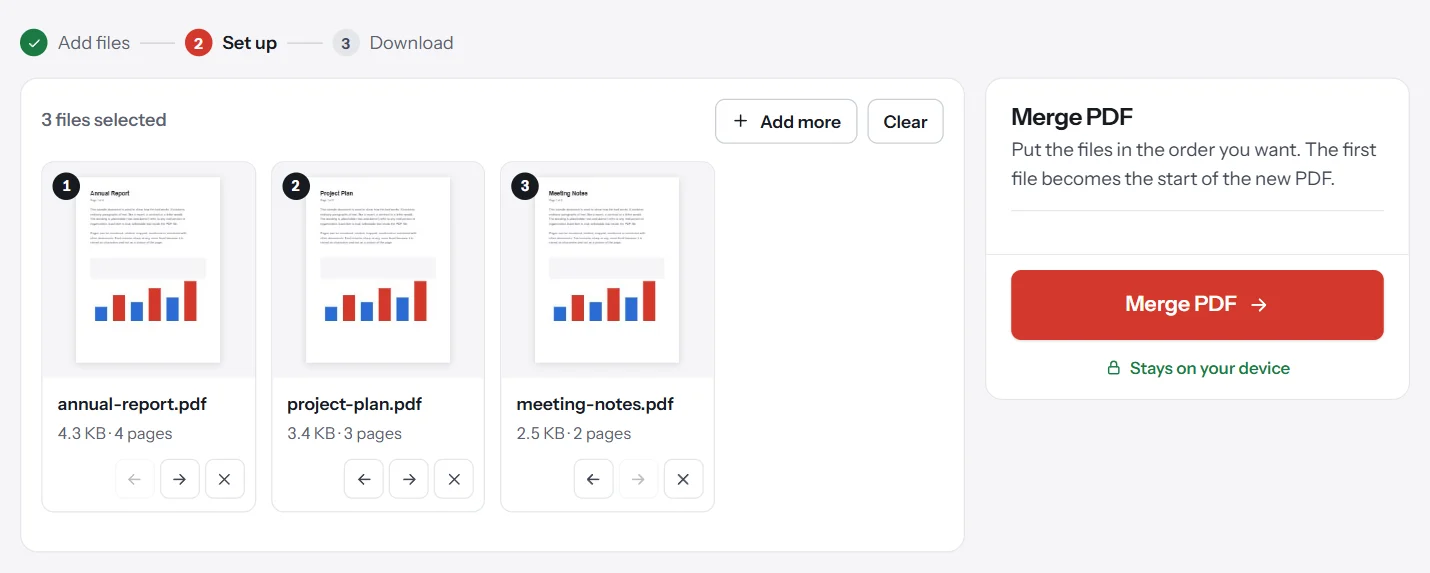
These tools work in your browser, so private correspondence doesn't get uploaded. That's reassuring when an email holds personal details or bank information.
How to save multiple emails as one PDF
To save a whole thread or a series of messages:
- For one conversation, use the print button that prints the entire thread. In Gmail, that's the Print all icon at the top right of the conversation.
- For separate messages, save each one, then combine them with Merge PDF. Rename the files with dates first (such as
2026-03-14-order.pdf) so that they sort properly. - In classic Outlook, you can select several messages in the list, then choose File, Print, and print them to one PDF.
If you need to archive a lot of mail on a regular basis, consider a dedicated email archiving tool, because saving messages one at a time gets tedious quickly.
How to get a clean-looking PDF
Emails aren't designed as pages, so printing them can be a bit messy. In the print dialog, these settings help:
| Problem | Setting to try |
|---|---|
| Text is too small or runs off the page | Set Scale to Fit to page width or adjust the percentage |
| Blank last page | Change the page range to exclude it, or remove it later with Remove Pages |
| Images are missing | Load images in the email first, then print |
| Colors or backgrounds are missing | Turn on Background graphics |
| Browser date and URL appear in margins | Turn off Headers and footers |
| Long thread with lots of quoted text | Print just one message rather than the whole thread |
PDF vs saving the original email file
A PDF is a picture of the message, which makes it ideal for reading, sharing and printing. It isn't the same as the email itself.
| Original file (.eml or .msg) | ||
|---|---|---|
| Opens anywhere | Yes | Needs an email app |
| Includes attachments | No, unless merged | Yes |
| Keeps technical headers | No | Yes |
| Easy to read and print | Yes | Sometimes |
| Replying from it | No | Possible in an email app |
Technical headers record the route a message took between servers, and they can help show where it really came from. If an email might matter in a legal dispute, an audit or a compliance review, keep the original file as well as the PDF. In Outlook, use Save as, as Microsoft describes, to keep an .eml or .msg copy. In Gmail, the three-dot menu has a Download message option. A lawyer can tell you what's needed in your situation, since rules differ from place to place.
How to save an email as a PDF automatically
If you regularly save the same type of email, such as invoices from one supplier, doing it by hand gets tiresome. A few options can help, depending on your setup.
- Filters and labels can gather those messages in one place, so that you can save them in a single batch at the end of the month.
- Automation services such as Power Automate and Zapier can watch for certain emails, then save a PDF copy to cloud storage. These send your messages through another company's systems, so check that with your workplace first.
- Accounting apps can often accept forwarded invoices directly, and that may save you from needing a PDF at all.
For one-off messages, the print method above remains the simplest.
How to organize saved emails
A folder full of files named Print.pdf won't help you later. Some simple habits make a big difference:
- Name files by date and subject, such as
2026-11-05-hotel-booking.pdf. Dates in year-month-day format sort correctly. - Set a document title. Edit Metadata lets you set a title that shows up in readers and searches.
- Keep text selectable. PDFs saved from email usually contain real text, so you can search them later. Don't compress them with a level that turns pages into images unless you need to.
- Think about privacy. A PDF of an email can include addresses and message details. If you're sharing it, check what's visible, and password protect anything sensitive.
How to remove private details before sharing
An email PDF often shows full addresses, phone numbers in signatures, and earlier messages quoted further down. Before you pass one on, read to the end of the thread. Print only the message you need, or remove the extra pages. Covering text with a shape doesn't delete it, so for anything truly sensitive, start from a shorter message.
Common problems when saving emails as PDFs
"Microsoft Print to PDF" isn't listed. It may be turned off. In Windows, search for Turn Windows features on or off and tick it, or use your browser's Save as PDF by opening your email on the web.
Print to PDF is blocked. Your workplace may be restricting this for labeled messages. Ask your IT team.
Images are missing. Many email apps block images by default. Click Display images or Download pictures first, then print.
The PDF is cut off on the right. The email is wider than the page. Reduce the scale in the print dialog, or switch to landscape.
Only part of a long conversation prints. Expand all the messages in the thread before printing, or print each one separately and merge the files.
The file is much bigger than expected. Large inline images are usually the cause. Compress the PDF if it needs to fit an upload limit.
Questions and answers
How do I save a Gmail email as a PDF?
Open the message, click the Print icon (or the three-dot menu, then Print), set the destination to Save as PDF, and click Save. Chrome and most browsers work the same way.
How do I save an Outlook email as a PDF?
In new Outlook or Outlook on the web, open the message, choose More actions, then Print, and pick Microsoft Print to PDF. In classic Outlook, choose File, then Print, and select the same printer.
How do I save an email with its attachments as a PDF?
Print the email to PDF, then download each attachment. Convert any non-PDF attachments to PDF, and combine everything using Merge PDF, with the email first.
How do I save multiple emails as one PDF?
Save each email as a PDF, then combine them with Merge PDF. In classic Outlook on Windows, you can also select several messages and print them together to one PDF.
How do I save an email as a PDF on iPhone?
In Mail, tap the reply arrow, then Print. Pinch outward on the preview to open it as a PDF, tap Share, and choose Save to Files.
Is a PDF of an email valid as evidence?
It can be useful, but a PDF lacks the technical headers that help prove where a message came from. For legal or compliance matters, also keep the original .eml or .msg file, and ask a professional.
Tools from this guide
How we checked this guide
We ran the PDF Lemon steps ourselves on the live tools. Steps for other apps come from each vendor's own help pages and are worded to survive small interface changes, but menu names can differ between versions.
Sources we used:
Related guides
- How to Create a Shareable PDF Link7 min read
- How to Convert a Word Document to PDF7 min read
- How to Convert PNG to PDF7 min read
- How to Turn a Picture into a PDF on iPhone7 min read
- How to Save a Document as a PDF7 min read