How to Save a Document as a PDF
Short answer
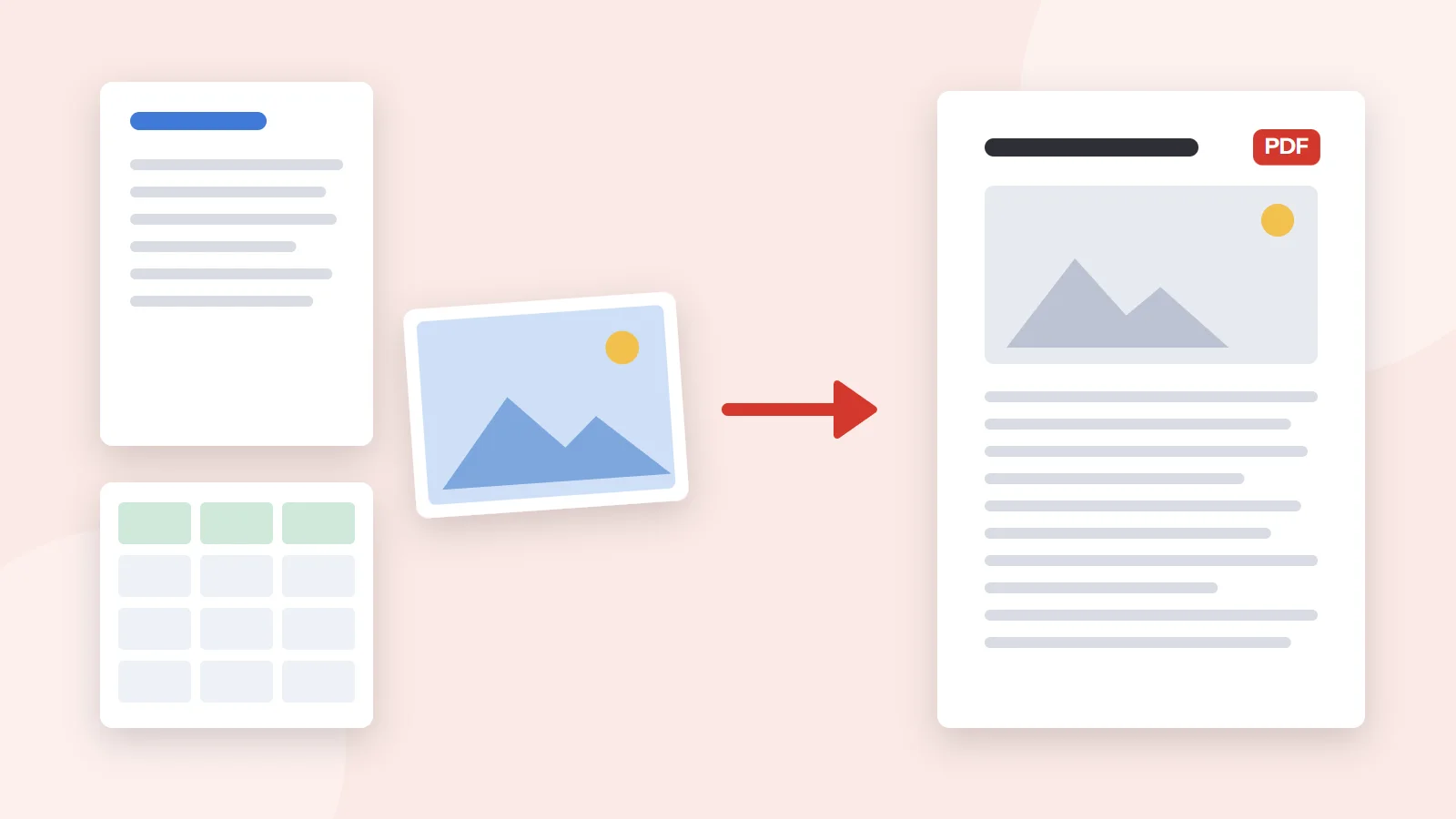
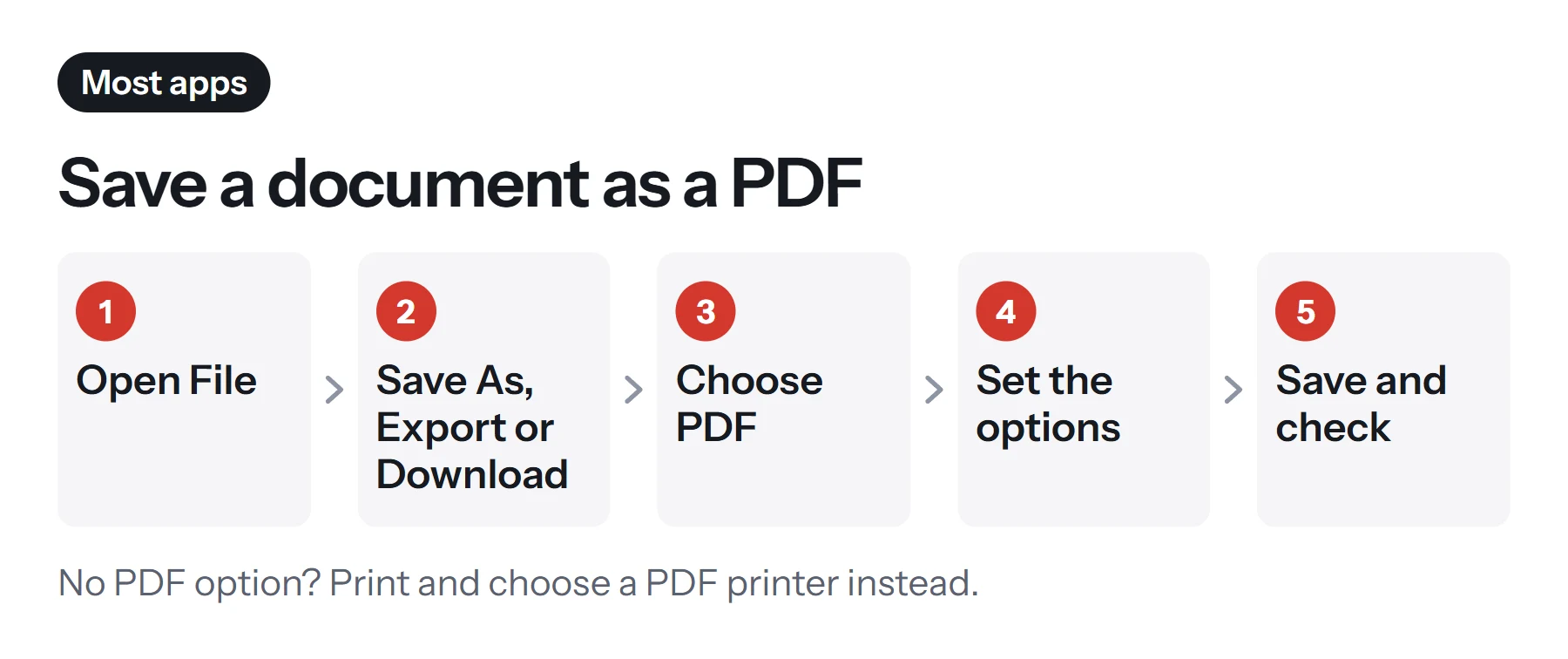
To save a document as a PDF, open it in the app you made it in, then look for File, then Save As, Export or Download, and choose PDF. If the app has no PDF option, print the document and pick a PDF printer, such as Microsoft Print to PDF on Windows or Save as PDF on a Mac. Then open the new file to check it.
Open Text to PDFKey takeaways
- Most apps can save straight to PDF from File, then Save As, Export or Download.
- Printing to a PDF printer works in almost any app, on Windows, Mac and phones.
- Saving from the original app keeps links and selectable text better than scanning or screenshots.
- Always open the new PDF and check fonts, page breaks and images before sending it.
The two ways to save any document as a PDF
Almost every app that makes documents can produce a PDF, and it usually happens in one of two ways.
Export or Save As. The app writes a PDF directly. You'll find it under File, then Save As, Save a Copy, Export, or Download. This is the best method, because the app knows the structure of your document, so links, headings and selectable text come through cleanly.
Print to PDF. You "print" the document, but instead of paper, the output goes to a virtual PDF printer, such as Microsoft Print to PDF on Windows or Save as PDF on a Mac. This works in nearly any app, even ones with no PDF option. The trade-off is that printing often drops links and other interactive features.
How to save a document as a PDF in popular apps
The exact menu names vary, so here's where to look in the apps people use most.
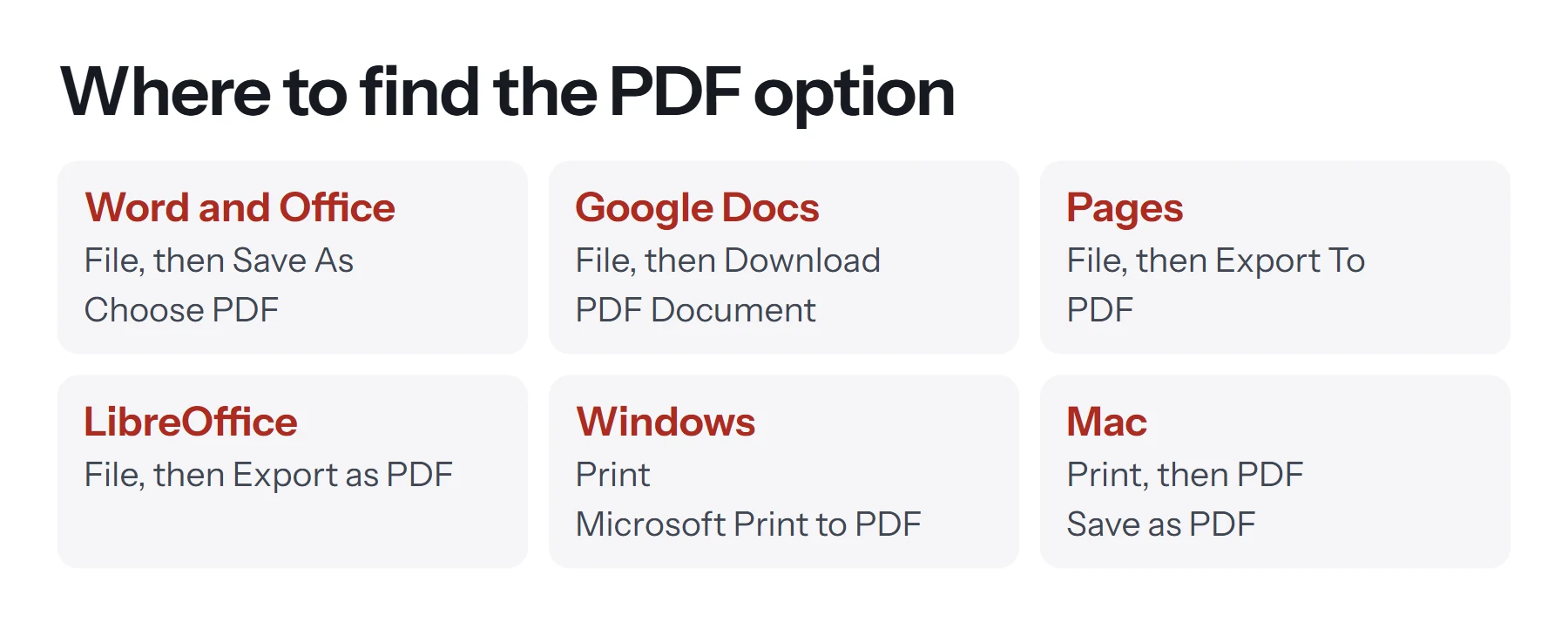
| App | Where to find it | Notes |
|---|---|---|
| Microsoft Word | File, then Save As or Save a Copy, then PDF | Options sets the page range and markup |
| Excel | File, then Save As, then PDF | Options chooses sheets or a selection |
| PowerPoint | File, then Save As or Export, then PDF | Can include notes pages |
| Google Docs | File, then Download, then PDF Document | Same in Sheets and Slides |
| Pages on Mac | File, then Export To, then PDF | Choose the image quality |
| LibreOffice | File, then Export as PDF | Detailed options for images and fonts |
| Any app on Windows | File, then Print, then Microsoft Print to PDF | Works when there's no export |
| Any app on a Mac | File, then Print, then PDF, then Save as PDF | Built into macOS |
Microsoft Word, Excel and PowerPoint
Microsoft's steps for Office on Windows are the same across the apps. Choose File, then Save As or Save a Copy, and pick PDF in the file type list. Choose Standard for good print quality, or Minimum size if the file is mainly for reading online. Select Options to choose which pages to include and whether to include markup, then click Save. For more detail on Word, see how to save a Word document as a PDF. Spreadsheets have their own quirks, which our guide on how to convert Excel to PDF covers.
Google Docs, Sheets and Slides
Open the file, choose File, then Download, then PDF Document (.pdf). The PDF goes to your downloads folder. To control margins and paper size, use File, then Page setup, first. Our guide on how to convert a Google Doc to PDF has the full steps.
Pages on a Mac
Choose File, then Export To, then PDF. You can pick the image quality and set a password, then click Next and choose where to save it. Pages documents can't be opened on most Windows computers, so exporting to PDF is the easiest way to share them.
LibreOffice
Choose File, then Export as PDF. The dialog offers detailed control over image compression, which pages to include, and whether to create tagged, accessible PDFs. It's free and works on Windows, Mac and Linux.
How to save as PDF with any app, using print
When an app doesn't offer PDF export, printing is the universal fallback.
On Windows:
- Open the document and press Ctrl+P.
- Choose Microsoft Print to PDF as the printer.
- Set the page range and orientation if needed.
- Click Print, then choose a name and folder for the PDF.
On a Mac:
- Open the document and press Cmd+P.
- Click the PDF menu at the bottom of the print dialog.
- Choose Save as PDF, then pick a name and location.
The same trick works for web pages, emails and receipts. See how to save an email as a PDF for email apps specifically.
How to save a document as a PDF on a phone
On iPhone or iPad: open the document, tap Share, then look for Print. In the print preview, tap the Share button at the top and choose Save to Files. Many apps also offer a Create PDF or Export option directly. Our guide on how to make a PDF on iPhone covers every route.
On Android: open the document, open the menu, and choose Print or Share. In the print screen, set the printer to Save as PDF and tap the download button.
In the Google Docs or Word apps: both have share or export options that can send a PDF copy.
How to save a document as a PDF on a Chromebook
Chromebooks handle this through printing. Open the document, press Ctrl+P, and set the destination to Save as PDF. Choose the pages and layout, then click Save and pick a folder. Google Docs, Sheets and Slides can also use File, then Download, then PDF Document, which keeps links more reliably than printing.
How to turn other kinds of files into a PDF
Not every document comes from a word processor. PDF Lemon's tools convert common file types in your browser, without uploading them.
- Photos and scans: JPG to PDF turns one or more images into a single PDF, one image per page.
- Screenshots and graphics: PNG to PDF keeps sharp edges and exact colors.
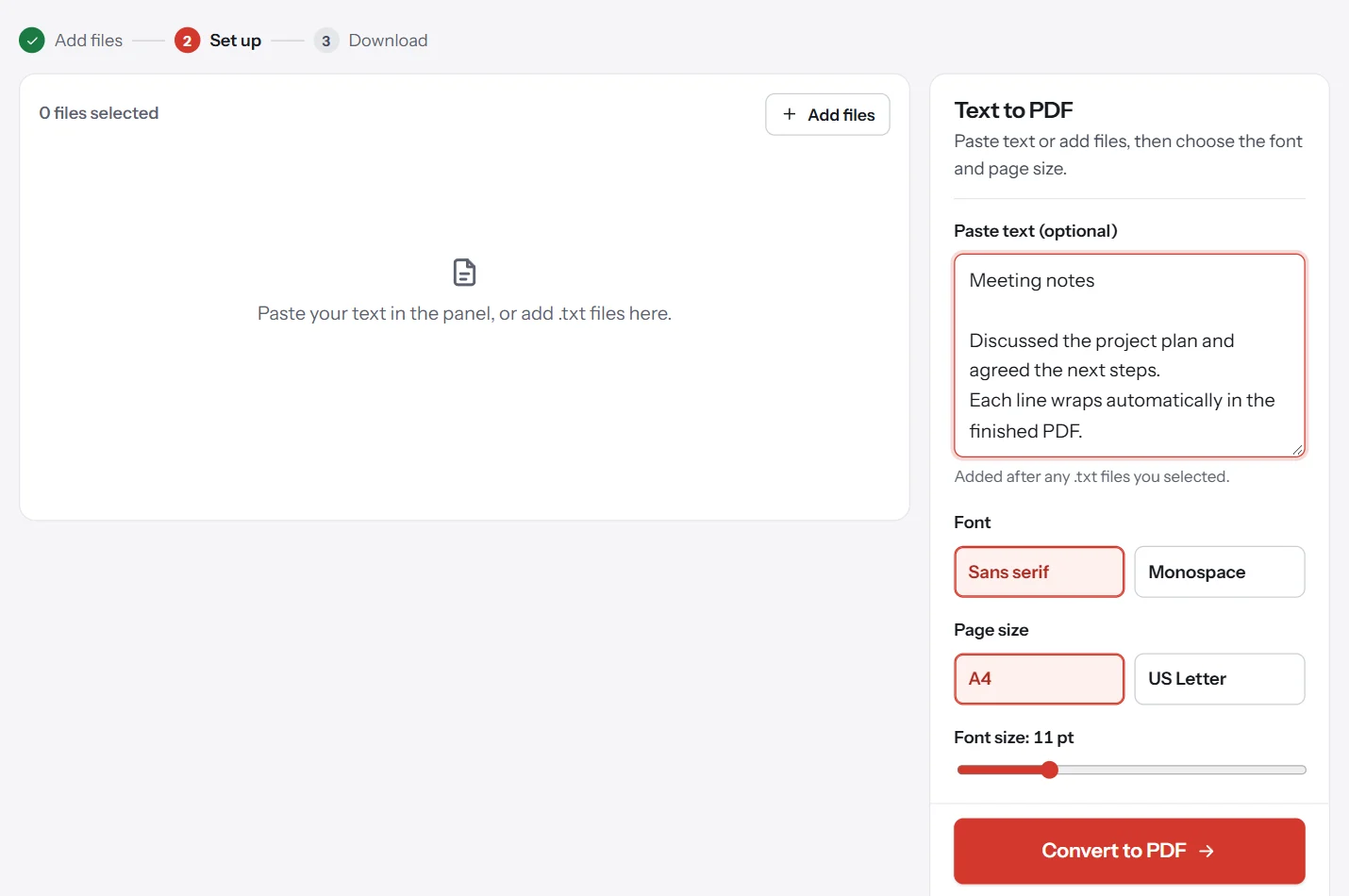
- Plain text: Text to PDF turns a .txt file, or text you paste, into a clean, paginated PDF.
PDF Lemon doesn't convert Word, Excel or PowerPoint files, because doing that well needs software that can't run privately in a browser. The apps' own export is free and more accurate.
Save As PDF or Print to PDF: which is better?
| Feature | Save As or Export | Print to PDF |
|---|---|---|
| Selectable text | Yes | Usually yes |
| Clickable links | Usually kept | Often lost |
| Headings and bookmarks | Can be kept | Lost |
| Accessibility tags | Can be kept | Lost |
| Works in every app | No | Almost always |
| File size | Usually smaller | Can be larger |
So use export when the app offers it, and print when it doesn't.
Which PDF settings should you choose?
Most export dialogs offer a few options. The defaults are fine for everyday sharing, but these are worth knowing.
- Quality or size. Office offers Standard for printing and Minimum size for reading online. Pages and LibreOffice let you choose image quality. Pick the smaller option for email and the higher one for print.
- Page range. Export only the pages you need, such as a single chapter or one sheet.
- Bookmarks from headings. Word and LibreOffice can turn your headings into PDF bookmarks, which makes long documents much easier to navigate.
- Accessibility tags. Tagged PDFs work better with screen readers. Word adds them by default when you save as PDF, and LibreOffice has a Tagged PDF option.
- PDF/A. This archival format embeds everything needed to display the file in future. Choose it for records you must keep for years, but not for files people will edit.
- Passwords. Some apps, including Pages and LibreOffice, can add a password while exporting. See how to password protect a PDF for the other routes.
How to name and organize your PDFs
A clear file name saves the recipient time and helps search engines if you publish the file. Use a short, descriptive name with dashes, such as project-proposal-2026.pdf, rather than Document1 final FINAL.pdf. Add a date or version number when several drafts exist. If you're publishing PDFs online, also set a proper title in the document's properties, which you can do with Edit Metadata.
What to check before you send the PDF
A quick review catches most problems. Open the PDF in a different app from the one that made it, because that's how the recipient will see it.
- Fonts. Unusual fonts can be swapped if they weren't embedded. Most export options embed them by default.
- Page breaks. Headings at the bottom of a page and split tables look untidy. Fix them in the original and export again.
- Images. Check that they're sharp. If the file is too large, try Minimum size in Office, or compress it afterward.
- Links. Click a few to make sure they work.
- Page count. Make sure no blank pages crept in at the end.
How to combine several documents into one PDF
Save each document as a PDF first, then use Merge PDF to join them. Drag the files into order, merge them, and check the result. Add page numbers afterward with Add Page Numbers so they run through the whole document. Our guide on how to combine PDF files explains each step.
Common problems when saving a document as a PDF
There's no PDF option in the Save As list. Look under Export or Download instead. If there's nothing, print to a PDF printer.
Microsoft Print to PDF is missing. It may have been turned off. On Windows, search for Turn Windows features on or off and tick Microsoft Print to PDF, then try again.
The PDF is huge. Images were saved at full resolution. Choose a smaller size option when exporting, or compress the PDF afterward.
Text looks blurry or can't be selected. The document was probably printed as an image or scanned. Export directly from the original app instead.
Some pages are the wrong size. The app's paper size didn't match your printer settings. Set the page size in the app, export again, or use Resize PDF to change the paper size.
Comments or tracked changes appear in the PDF. In Word, open Options in the save dialog and choose to export the document without markup.
Questions and answers
How do I save a file as a PDF?
In the app you used to make it, open File and look for Save As, Export or Download, then choose PDF. If there's no PDF option, use File, then Print, and choose a PDF printer.
How do I convert a document to PDF for free?
Use the app's built-in export, which is free in Word, Google Docs, Pages and LibreOffice. Windows and Mac also include free PDF printers. For images and plain text, PDF Lemon converts them in your browser.
Why does my PDF look different from my document?
Fonts, page size and margins can change during conversion. Embed fonts if the app offers it, match the paper size to your document, and check for page breaks before you save.
How do I save a document as a PDF on my phone?
Open the document, choose Share or Print, and look for a PDF or Save to Files option. On iPhone, the print preview's share button saves a PDF. On Android, choose Print, then Save as PDF.
Is Save As PDF better than Print to PDF?
Usually, yes. Save As or Export keeps links, bookmarks and accessibility tags, while printing often flattens the document into plain pages. Print to PDF is a good fallback when there's no export option.
How do I save several documents as one PDF?
Save each document as a PDF first, then combine them with a tool such as Merge PDF. Set the order before merging, and check the page numbers afterward.
Tools from this guide
How we checked this guide
We ran the PDF Lemon steps ourselves on the live tools. Steps for other apps come from each vendor's own help pages and are worded to survive small interface changes, but menu names can differ between versions.
Sources we used:
Related guides
- How to Create a PDF File on iPhone7 min read
- How to Create a PDF File7 min read
- How to Convert PNG to PDF7 min read
- How to Turn a Picture into a PDF on iPhone7 min read
- How to Save an Email as a PDF7 min read