How to Create a PDF File on iPhone
Short answer
To make a PDF on iPhone, open the Files app, select one or more photos or files, tap More, and choose Create PDF. To scan paper, use Scan Documents in Files or Notes. For anything else, such as a web page or document, tap Share, then Print, and use the share button in the print preview to save it as a PDF.
Open JPG to PDFKey takeaways
- The Files app can turn photos and files into a PDF with Create PDF.
- Files and Notes include a document scanner that saves multi-page PDFs.
- Print, then Share works in almost any app and saves the content as a PDF.
- PDF Lemon's JPG to PDF and Text to PDF work in Safari, and nothing is uploaded.
Which way of making a PDF on iPhone suits you?
Your iPhone can create PDFs without any extra apps. The best method depends on what you're starting with.
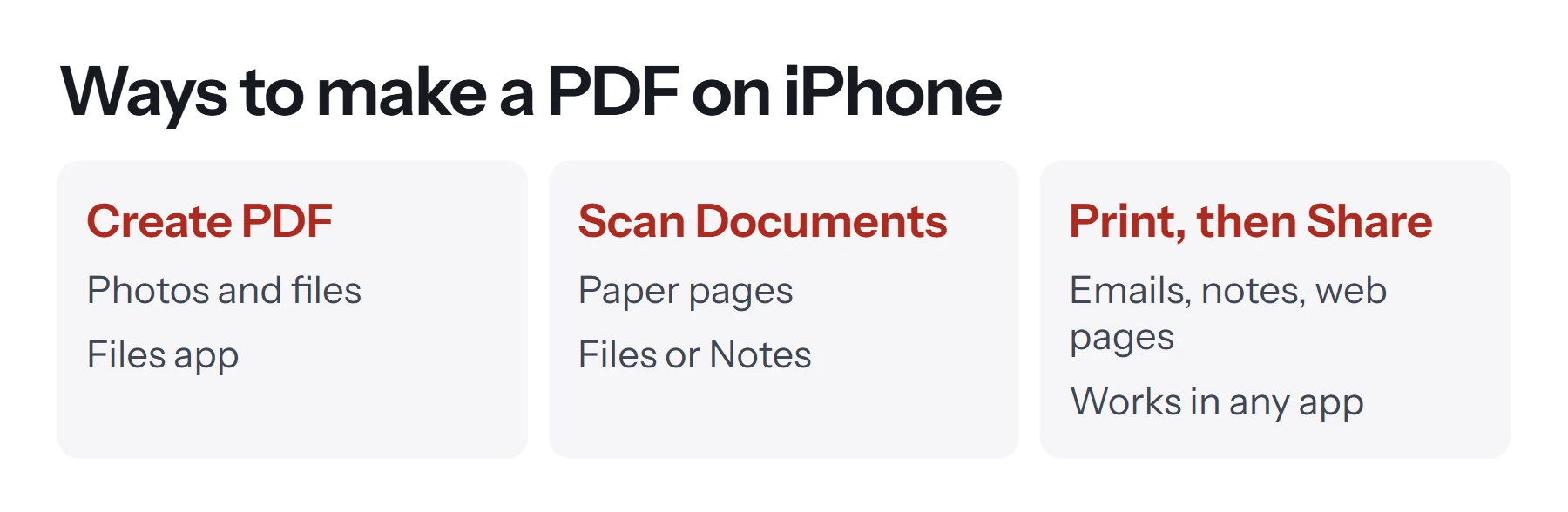
| Starting with | Best method | Where |
|---|---|---|
| Photos or screenshots | Create PDF | Files app |
| Paper documents | Scan Documents | Files or Notes |
| A web page | Share, then Options, then PDF | Safari |
| An email, note or document | Share, then Print, then Share | Any app |
| Pages or Word document | Export as PDF | Pages or Word |
| Text you've typed or copied | Text to PDF | PDF Lemon in Safari |
| Several PDFs | Create PDF, or Merge PDF | Files, or PDF Lemon in Safari |
Our guide on how to convert a picture to a PDF on iPhone goes deeper into photos specifically. This guide covers every kind of file.
How to make a PDF from files and photos with the Files app
The Files app has a Create PDF action that turns images, and other PDFs, into a single PDF.
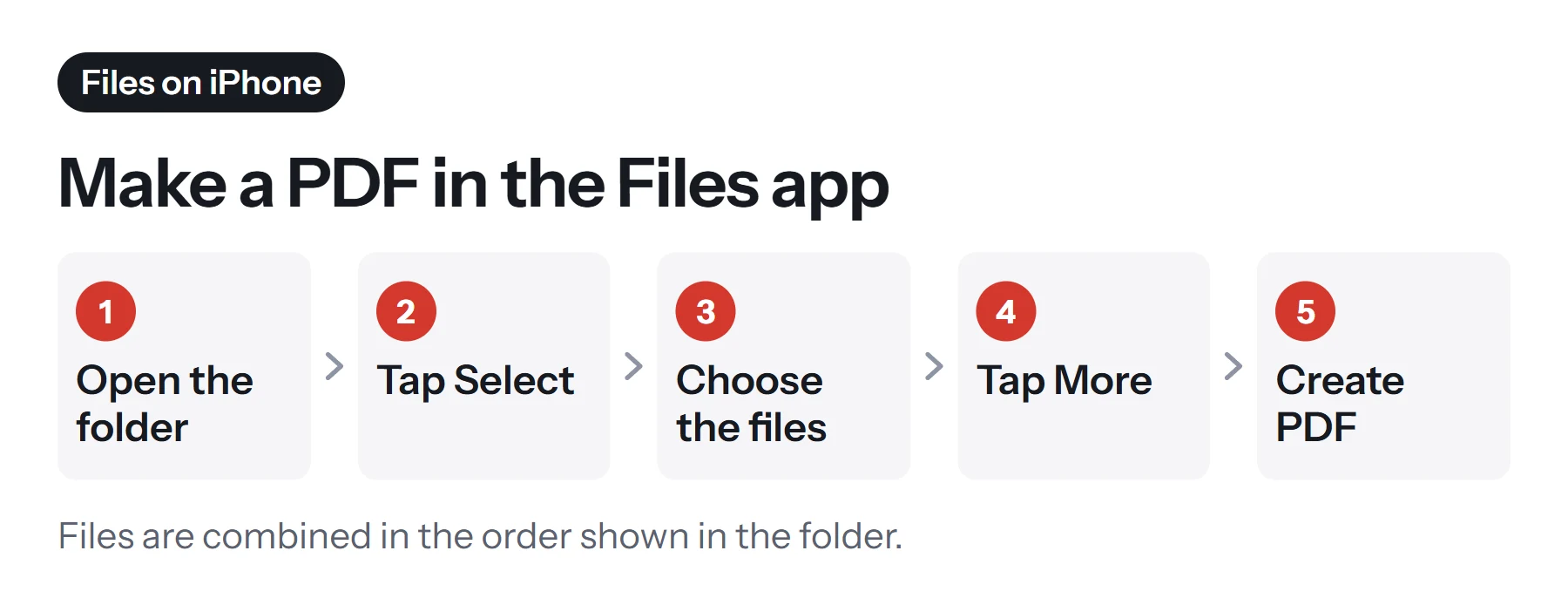
- Save your photos to Files. In Photos, select them, tap Share, then Save to Files, and choose a folder.
- Open the Files app and go to that folder.
- Tap Select at the top, or tap the circle with three dots and choose Select.
- Tap each file you want in the PDF.
- Tap More, then Create PDF.
The new PDF appears in the same folder, usually named after the first file. Rename it by pressing and holding it, then choosing Rename. For a single file, you can also press and hold it, then choose Quick Actions, then Create PDF.
The files are combined in the order they appear in the folder, so sort the folder by name first if the order matters.
How to scan paper into a PDF
Apple's document scanner is built into Files and Notes, and it saves multi-page PDFs.
- Open Files, tap More, then Scan Documents. In Notes, tap the attachment button, then Scan Documents.
- Point the camera at the page. In Auto mode, it captures automatically. Otherwise, tap the shutter or press a volume button.
- Adjust the corners, then tap Keep Scan.
- Scan the remaining pages, then tap Done.
- Choose a location and tap Save in Files.
Good, even light and a dark background give the best results. For more scanning tips, see how to scan documents to PDF.
How to save a web page as a PDF on iPhone
- Open the page in Safari.
- Tap the Share button.
- Tap Options under the page title, choose PDF, and tap Done.
- Choose Save to Files, pick a folder and tap Save.
You can also take a screenshot, tap the preview, and choose Full Page. Then tap Done and choose Save PDF to Files. This captures the whole page as one long PDF, which is handy for receipts and confirmations.
How to make a PDF from any app using Print
This trick works in Mail, Notes, Messages and most other apps, because almost everything can print.
- Open the content, such as an email or a note.
- Tap Share, or the app's menu, and choose Print.
- In the print preview, tap the Share button at the top.
- Choose Save to Files, or send the PDF directly to another app.
The result is a clean PDF of the content, with the page layout the app uses for printing. Our guide on how to save an email as a PDF covers Mail in detail.
How to make a PDF with PDF Lemon in Safari
PDF Lemon's tools run in Safari, and your files stay on your iPhone, because nothing is uploaded.
- [JPG to PDF](/jpg-to-pdf/) turns photos into one PDF, with a choice of page size and margins. It's useful when you want every page the same size, such as A4 or US Letter.
- [Text to PDF](/text-to-pdf/) turns text you paste into a clean, paginated PDF. Copy text from a note or message, paste it, and convert it.
- [Merge PDF](/merge-pdf/) combines PDFs in the exact order you choose.
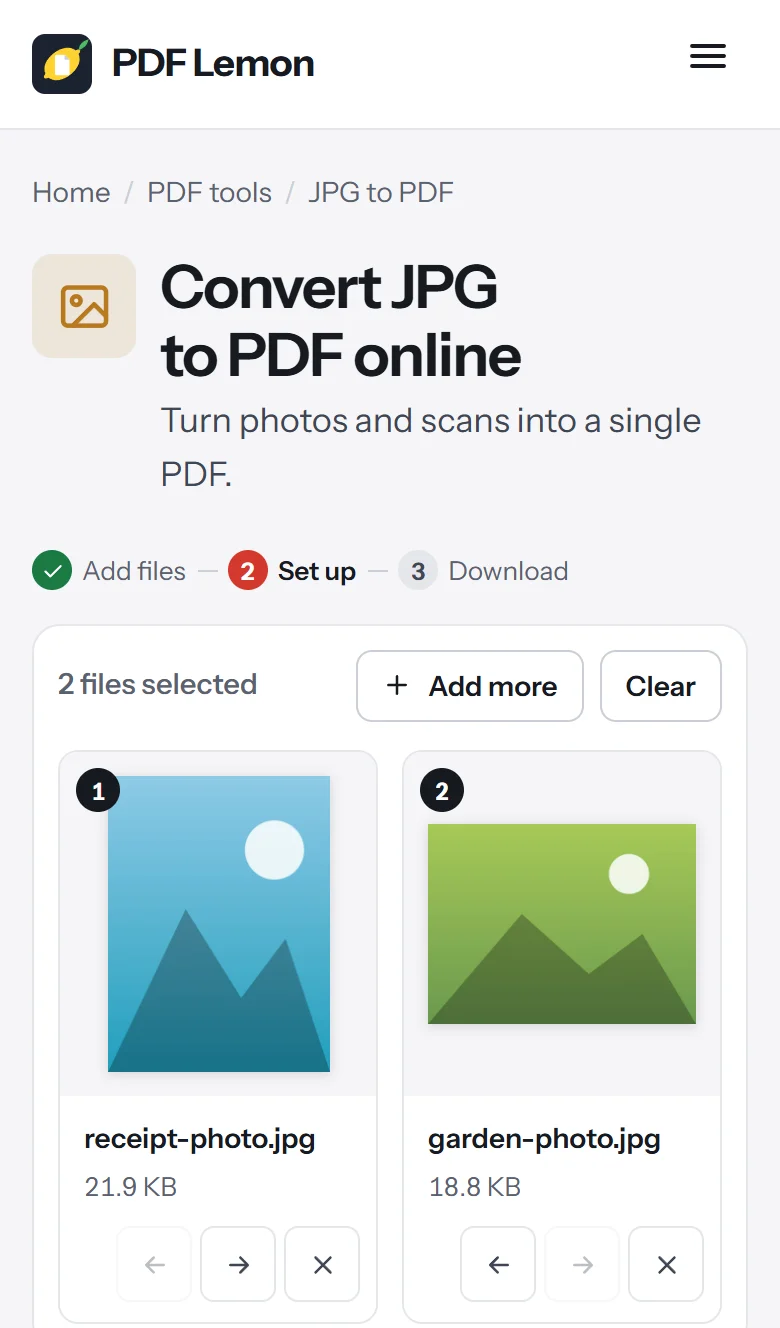
- Open the tool in Safari.
- Tap Select, and choose from Photos or Files.
- Set the order and page size. Use the arrow buttons on each file to reorder.
- Tap Convert, then Download, and save the PDF to Files.
JPG to PDF also accepts PNG and WebP images, and it turns sideways phone photos upright.
How to make a PDF from Pages, Word or Google Docs
- Pages: open the document, tap the More button, then Export, and choose PDF. Share it or save it to Files.
- Microsoft Word: open the document, and use the share or export options to send a PDF copy.
- Google Docs: open the document, tap the More menu, then Share & export, and choose to send a copy as a PDF.
Menu names can change between app versions. If you can't find an export option, use Print, then Share, which works everywhere.
How to make PDFs automatically with Shortcuts
If you make PDFs often, the Shortcuts app can save you taps. It includes a Make PDF action that turns whatever you pass to it, such as photos or a web page, into a PDF.
- Open Shortcuts and tap the plus button to create a shortcut.
- Add the Make PDF action. Search for it in the actions list.
- Add Save File to choose where the PDF goes.
- Turn on Show in Share Sheet in the shortcut's settings.
Now you can select photos, tap Share, and run your shortcut to get a PDF in one step. You can extend it later, for example by naming the file with today's date.
How to choose the page size
PDFs made from photos take each photo's shape, so a document photographed at an angle can produce odd-sized pages. That's fine for reading on a screen, but awkward to print. If the PDF will be printed or uploaded to a form, use JPG to PDF with A4 or US Letter, which places each photo on a standard page. If you already have a PDF with mixed sizes, Resize PDF puts every page on one paper size.
How to share your PDF from iPhone
- AirDrop sends it instantly to a nearby Mac, iPhone or iPad.
- Mail attaches it. For large files, Mail offers Mail Drop, which sends a download link instead.
- Messages works for small PDFs, and the recipient can open it straight away.
- iCloud Drive or another cloud service gives you a link to share. See how to create a link to a PDF.
Check the file size before sending. A PDF of several phone photos can easily be 10 MB or more, so compress it first if the recipient has a size limit.
How to edit, sign and shrink your new PDF
Once you have a PDF, you can finish it on your iPhone.
- Sign or write on it. Open it in Files and tap the Markup button to draw, type, or add a signature. For a typed signature placed exactly, use Sign PDF in Safari.
- Reorder or remove pages. In Files, open the PDF, show the thumbnails, and press and hold a page to rotate, delete or insert pages. Organize PDF in Safari offers the same with drag and drop.
- Make it smaller. Photos make large PDFs. Use Compress PDF before emailing. Apple's Preview guide for iPhone also describes ways to compress PDFs and images.
How to make a PDF from a note or a screenshot
From Notes: open the note, tap the More button or Share, and choose Print if you see it, or Send a Copy, then Print. In the print preview, tap Share and save the PDF to Files. Notes that contain scans can also be shared as PDFs directly.
From a screenshot: take the screenshot, tap the thumbnail in the corner, and tap Done. Choose Save to Files for an image, or, for web pages in Safari, switch to Full Page first and choose Save PDF to Files. To turn ordinary screenshots into a PDF, select them in Files and use Create PDF, or add them to JPG to PDF, which also accepts PNG screenshots.
Tips for better PDFs on iPhone
- Name files clearly straight away, such as
passport-copy-2026.pdf. - Check the page order before sending, especially with Create PDF.
- Keep files in one folder, such as a PDFs folder in iCloud Drive, so they sync to your other devices.
- Use A4 or US Letter for documents that might be printed, so they don't come out an odd size.
- Remove location data if you share photos publicly. Converting to PDF re-saves the image, but it's good practice to check what you share.
Common problems when making a PDF on iPhone
Create PDF doesn't appear. It needs files that can become a PDF, such as images or PDFs. Videos and some other files can't be converted this way.
The pages are in the wrong order. Files combines them in folder order. Sort by name, or use Merge PDF to set the order yourself.
The print preview has no Share button. Some apps hide it. Try pinching outward on the preview page to open it full screen, then tap Share.
The PDF is too big to email. Photos keep their full resolution. Compress the PDF, or use a smaller page size in JPG to PDF.
I can't find the saved PDF. Open Files, tap Browse, then Recents. Most new PDFs appear there first.
Questions and answers
How do I make a PDF on my iPhone for free?
Use the Files app. Select your photos or files, tap More, then Create PDF. For paper, use Scan Documents in Files or Notes. All of these are built into iOS.
How do I turn a photo into a PDF on iPhone?
Save the photo to Files, select it, tap More, then Create PDF. Or open PDF Lemon's JPG to PDF in Safari, add the photo and convert it there.
How do I save a web page as a PDF on iPhone?
In Safari, tap Share, then Options, choose PDF, and save to Files. Or tap Share, then Print, and use the share button in the print preview.
How do I combine several PDFs on iPhone?
In Files, select the PDFs and tap More, then Create PDF to join them in the order shown. Or use Merge PDF in Safari to set the order yourself.
Where does my new PDF go on iPhone?
Create PDF saves the file in the same folder as the originals. Scans and print-to-PDF ask you to choose a location, usually in Files.
Can I make a PDF from a Pages or Word document on iPhone?
Yes. In Pages, use Export and choose PDF. In the Word app, use the share or export options. Any app can also use Print, then Share.
Tools from this guide
How we checked this guide
We ran the PDF Lemon steps ourselves on the live tools. Steps for other apps come from each vendor's own help pages and are worded to survive small interface changes, but menu names can differ between versions.
Sources we used:
Related guides
- How to Save a Document as a PDF7 min read
- How to Create a PDF File7 min read
- How to Convert PNG to PDF7 min read
- How to Turn a Picture into a PDF on iPhone7 min read
- How to Save an Email as a PDF7 min read