How to Password Protect a PDF
Short answer
To password protect a PDF, open it in Adobe Acrobat and choose Protect a PDF, then Protect with password, and set a password. For free, use Preview on a Mac (File, Export, then Permissions), or Word on Windows (Save As PDF, Options, then Encrypt the document with a password). Use a strong password, and send it separately from the file.
Open Edit MetadataKey takeaways
- PDFs support an open password, which encrypts the file, and a permissions password, which restricts actions.
- Mac Preview and Word can both add an open password for free.
- Passwords can't be recovered, so save yours in a password manager.
- Send the password by a different channel from the file, and never in the same email.
Two kinds of PDF password
Before setting one, know which protection you need, because the two kinds of PDF password do very different things.
An open password (or document open password) scrambles the contents of the file. Without the password, nobody can read it. Use this for confidential documents you send or store, such as contracts, payslips and medical records.
A permissions password (or owner password) lets anyone open the file, but limits what they can do, such as printing, copying text or making changes. Use this to stop casual edits to a finished form or report. It's a courtesy rather than real security: Adobe warns that if third-party products don't support these settings, recipients can bypass some or all of the restrictions.
You can use both on the same file, with different passwords.
| Open password | Permissions password | |
|---|---|---|
| Needed to view the file | Yes | No |
| Encrypts the content | Yes | Not meaningfully |
| Blocks printing or copying | Only by blocking access | Yes, in apps that respect it |
| Protects secrets | Yes | No |
| Typical use | Confidential documents | Finished forms and reports |
How to password protect a PDF in Adobe Acrobat
Acrobat's paid version gives you the most control, including both password types.
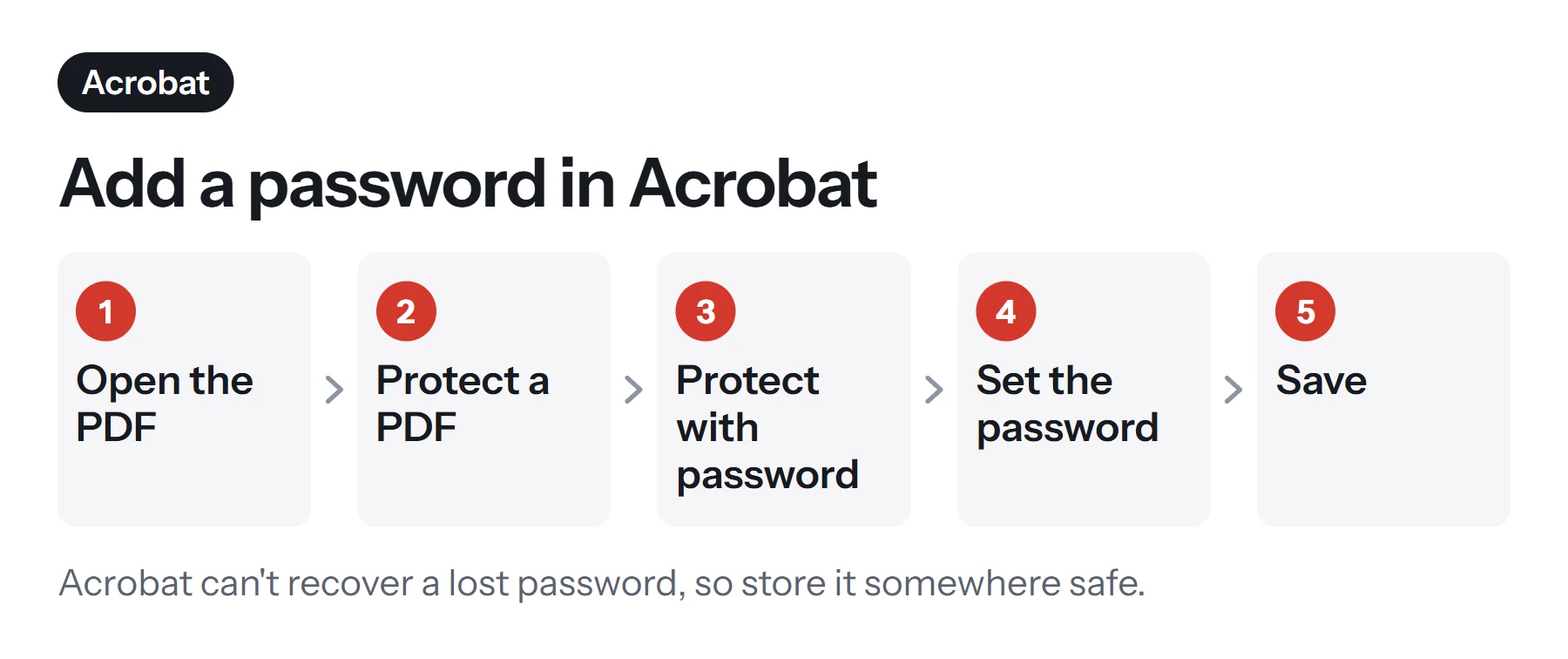
- Open the PDF in Acrobat.
- Open the protection tool. Go to All tools, then Protect a PDF, and choose Protect with password.
- Choose what the password controls. Choose Viewing for an open password, or Editing for a permissions password.
- Enter and confirm your password. Adobe requires at least six characters, though you should use many more.
- Save the file. Use a new file name so that you can keep an unprotected copy somewhere safe.
For finer control, including exactly what changes you'll allow, use Set security properties under the same menu.
How to password protect a PDF for free on a Mac
Preview can add both password types with no extra software.
- Open the PDF in Preview.
- Choose File, then Export. Don't use Export as PDF, which has fewer options.
- Click Permissions. On older macOS versions, you may see an Encrypt checkbox instead.
- Set the password to open. Tick Require Password To Open Document and type a password.
- Set restrictions if you'd like. Untick actions you want to block, such as printing or copying, and set an owner password.
- Save it under a new name.
How to password protect a PDF in Word on Windows
If your document starts out in Word, you can set a password while exporting it.
- Open your document in Word.
- Choose File, then Save As, and pick PDF as the file type.
- Click Options.
- Tick Encrypt the document with a password and click OK.
- Enter your password, which needs to be between 6 and 32 characters.
- Click Save.
This gives you an open password. If you start with a PDF rather than a Word file, you could open it in Word first, but the layout may shift. Our guide on how to save a Word document as a PDF covers the other export options.
Which method should you use?
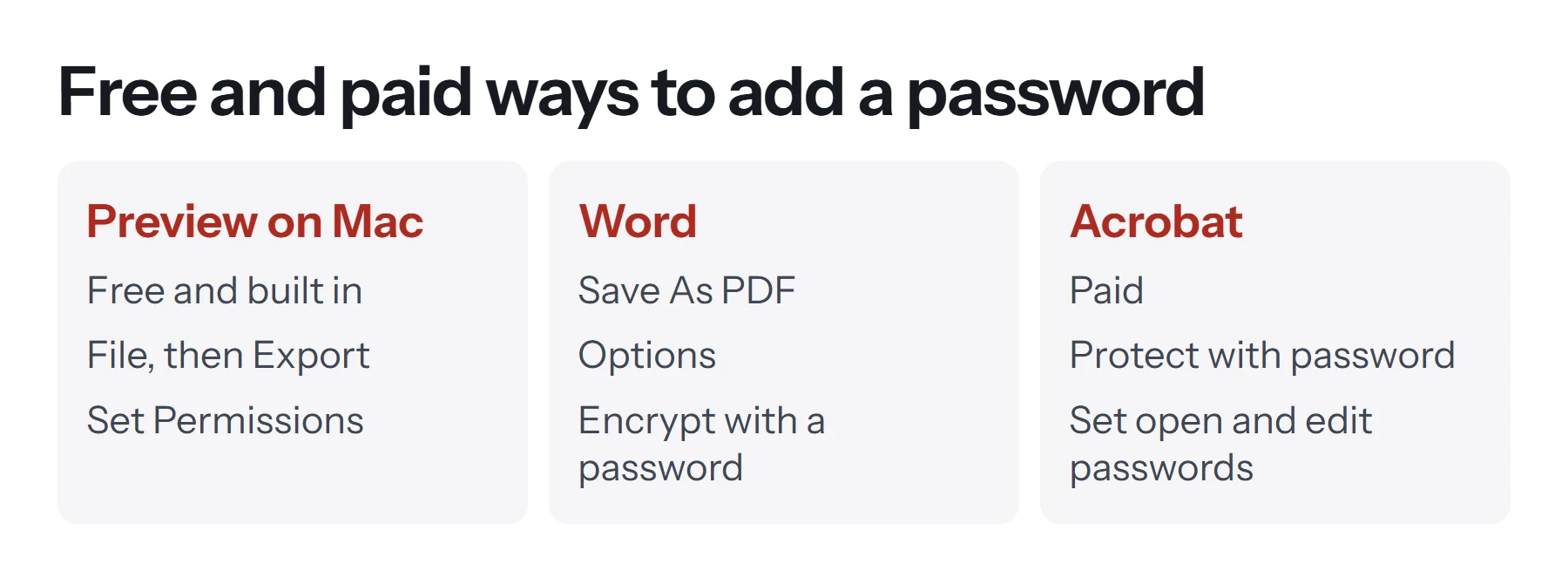
| Method | Cost | Open password | Permissions | Starts from |
|---|---|---|---|---|
| Mac Preview | Free | Yes | Yes | Any PDF |
| Word on Windows | Included with Word | Yes | No | A Word document |
| Adobe Acrobat | Paid | Yes | Yes, detailed | Any PDF |
| LibreOffice | Free | Yes | Yes | A LibreOffice or Word document |
On Windows, with an existing PDF and no Acrobat, LibreOffice Draw can open many PDFs and export them with a password. Check the layout afterward, as it may change.
PDF Lemon doesn't add passwords at this time, because its tools focus on page and content tasks, and we'd rather not offer a security feature unless we can be sure it holds up. You can use PDF Lemon to prepare the document, then add a password through one of the routes above.
How to choose a strong PDF password
An open password is only as strong as the password itself. Anyone with a copy of the file can try as many guesses as they like, with no lockouts, so a short password really can fall.
- Use length. A long passphrase of four or more unrelated words is stronger and easier to type than a short, complicated one.
- Make it unique. Don't reuse a password from another account.
- Avoid personal details. Birthdays, phone numbers and names are the first things people try.
- Use a password manager. It can generate a strong password and remember it for you.
Keep it safe, because it can't be recovered
Adobe's guidance is blunt: Acrobat has no password recovery option. If you lose an open password on a well-encrypted file, you should assume the content is gone. So store the password somewhere safe and keep an unprotected original in a secure location. See how to remove a password from a PDF for what's possible if you've still got the password.
How to share a password-protected PDF
Protection fails if the password travels with the file.
- Send them separately. Email the file, and give the password by phone, text message or a messaging app. Anyone who gets into the email account then has only half of what they need.
- Agree on the password ahead of time if you send documents to the same person regularly.
- Don't put hints in the file name or email, such as "the password is your birthday".
- Tell recipients what to expect, so that a password prompt doesn't look like a problem.
- Consider restricted cloud access. If you're sharing through a service, restrict the link to named people. See how to create a shareable PDF link.
How to password protect a PDF on a phone
There's no built-in password option in the iPhone Files app or on most Android phones, so the choice is more limited on mobile. The Adobe Acrobat mobile app offers password protection through a paid subscription. Some other PDF apps offer it too, so read reviews, and check how they handle your files.
If the file's not urgent, it's often easier to wait until you're at a computer and use one of the free routes above. Protected files can then be opened on any phone: PDF viewers on iPhone and Android simply ask for the password.
If you need to send something sensitive right away from your phone, a restricted share is a decent alternative. Upload the file to Google Drive, OneDrive or iCloud Drive, then share it with named people only, rather than anyone with the link. Their sign-in acts as the protection, and you can remove access later. That's something a password can't do once a file has been sent.
What does password protection not do?
It's good to be clear about the limits.
- It doesn't stop trusted recipients. Anyone who has the password can read, photograph or forward the contents.
- Permissions aren't enforced everywhere. Some apps ignore print and copy restrictions.
- It doesn't prove who created the document or reveal later changes. For that, use a digital signature.
- It doesn't redact. Text you've hidden with a shape or by cropping is still inside the file, available to anyone who can open it. Remove sensitive content properly before you protect the document.
- It doesn't protect you from your own email. A copy of an unprotected draft in a sent folder is still a copy.
How to prepare a document before protecting it
Protection should be the last step, because you'll need to remove it to make changes. A sensible order is:
- Check the content. Remove anything that shouldn't be there, and check the document properties with Edit Metadata, since author names and titles can reveal more than you'd expect.
- Combine and arrange. Use Merge PDF and Organize PDF.
- Sign and flatten. Add signatures with Sign PDF, and lock form answers using Flatten PDF.
- Mark it, if needed. Add Watermark can stamp CONFIDENTIAL on each page.
- Compress it, if you need to, using Compress PDF.
- Add the password.
- Test it. Close and reopen the file. It should ask for the password.
PDF Lemon can't process a file once it's protected, so these steps need to come first. Since PDF Lemon's tools run in your browser, the unprotected document isn't uploaded at any point.
Common problems with PDF passwords
The file opens without asking for a password. You probably set only a permissions password, or you're opening the old copy. Check your settings, and make sure you're opening the new file.
Printing still works after I blocked it. The app being used may ignore the restriction. For stronger control, use a rights management system.
The recipient can't open it. Older readers may not support the newest encryption. Ask them to update their reader or try a browser. Check that they've typed the password correctly, since passwords are case-sensitive.
The Permissions button isn't there in Preview. Make sure you chose Export rather than Export as PDF. On older macOS versions, look for an Encrypt option.
I can't change the protected PDF. That's expected. Remove the password, make the change, then protect it again.
Word's encrypt option is greyed out. Check that you've selected PDF as the file type, and open the Options from the Save As dialog. Some organization policies can also affect this.
Questions and answers
How do I password protect a PDF for free?
On a Mac, open it in Preview, choose File, then Export, click Permissions, and set a password. On Windows, in Word, choose Save As, PDF, Options, then Encrypt the document with a password.
How do I lock a PDF from editing?
Set a permissions password. In Acrobat, choose Protect with password, then the edit restriction, and set what's allowed. On a Mac, Preview's Permissions dialog lets you restrict changes. Some third-party apps may not honor these limits.
What's the difference between encrypting and password protecting a PDF?
An open password encrypts the content, so nobody can read it without the password. A permissions password only restricts actions such as printing, and it's much weaker protection.
Can a password-protected PDF be opened without the password?
A file with a strong open password and modern encryption is very hard to open without it. Permissions-only restrictions are much easier to get around, so don't rely on them for secrets.
Can PDF Lemon password protect a PDF?
Not at the moment. PDF Lemon's tools can't add passwords. Prepare the document with PDF Lemon if you need to, then add the password using one of the methods in this guide.
How do I share a password-protected PDF?
Email or upload the file as usual, and send the password through a different channel, such as a phone call or a messaging app. Don't put it in the same email.
Tools from this guide
How we checked this guide
We ran the PDF Lemon steps ourselves on the live tools. Steps for other apps come from each vendor's own help pages and are worded to survive small interface changes, but menu names can differ between versions.
Sources we used:
Related guides
- How to Create a Shareable PDF Link7 min read
- Are online PDF tools safe to use?1 min read
- How to Digitally Sign a PDF8 min read
- How to Highlight Text in a PDF7 min read
- How to Convert a Word Document to PDF7 min read