How to Highlight Text in a PDF
Short answer
To highlight a PDF, open it in a viewer with a highlighter, such as Microsoft Edge, Chrome, Mac Preview or Adobe Acrobat Reader. Choose the highlight tool, drag across the text, and pick a color. Then save a copy with your changes. On a scanned PDF, use a drawing highlighter instead, because there's no real text to select.
Open Edit PDFKey takeaways
- Edge, Chrome, Preview and Acrobat Reader can all highlight PDFs for free.
- A text highlighter snaps to words. A drawing highlighter paints over anything, including scans.
- Highlights are annotations, so save a copy that includes your changes and reopen it to check.
- Some viewers can list all your highlights, which makes reviewing and summarizing faster.
Two kinds of highlighting
Before choosing a tool, it helps to know that PDF apps highlight in two different ways.
Text highlighting selects real words. You drag across a sentence, and the highlight snaps neatly to the lines of text. It only works when the PDF contains real, selectable text, which is true for most documents created on a computer.
Drawn highlighting works like a felt-tip pen. You paint a translucent stroke over any part of the page. It's less tidy, but it works on anything, including scanned documents, photos and charts.
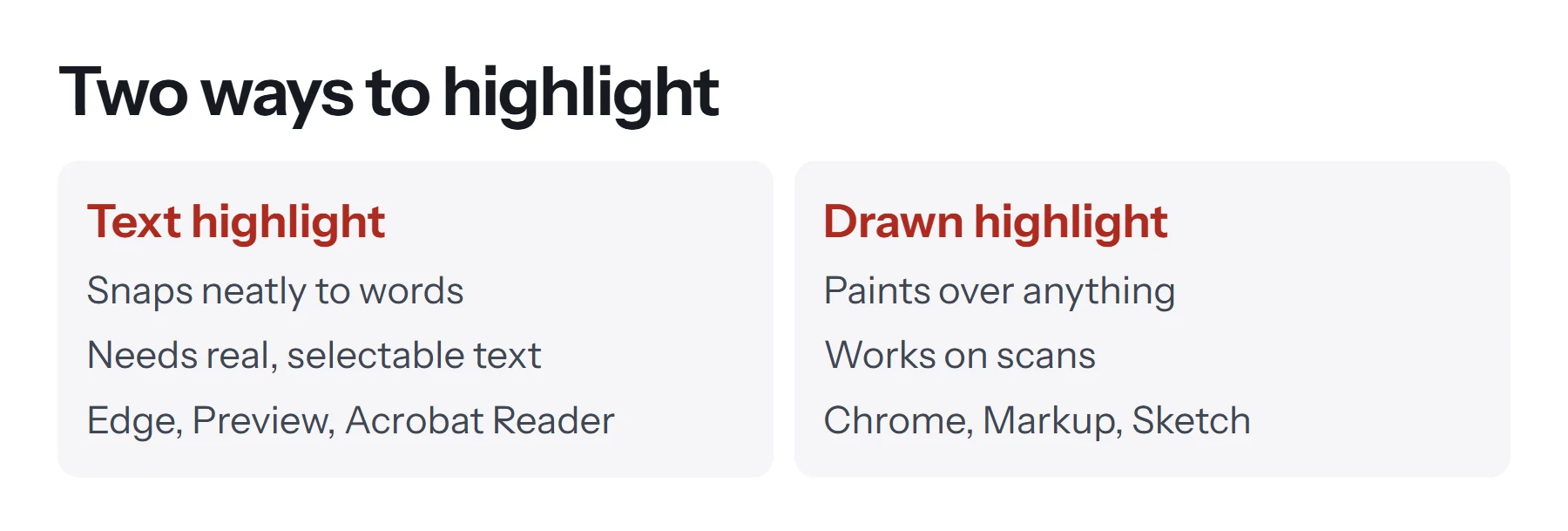
If you try to highlight and nothing happens, the PDF is probably a scan. Switch to a drawing highlighter.
Which free tools can highlight a PDF?
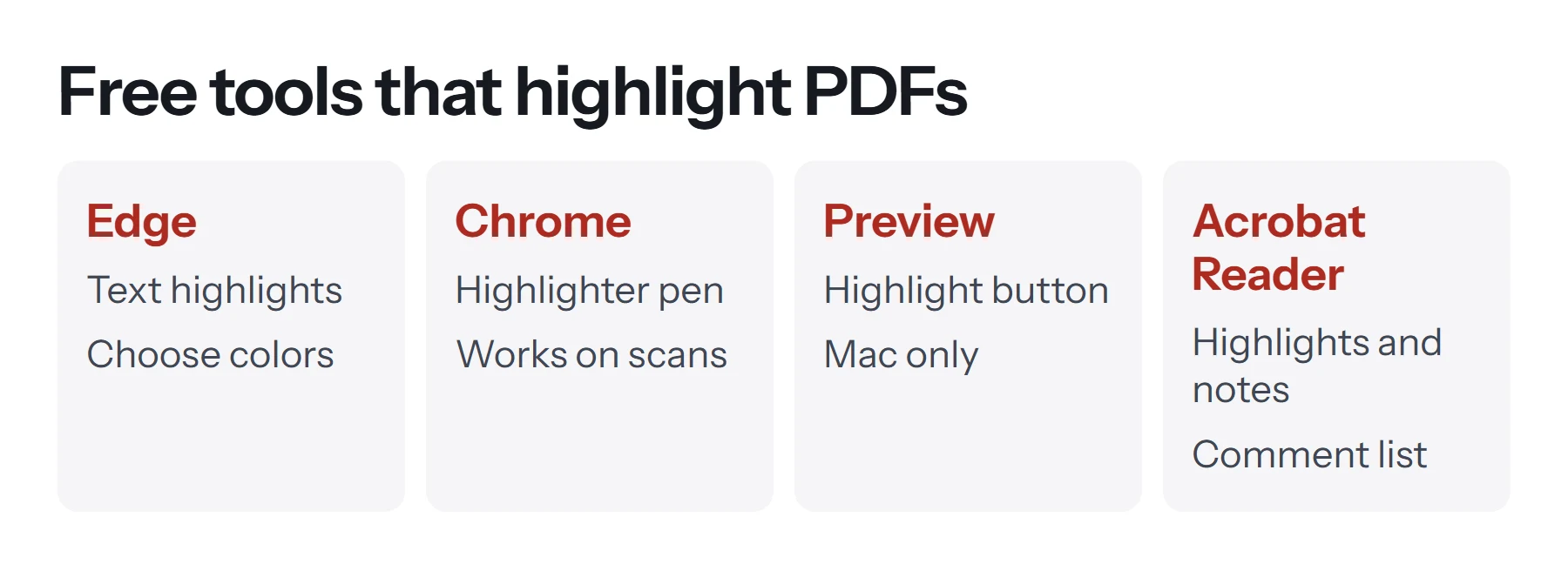
| Tool | Text highlight | Drawn highlight | Change color | Where |
|---|---|---|---|---|
| Microsoft Edge | Yes | Yes | Yes | Windows, Mac |
| Chrome | No | Yes, Highlighter pen | Yes | Windows, Mac, Linux, ChromeOS |
| Firefox | In recent versions | Yes, with the draw tool | Yes | Windows, Mac, Linux |
| Mac Preview | Yes | Yes, with Sketch | Yes | Mac |
| Adobe Acrobat Reader | Yes | Yes | Yes | Windows, Mac, phones |
| iPhone and iPad Markup | No | Yes | Yes | iPhone, iPad |
PDF Lemon doesn't have a highlighter. Its Edit PDF tool adds typed notes, which you can use alongside any of the tools in this table.
How to highlight a PDF in Microsoft Edge
Edge is the default PDF viewer on most Windows computers, and it highlights real text.
- Open the PDF in Edge. Double-click the file, or drag it into an Edge window.
- Choose Highlight in the toolbar, and pick a color from its menu.
- Drag across the text you want to mark.
- Save the file. Use the save button, or Save as to keep the original.
You can also select text first, right-click it, and choose Highlight. To remove a highlight, click it and choose the remove option.
How to highlight a PDF in Chrome
Google's help page describes Chrome's tools. Chrome highlights by drawing rather than by selecting text.
- Open the PDF in Chrome.
- Choose Draw, then Highlighter. Set the size and color.
- Drag over the text. A wider stroke covers a line in one pass.
- Use the Eraser to remove a stroke if needed.
- Download the PDF, then choose With your changes.
Because it's a drawn highlight, it also works on scanned pages.
How to highlight a PDF in Preview on a Mac
- Open the PDF in Preview.
- Click the Highlight button in the toolbar. Its small menu lets you choose a color, underline or strikethrough.
- Drag across the text. Each selection is highlighted as you release.
- Click the Highlight button again to turn the tool off.
- Save the file, or use File, then Export as PDF.
For scanned pages, show the Markup toolbar and use Sketch with a thick, light color. Apple's guide on annotating PDFs in Preview covers each option.
How to highlight a PDF in Adobe Acrobat Reader
Acrobat Reader is free and has the most complete set of highlighting tools.
- Open the PDF.
- Choose the highlight tool from the comment tools, which look like a highlighter pen.
- Drag across the text.
- Add a note by double-clicking a highlight, if you want to explain why it matters.
- Save the file.
Reader also lists every highlight and comment in a side panel. That makes it easy to jump between them, which is handy for long reports and study notes.
How to highlight a PDF on a phone or tablet
On iPhone or iPad, open the PDF in Files, tap the Markup button, and pick the highlighter pen. Draw over the text with your finger or an Apple Pencil, then tap Done. The highlighter draws, so it works on any page.
On Android, open the PDF in Acrobat Reader or your phone's PDF app and look for a highlight or pen tool. Options vary between phone makers.
A stylus makes drawn highlights much neater, particularly on small text.
How to highlight a PDF in Firefox
Firefox's built-in PDF viewer includes editing tools for adding text, drawing and placing images, and recent versions add a highlighter. Open the PDF in Firefox, choose the highlight tool from the toolbar if your version has one, and drag across the text. Otherwise, use the drawing tool with a light color and a thick line. Click the download or save button to keep your changes, then reopen the file to check. Features change between versions, so Mozilla's help page is the place to check what yours supports.
How to highlight a scanned PDF
Scanned PDFs are pictures of pages, so text highlighters have nothing to select. You have two options.
- Draw the highlight. Use the drawing highlighter in Chrome, Preview's Sketch, Acrobat Reader's drawing tools, or Markup on an iPhone. Choose a light, translucent color and a stroke about as tall as a line of text.
- Make the text real first. Run the scan through OCR so it has a text layer. Upload it to Google Drive and open it with Google Docs, which extracts the text. Our guide on how to convert a PDF to Google Docs explains how. You can then highlight in Google Docs, or in a new PDF exported from it.
How to remove or change a highlight
Mistakes are easy to fix, as long as the highlight is still an annotation.
- Click the highlight. It should show as selected, with handles or a small menu.
- Change the color from the menu or properties, if that's what you need.
- Delete it with the Delete key, or the trash or remove option in the menu.
- Save the file again.
In Chrome, use the Eraser on drawn highlights. If you can't select a highlight at all, it was flattened into the page and can only be removed with a full editor, or by starting again from an unhighlighted copy.
How to highlight effectively
Highlighting is quick, which makes it easy to overdo. These habits keep highlights useful.
- Read first, highlight second. Finish a paragraph before deciding what matters.
- Highlight less than you think. A few key phrases are more useful than whole paragraphs.
- Use a color code. For example, yellow for main points, green for evidence, and pink for questions or things to check.
- Add a short note to important highlights, so you remember why you marked them.
- Review highlights at the end. Use the comments list in Acrobat Reader or Preview's sidebar to read only the highlighted parts.
Which highlight colors work best?
Yellow is the classic choice because it's bright on screen and still readable when printed in black and white. Light green and light blue work well as second and third colors. Avoid dark colors such as red or purple at full strength, because they make the text underneath hard to read, especially on paper. If the PDF will be printed in grayscale, test a page first, since some colors turn into a gray band that hides the words.
How to share a highlighted PDF
Highlights are annotations, so they sit on top of the page. Most viewers show them, but a few basic ones don't, and some print settings leave them out.
To make sure the recipient sees exactly what you see, export a flattened copy. In Preview or Acrobat, printing to a new PDF or exporting usually locks annotations into the page. Keep your editable copy too, in case you want to change the highlights later. PDF Lemon's Flatten PDF locks form fields into the page, which is useful when your document combines highlights with a completed form.
How to collect highlighted text
Sometimes you want the highlighted passages in a separate document, for example, to build study notes or a summary.
- Acrobat Reader lists highlights in its comments panel, where you can read them together.
- Copy and paste works for short passages. Select the text and paste it into your notes.
- For a whole document, PDF Lemon's PDF to Text extracts all the text in your browser. Paste it into a document and keep only the parts you need.
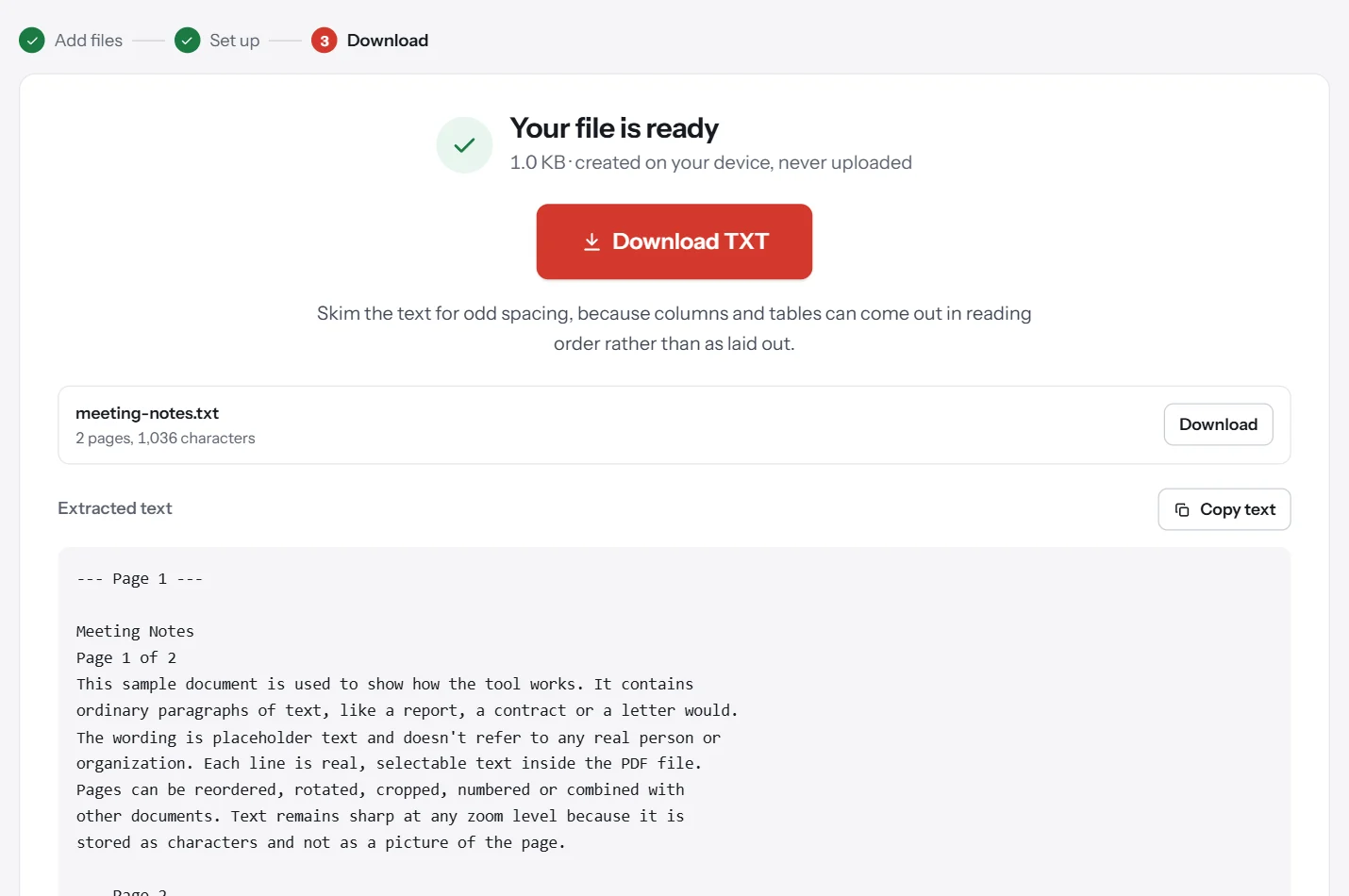
See how to copy text from a PDF for more ways to get text out.
Highlighting versus other annotations
Highlighting is one of several ways to mark up a PDF. Use underline or strikethrough to suggest edits, sticky notes for longer comments, and text boxes for answers or labels. Our guide on how to write on a PDF covers all of these, and how to type on a PDF focuses on adding text.
Common problems when highlighting a PDF
Nothing happens when I drag over the text. The page is a scan, or a picture of text. Use a drawing highlighter instead.
The highlight covers the wrong lines. The PDF's text layer may not line up with what you see, which happens with some converted files. Zoom in and drag more slowly, or use a drawn highlight.
My highlights disappeared. You may have closed without saving, or saved without your changes. Save again and reopen the file to check.
The highlight hides the text. The color isn't transparent, which can happen with drawn shapes. Use the proper highlighter tool, or choose a lighter color.
The highlight tool is greyed out. The PDF may restrict changes. See how to remove a password from a PDF if you're authorized to change it, or ask the sender for an unrestricted copy.
Highlights don't print. Turn on printing of comments or markups in your print dialog. In Acrobat Reader, choose Document and Markups.
Questions and answers
How do I highlight text in a PDF for free?
Open the PDF in Edge, Chrome, Preview or Acrobat Reader, choose the highlighter, and drag across the text. Save or download the file with your changes.
Why can't I highlight text in my PDF?
The PDF may be a scan with no selectable text, or it may restrict changes. Use a drawing highlighter for scans, and check for a password or restrictions on protected files.
How do I change the highlight color?
Most tools let you pick a color before highlighting, or click an existing highlight to change it. In Preview, use the menu next to the Highlight button.
How do I remove a highlight from a PDF?
Click the highlight and press Delete, or right-click it and choose the delete option. In Chrome, use the eraser. Then save the file again.
How do I highlight a PDF on iPhone?
Open the PDF in Files, tap the Markup button, and choose the highlighter pen. Draw over the text, then tap Done to save.
Will my highlights print?
Usually, if your viewer includes annotations when printing. In Acrobat Reader, choose Document and Markups in the print dialog. Check the preview before printing.
Tools from this guide
How we checked this guide
We ran the PDF Lemon steps ourselves on the live tools. Steps for other apps come from each vendor's own help pages and are worded to survive small interface changes, but menu names can differ between versions.
Sources we used:
Related guides
- How to Make a Fillable PDF Form7 min read
- How to Type on a PDF7 min read
- How to Annotate and Write on a PDF8 min read
- How to Sign a PDF Electronically7 min read
- How to Fill Out a PDF Form7 min read