How to Convert PDF to Google Docs
Short answer
To turn a PDF into a Google Doc, upload it to Google Drive, right-click it, choose Open with, then Google Docs. Drive converts the text into an editable document and keeps the original PDF. Google recommends files of 2 MB or less. Bold, italics and line breaks usually survive, while tables, columns and lists often don't.
Open PDF to TextKey takeaways
- Google Drive converts a PDF into an editable Google Doc for free with Open with, then Google Docs.
- It uses OCR, so it also works on scans and photos of documents.
- Keep files to 2 MB or less, and make sure pages are the right way up.
- Text and basic styles survive. Tables, columns, lists and footnotes usually need rebuilding.
Can you turn a PDF into a Google Doc?
Yes, and it's free. Google Drive has a built-in converter that reads the text of a PDF and puts it into a new Google Doc you can edit. It uses optical character recognition (OCR), which means it reads the shapes of letters rather than relying on the PDF's text layer. That's why it works on scans and phone photos too.
The trade-off is layout. Google's converter focuses on the words. Simple documents come through well, but tables, columns and lists often need rebuilding afterward. Your original PDF stays in Drive, unchanged, so there's no risk in trying it.
How to convert a PDF to Google Docs on a computer
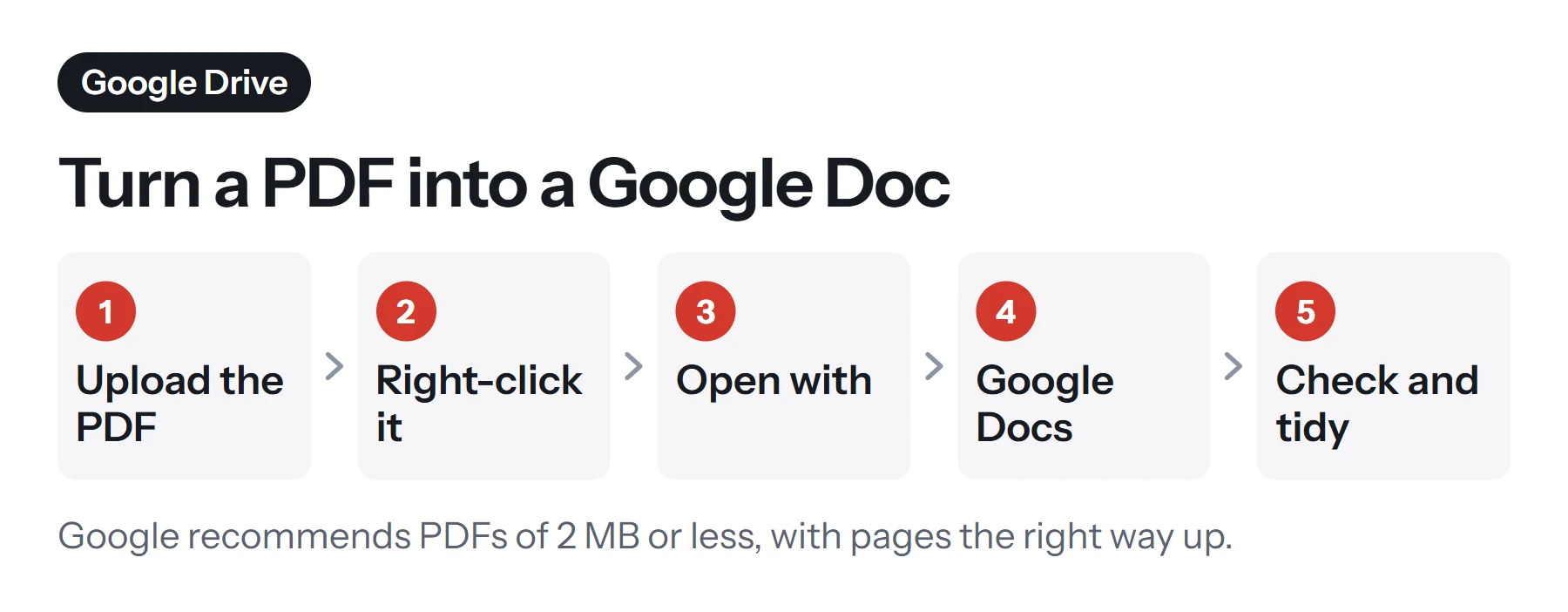
- Open Google Drive. Go to drive.google.com and sign in.
- Upload the PDF. Click New, then File upload, and choose your PDF. You can also drag it into the Drive window.
- Right-click the uploaded PDF. If you're on a trackpad, use a two-finger click.
- Choose Open with, then Google Docs. Drive converts the file. A small file takes a few seconds, while a long scan can take longer.
- Check the new document. It opens in a new tab, and it's saved in the same folder as the PDF, with the same name.
- Edit and tidy it. Fix headings, rebuild tables, and remove any odd characters from the conversion.
If you only see the PDF preview when you double-click the file, close it and use the right-click menu instead. In the preview, you can also look for Open with Google Docs at the top of the screen.
What Google keeps and what it drops
Google's help page is clear about the limits, so you know what to expect before you start.
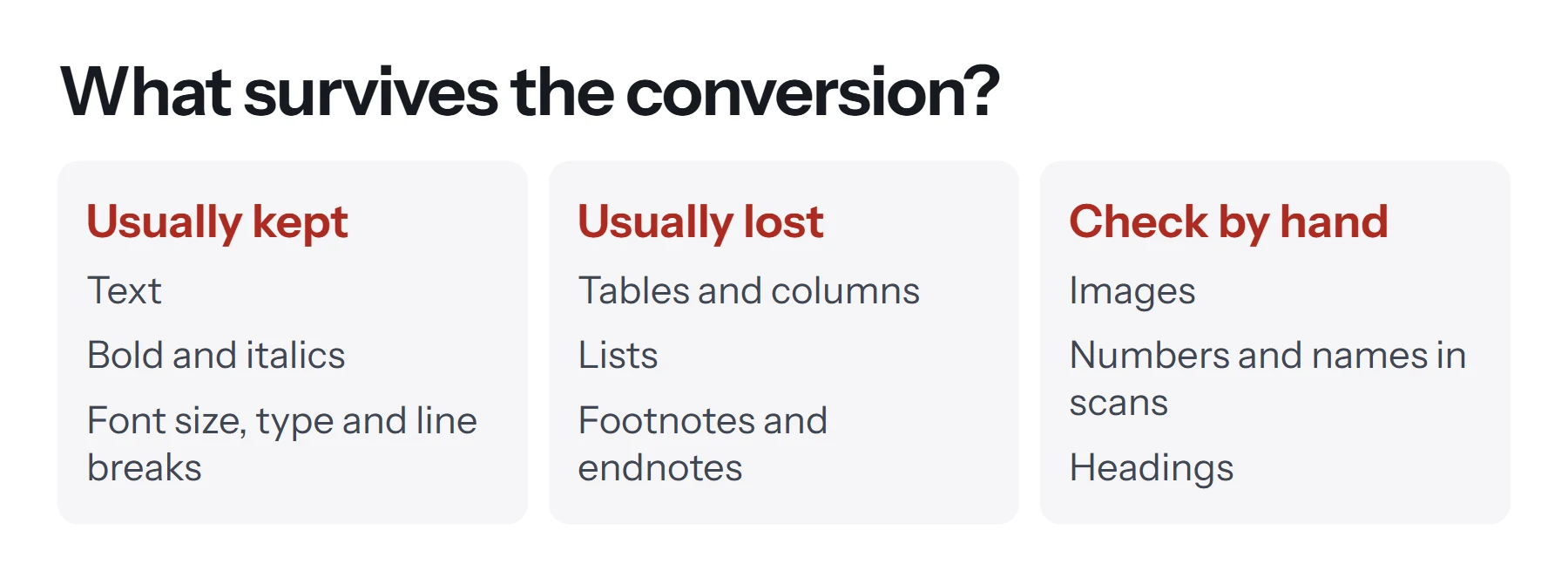
| Element | After conversion | Tip |
|---|---|---|
| Plain text | Kept | Check for misread characters |
| Bold and italics | Usually kept | Reapply where it's missing |
| Font size and type | Usually kept | Common fonts work best |
| Line breaks | Usually kept | Join broken lines if needed |
| Lists | Usually not detected | Reapply bullets or numbers |
| Tables | Usually not detected | Rebuild with Insert, then Table |
| Columns | Usually not detected | Copy section by section |
| Footnotes and endnotes | Usually not detected | Re-add with Insert, then Footnote |
| Images | Often included, sometimes not | Check every page |
How to get a cleaner conversion
Google gives a few tips for better results, and they make a real difference with scans.
- Keep the file to 2 MB or less. Google recommends this limit. A long or image-heavy PDF can easily be bigger.
- Make sure the pages are upright. Google says documents must be the right way up. Sideways pages produce nonsense.
- Use clear scans. Sharp images with even lighting and good contrast read best. Shadows and creases cause errors.
- Text should be large enough. Google suggests text at least 10 pixels high. Tiny print in a low-resolution scan may be misread.
- Common fonts work best. Fonts such as Arial or Times New Roman are recognized more reliably than decorative ones.
If your PDF is larger than 2 MB
You have two good options, and both keep the file on your device while you prepare it.
- Split it. Use Split PDF to break the document into smaller parts, such as 10 pages each, then convert each part. Paste the results into one Google Doc afterward.
- Compress it. Compress PDF reduces the file size. For scans, the Recommended level often brings a file under the limit while keeping the text readable enough for OCR.
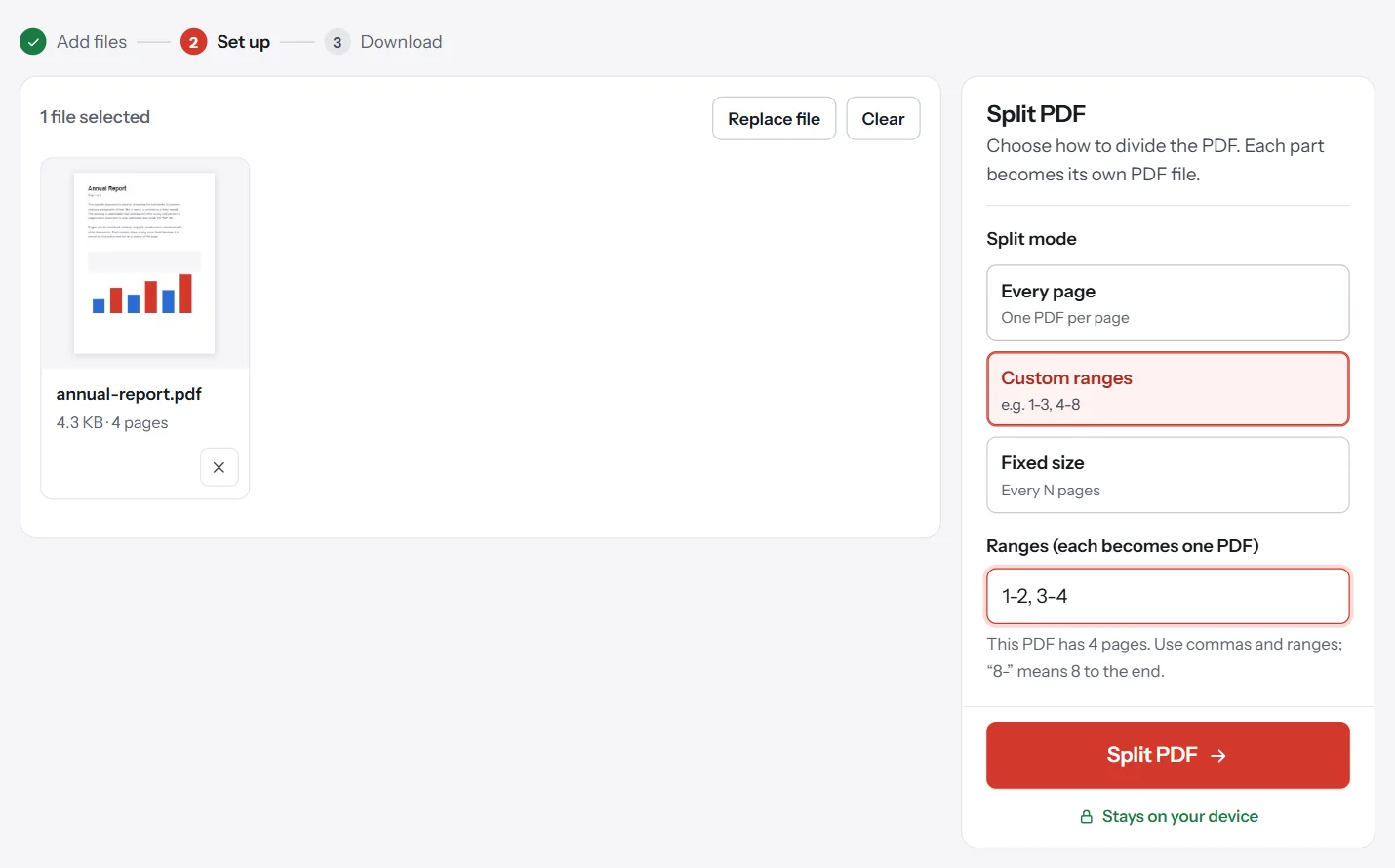
Splitting is usually the better choice for long text documents, because it doesn't reduce image quality. Compression suits short scans that are just over the limit.
If your pages are sideways
Phone scans often come out rotated. Open Rotate PDF, turn the pages upright, download the new copy, and upload that to Drive instead. It takes less than a minute and avoids a garbled conversion.
How to convert a PDF to Google Docs on a phone
The Google Docs and Drive mobile apps can display a PDF, but they don't offer the same Open with Google Docs conversion as the desktop site. You have two choices:
- Use the desktop site in your browser. Open drive.google.com in Chrome or Safari, request the desktop site from the browser menu, and follow the computer steps. It works, but it's fiddly on a small screen.
- Do it later on a computer. For anything longer than a page or two, a computer is much easier, because you'll need to tidy the result anyway.
If you only need a few lines from the PDF on your phone, copying the text is quicker. See how to copy text from a PDF.
How to fix the converted Google Doc
A few quick fixes clean up most conversions.
- Remove extra line breaks. PDFs often break every line. Use Edit, then Find and replace, with regular expressions turned on, or simply join paragraphs by hand in short documents.
- Apply heading styles. Select each heading and choose Heading 1 or Heading 2 from the style menu. This also builds the document outline.
- Rebuild tables. Use Insert, then Table, and paste the values into the cells.
- Clear odd formatting. Select a block and use Format, then Clear formatting, to start fresh.
- Proofread scans. OCR can confuse similar characters, such as 0 and O, or 1 and l. Read numbers and names carefully.
When should you use another method?
Google Docs is a great free option, but it isn't always the best fit.
| Situation | Better choice |
|---|---|
| You need the layout kept exactly | Open the PDF in Word, which tries to match the layout |
| You only need the words | Copy the text, or use PDF to Text |
| The file is private or confidential | Use a tool that works on your device |
| You'll edit it in Microsoft Office | Open it in Word directly |
For Word, see how to open a PDF in Word. Word uses a different approach that keeps more of the layout for text-heavy documents.
Extracting text privately
Uploading to Google Drive stores your file in your account. That's fine for most documents. For sensitive ones, such as contracts or medical letters, you might prefer to keep the file on your device. PDF Lemon's PDF to Text extracts the text of a digital PDF in your browser, without uploading it. Copy the text into a new Google Doc and format it there. This works for PDFs with real text. Scans still need OCR. Our guide on whether online PDF tools are safe explains what to look for.
How to turn the Google Doc back into a PDF
When you've finished editing, choose File, then Download, then PDF Document (.pdf). The new PDF downloads to your computer. Our guide on how to convert a Google Doc to PDF covers page setup and other options.
How to convert only part of a PDF
Often you need just a few pages, such as one chapter of a report or the terms section of a contract. Converting the whole file wastes time and makes the result harder to tidy.
- Pick the pages. Open Extract Pages, select your PDF, and type the pages you need, such as
4-9. - Download the smaller PDF. It's a new file, so your original stays complete.
- Upload and convert it with Open with, then Google Docs, as above.
A smaller file converts faster, stays well under the 2 MB guideline, and gives you less to clean up afterward.
How to keep the original layout next to your edits
Because the converter drops tables and columns, some people like to keep a picture of the original page in the same Google Doc for reference. Convert the PDF pages to images with PDF to PNG, then use Insert, then Image in Google Docs to place each page above the converted text. When you've finished checking, delete the images. It's a simple way to compare the two without switching windows.
Is it safe to upload PDFs to Google Drive?
Files in Google Drive are private to your account unless you share them. Google stores them on its servers, though, so the usual rules apply. Check your work's policy before uploading client or medical documents, use strong sign-in security on your account, and delete the files you no longer need. If a document must not leave your device, extract the text locally instead.
Common problems when converting PDF to Google Docs
Open with doesn't show Google Docs. Make sure you uploaded the file to Drive and right-clicked the file itself, not a shortcut. Some work or school accounts restrict apps, so ask your administrator.
The document is empty or nearly empty. The scan may be too faint, too small, or sideways. Rotate it, rescan it at a higher quality, or crop away dark edges with Crop PDF.
Only part of the text came through. Very long or large files can be too much for one conversion. Split the PDF and convert each part.
Numbers and names are wrong. OCR misread similar characters. Check them against the original, especially in invoices and forms.
The file is password protected. Drive can't convert a locked PDF. Open it with the password, save an unprotected copy, and upload that. See how to remove a password from a PDF if you're authorized to do so.
Images are missing. The converter focuses on text. Download the images from the original PDF separately, and use Insert, then Image to put them back.
Questions and answers
How do I convert a PDF to a Google Doc?
Upload the PDF to Google Drive, right-click it, choose Open with, then Google Docs. A new, editable Google Doc opens in a tab and is saved in the same Drive folder.
Why won't my PDF open in Google Docs?
The file may be larger than the 2 MB Google recommends, password protected, or a scan that's too blurry to read. Compress or split the file, remove the password if you're allowed to, or rescan it more clearly.
Does converting a PDF to Google Docs keep the formatting?
Partly. Google says bold, italics, font size, font type and line breaks are most likely kept, while lists, tables, columns, footnotes and endnotes are likely not detected.
Can I convert a scanned PDF to Google Docs?
Yes. Drive reads the text in scans and photos using OCR. Clear scans with even lighting, common fonts and text at least 10 pixels high give the best results.
How do I convert a PDF to Google Docs on my phone?
The Docs and Drive mobile apps are limited for this. Open drive.google.com in your phone's browser, switch to the desktop site if needed, then use Open with, then Google Docs. A computer is easier.
Is converting a PDF to Google Docs free?
Yes, with a free Google account. The converted document counts toward your Drive storage, and so does the original PDF.
Tools from this guide
How we checked this guide
We ran the PDF Lemon steps ourselves on the live tools. Steps for other apps come from each vendor's own help pages and are worded to survive small interface changes, but menu names can differ between versions.
Sources we used:
Related guides
- How to Open a PDF in Word7 min read
- How to Convert Excel to PDF7 min read
- How to Scan a Document to PDF7 min read
- How to Compress a PDF and Reduce File Size7 min read
- PDF SEO: optimize PDFs for Google and AI search1 min read