How to Make a Fillable PDF Form
Short answer
To make a PDF fillable, open it in a form editor such as Adobe Acrobat, choose Prepare a form, and let it detect the fields. Then add or adjust text fields, checkboxes and dropdowns, name them, save the file, and test it. Free alternatives include LibreOffice, which exports fillable PDFs. A form needs real fields before people can type in it.
Open Edit PDFKey takeaways
- A fillable PDF has interactive fields added on purpose. An ordinary PDF only looks like a form.
- Acrobat's Prepare a form tool can detect fields automatically, and it's the most capable option.
- LibreOffice Writer is a free way to create a fillable PDF from a new document.
- Always test the finished form in a browser and a reader, since field support varies.
What makes a PDF fillable?
A fillable PDF contains interactive form fields: text boxes people can type into, checkboxes they can tick, and menus they can choose from. These fields are separate objects added to the page on purpose. That's different from an ordinary PDF, where the blank lines and boxes are just printed shapes, and clicking on them does nothing.
So a PDF doesn't become fillable by itself, however much it looks like a form. Someone has to add the fields with a form editor. If you only need to complete a form that someone else sent you, you don't need any of this. See how to fill out a PDF form or how to type on a PDF instead.
How to make a PDF fillable in Adobe Acrobat
Acrobat's paid version is the most widely used tool for this job, because it can look at a page and add fields automatically.
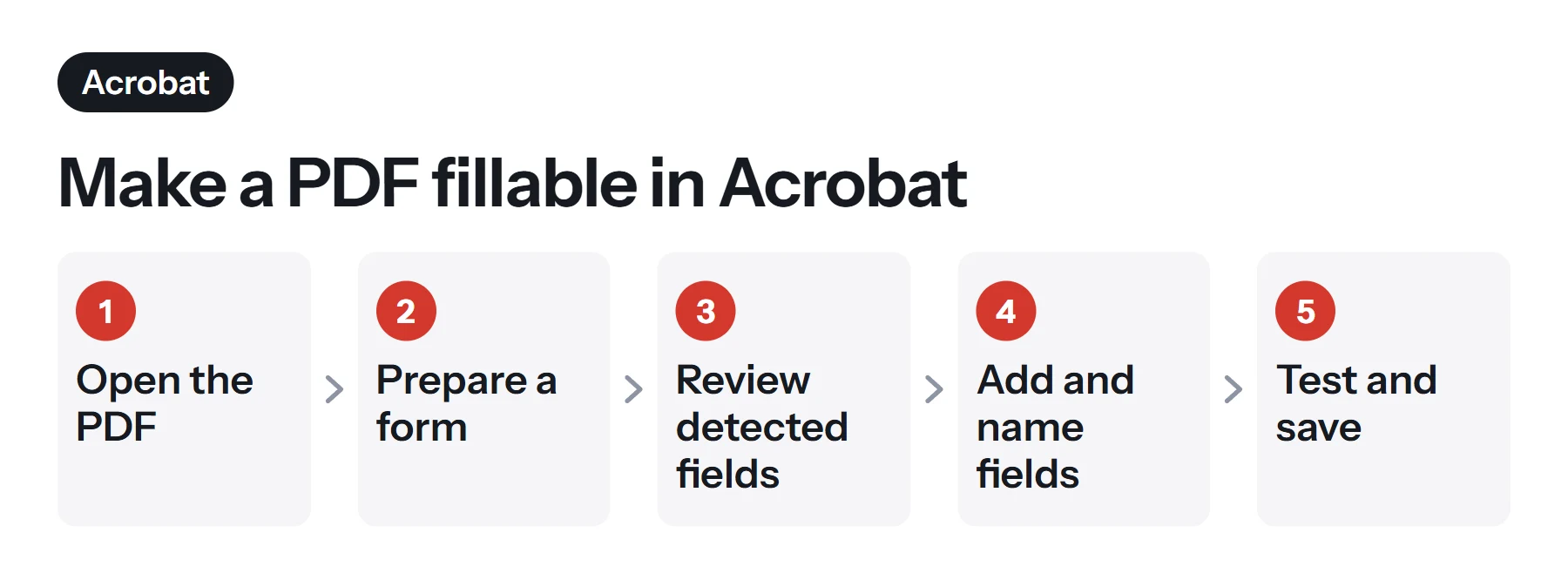
- Open your PDF in Acrobat. Scanned forms work too, since Acrobat analyzes the page.
- Choose Prepare a form. You'll find it in the tools, or under File on a Mac and Menu on Windows. To begin with nothing, choose to start from a blank page.
- Review the detected fields. Acrobat adds fields where it finds blanks and labels. It's good, but it isn't perfect.
- Add and fix fields. Use the panel to add text fields, checkboxes, radio buttons and dropdowns. Drag them to adjust their size and position, and delete any that are wrong.
- Name your fields. Double-click each one to open its properties, then give it a clear name such as
full_name. - Test and save. Use the preview mode to try the form, then save the file.
How to create a fillable PDF for free
If you don't have Acrobat, LibreOffice is a free desktop suite that can export real, working PDF forms. It's best for creating a new form, rather than for adding fields to an existing PDF.
- Install LibreOffice from its official site, and open Writer.
- Lay out your form. Type your labels and questions. Tables are a neat way of aligning them.
- Show the form tools. Choose View, then Toolbars, then Form Controls.
- Add fields. Pick Text Box, Check Box or another control, and draw it where you want it.
- Export. Choose File, then Export As, then Export as PDF. Make sure Create PDF form is ticked.
- Test it in your browser.
Other free and low-cost PDF editors offer form tools too, and the features vary. Check for limits such as watermarks before you rely on one for something important.
Should it be a PDF at all?
Before building one, ask whether you actually need a PDF. If you just want to collect answers, a web form such as Google Forms is often better. It works well on phones, collects the responses in a spreadsheet, and you don't need to chase attachments. A fillable PDF is the better choice when the result needs to look like an official document, needs to be printed, or has to work offline.
Which field types should you use?
Choosing the right field makes a form quicker to complete and cuts down on errors.
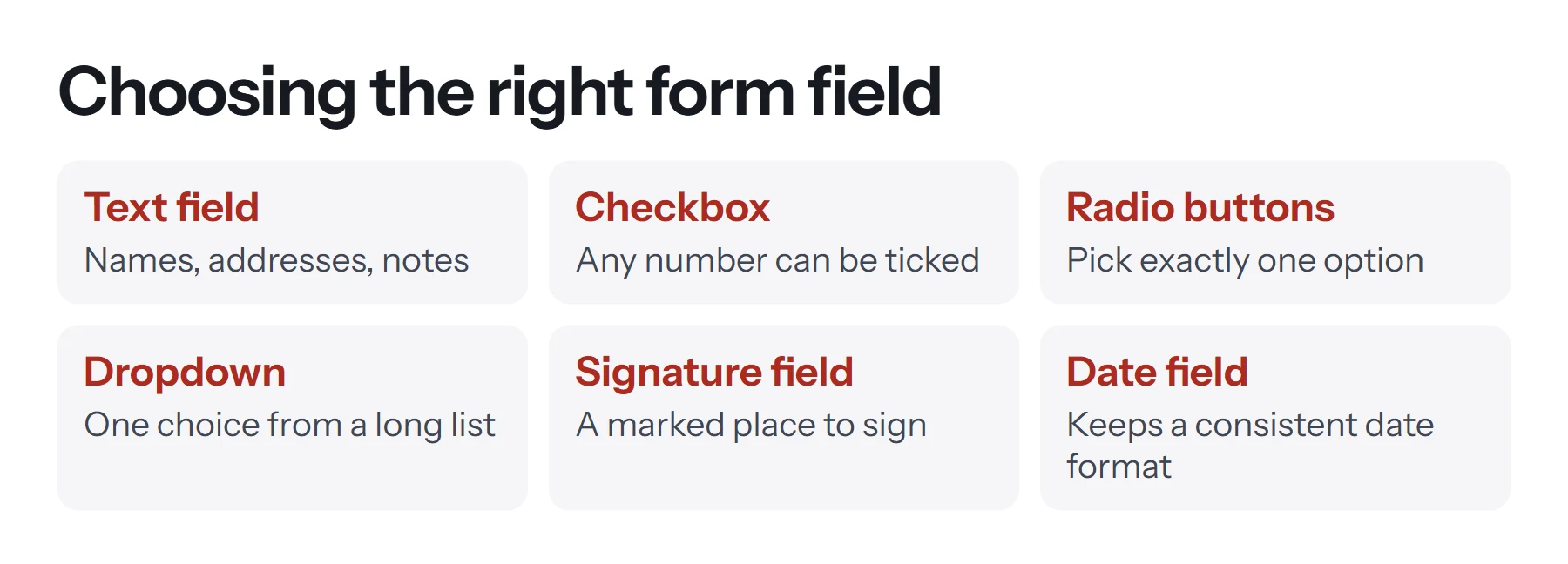
| Field | Use it for | Tip |
|---|---|---|
| Text field | Names, addresses, comments | Allow multiple lines for longer answers |
| Checkbox | Any number of options | Use for "tick all that apply" |
| Radio buttons | One option from a short list | Give the group a shared name so only one can be chosen |
| Dropdown | One option from a long list | Good for countries or departments |
| Date field | Dates | Set a format so that everyone's dates match |
| Signature field | Signing | Mark clearly where to sign |
| Button | Print, reset or submit | Use sparingly, as support varies between readers |
How to design a form people can actually complete
A form that works technically can still be frustrating to use. These practices help.
- Make the fields big enough. People often need more room than you'd think, especially for addresses. On a phone, tiny fields are very hard to use.
- Use a clear tab order. Pressing Tab should move logically down the page. Acrobat can sort tab order by structure or by rows and columns.
- Name fields sensibly. Use
emailandstart_daterather thanText1. Fields that share a name also share a value, which is useful for repeating a name on several pages, but a nasty surprise when it's accidental. - Set helpful formats. Date, number and email formats catch typing errors early.
- Mark required fields. Tell people which answers are compulsory, in the field properties and in a visible label.
- Add tooltips. The tooltip text pops up when someone hovers over a field, and screen readers read it aloud, which helps with accessibility.
- Keep the font readable. Use a common font at 10 to 12 points. Set it deliberately, as automatic sizing can look inconsistent.
How to make a form from a Word document or a scan
From Word: design your form in Word, and save it as a PDF. Then add fields in a form editor. Word's own content controls generally don't survive as fillable fields, so don't spend long on those. Acrobat can also open the Word file directly and detect the fields in one step.
From a Google Doc: Docs exports flat pages, so download the PDF and add fields afterward.
From a paper form: scan it cleanly at around 300 DPI, keep it straight, and then run it through Acrobat's form tool. Straighten any tilted pages first with Rotate PDF, and trim scanner edges with Crop PDF. Text recognition and field detection both work better on a clean page. Our guide on how to create a PDF file explains scanning options.
How to test a fillable PDF before sharing it
This is the step that most people skip, and it's the one that really matters. Readers support form features differently, so a form that's perfect in Acrobat may behave oddly in a phone's browser.
- Fill in every field with realistic data, including long names and addresses.
- Press Tab all the way through, and check that the order makes sense.
- Save it, close it and reopen it to confirm the answers stick.
- Open it in other apps: Chrome, Edge, Preview on a Mac, and a phone. Check that the fields appear and work.
- Print it. Check that answers print properly and that nothing's cut off.
- Test any calculations or required fields with both correct and incorrect entries.
- Ask someone else to try it. A person who's never seen your form will find what you've missed.
How to protect your form
Once your form is ready, you may want to stop people from changing the wording while still letting them fill it in. In Acrobat, you can set a permissions password, and choose Filling in form fields under the changes allowed. See how to password protect a PDF for how this works. Adobe warns that some third-party products may not honor these settings, so don't treat them as a strong barrier.
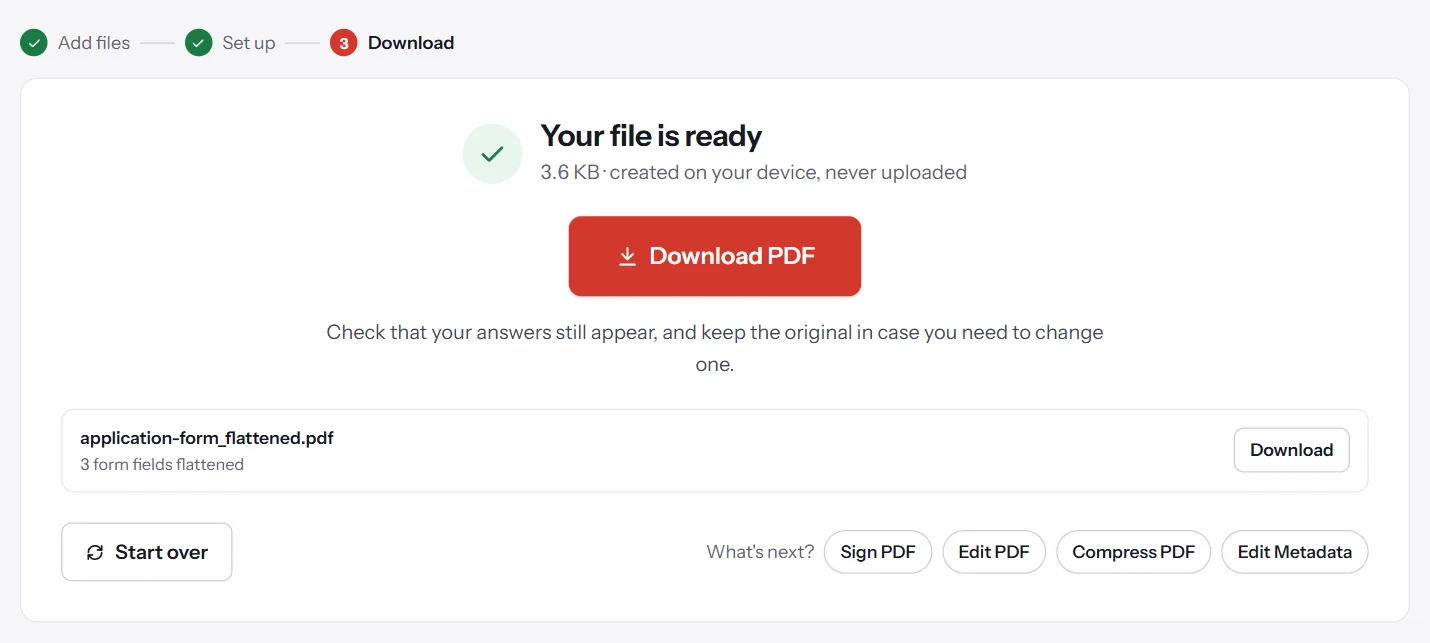
For a form that's been completed, recipients sometimes want the answers locked. Flatten PDF converts filled fields into ordinary page content, so they can't be changed afterward. Flatten a copy, and keep your original blank form, since flattened fields can't be filled in again.
What about signatures on a form?
You have two reasonable options. A signature field can be added in Acrobat, and it lets people sign with a certificate-based digital signature, which can reveal changes made afterward. See how to digitally sign a PDF. Or you can leave a blank signature line, and people can add a visual signature with a tool such as Sign PDF. See how to sign a PDF for the differences.
Be aware that adding a certificate-based signature can lock parts of a form, so make sure everything else is filled in first.
How to make a fillable form accessible
Add a tooltip to every field, because screen readers announce it. Keep a logical tab order, label fields clearly, and avoid relying on color alone to mark required items.
Common problems with fillable PDFs
The fields don't appear in a browser. Some forms use an older technology called XFA, which most browsers can't display. Build your form using standard fields, known as AcroForms, for the widest support.
Answers disappear after saving. Some apps need a specific save command. Test in the apps people use, and provide instructions if needed.
Typed text is too small or too large. The font is set to automatic. Set a fixed size in the field's properties.
Filling in one field fills in another. The two have the same name. Rename them, unless you want them to match.
Checkboxes in a group all tick together. They share a name and export value. Give them different names, or different export values.
The form file is too large. Scanned backgrounds are often the reason. Compress the blank PDF before adding fields, because PDF Lemon's stronger levels turn pages into images and would remove existing fields.
Field detection missed some blanks. That's normal. Add them by hand, and tidy up any oddly placed ones.
Questions and answers
How do I create a fillable PDF for free?
LibreOffice Writer is free: design the form, add controls from the Form toolbar, then use File, Export As, Export as PDF, with Create PDF form ticked. Google Forms is another option if a web form suits you.
Can I make a PDF fillable without Acrobat?
Yes. LibreOffice and other PDF editors can add fields. Acrobat is the most widely used, and its automatic field detection saves time, but it isn't the only choice.
How do I make an existing PDF fillable?
Open it in an editor that adds form fields, such as Acrobat's Prepare a form, which analyzes the page and adds fields where it finds blanks. Then review and correct them.
Can I turn a Word document into a fillable PDF?
Word's content controls don't usually export as fillable PDF fields. Export the document as a PDF, then add the fields in a form editor. Acrobat can also convert a Word file directly and detect the fields.
Can PDF Lemon make a fillable PDF?
No. PDF Lemon can't create form fields. It can flatten a completed form, and it lets you type on any PDF with Edit PDF, which helps people fill in a form that has no fields.
Why can't people save my fillable form?
Some older readers limit saving. Modern browsers and readers generally allow it. Test in the apps your recipients are likely to use, and include instructions if needed.
Tools from this guide
How we checked this guide
We ran the PDF Lemon steps ourselves on the live tools. Steps for other apps come from each vendor's own help pages and are worded to survive small interface changes, but menu names can differ between versions.
Sources we used:
Related guides
- How to Sign a PDF Electronically7 min read
- How to Fill Out a PDF Form7 min read
- How to Digitally Sign a PDF8 min read
- How to Highlight Text in a PDF7 min read
- How to Edit a PDF on Mac for Free8 min read