How to Edit a PDF on Mac for Free
Short answer
To edit a PDF on a Mac for free, open it in Preview, which comes with macOS. Show the Markup toolbar to add text, shapes, highlights and signatures, and use the page thumbnails to reorder or delete pages. Preview can't rewrite existing text. For that, edit the original document, or open the PDF in Word on your Mac.
Open Edit PDFKey takeaways
- Preview is free and already on your Mac. It adds text, marks and signatures and rearranges pages.
- Preview can't change the words already in a PDF. Apple says so directly in its own guide.
- PDF Lemon works in Safari or any browser for adding text, cropping, rotating and signing, with files staying on your Mac.
- To truly rewrite text, edit the source document if you have it. Word is the next best free-ish route.
What can you edit on a Mac for free?
Your Mac already has a capable PDF tool. Preview is built into macOS, opens PDFs by default and handles most everyday edits. There's one limit to understand before you begin, because it causes most of the confusion on this topic: Preview can add things to a PDF, but it can't rewrite the words already there. Apple's own guide says you can't edit the text of a PDF in Preview, only mark it up.
This table shows what each free option can actually change.
| What you want to do | Preview | PDF Lemon in your browser | Word for Mac |
|---|---|---|---|
| Add new text | Yes | Yes | Yes |
| Rewrite existing text | No | No | Yes, after conversion |
| Add a signature | Yes | Yes | No |
| Highlight or draw | Yes | No | Limited |
| Delete or reorder pages | Yes | Yes | Awkward |
| Rotate pages | Yes | Yes | Awkward |
| Crop pages | Yes | Yes | No |
| Combine PDFs | Yes | Yes | No |
Word isn't free unless you already have a Microsoft 365 subscription, though it's the only option here that genuinely changes existing text.
How to edit a PDF on Mac with Preview
Preview's editing tools live in the Markup toolbar, which is hidden until you ask for it.
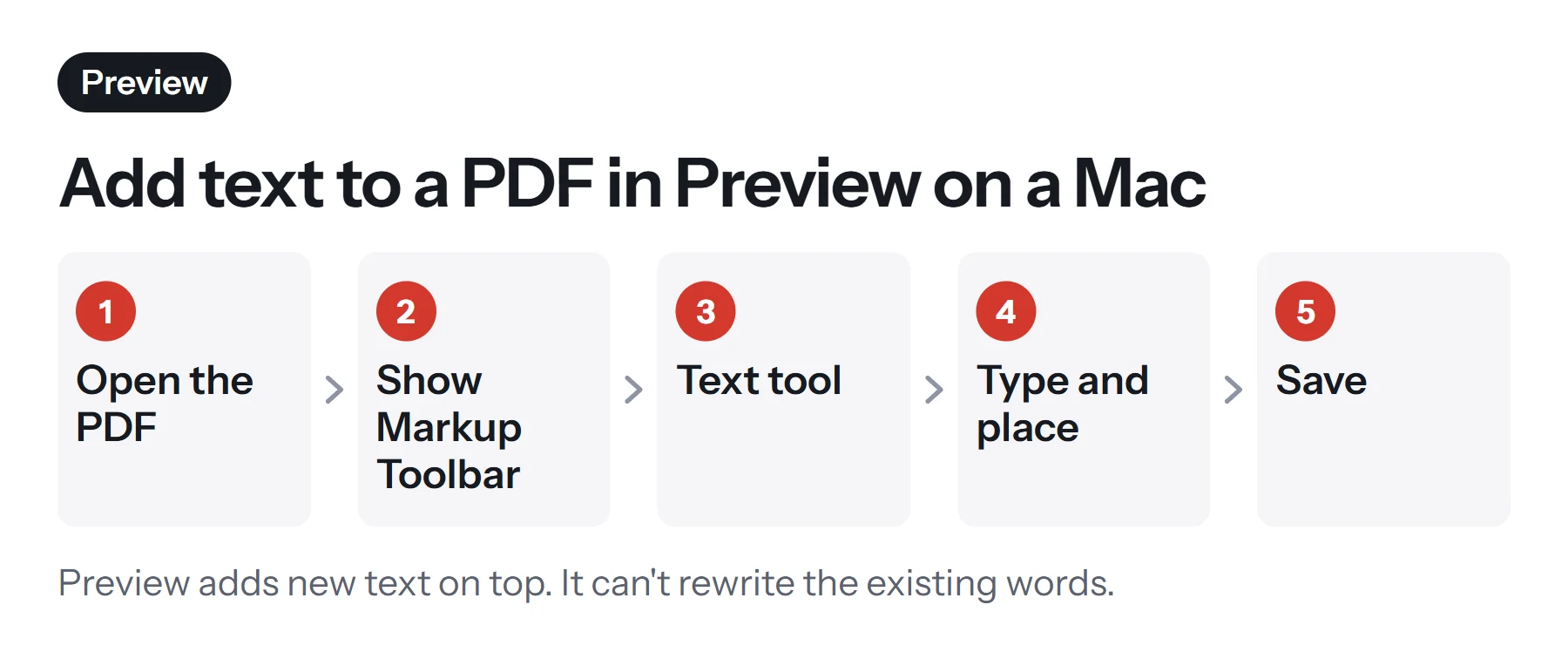
- Make a copy first. Preview can save changes directly into your file, so choose File, then Duplicate (or Export) if you want to keep the original.
- Show the Markup toolbar. Open the PDF and choose View, then Show Markup Toolbar.
- Add your text. Click the Text tool. A text box appears on the page. Type your words and drag the box into position.
- Style it. Use the Text Style button to set the font, size and color so it matches the document.
- Save. Choose File, then Save. Your edits become part of the file, and you can still adjust them by reopening the file in Preview.
Fill in a form or sign
If your PDF has form fields, click a field and type. Where a PDF won't let you type directly, Apple suggests adding a text box instead, as above. Preview can also capture your signature with the trackpad, the Mac's camera, or a nearby iPhone or iPad. You can then place and resize it. Our guide on how to sign a PDF goes through this in detail.
Reorder, delete or add pages
Choose View, then Thumbnails to show the page list in a sidebar.
- Reorder: drag a thumbnail to a new position.
- Delete: select a thumbnail and press the Delete key.
- Rotate: select a page and click the rotate button in the toolbar.
- Add another PDF: drag a PDF file from Finder into the thumbnail sidebar, at the position you want.
Crop a page
Click the Rectangular Selection tool, drag a box over the area to keep, and choose Tools, then Crop. Keep in mind that cropping can hide content rather than remove it, so don't use it to get rid of anything confidential. Our guide on how to crop a PDF explains more.
How to edit a PDF on Mac in your browser
If Preview doesn't suit you, or you're on a Mac you don't control, a browser tool does the same everyday jobs with no install. PDF Lemon works in Safari, Chrome or Firefox, and the file stays on your Mac because the work happens inside the browser.
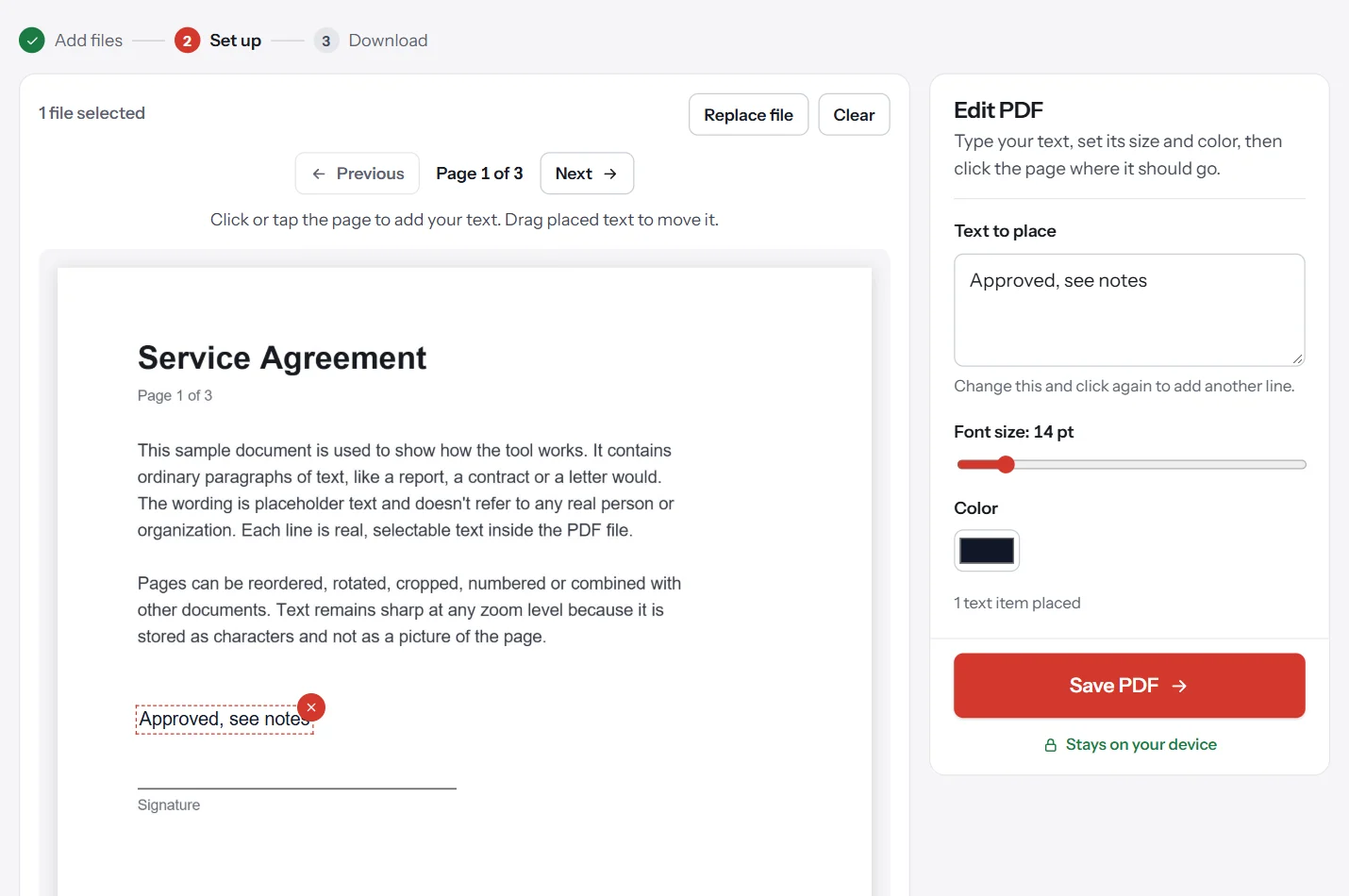
- Open the tool. Go to Edit PDF and select your file.
- Type your text. Enter it in the panel and choose a size and color.
- Click the page. The text lands where you click. Drag it to fine-tune the position.
- Save your PDF. Click Save PDF and download the new copy.
Other tools work the same way: Organize PDF for dragging pages around, Crop PDF for trimming margins, and Sign PDF for signatures.
Like Preview, these tools add to a page and rearrange pages. They don't rewrite words already in the document.
How to change the existing text in a PDF on a Mac
This is the harder job. A PDF stores characters at fixed positions and has no flowing paragraphs to retype, so swapping one sentence can't reflow the lines after it. You have three realistic options, listed from best to worst result.
Option 1: Edit the original document
If you or a colleague still has the Word, Pages or Google Docs file the PDF came from, change it there and export a new PDF. It's free, and the result is perfect because nothing gets converted. Check your email and shared drives before trying anything else.
Option 2: Convert the PDF in Word
If you have Word for Mac, it can open a PDF and turn it into an editable document. Microsoft notes that this works best for documents that are mostly text. Charts and graphics may become pictures, and the layout may shift. Make your changes, then save it as a PDF again, and compare it with the original page by page. See how to convert PDF to Word for more detail.
Word doesn't change your original PDF, so you always have a clean copy to go back to.
Option 3: Cover the old text
For a small change, such as a wrong date, you can add a white rectangle over the old text in Preview and place new text on top. Use this with caution. The old text is still in the file, hidden beneath the rectangle, so it can still be selected or found by search. Never use this to hide private information. To remove something sensitive, delete the page or correct the source document.
How to highlight and comment on a PDF on a Mac
If you're reviewing a document and don't need to change it, you may not need an editor at all. Preview's Markup toolbar includes a highlighter, underline, strikethrough, sticky notes, shapes and arrows. Select some text and click the highlight button, or use the Note tool to leave a comment that the recipient can open.
Reviewers usually find this more useful than editing, because the author can see exactly what you're suggesting while the original words stay intact. Comments and highlights remain editable when you use File, then Save, so you can adjust them later. Before sending the final copy to anyone outside your team, read the notes again, because they travel with the file.
How to combine and split PDFs on a Mac
Editing often includes moving pages between documents, and Preview can do this as well.
To combine two PDFs, open the first one, choose View, then Thumbnails, and drag the second file from Finder into the sidebar. Save the result with File, then Export as PDF. To pull a single page out as a new file, drag its thumbnail to your Desktop.
This works well for two or three files. For longer jobs, Merge PDF and Split PDF are faster because you can see all the files at once, and they let you split by page range. Our guides to combining PDF files and splitting a PDF have the details.
Do you need to pay for a PDF editor on a Mac?
Probably not, unless you regularly rewrite the text inside PDFs. Preview handles reviewing, signing and rearranging. Browser tools add compressing, converting and watermarking. The main reason to pay is direct text editing, where a paid editor changes a sentence in place and tries to keep the layout intact.
A simple test: if you've had to rewrite PDF text more than a few times this year and you can't get the source files, a subscription may pay for itself. If it's only an occasional typo, ask whoever made the document for the original.
Which free option should you choose?
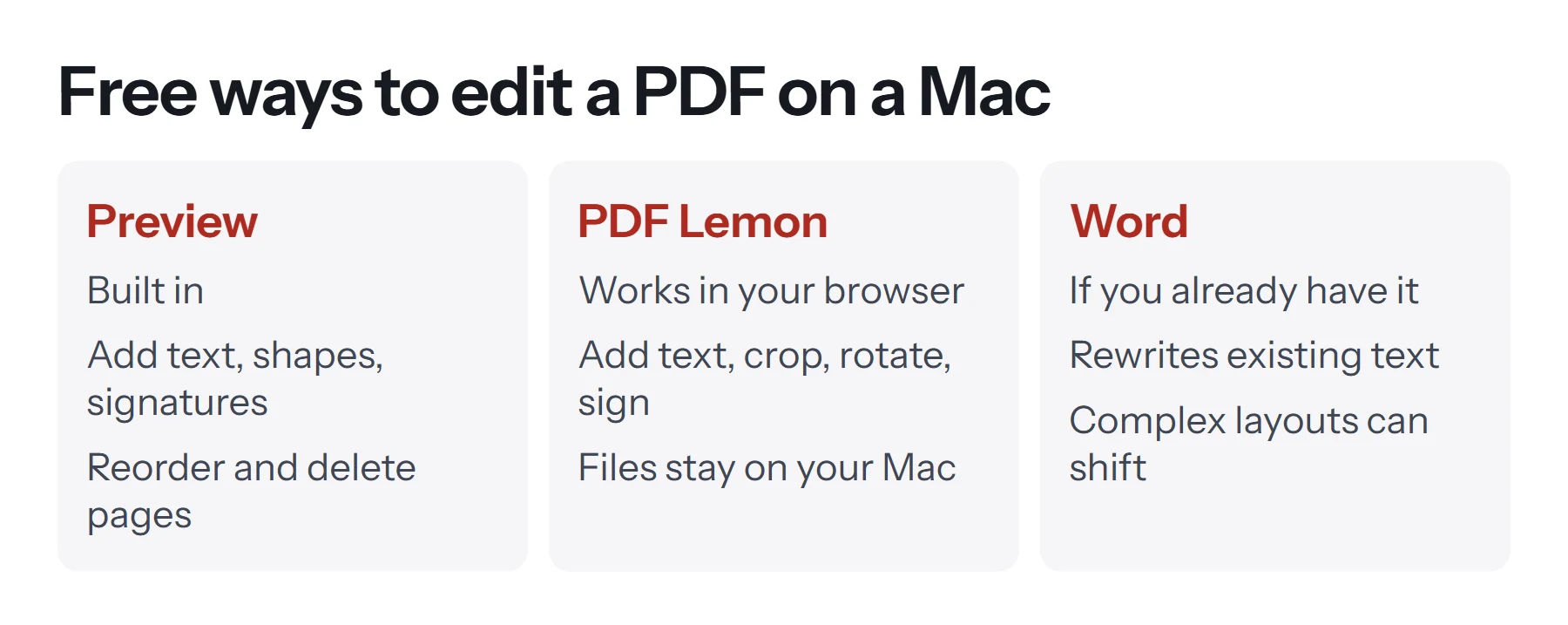
Choose Preview if you're adding notes, filling in a form or signing, and you're happy working with what's on your Mac. Choose PDF Lemon if you want the same result without learning the Markup toolbar, or if you're also combining, compressing or converting files, because those tools sit in one place. Choose Word or the original document if the words themselves must change.
If you edit PDFs for a living, a paid editor can rewrite text directly with better layout control, and it may be worth the money. Most people only need one of the free routes above.
Tips for a cleaner result
- Match the font. Pick a font and size close to the document's, so your addition doesn't stand out. Helvetica or Times New Roman are the safest guesses.
- Zoom in when placing text. Lining text up against a form line is much easier at 150% or more.
- Save a copy each time. It's easy to overwrite something you needed.
- Check it elsewhere. Open the finished file in a browser as well as Preview to confirm that your edits appear.
- Flatten completed forms. If recipients shouldn't be able to change the answers, run the file through Flatten PDF when you're done.
Why does my edited PDF look wrong?
The text won't line up. Zoom in and drag the box in smaller movements, or nudge it with the arrow keys where supported.
The font looks different from the rest of the page. The original may use a font you don't have installed. Choose the closest match you can find, as an exact match often isn't possible.
Changes don't show up for someone else. Older or simpler viewers don't always display annotations the same way. In that case, re-export the file from Preview using File, then Export as PDF, or print it to a new PDF so that everything becomes part of the page.
Preview won't let you save. The file may be protected or stored somewhere read-only. Duplicate it to your Desktop and try again. If it has editing restrictions you're authorized to remove, see how to remove a password from a PDF.
Questions and answers
Can you edit a PDF on a Mac without Adobe?
Yes. Preview, which is built into macOS, can add text, signatures, shapes and highlights, and can reorder or delete pages. Browser tools such as PDF Lemon's Edit PDF add more options without any install.
Why can't I edit the text in my PDF in Preview?
Preview is designed to mark up PDFs, not rewrite them. You can place new text on top of a page, but you can't change the words already there. Edit the source file, or convert the PDF in Word.
How do I add text to a PDF on a MacBook?
Open the PDF in Preview, choose View, then Show Markup Toolbar, click the Text tool, type your text and drag the box into place. Then save the file.
How do I delete a page from a PDF on a Mac?
In Preview, choose View, then Thumbnails. Select the page in the sidebar and press Delete. Then save the file. Export a copy first if you want to keep the original.
Is there a free PDF editor for Mac?
Preview is free and built in, and browser-based tools such as PDF Lemon are free with no account. They cover most everyday edits but don't rewrite existing text.
How do I change text in a PDF on a Mac for free?
The cleanest way is to edit the original document and export a new PDF. If you only have the PDF, you can open it in Word, where available, make your changes, and save it as a PDF, checking the layout afterward.
Tools from this guide
How we checked this guide
We ran the PDF Lemon steps ourselves on the live tools. Steps for other apps come from each vendor's own help pages and are worded to survive small interface changes, but menu names can differ between versions.
Sources we used:
Related guides
- How to Edit a PDF8 min read
- How to Sign a PDF Electronically7 min read
- How to Type on a PDF7 min read
- How to Make a Fillable PDF Form7 min read
- How to Fill Out a PDF Form7 min read