How to Convert PDF to Word
Short answer
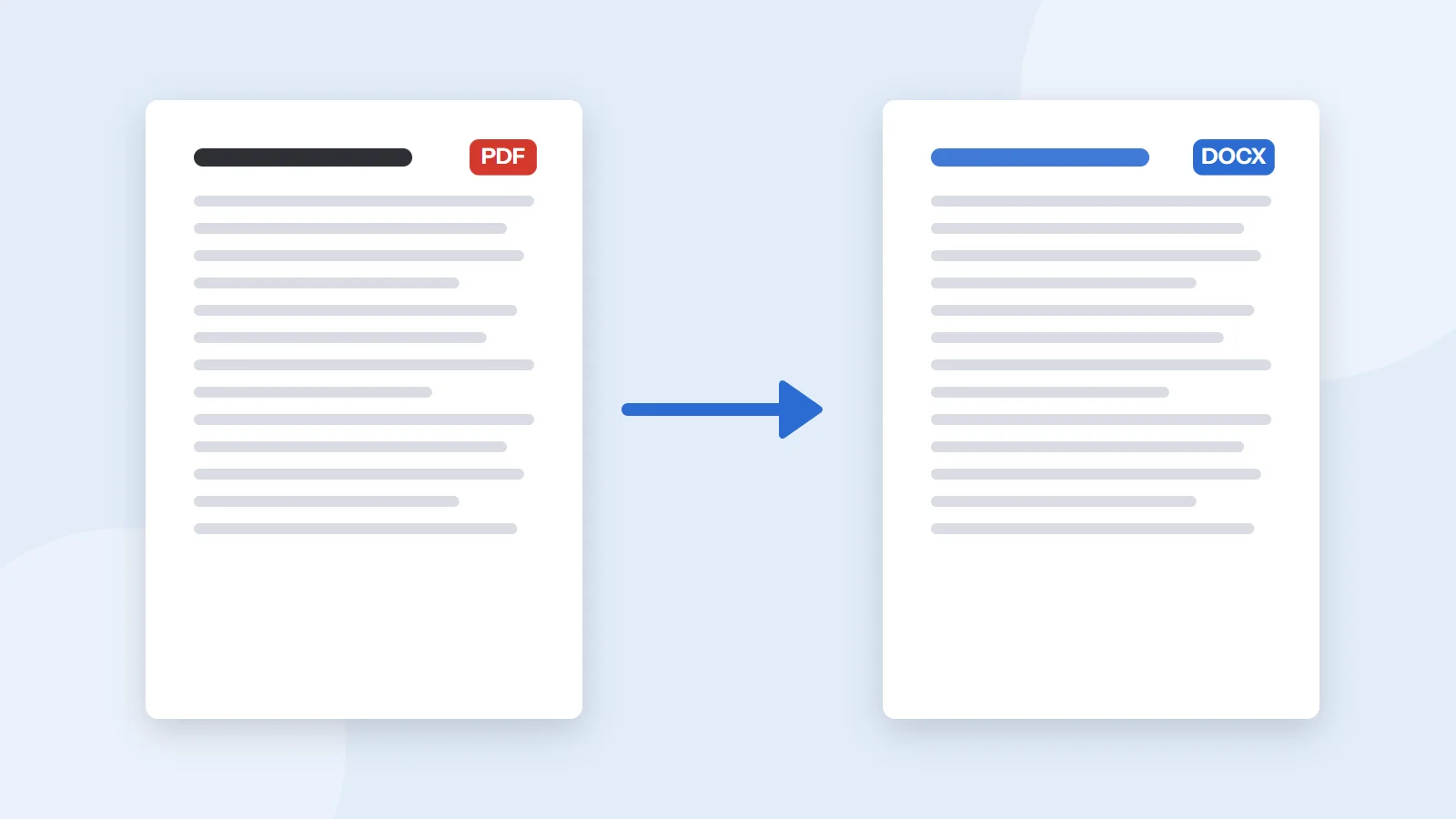
To convert a PDF to Word, open Word on your computer, choose File, then Open, and select the PDF. Word asks to convert it and creates an editable document, which you then save as a .docx file. This works best for text-heavy PDFs. For free alternatives, Google Docs can convert PDFs, and scanned pages need OCR.
Open PDF to TextKey takeaways
- Word can open a PDF directly and convert it, and it leaves your original PDF unchanged.
- Text-heavy PDFs convert well. Tables, columns and graphics are where layouts break.
- Google Docs is a free alternative that also reads scanned pages, though it often loses formatting.
- If you only need the words, extracting plain text is quicker and more reliable than converting.
How to convert a PDF to Word in Microsoft Word
If you have a desktop version of Word, you already have a PDF converter. Microsoft calls the feature PDF reflow, and it's the first thing to try, because it needs no extra software and your document stays on your computer.
- Open Word. Start it on its own, rather than opening the PDF first.
- Choose File, then Open. Browse to your PDF and select it. You may need to set the file type filter to All Files or PDF Files to see it.
- Confirm the conversion. Word warns you that it will convert the PDF to an editable document and that the result may not look exactly the same. Click OK.
- Review the document. Look through it for shifted tables, moved images and strange line breaks.
- Save it as a Word file. Choose File, then Save As, and keep the
.docxformat.
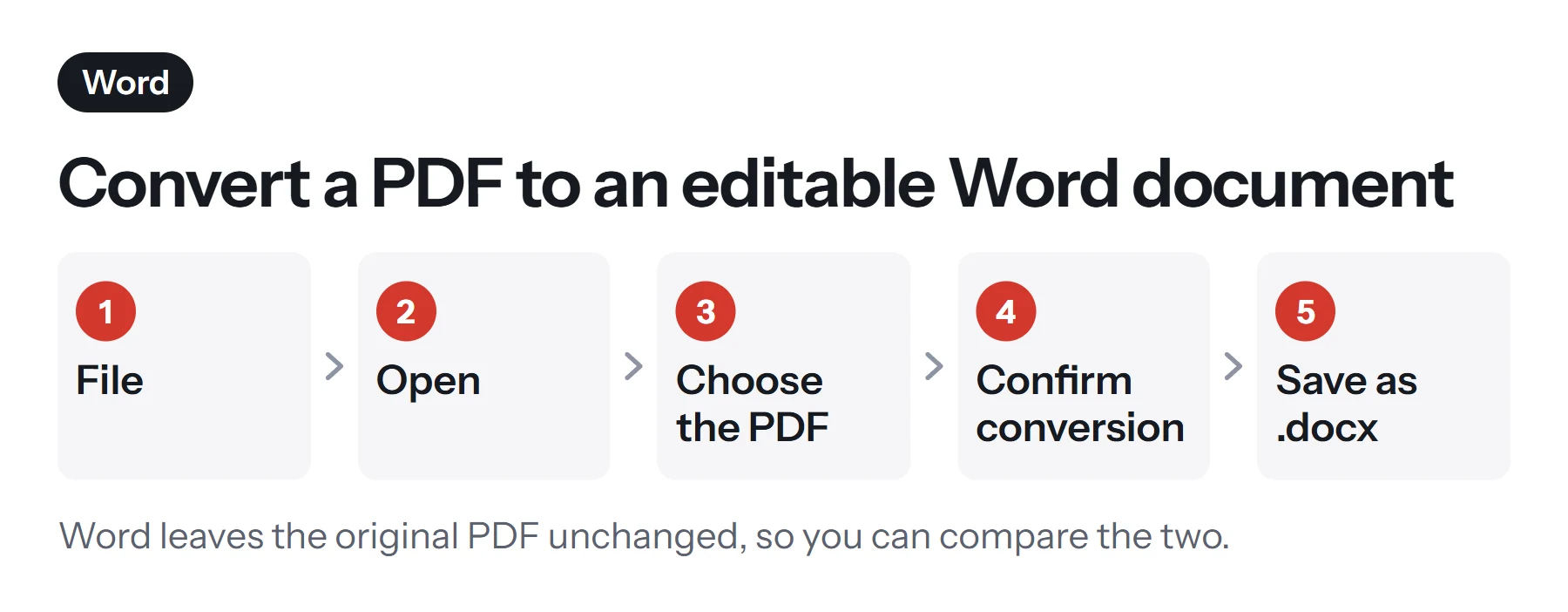
Word doesn't touch your original PDF, so you can keep it open next to the new document and compare them. Microsoft says the feature works best with documents that are mostly text. If a page is mostly charts or graphics, it may arrive as one big image with no editable text at all.
How to convert a PDF to Word for free
If you don't have Word, Google Drive offers a free route, and it comes with one big advantage: it can also read scanned pages.
- Upload the PDF. Add the file to Google Drive.
- Open it with Google Docs. Right-click the file, choose Open with, then Google Docs. Drive creates a new document with the text.
- Check the result. Fix anything that's out of place.
- Download it as Word. Choose File, Download, then Microsoft Word (.docx).
Expect to do some tidying. Google says bold, italics, font sizes and line breaks are likely to survive, but lists, tables, columns, footnotes and endnotes are likely to be lost. It recommends sharp images, common fonts and files of 2 MB or less for the best results. Our guide to Google Docs and PDFs covers the opposite direction.
Keep in mind that this method uploads your document to Google. That's fine for most things, but think twice about contracts and other sensitive documents if your workplace has rules about them.
Which conversion method should you use?
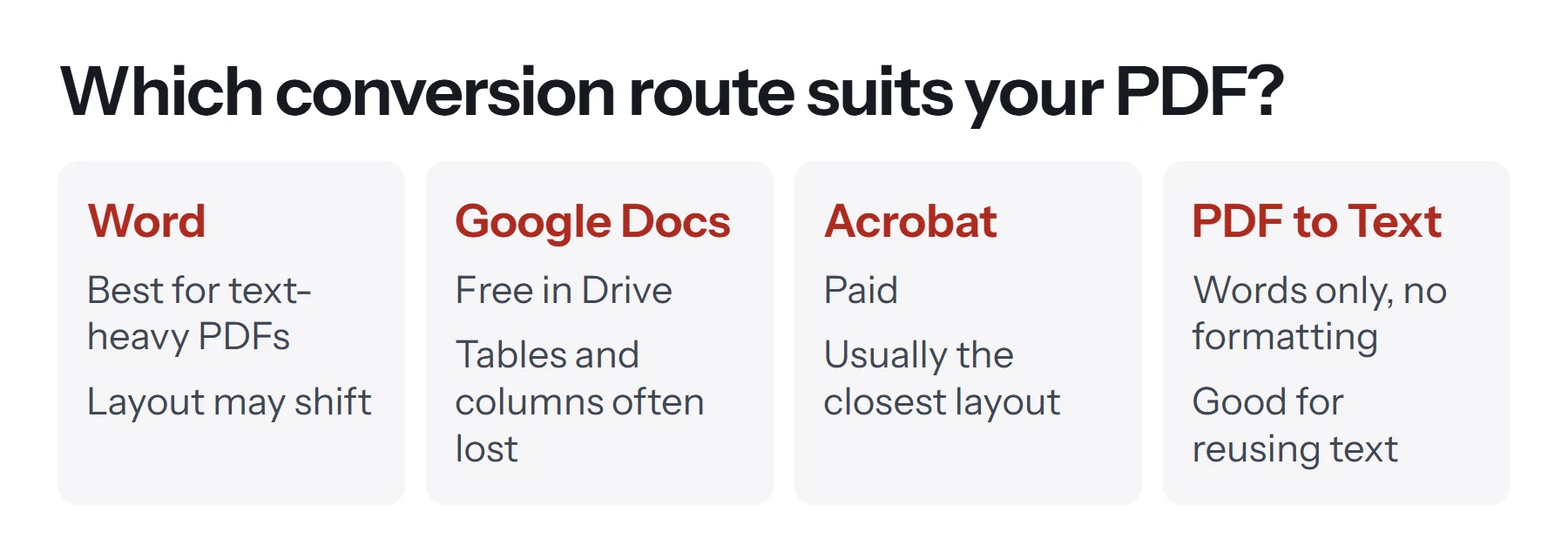
| Method | Cost | Keeps layout | Handles scans | File stays on your device |
|---|---|---|---|---|
| Word | Included with Word | Fairly well for text | Mixed results | Yes |
| Google Docs | Free | Basic | Yes | No, it's uploaded to Drive |
| Adobe Acrobat | Paid | Usually the closest | Yes | Depends on the version |
| PDF to Text | Free | None, words only | No | Yes |
As a rule of thumb, try Word first if you have it. Use Google Docs for simple documents and scans. Consider Acrobat if you convert complicated documents often and accuracy is worth paying for.
What if you only need the words?
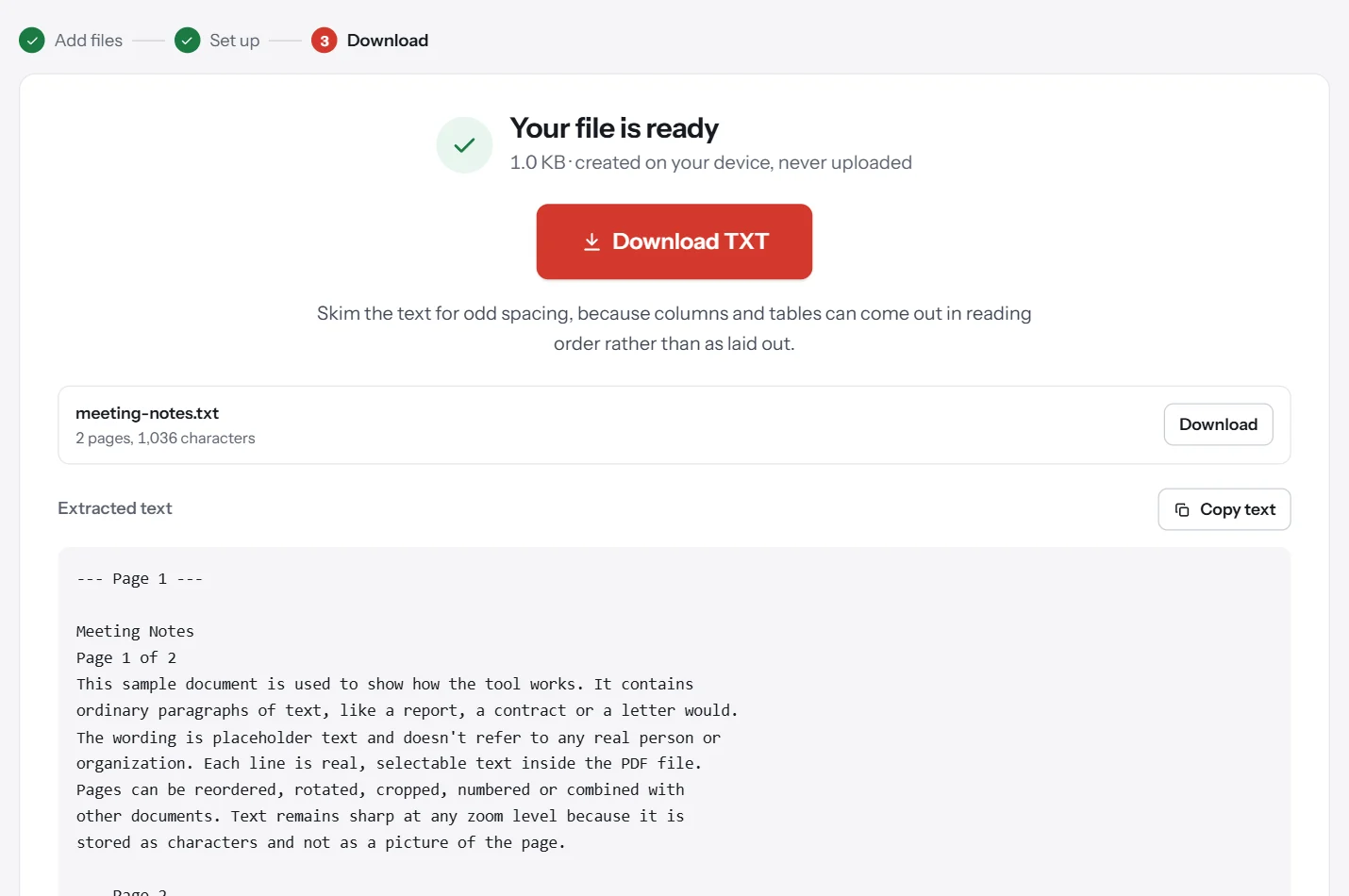
Often people convert a PDF to Word just to reuse the text in a new document. If that's you, skip the conversion. Layout problems don't matter if you weren't going to keep the layout.
PDF Lemon's PDF to Text pulls out all the text from a digital PDF, in your browser, without uploading it. Copy the result and paste it into Word, where it takes on your document's styles. PDF Lemon doesn't offer a true PDF to Word conversion, since a good one needs server software and we don't upload your files. For text reuse, though, this route is often faster and cleaner. See how to copy text from a PDF for other options.
Why do PDF to Word conversions go wrong?
It helps to know why these conversions are hard. A Word document stores structure: this is a heading, this is a table with three columns, this paragraph flows onto the next page. A PDF stores appearance: draw this letter here, draw that line there. A converter has to look at the page and guess the structure, and it can guess wrong.
These are the usual trouble spots:
- Tables. Without real table structure, rows and columns have to be inferred from positions. Cells may merge or split.
- Columns. Two-column text can come through as one long, jumbled column, or as separate text boxes.
- Headers and footers. These may repeat as ordinary text on every page.
- Fonts. If you don't have the font installed, Word substitutes another one, and that changes line breaks.
- Text over images. Word may treat the whole thing as a picture.
- Scans. With no real text, it all depends on the quality of the character recognition.
How to get the best result
A little preparation goes a long way.
Ask for the original first. If a colleague or a client made the PDF, ask them for the Word file. It takes one email, and it beats any conversion.
Strip out what you don't need. A shorter document converts faster and gives you less to check. Use Extract Pages to keep only the pages you plan to edit, or Remove Pages to delete appendices and image-heavy pages.
Fix the rotation first. Sideways pages confuse text recognition, so straighten them with Rotate PDF.
Use a clean scan. A straight, high-contrast scan at 300 DPI converts far better than a phone photo taken at an angle. If you can, rescan it.
Check tables by hand. Compare every number in a converted table against the PDF. A misplaced digit is easy to miss, and it can really matter on a financial document.
How to check a converted document
Use this checklist before you trust the result:
- Compare page counts. Big differences suggest pages have gone missing or that layout has broken badly.
- Read the headings and first lines of pages. Look for text in the wrong order, which is common with columns.
- Check every table and figure, especially numbers, dates and names.
- Search for odd characters. Conversions from scans may swap
land1, orOand0. - Turn on formatting marks. Click the paragraph symbol (¶) in Word. Lots of line breaks in the middle of sentences means you may want to clean those up.
- Save a new PDF and compare it. If the final destination is a PDF, export it again and look at it next to the original.
How to convert a scanned PDF to Word
A scan has no text, only a picture of each page, so there's an extra step: optical character recognition (OCR), which reads the letters from the image. You can tell a PDF is scanned if you can't select a word in your reader.
Google Drive runs OCR automatically when you open a scan with Google Docs, as described above. Word can try too, but the results vary, and paid tools generally do better with difficult scans. Accuracy depends heavily on the quality of the scan: clean printed pages can come through nearly perfect, while faint photocopies, handwriting and unusual fonts won't. Always proofread OCR output against the original.
Is an online PDF to Word converter safe?
Most online converters upload your document to their servers, because the conversion needs software that runs there. That may be perfectly fine for a public brochure, but think carefully before uploading a contract, a payslip or anything covered by an agreement. Word's own conversion stays on your computer. If you do use an online service, read how long it keeps files. Our guide to whether online PDF tools are safe explains what to look for.
Should you convert it at all?
Conversion is often not the best solution, and it's worth asking what you're really trying to do.
- Fixing a typo or adding a name? You don't need to convert anything. Add text with Edit PDF if you're adding, or see how to edit a PDF for your options.
- Reusing some text? Copy it, or use PDF to Text.
- Adding the PDF to a report? You can insert it into a Word document as an object or as images, with no conversion and no layout damage.
- Heavily revising the document? That's when conversion earns its keep. Expect to spend some time on cleanup.
Common problems when converting PDF to Word
Word says it can't open the file. It may be password-protected. Remove the password first if you're authorized to. See how to remove a password from a PDF.
The whole page comes in as an image. The PDF is a scan, or it's mostly graphics. Use OCR through Google Drive, or retype the short sections you need.
Text is in strange boxes. Word may have kept the page layout using text boxes. Copying the text into a new, clean document often gives you something easier to work with.
Fonts look different. The original font isn't installed. Select all the text and apply a common font to make the document consistent, or install the original font if you have a license for it.
The file is huge. Conversions can carry images at full size. Compress the pictures in Word through Picture Format, then Compress Pictures.
Word for the web won't convert it. The online version has different abilities than the desktop app. Use a desktop copy of Word for the method above, or use Google Docs instead.
Questions and answers
How do I convert a PDF to Word for free?
Upload the PDF to Google Drive, right-click it, and choose Open with, then Google Docs. Then use File, Download, Microsoft Word (.docx). It's free, but complex layouts often need tidying up.
How do I turn a PDF into a Word document without losing formatting?
No conversion is perfect. Word and paid tools such as Acrobat usually preserve layouts best. If you can get the original Word file from the author, that's always better than converting.
Why does my PDF look wrong after converting to Word?
PDFs store text at fixed positions, not as paragraphs and tables, so the converter has to guess the structure. Columns, tables, unusual fonts and text over images are the usual trouble spots.
Can Word convert a scanned PDF?
Word can attempt it, but results vary, and a page may come through as a picture. Google Drive's OCR is a good free alternative. Sharp scans with common fonts work best.
Does PDF Lemon convert PDF to Word?
Not directly. A good conversion needs server software, and PDF Lemon doesn't upload your files. PDF to Text extracts the words privately, in your browser, and you can paste them into Word.
Is my original PDF changed when I convert it?
No. Word creates a new document and leaves your PDF alone, so you can use it as a reference while you check the conversion.
Tools from this guide
How we checked this guide
We ran the PDF Lemon steps ourselves on the live tools. Steps for other apps come from each vendor's own help pages and are worded to survive small interface changes, but menu names can differ between versions.
Sources we used:
Related guides
- What Is a PDF? Meaning, Uses, and Features7 min read
- How to Remove a Password from a PDF7 min read
- How to Insert a PDF into Word7 min read
- How to Copy Text from a PDF7 min read
- PDF to JPG vs PNG: which should you choose?1 min read