How to Insert a PDF into Word
Short answer
To insert a PDF into Word, click where you want it, go to the Insert tab, choose Object in the Text group, select Create from File, browse to your PDF, and click OK. It appears as an object that shows the first page. To show every page, insert the pages as images. To edit the content, open the PDF in Word instead.
Open PDF to PNGKey takeaways
- Insert, then Object, embeds a PDF but usually shows only its first page, and it can't be edited.
- To show all the pages, convert them to images and insert those.
- To edit the text, open the PDF in Word and copy what you need across.
- Word for the web can't insert PDF objects, so use the desktop app.
Which method should you use?
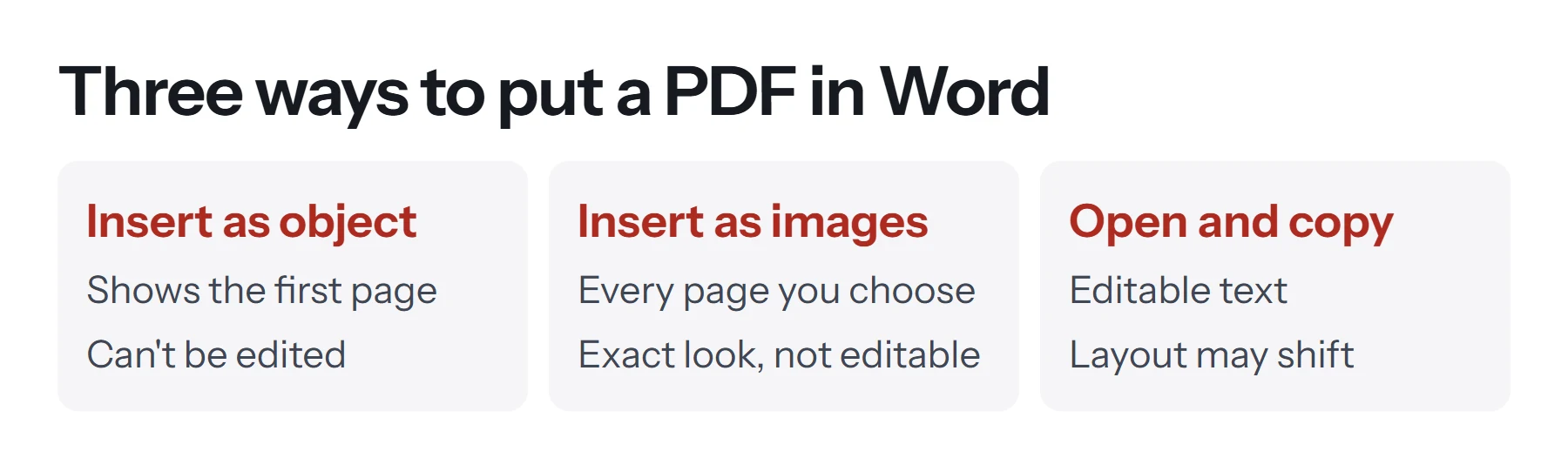
There are three ways to put a PDF into a Word document, and the right one depends on whether your reader needs to see the PDF, open it or edit it.
| You want to | Use | Result | Editable? |
|---|---|---|---|
| Attach a PDF for readers to open | Insert as object, shown as an icon | Clickable icon | No |
| Show the first page | Insert as object | Picture of page one | No |
| Show every page, exactly as it looks | Insert as images | One picture per page | No |
| Reuse and change the text | Open in Word and copy | Regular Word text | Yes |
How to insert a PDF into Word as an object
This is the method Microsoft describes, and it's the quickest. It embeds the PDF file inside your Word document.
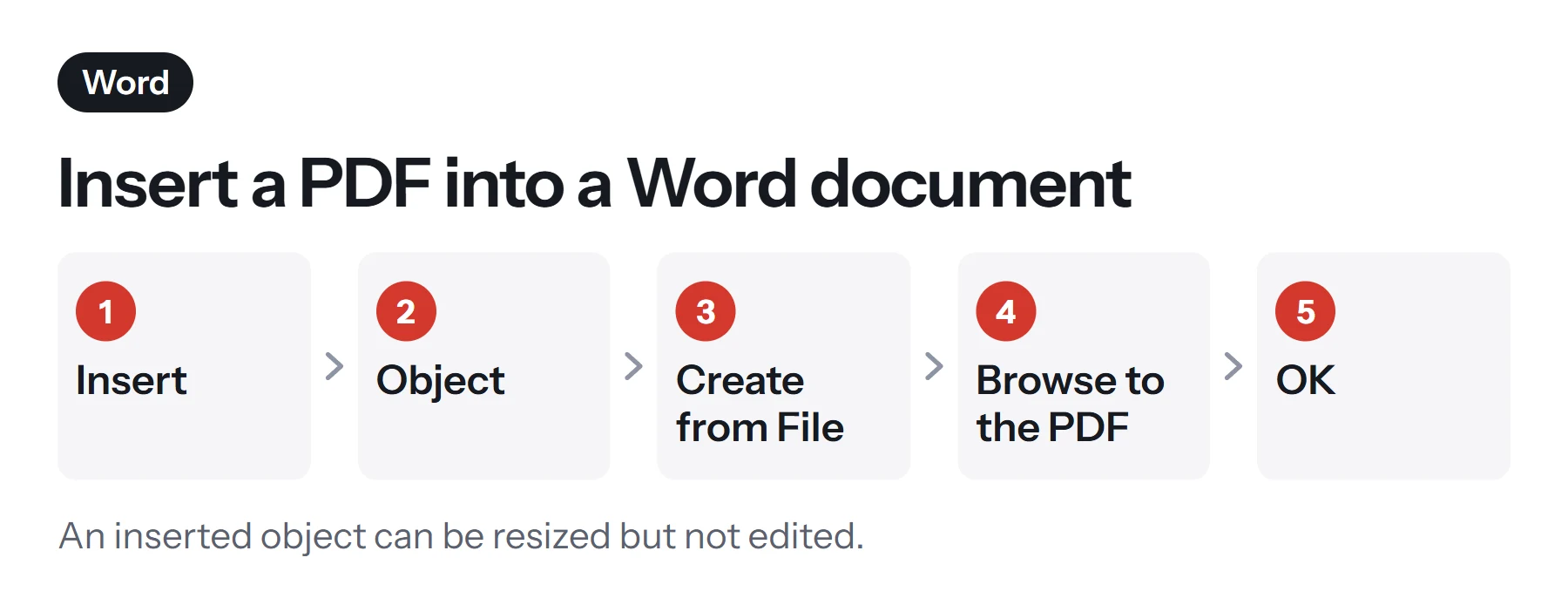
- Click where you want the PDF in your document.
- Go to the Insert tab. In the Text group, click Object.
- Choose Create from File. Then click Browse and select your PDF.
- Choose how it appears. Leave the boxes clear to show the first page, or tick Display as icon to show a small icon instead.
- Click OK. The PDF appears in your document.
Double-clicking the object opens the PDF in your default PDF app. You can drag its corners to resize it and move it around the page, but as Microsoft points out, you can't edit it after inserting it.
Embed or link?
The dialog has a Link to file checkbox, which matters more than it looks.
- Embedded (unticked) puts a full copy of the PDF inside the Word file. It travels with the document, so it still works when you email it, but it makes your document larger.
- Linked (ticked) stores only a pointer to the file on your computer. The document stays small, and it can update when the PDF changes, but the link breaks if the PDF moves or if you send the document to someone else.
For most purposes, embedding is the safer option.
On a Mac
In Word for Mac, go to Insert, then Object, click From File, and choose your PDF. On a Mac you may be asked which page to show. Behavior varies a little by version, so check how it appears.
How to insert all pages of a PDF into Word
An object generally shows only the first page. To display every page in the document so that readers can see them without clicking, insert the pages as pictures. This is the most reliable way to keep a PDF looking exactly as it does, and it also works in Word for the web.
- Pick the pages. If you only need a few, use Extract Pages first.
- Convert them to images. Open PDF to PNG, add your file, and choose 150 DPI, or 300 DPI for printing. PNG keeps text crisp. For photo-heavy pages, PDF to JPG makes smaller files.
- Download and unzip them. Multiple pages download together as a ZIP.
- Insert the pictures in Word. Go to Insert, then Pictures, and choose This Device. Select all the images at once, in order.
- Resize them. Each should fit within the page margins. To make more room, set the page margins to Narrow under Layout.
Since these are pictures, the text in them can't be selected or edited, and screen readers can't read it. Add alt text to each image if you can. Right-click an image and choose View Alt Text.
The PDF Lemon tools run in your browser, so your PDF isn't uploaded anywhere during this process.
How to insert PDF text into a Word document
If you need the words themselves, because you want to edit or restyle them, don't insert the PDF as an object. Bring in the text instead.
Option 1: Open the PDF in Word and copy
- In Word, choose File, then Open, and select the PDF.
- Confirm the conversion when Word asks.
- Select what you need in the new document, and copy it.
- Paste it into your document. Choose Keep Text Only from the paste options to adopt your document's styles.
Microsoft says this works best for documents that are mostly text. See how to convert PDF to Word for more.
Option 2: Extract the text
PDF to Text pulls out all the text from a PDF without needing Word to interpret the layout. Click Copy text, then paste the result into your document. This is often the cleanest route when you don't care about the original formatting. See how to copy text from a PDF for other options.
Option 3: Copy from your reader
For a sentence or two, simply select the text in your PDF reader and paste it. You'll usually want Keep Text Only here too, as line breaks often arrive in odd places.
How to insert just one page or part of a page
Sometimes you only need a single chart or table.
- A single page: use Extract Pages to save it as its own PDF, then insert that as an object, or convert it to an image.
- Part of a page: take a screenshot of the area. In Word, Insert, Screenshot, then Screen Clipping lets you drag over part of an open window. Zoom in on the PDF first for a sharper picture.
- A tight crop: use Crop PDF to trim the page, then PDF to PNG to export a crisp image, as described in how to crop a PDF.
How to insert a PDF into Word online
Microsoft says Word for the web doesn't let you insert objects such as PDFs. There are two workarounds:
- Use images. Convert the pages with PDF to PNG, then use Insert, then Pictures in Word for the web.
- Link to it. Upload the PDF to OneDrive or another host, then add an ordinary link in your document. Readers click to open it. Our guide on how to create a shareable PDF link shows how.
Or open the document in the desktop app, using the Editing menu's option to open in the desktop version.
How to keep the Word file small
Embedding PDFs and full-page images can make a Word file very large, which then causes trouble when you email it.
- Compress the PDF first with Compress PDF if you're embedding a large one.
- Use a sensible DPI. 150 DPI is enough for most documents. A 300 DPI image takes roughly four times as many pixels.
- Use JPG for photo pages. PNG is larger for photographic content.
- Compress pictures in Word. Select an image, go to Picture Format, then Compress Pictures.
- Link rather than embed when the reader has access to a shared location.
How to make inserted PDF pages accessible
Page images look right, but a screen reader sees nothing unless you describe them. If people using assistive technology will read your document, add alt text that summarizes each page. Better yet, include the important content as real text, in addition to the image or instead of it. PDF to Text helps with this. For long documents, consider linking to the original PDF as well, provided the PDF itself is accessible, so that readers have a choice of format.
What happens when you save as a PDF again?
If your Word document will end up as a PDF, exporting it raises a question about inserted objects. An object shown as a page preview becomes a picture of that page in the PDF. An object shown as an icon becomes just an image of the icon and won't open anything, so your reader never gets the attached file.
If your final output is a PDF, it's usually better to combine the PDFs directly using Merge PDF. Export your Word document as a PDF, then merge it with the other PDF in the right order. That keeps real text and full quality on every page, and there's no need for images at all.
How to choose between inserting and attaching
If the reader needs the PDF's content to follow your argument, show it on the page as images or text. If it's supporting material they may or may not open, attach it as an icon, or simply send it alongside your document.
Common problems when inserting a PDF into Word
Only the first page shows. That's how objects generally work. To show every page, insert images instead.
The PDF looks blurry in Word. Object previews can be low resolution. Double-clicking opens the sharp original, or use 300 DPI images instead.
The Object button is greyed out. You may be in a protected view or a mode that doesn't allow changes. Click Enable Editing, or save the document in .docx format.
"Cannot insert file" error. The PDF may be password-protected, or your computer may not have a default PDF app for Word to use. Set up a default reader, or insert images instead.
The document grew huge. Compress the images, or use a link rather than an embedded copy.
Inserted pages run off the page. Resize them to fit within the margins, or set Layout, Margins to Narrow.
Page order is mixed up. When inserting several pictures, Word usually follows their sort order. Files named like page-1 and page-10 can sort oddly, so check the order and rearrange them if needed.
Questions and answers
How do I insert a PDF into a Word document?
On the Insert tab, choose Object, then Create from File, browse to the PDF, and click OK. Word embeds it, and it shows as an object you can resize.
How do I insert all pages of a PDF into Word?
Convert each page to an image with PDF to PNG, then use Insert, Pictures in Word to add them. An inserted object generally shows only the first page.
How do I attach a PDF to a Word document as an icon?
In Insert, Object, Create from File, tick Display as icon. Readers see a small icon they can double-click to open the PDF.
Can I edit a PDF after inserting it into Word?
No. An inserted PDF object can be resized and moved, but not edited. To edit the text, open the PDF in Word, convert it, and copy the content into your document.
Why can't I insert a PDF in Word online?
Microsoft says Word for the web doesn't let you insert objects such as PDFs. Use the desktop version, or insert page images instead, which do work online.
Will the PDF still be there if I send the Word file to someone?
Yes, if you embed it rather than link to it. Embedded PDFs travel with the document, and they make it larger. Linked ones break when the original moves.
Tools from this guide
How we checked this guide
We ran the PDF Lemon steps ourselves on the live tools. Steps for other apps come from each vendor's own help pages and are worded to survive small interface changes, but menu names can differ between versions.
Sources we used:
Related guides
- How to Copy Text from a PDF7 min read
- PDF to JPG vs PNG: which should you choose?1 min read
- How to Convert PDF to Word7 min read
- How to Cite a PDF in APA, MLA, and Chicago7 min read
- How to Open a PDF in Word7 min read