How to Split a PDF into Separate Files
Short answer
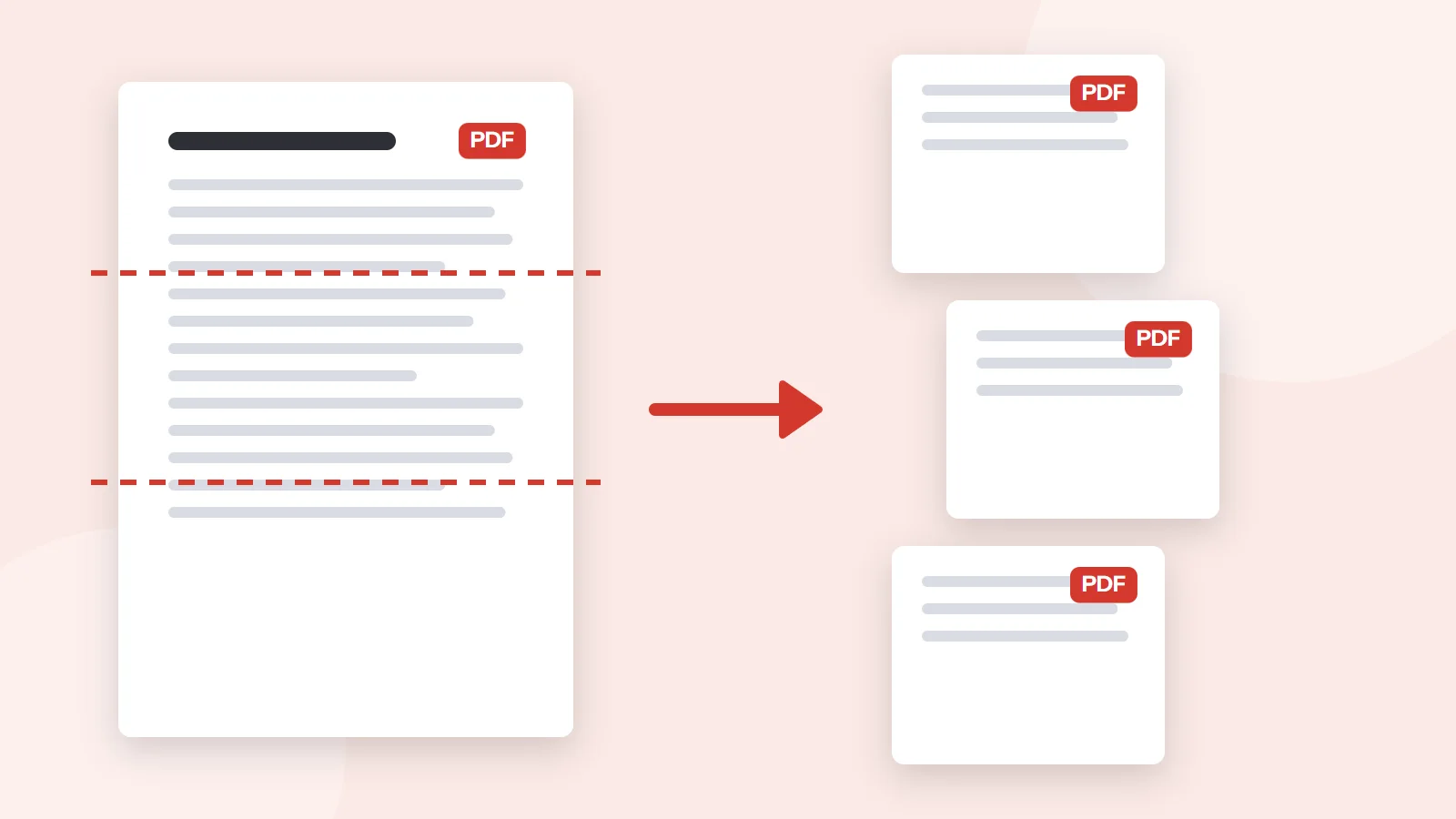
To split PDF files, open PDF Lemon's Split PDF, add your file, and choose how to divide it: every page as its own file, custom ranges such as 1-3, 4-8, or fixed chunks of a set size. Click Split PDF and download the parts as a ZIP. Splitting doesn't reduce quality, and your file stays on your device.
Open Split PDFKey takeaways
- You can split by every page, by custom ranges, or into equal-sized parts.
- Splitting is lossless. Text stays selectable and images keep their quality.
- To pull a few pages into one new file, use Extract Pages rather than Split.
- Splitting reduces size per file, which helps with upload limits without any compression.
How to split a PDF online
Splitting a PDF divides it into several smaller documents. PDF Lemon's tool runs in your browser, so a confidential file doesn't have to leave your device, and the pages keep their full quality because they're copied rather than re-created.
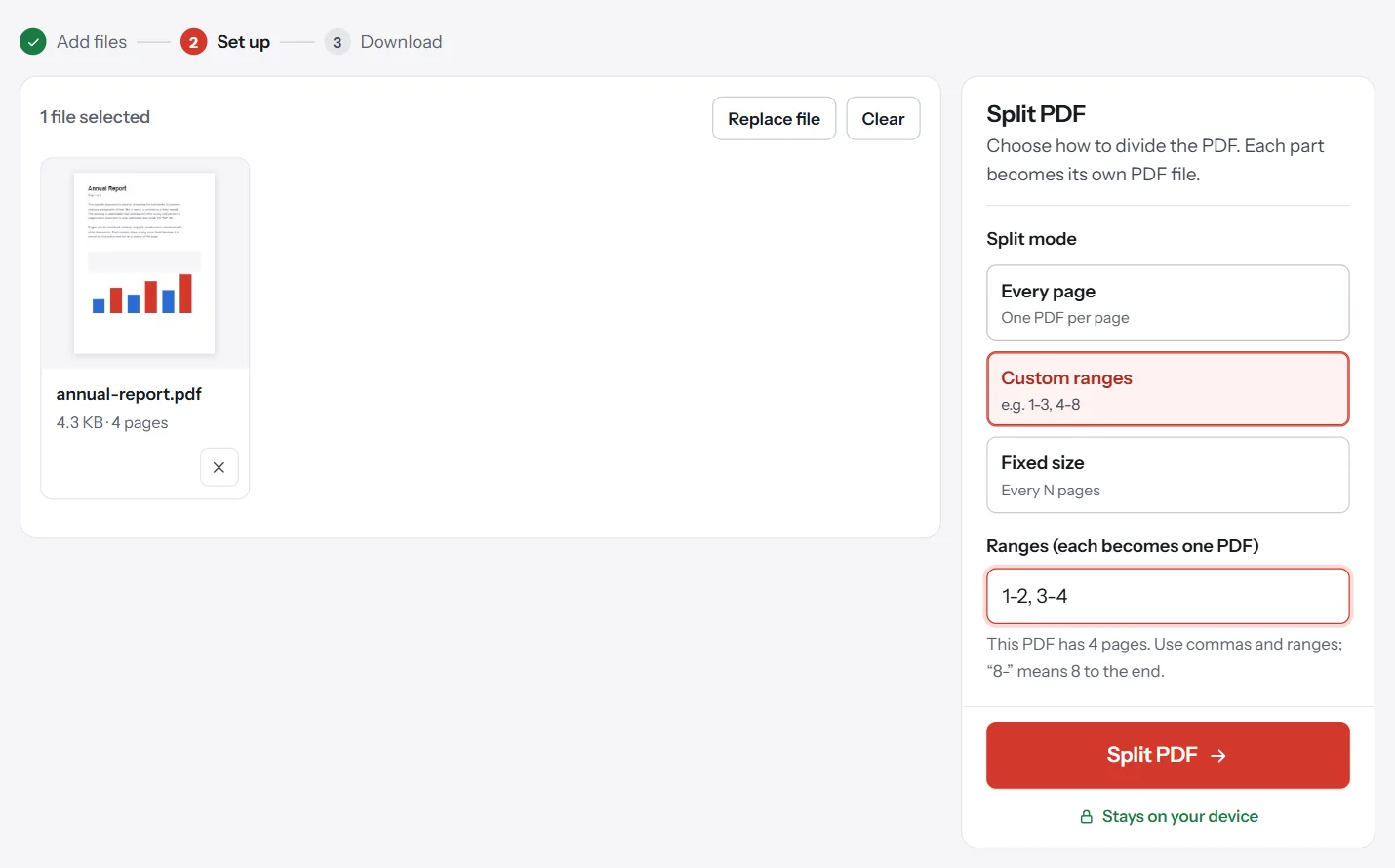
- Open Split PDF. Go to PDF Lemon's Split PDF and select your file, or drop it on the page.
- Choose a split mode. Pick Every page, Custom ranges or Fixed size. More on these below.
- Enter your ranges if needed. For custom ranges, type something like
1-3, 4-8, 9. The panel shows how many pages the PDF has. - Click Split PDF. Each part is created as a separate file.
- Download. Click Download all as ZIP, or download the parts one at a time.
Which way of splitting should you choose?
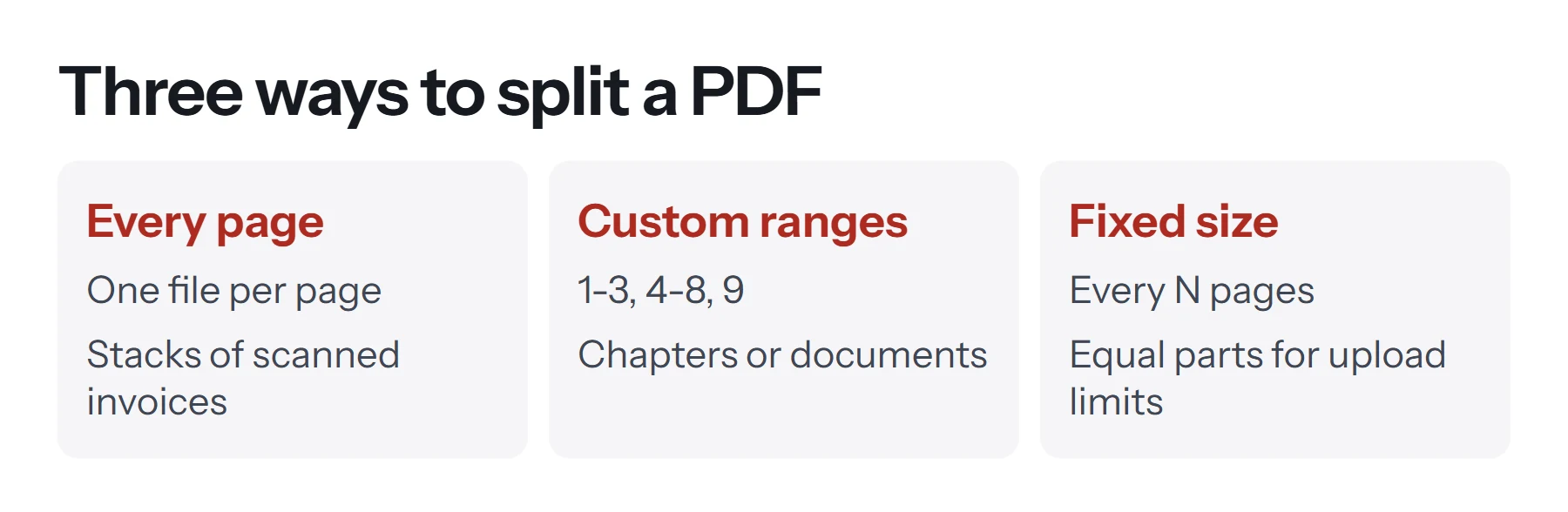
The three modes suit different jobs.
Every page
Each page becomes its own PDF. A 12-page document gives you 12 files, named so that they stay in order. Use this for a batch scan that holds separate one-page documents, such as a stack of invoices or receipts.
Custom ranges
You decide exactly where the parts begin and end, using commas between ranges:
| You type | You get |
|---|---|
1-3, 4-8, 9 | Three files: pages 1–3, pages 4–8, and page 9 |
1, 2, 3 | Three one-page files |
5- | One file from page 5 to the end |
1-10, 11- | Two files, split after page 10 |
Use this when you know the structure, as with chapters of a book or the different documents inside a merged file.
Fixed size
You set a number of pages per file, and the tool cuts the document into equal parts. With 2 pages per file, a 7-page PDF gives you four files: pages 1–2, 3–4, 5–6, and 7. Use this to break up a long file for an upload form that limits page counts, or to share out a long document among several reviewers.
How to split a PDF on a Mac
Preview can do this, though not in a single step for multiple parts.
To save some pages as a new file:
- Open the PDF in Preview, and choose View, then Thumbnails.
- Select the pages in the sidebar. Hold Cmd to select several.
- Drag them to your Desktop. Preview creates a new PDF with those pages.
Or use the print dialog:
- Press Cmd+P.
- Set the page range you want.
- Open the PDF menu at the bottom left of the dialog, and choose Save as PDF.
Repeat for each part. For anything beyond two or three parts, Split PDF is much quicker.
How to split a PDF on Windows
Windows has no built-in PDF splitter, but there's a free workaround in addition to browser tools.
- Open the PDF in your browser or reader, and press Ctrl+P.
- Choose Microsoft Print to PDF or Save as PDF as the destination.
- Enter a page range, such as
4-8. - Save the new file, then repeat for each part.
This route creates a new copy of the printed pages, which can drop links and form fields. Split PDF copies the pages directly and keeps more of the original intact, and it creates all the parts in one go.
How to split a PDF on iPhone or Android
Open Split PDF in your mobile browser and pick the file from your device. The steps are the same. Your downloads go to Files on iPhone and to the Downloads folder on Android. To extract files from a ZIP on an iPhone, tap the ZIP in Files. On Android, your files app usually handles it, or you can download each part separately to avoid the ZIP altogether.
Split, extract or remove: which is right?
These three are closely related, and picking the right one saves steps.
| Goal | Tool | Output |
|---|---|---|
| Divide a whole document into parts | Split PDF | Several PDFs |
| Pull out a few pages | Extract Pages | One new PDF, or one per page |
| Delete pages and keep the rest | Remove Pages | One PDF without those pages |
| Rearrange and pick visually | Organize PDF | One reorganized PDF |
Extract Pages is also handy for pages that aren't next to each other: typing 2, 5, 9 gets you those three pages in one file. Split PDF would make three separate files from that same input. Extract Pages keeps the order you type, so you can reorder pages along the way.
How to split a PDF by file size
PDF Lemon splits by pages rather than by megabytes, but you can get close to a size target with a little math.
- Check the file's size and page count. Suppose it's 60 MB and 120 pages, or about 0.5 MB per page.
- Work out pages per part. To stay under 20 MB per file, use about 40 pages.
- Use Fixed size, and set it to a little less than your estimate, such as 35.
- Check the results, because pages vary in size. Scanned pages with photos are heavier than text pages.
If some of the parts are still too large, or if you don't really need separate files, try compressing the PDF. Compression and splitting also work well together: compress first, then split what's left.
How to split a scanned batch into documents
A common job: you've scanned a whole stack of paperwork into a single PDF and need to separate it.
- Note where each document begins. Open the PDF and jot down the first page of each one.
- Turn those into ranges. If documents start on pages 1, 4, 5 and 9 of a 12-page file, you'd enter
1-3, 4, 5-8, 9-12. - Split with Custom ranges.
- Rename each file. Parts get page-based names, so rename them to reflect their content, such as
invoice-acme-march.pdf.
If a page is blank or sideways, clean up first with Remove Pages or Rotate PDF. Do it before noting your ranges, since removing a page shifts all the page numbers after it.
What stays the same after splitting?
Split pages are copies of the originals, so most things carry over.
| Item | After splitting |
|---|---|
| Text and images | Unchanged and selectable |
| Page size and rotation | Unchanged |
| Links within a page to websites | Generally kept |
| Links to other pages | May stop working if the target is in another file |
| Bookmarks (the outline) | Not carried over |
| Printed page numbers | Unchanged, so part two might start at "page 4" |
| Digital signatures | No longer valid in the split files |
That last row matters if a document's been digitally signed. Changing it in any way invalidates the signature, so keep the signed original. To renumber the parts, use Add Page Numbers, which can set any starting number.
How to name your split files
Good file names save you time later, especially when you're sending parts to different people. PDF Lemon names each part after the original file and its pages, such as report_pages-1-3.pdf, which keeps them in order. Before you send them, consider renaming them to describe the content.
- Say what it is:
chapter-2-methods.pdfbeatsreport_pages-11-24.pdf. - Use leading zeros for sequences:
part-01,part-02andpart-10always sort correctly. - Use hyphens rather than spaces, which work better in web links and on portals.
- Add a date in year-month-day format when versions matter, such as
invoice-2026-11-05.pdf.
Also, consider setting each part's document title with Edit Metadata, because readers and browser tabs show it. That matters most if you're publishing the files, as explained in our guide to PDF SEO.
How to put a split PDF back together
If you need to reassemble the parts, or combine some of them with other documents, use Merge PDF. Add the files, set their order, and click Merge PDF. Page-based file names keep things easy to sort. See how to combine PDF files for details.
How to split a PDF and keep the original safe
Split PDF creates new files and never changes your original, so you can experiment freely. Keep the full version until you've checked every part, because a mistyped range is easy to miss until a page turns up missing.
Common problems when splitting a PDF
It says a page doesn't exist. Your range goes past the end of the document. Check the page count shown in the panel.
It says the range isn't valid. Use only numbers, hyphens and commas, such as 1-3, 5.
Page numbers don't match. Tools count pages from the start of the file, which may not match the numbers printed on the pages. A report might have front matter numbered in Roman numerals, so page 1 of the text could be page 5 of the file.
It says the PDF is protected. Remove the protection first if you're authorized to. See how to remove a password from a PDF.
The parts are still too big. Splitting doesn't reduce the size of each page. A single scanned page can still be large, so compress it as well.
I can't open the ZIP on my phone. On iPhone, tap the ZIP in the Files app. On Android, use your files app. Or download the parts individually from the result screen.
The files are in the wrong order. Numbers in file names sort differently in some apps, as page-10 can come before page-2. Sort by date or rename them with leading zeros.
Questions and answers
How do I split a PDF for free?
Open PDF Lemon's Split PDF, choose a mode and click Split PDF. There's no cost or account, and the file isn't uploaded. Mac Preview and print-to-PDF routes are also free.
How do I separate pages in a PDF?
In Split PDF, choose Every page, and each page becomes its own PDF. All of them download together in a ZIP file.
How do I split a PDF into multiple files by range?
Choose Custom ranges and type the ranges separated by commas, such as 1-3, 4-8, 9. Each range becomes one PDF.
How do I split a PDF on a Mac?
In Preview, show the thumbnails and drag selected pages to your Desktop to make a new PDF. Or use Print, choose a page range, and select Save as PDF.
Does splitting a PDF reduce its quality?
No. Pages are copied as they are, so text stays sharp and searchable and images aren't recompressed.
What's the difference between Split PDF and Extract Pages?
Split PDF divides the document into several files. Extract Pages pulls the pages you choose into one new file, or separate files if you prefer.
Tools from this guide
How we checked this guide
We ran the PDF Lemon steps ourselves on the live tools. Steps for other apps come from each vendor's own help pages and are worded to survive small interface changes, but menu names can differ between versions.
Sources we used:
Related guides
- How to Compress a PDF and Reduce File Size7 min read
- How to Remove a Signature from a PDF7 min read
- How to Cite a PDF in APA, MLA, and Chicago7 min read
- How to Change or Resize PDF Page Dimensions9 min read
- How to Combine PDF Files into One7 min read