How to Digitally Sign a PDF
Short answer
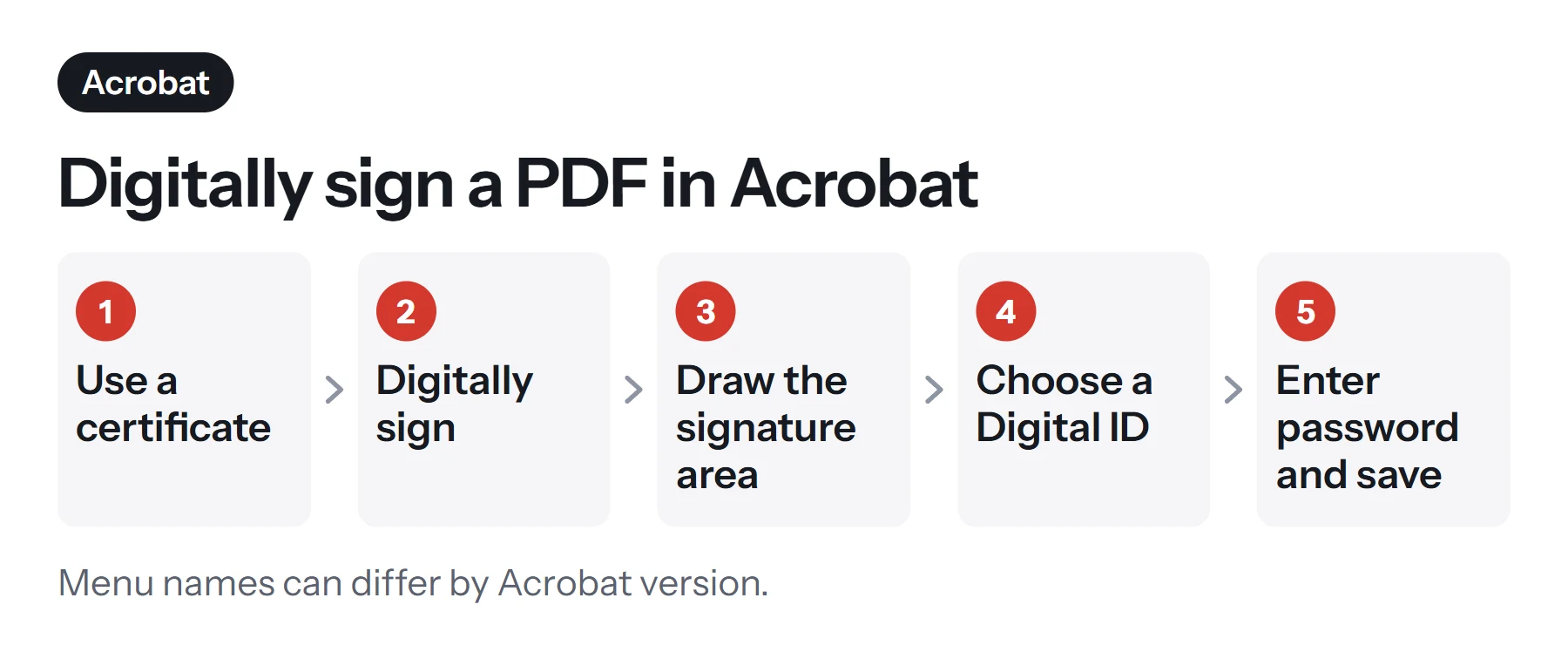
To digitally sign a PDF in Adobe Acrobat, choose All tools, Use a certificate, then Digitally sign. Draw the signature area, pick your Digital ID, enter its password, and save. A digital signature uses a certificate to verify the signer and reveal later changes. You need a Digital ID, which can be self-signed or issued by a trusted provider.
Open Sign PDFKey takeaways
- A digital signature is certificate-based. It's not the same as a drawn or typed electronic signature.
- You need a Digital ID. Self-signed IDs are free but give lower assurance than trusted-provider IDs.
- A valid digital signature reveals any changes made to the document after signing.
- Sign as the final step, since later edits will show as changes or invalidate the signature.
What is a digital signature?
A digital signature is a cryptographic seal applied to a document using a certificate. It does two things that a drawn signature can't: it ties the signature to a verified identity (as far as the certificate can be trusted), and it reveals whether the document has changed since it was signed.
This is different from what most people mean by "signing a PDF". If someone has simply asked you to sign a lease or an offer letter, you probably need an ordinary electronic signature, which is covered in how to sign a PDF electronically. You need a true digital signature when someone specifically asks for one, typically for government filings, regulated industries, engineering drawings, or a company's internal approvals.
| Electronic signature | Digital signature | |
|---|---|---|
| What it is | A mark showing intent to sign | A cryptographic seal from a certificate |
| Needs a certificate | No | Yes |
| Identifies the signer | Not on its own | Yes, based on the certificate |
| Shows later changes | No | Yes |
| Tools | Sign PDF, Preview, Fill & Sign | Acrobat and other certificate tools |
| Typical cost | Free | Free if self-signed; trusted IDs usually paid |
PDF Lemon's Sign PDF adds a visual electronic signature, and it doesn't apply a certificate. For a true digital signature, you'll need one of the tools below.
What you need before you start
A PDF that's finished. Signing should be the very last step. Any edit after signing will be flagged, and it may invalidate your signature. Merge, number, fill in and compress the document first.
A Digital ID. This holds your certificate and a private key. There are three common sources.
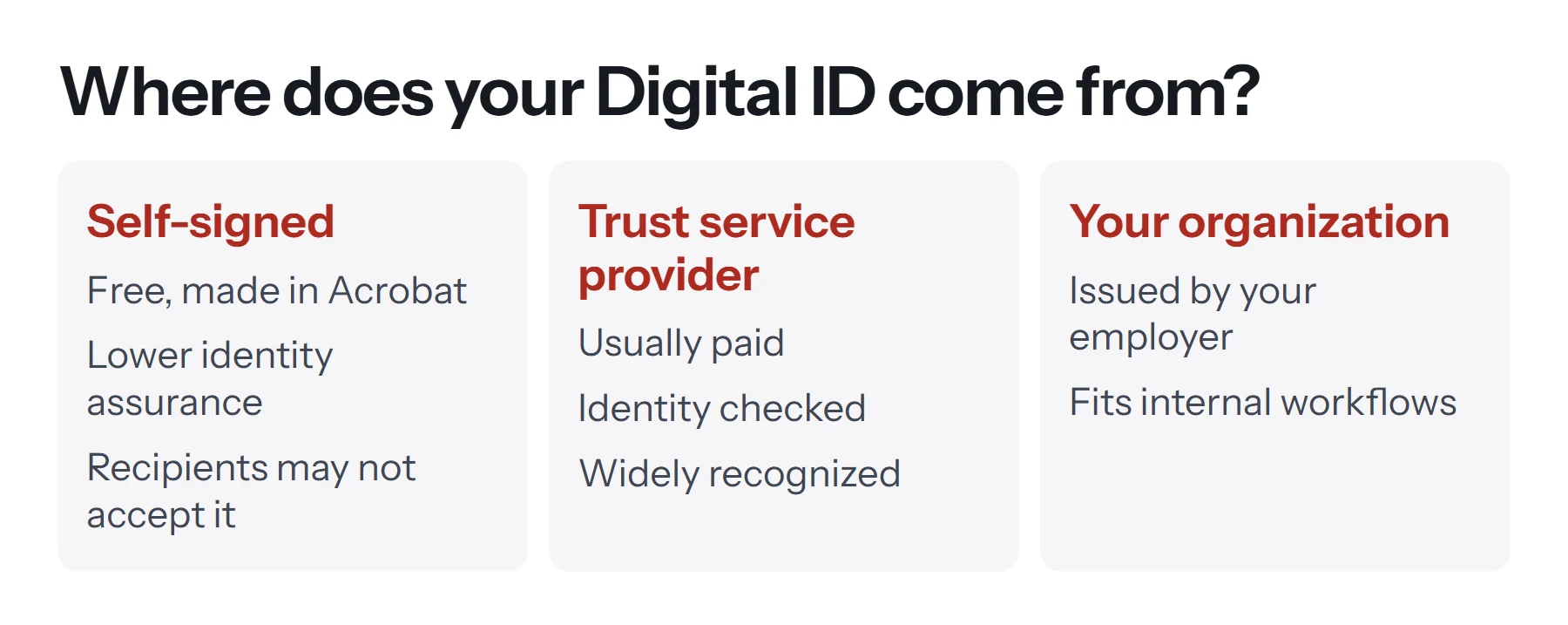
- Self-signed. You can create one yourself in Acrobat, for free. Adobe notes that this offers a lower level of identity assurance than IDs from a trust service provider, and it may not be accepted in some cases. It's fine for internal use or for agreed exchanges.
- Trust service provider (TSP). These are companies that verify your identity and issue a certificate, usually for a fee. Their IDs are widely recognized, and they're typically what regulators and government portals require.
- Your organization. Many employers and government agencies issue IDs to staff, often on a smart card or token.
A tool that can sign. Adobe Acrobat and Acrobat Reader are the most common. Check with the recipient about what they accept before you buy anything.
How to digitally sign a PDF in Adobe Acrobat
These are the steps from Adobe's own help pages.
- Open the PDF in Acrobat.
- Open the certificate tools. Select All tools, then Use a certificate.
- Select Digitally sign. Acrobat shows some instructions. Select OK.
- Draw the signature area. Use the cursor to draw a rectangle where the signature should appear.
- Choose your Digital ID. Pick it in the Sign with a Digital ID dialog, and continue. If you don't have one, select Configure New Digital ID and follow the steps.
- Review your details. Check the signature's appearance, and enter your Digital ID's password. You can tick Lock document after signing to block further edits.
- Select Sign, choose a location, and save. Use a new file name, so that you keep your unsigned version too.
Your signature appears in the rectangle, with details such as your name and the date. Readers can click it to see the certificate.
How to create a self-signed Digital ID
If you don't have an ID and only need one for an internal or informal purpose:
- Choose Configure New Digital ID during signing, or find Digital IDs in the preferences under Signatures.
- Choose to create a new Digital ID, and pick where to save it.
- Enter your name, organization and email. These details appear in the certificate.
- Set a strong password, and save the file somewhere safe. It's as sensitive as a physical signature stamp.
How to verify a digital signature
Knowing how to check a signature is just as important as knowing how to apply one.
- Open the signed PDF in Acrobat or Acrobat Reader. Many browsers show a signed PDF but don't fully validate the signature, so use a dedicated reader for this.
- Look at the blue bar or signature panel at the top, which summarizes the status.
- Click the signature to open its details.
- Check the status.
| Status | What it means | What to do |
|---|---|---|
| Signed and all signatures are valid | Identity is trusted and the file is unchanged | Nothing further |
| Validity unknown | The certificate isn't in your trusted list | Verify the signer and add them, if appropriate |
| Document changed after signing | The file was modified after this signature | Compare the signed version, or ask for a fresh copy |
| Invalid | The document was altered, or there's a problem with the certificate | Don't rely on it, and contact the sender |
"Validity unknown" is the one that confuses people. It doesn't mean the file's been tampered with. It only means your reader doesn't yet know whether to trust the certificate, which is common with self-signed IDs.
Signing vs certifying a PDF
Acrobat offers two related features.
Signing approves the document as a person would. Several people can sign the same PDF in turn.
Certifying is for the document's author, usually applied first, and it states that the content is final while setting which changes are still allowed, such as filling in forms or adding comments. Adobe says a certificate signature can only be applied to a PDF that has no other signatures, and that it needs a Digital ID. Use certification for official forms and templates that others will complete.
Is a digital signature legally binding?
Usually, yes, and it's generally stronger evidence than a simple electronic signature, but it depends on where you are and on what the document is. This isn't legal advice.
In the European Union, the eIDAS Regulation defines three levels: simple, advanced and qualified electronic signatures. A qualified electronic signature has the same legal effect as a handwritten one, and it requires a qualified certificate from a recognized provider. A self-signed Digital ID doesn't meet this level.
In the United States, the ESIGN Act and state UETA laws don't require a particular technology, so digital signatures fall within the general rules for electronic signatures. Some agencies and industries set their own technical requirements.
Other countries have their own rules, and many have laws specifying licensed certificate providers. Always check what your recipient or regulator requires before you begin, since using the wrong kind of certificate may mean having to start over.
Common workflows and when to sign
When several people sign: each person signs in turn, and each signature covers the document as it stood at that moment. Decide on the order beforehand. Reserve signature fields if you can, so that nobody has to add one later. Fill in the form completely before the first signature.
When using a signing service: platforms such as Adobe Acrobat Sign and others manage requests, reminders and audit trails, and some offer certificate-based signatures. If you're sent a link through such a service, follow its steps, which differ from the local Acrobat method above.
When you have a smart card or token: connect it before signing. Acrobat lists certificates from your operating system and connected devices. Your organization's IT team can help with drivers and setup.
What to do before and after signing
Get the document ready first, because any change afterward counts against the signature. All of these can be done first, in your browser, without uploading:
- Combine parts with Merge PDF.
- Remove or reorder pages with Organize PDF.
- Add page numbers with Add Page Numbers.
- Fill in answers as described in how to fill out a PDF form.
- Compress it with Compress PDF if it's large.
After signing, don't run the file through tools that rewrite it. That includes merging, splitting, compressing and flattening. These change the file, and the signature will no longer validate. Send the signed copy as it is, and keep a copy for your records. If you need to combine it with other documents, send those separately.
Keep your Digital ID safe
A Digital ID is, in effect, your signature. If someone copies it and learns the password, they can sign as you.
- Use a strong, unique password, and keep it in a password manager.
- Back up your ID file somewhere secure. If it's lost, you'll need to create or request a new one.
- Don't email the ID file or store it in a shared folder.
- Know when it expires. Certificates have an expiry date. Renew them before they lapse.
- Revoke it if it's compromised. Ask your provider, or create a new one and notify your contacts if it's self-signed.
Common problems with digital signatures
"Use a certificate" is greyed out. One Adobe community suggestion is to check the signature preferences, confirm that your certificate appears under Digital IDs, and add it if it's missing. Also check that the PDF isn't protected in a way that blocks signing.
My signature shows "validity unknown". The recipient's reader doesn't trust your certificate. Use a trusted-provider ID, or have the recipient add your certificate to their trusted list after verifying it.
The signature became invalid after I sent it. Something changed the file, such as an email gateway or a tool that re-saves PDFs. Send it again in another way, such as a shared link.
I can't sign because the document has been changed. Check for later edits. Go back to the version prior to signing, make your changes, and sign again.
I can't find my smart card certificate. Install the card's drivers, and check that your operating system can see it before opening Acrobat.
The portal rejected my signature. It may require a specific certificate type or provider. Check its documentation, or call its help desk.
The signature looks wrong on the page. Adjust its appearance under the signature preferences or the appearance options in the signing dialog.
Questions and answers
How do I digitally sign a PDF for free?
Adobe Acrobat Reader can apply a certificate signature with a Digital ID, and you can create a self-signed ID at no cost. Recipients may not trust a self-signed ID, so ask what they accept.
What is a Digital ID?
A Digital ID is an electronic credential containing a certificate and a private key. It links a signature to a person or organization. It can be self-signed or issued by a trust service provider.
What's the difference between a digital signature and an electronic signature?
An electronic signature is any mark showing intent to sign. A digital signature is a specific type that uses cryptography to verify the signer and detect changes.
How do I verify a digital signature in a PDF?
Open the PDF in Acrobat or Acrobat Reader, and look at the signature panel or click the signature. It shows whether the signature is valid, who signed, and whether the document has changed.
Can PDF Lemon add a digital signature?
No. PDF Lemon's Sign PDF adds a visual electronic signature, not a certificate-based one. For a digital signature, use Acrobat or a similar tool with a Digital ID.
Why does my signature show as "validity unknown"?
The reader doesn't trust the certificate, often because it's self-signed. It doesn't mean the document was changed. The recipient can choose to trust that certificate, or you can use one from a trusted provider.
Tools from this guide
How we checked this guide
We ran the PDF Lemon steps ourselves on the live tools. Steps for other apps come from each vendor's own help pages and are worded to survive small interface changes, but menu names can differ between versions.
Sources we used:
Related guides
- How to Sign a PDF Electronically7 min read
- How to Fill Out a PDF Form7 min read
- How to Type on a PDF7 min read
- How to Make a Fillable PDF Form7 min read
- How to Annotate and Write on a PDF8 min read