How to Annotate and Write on a PDF
Short answer
To write on a PDF, open it in a tool with markup features, such as Chrome, Edge, Firefox, Mac Preview or Adobe Acrobat Reader. Choose the text tool to type, the pen to draw or handwrite, or the highlighter and note tools to annotate. Then save a copy with your changes and reopen it to check that they're there.
Open Edit PDFKey takeaways
- You can type, draw, highlight and leave comments on a PDF for free in browsers and Preview.
- Annotations sit on top of the page. Some viewers show them differently, so check the saved copy.
- Flattening locks annotations into the page, so everyone sees the same thing.
- To change the PDF's original wording, you need an editor or the source document instead.
What does it mean to write on a PDF?
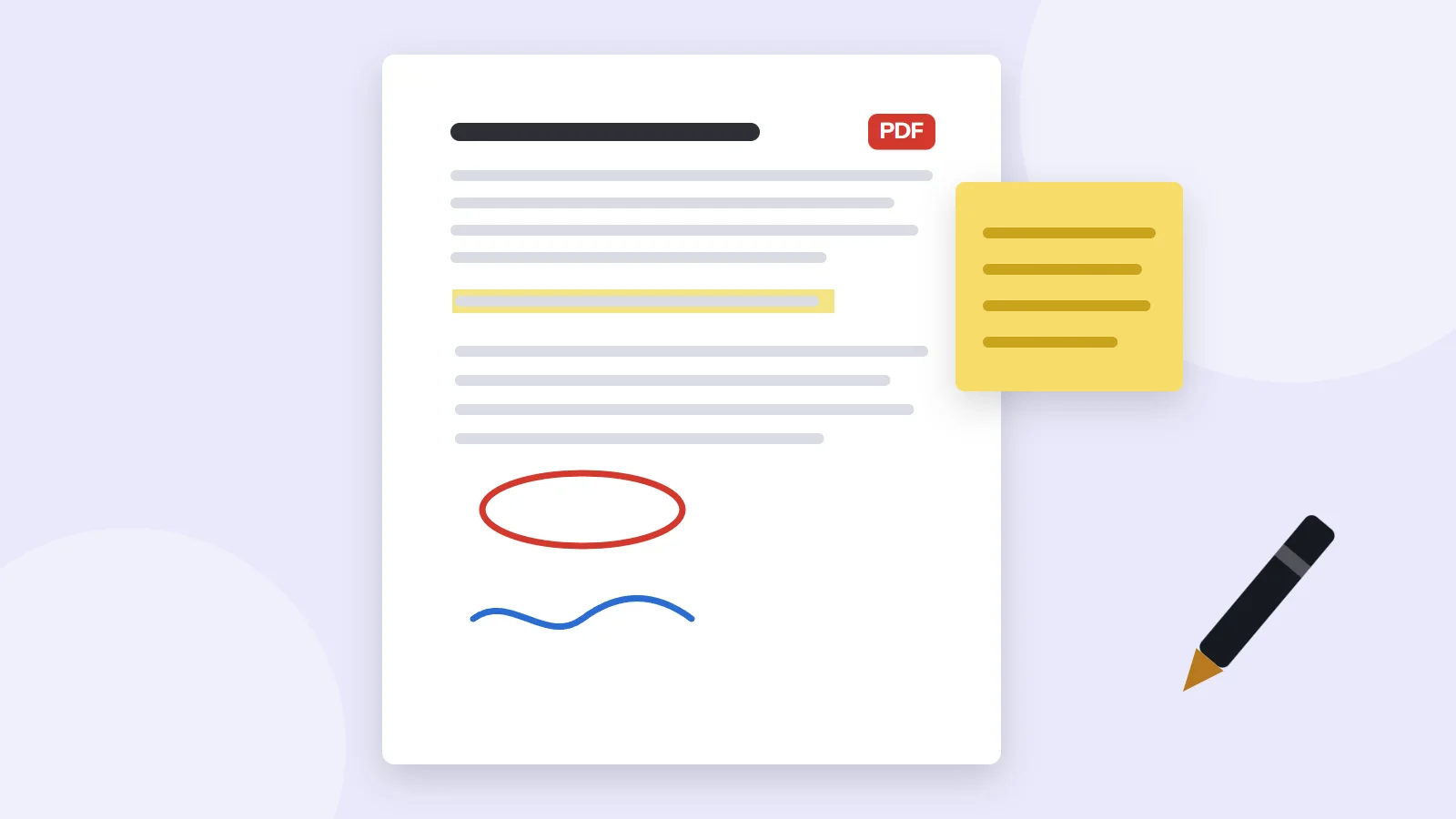
Writing on a PDF usually means adding something new on top of the page, without changing what's already there. That covers a few different jobs:
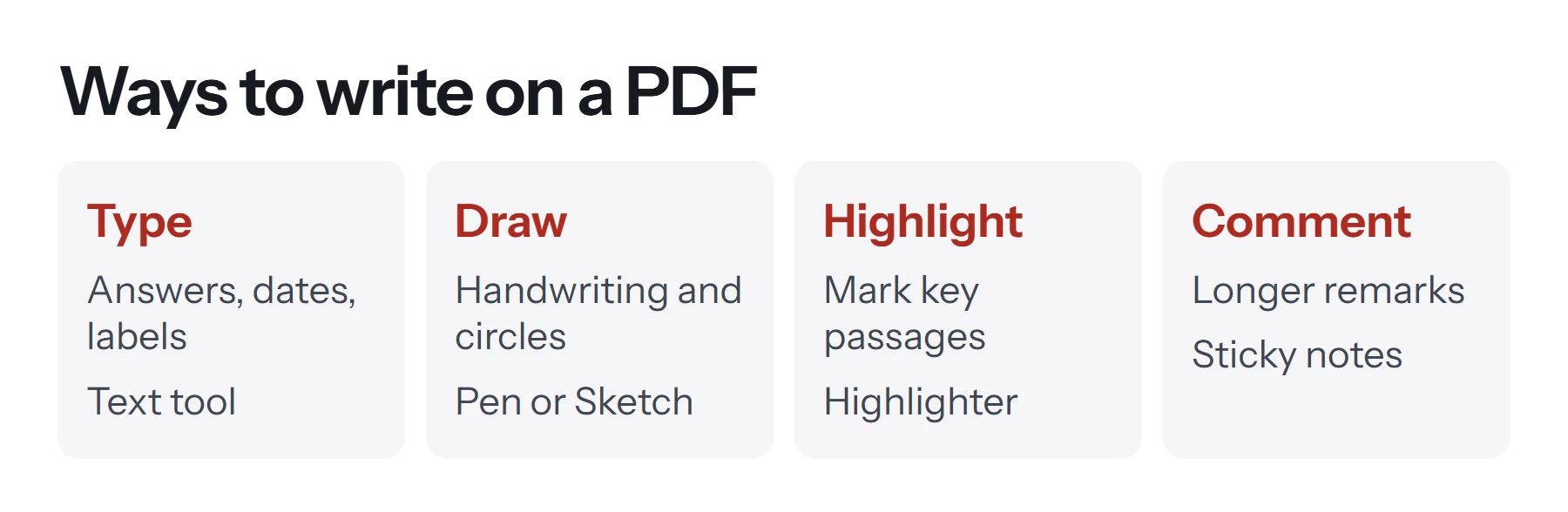
- Typing text, such as an answer on a form, a date, or a short note.
- Drawing or handwriting, such as circling a figure, underlining a word, or signing.
- Highlighting, to mark important passages.
- Commenting, with sticky notes or comment boxes that hold longer remarks.
- Adding shapes and stamps, such as arrows, boxes or an "Approved" stamp.
Together these are called annotations. They're perfect for reviewing a draft, marking up a contract, studying, or filling in a form that won't let you type. They don't rewrite the original text, which is a different job covered in how to edit a PDF.
Which free tool should you use?
You probably already have a tool that can annotate PDFs. Here's what each one offers.
| Tool | Type text | Draw | Highlight | Comments | Cost |
|---|---|---|---|---|---|
| Chrome | Yes | Pen and highlighter | Yes | No | Free |
| Microsoft Edge | Yes | Yes | Yes | Limited | Free |
| Firefox | Yes | Yes | In recent versions | No | Free |
| Mac Preview | Yes | Yes | Yes | Notes | Free |
| Adobe Acrobat Reader | Yes | Yes | Yes | Full comment tools | Free |
| iPhone and iPad Markup | Yes | Yes | Yes | No | Free |
| PDF Lemon Edit PDF | Yes | No | No | No | Free |
For quick typing and drawing, a browser is enough. For a proper review with many comments, Acrobat Reader or Preview gives you more control.
How to write on a PDF in Chrome or Edge
Google's help page describes Chrome's tools, and Edge has a very similar set.
- Open the PDF in the browser. Drag the file into a browser window.
- To type, choose Add text, pick a font and color, and click where the text should go.
- To draw, choose Draw, then Pen. Set the size and color, and write or sketch on the page.
- To highlight, choose Draw, then Highlighter, and drag across the text.
- To fix a mistake, use undo, or the Eraser to remove a mark.
- To save, choose Download, then With your changes. Open the downloaded file to make sure your marks are there.
Chrome can also save the file to Google Drive. It's the fastest option if you already have the PDF open in your browser.
How to annotate a PDF in Preview on a Mac
Preview has a full set of markup tools built in.
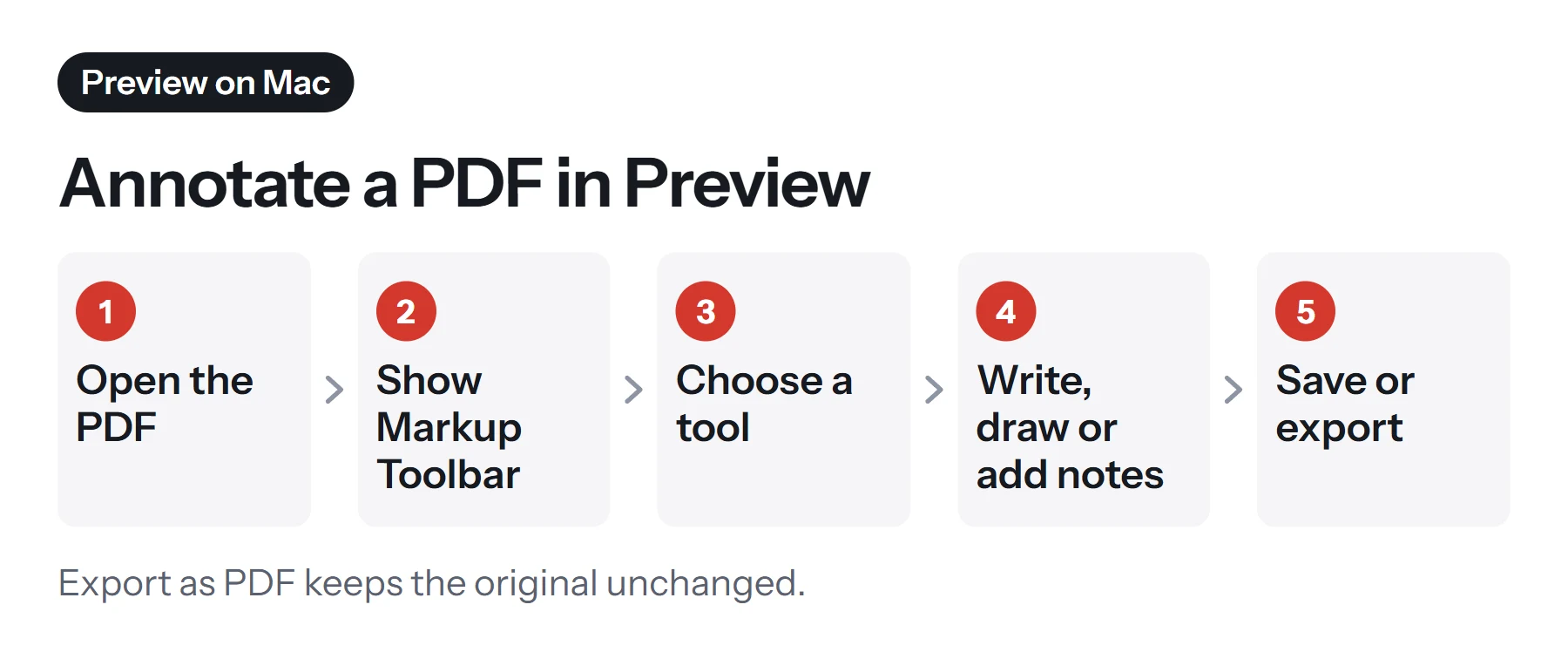
- Open the PDF in Preview.
- Show the Markup toolbar by clicking the pen icon near the search field.
- Choose a tool:
- Text adds a text box you can type in and move. - Sketch and Draw let you write with the trackpad or mouse. Sketch smooths shapes as you draw. - Shapes adds arrows, boxes, circles and a magnifying loupe. - Note adds a sticky note with a longer comment. - Highlight marks selected text. Choose a color from its menu.
- Save the file, or choose File, then Export as PDF, to keep the original unchanged.
Apple's guide on annotating PDFs in Preview covers each tool in more detail. For other free Mac options, see how to edit a PDF on Mac for free.
How to annotate a PDF in Adobe Acrobat Reader
Acrobat Reader is free and has the most complete comment tools of any free app, which makes it the usual choice for document reviews.
- Open the PDF in Acrobat Reader.
- Choose the comment tools. Look for Comment or the speech-bubble icon.
- Add your annotations. Use sticky notes, highlights, strikethrough, text comments and drawing tools.
- Reply to others. Comments appear in a list at the side, so you can reply and mark them as resolved.
- Save the file.
Comment lists are especially useful when several people review the same document, because each note records who made it and when.
How to type on a PDF in your browser with PDF Lemon
PDF Lemon's Edit PDF adds typed text anywhere on a page. It's simple, and your file stays on your device.
- Open Edit PDF and select your file.
- Type your text in the panel and set the size and color.
- Click the page where the text belongs. Drag it to fine-tune the position.
- Repeat for other lines or pages.
- Save the PDF and check the download.
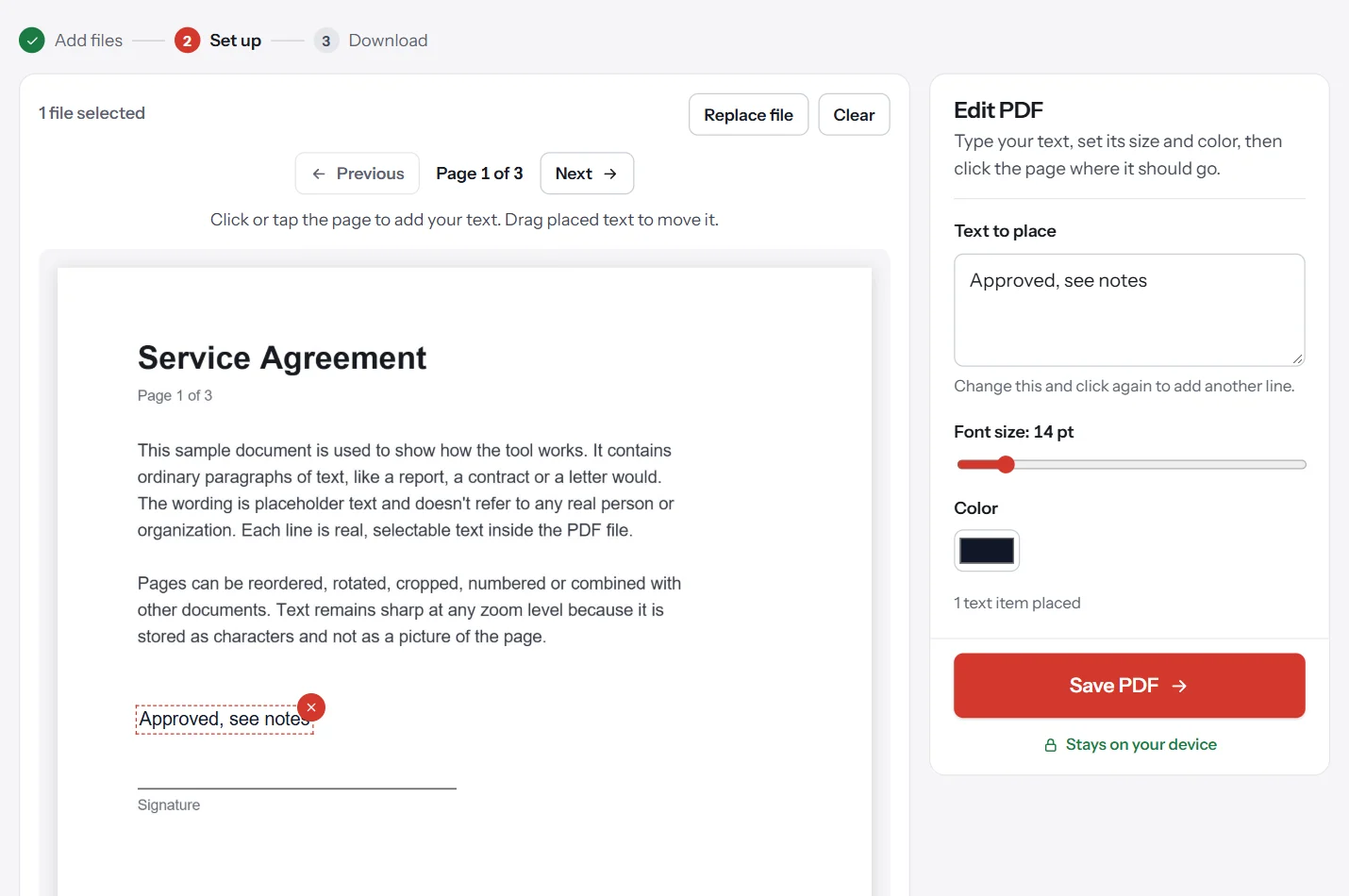
Text added this way is drawn into the page, so it looks the same in every viewer. To add a picture, logo or stamp, use Add Image to PDF, and to sign, use Sign PDF. Our guide on how to type on a PDF covers typing in more depth.
How to write on a PDF on a phone or tablet
On iPhone or iPad, open the PDF in Files or Mail and tap the Markup button, which looks like a pen tip. You can draw with your finger or an Apple Pencil, and tap the plus button for text, a signature, shapes or a magnifier. Tap Done to save.
On Android, many phones include a PDF viewer with drawing tools, and apps such as Acrobat Reader offer full annotation. For typed text, open Edit PDF in your phone's browser and tap where each line belongs.
A tablet with a stylus is the most natural way to handwrite on a PDF. It works well for marking up drafts, solving worksheets and signing documents.
How to add sticky notes and comments
A sticky note holds a longer remark without covering the text. It shows as a small icon on the page, and the full comment appears when someone clicks it.
- In Acrobat Reader, choose the sticky note tool, click the page, and type. Your note appears in the comments list too.
- In Preview, choose Note from the Markup toolbar, click the page, and type. Click elsewhere to close the note.
- In Edge, highlight text and add a comment to the highlight where your version offers it.
Notes are ideal for reviews, because they keep the page readable while still explaining each change. If the recipient uses a basic viewer, though, they may not see the note's text, so for important feedback, write it as visible text too.
How to annotate a PDF for studying
Annotation is one of the best ways to study from PDFs such as textbooks, papers and lecture slides.
- Skim first, then mark up. Read a section through before highlighting, so you mark the key points rather than everything.
- Use a simple color code. For example, yellow for definitions, green for examples and pink for things to ask about.
- Write questions in the margin. A short question next to a paragraph is more useful at revision time than a highlight.
- Summarize at the end of each section. Add a text box with two or three bullet points in your own words.
- Keep a clean copy. Save your annotated version separately, so you can start fresh for a second read.
How to share an annotated PDF for review
When several people review one document, a little organization prevents confusion. Agree who reviews which sections, ask everyone to use comments rather than editing the text, and add your name to the file name when you send it back. If the reviews arrive as separate files, Acrobat Reader can show each person's comments, and you can work through them one by one. When everything's settled, make the changes in the source document and export a fresh PDF, rather than piling more notes onto the reviewed copy.
Annotations versus content: why it matters
Most of these tools add annotations. An annotation is a separate layer that sits on top of the page. That has a few consequences.
- Viewers can treat them differently. Some apps show comments in a side panel, hide them when printing, or display them in a different style.
- They can be moved or deleted. Anyone with a PDF editor can remove an annotation.
- They print only if the viewer includes them. Check your print settings if notes don't appear on paper.
If you want your marks to be a permanent part of the page, flatten the PDF before sharing it. Flatten PDF turns form fields into page content, and printing or exporting a new PDF from Preview or Acrobat locks annotations in place. Keep an unflattened copy in case you need to change something later.
Tips for clear, useful annotations
- Keep comments short and specific. "Change 30 to 45 days" is easier to act on than "This seems wrong."
- Use colors consistently. For example, yellow for questions and red for required changes.
- Don't cover important text. Place notes in the margins where you can.
- Name your file clearly. Add your initials or "reviewed" to the file name, so the reviewed version doesn't get confused with the original.
- Highlight sparingly. If everything is highlighted, nothing stands out. Our guide on how to highlight a PDF has more tips.
Common problems when writing on a PDF
The text tool doesn't appear. Your viewer may not support it, or the PDF may restrict changes. Try another browser or Acrobat Reader. If it's password protected, see how to remove a password from a PDF if you're authorized.
My notes disappeared after saving. Some viewers need you to choose a save option that includes your changes. In Chrome, choose Download, then With your changes. Always reopen the file to check.
The recipient can't see my comments. Their viewer may hide comments. Flatten or export a new copy, or ask them to open it in Acrobat Reader.
My handwriting looks shaky. Use a stylus or a tablet, zoom in, and write more slowly. On a Mac, Sketch smooths shapes for you.
I can't highlight the text. The page may be a scan with no real text. Use a highlighter pen tool instead, which draws over the page rather than selecting words.
Questions and answers
How can I write on a PDF for free?
Open it in Chrome, Edge, Firefox or Mac Preview and use the text or draw tool. PDF Lemon's Edit PDF also adds typed text anywhere on a page, in your browser.
How do I annotate a PDF?
Open it in a reader with comment tools, such as Adobe Acrobat Reader, Preview or Edge. Highlight text, add sticky notes, draw shapes or type comments, then save the file.
How do I draw on a PDF?
Choose the draw, pen or sketch tool in your viewer. Chrome, Edge, Firefox and Preview all have one. On a tablet, a stylus works well for handwriting and circling.
Why don't my notes show up for the person I sent the PDF to?
Their viewer may hide annotations or comments. Flatten the PDF before sending it, so your notes become part of the page and show up everywhere.
Can I write on a PDF on my phone?
Yes. On iPhone, open the PDF in Files and tap the markup button. On Android, use a PDF app with annotation tools, or PDF Lemon's Edit PDF in your browser for typed text.
What's the difference between writing on a PDF and editing it?
Writing or annotating adds new marks on top of the page. Editing changes the original text and images, which needs a full editor or the source file.
Tools from this guide
How we checked this guide
We ran the PDF Lemon steps ourselves on the live tools. Steps for other apps come from each vendor's own help pages and are worded to survive small interface changes, but menu names can differ between versions.
Sources we used:
Related guides
- How to Type on a PDF7 min read
- How to Sign a PDF Electronically7 min read
- How to Fill Out a PDF Form7 min read
- How to Digitally Sign a PDF8 min read
- How to Edit a PDF8 min read