How to Print a PDF
Short answer
To print a PDF, open it in a browser or PDF reader, press Ctrl+P on Windows or Cmd+P on a Mac, choose your printer, set the pages, copies and scaling, then click Print. Choose Fit to page if the edges get cut off. For booklets, comments or double-sided printing, use the extra options in Adobe Acrobat Reader or your printer's settings.
Open Resize PDFKey takeaways
- Any browser or PDF reader can print a PDF with Ctrl+P or Cmd+P.
- Scaling matters. Fit to page avoids cut-off edges, and Actual size keeps exact measurements.
- Acrobat Reader can print booklets and include comments, which browsers can't.
- If printing is blocked or the output looks wrong, the PDF may be restricted or need printing as an image.
How to print a PDF in a few steps
Printing a PDF works almost the same in every app. Open the file, open the print dialog, check the settings, and print.
- Open the PDF. Use a browser such as Chrome or Edge, Adobe Acrobat Reader, or Preview on a Mac.
- Open the print dialog. Press Ctrl+P on Windows, or Cmd+P on a Mac. You can also use the printer icon or File, then Print.
- Choose the printer.
- Choose the pages. Print all of them, or enter a range such as
2-5. - Check the scaling and orientation in the preview.
- Click Print.
If the preview looks right, the paper copy will too. Most problems come from scaling, which is explained below.
What do the print settings mean?
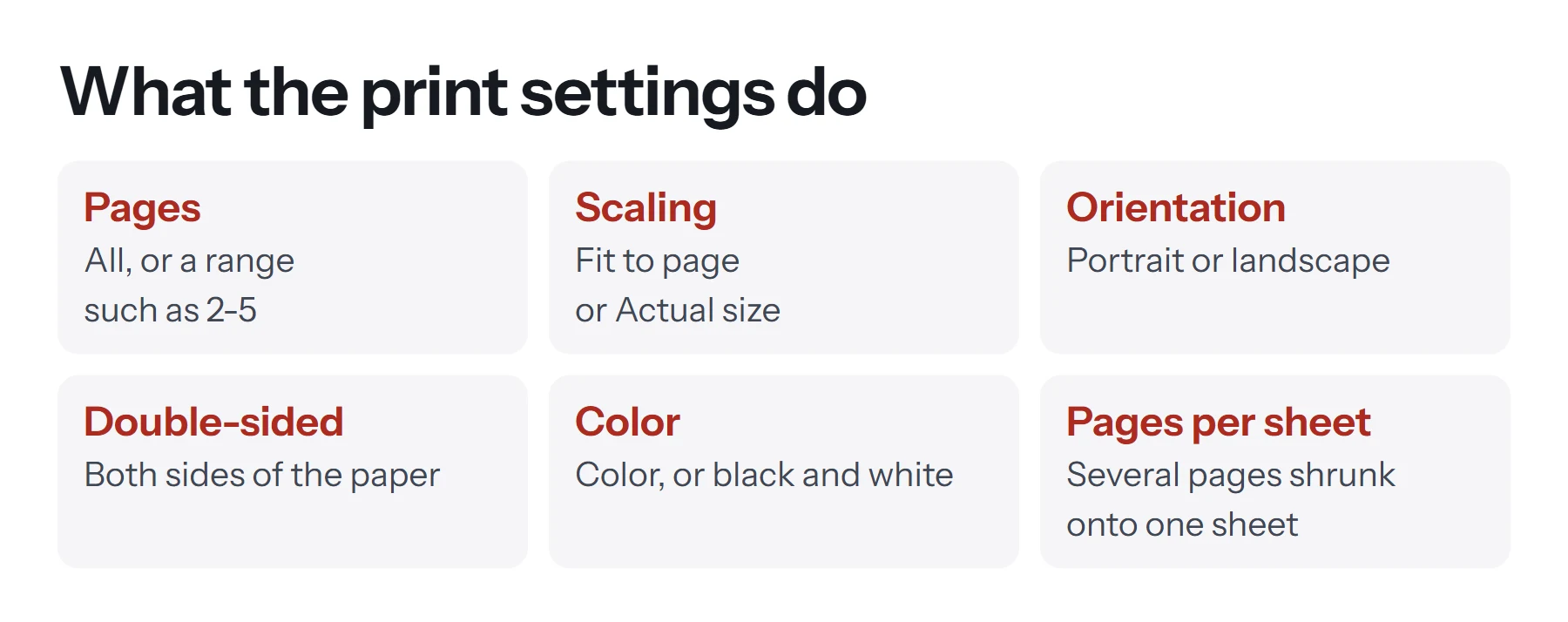
| Setting | What it does | When to change it |
|---|---|---|
| Pages | All pages, the current page, or a range | You only need part of the document |
| Copies | How many sets to print | Handouts and meetings |
| Scaling or Fit | Shrinks or enlarges pages to fit the paper | Edges are cut off, or the size must be exact |
| Orientation | Portrait or landscape | Wide tables and slides |
| Double-sided | Prints on both sides of the paper | Long documents, to save paper |
| Color | Color, or black and white | To save colored ink |
| Pages per sheet | Several pages shrunk onto one sheet | Drafts and slides |
Fit to page or actual size?
This is the setting that matters most.
- Fit to page, sometimes called Fit or Shrink oversized pages, scales each page so it fits inside the printable area of your paper. Nothing gets cut off. Choose this for everyday documents.
- Actual size, or 100%, prints at the exact size in the PDF. Choose this for forms with exact measurements, tickets, labels, and anything with a scale, such as a plan or pattern.
If your PDF is A4 and your printer uses US Letter, or the other way round, Fit to page keeps the content on the paper. To fix the size permanently, change the PDF itself with Resize PDF, which turns every page into the paper size you'll print on.
How to print a PDF in Chrome or Edge
- Drag the PDF into a browser window.
- Click the printer icon, or press Ctrl+P or Cmd+P.
- Choose the destination, which is your printer.
- Open More settings for paper size, scaling, pages per sheet and double-sided printing.
- Click Print.
Chrome also lets you choose Save as PDF as the destination, which creates a new PDF rather than printing on paper.
How to print a PDF in Adobe Acrobat Reader
Acrobat Reader has the most printing options of any free viewer, including booklets and comments.
- Open the PDF and choose Print.
- Select the printer and pages.
- Under Page Sizing and Handling, choose Size for scaling, Poster to print one page across several sheets, Multiple for several pages per sheet, or Booklet.
- Under Comments and Forms, choose Document and Markups to include highlights and notes, or Document to leave them out.
- Click Print.
How to print a PDF as a booklet
A booklet is printed double-sided, with two pages on each side of the sheet, so that you can fold the stack in the middle and staple the spine. Acrobat Reader arranges the pages in the right order for you.
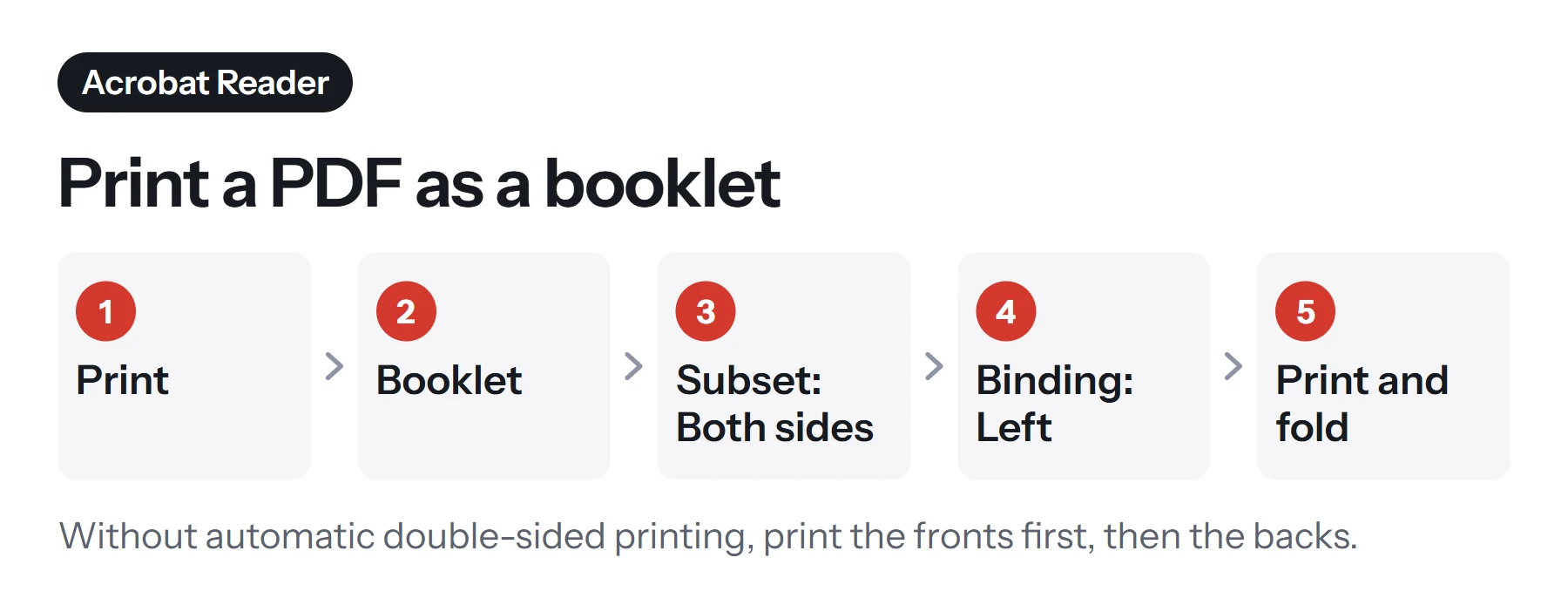
- Open the PDF in Acrobat Reader and choose Print.
- Click Booklet under Page Sizing and Handling.
- Set the booklet subset. Choose Both sides if your printer prints double-sided automatically. Otherwise, print Front side only, put the paper back in the tray, then print Back side only.
- Set the binding, usually Left for left-to-right languages.
- Print, fold and staple.
Adobe's help page on printing booklets explains each option. Booklets work best when the number of pages is a multiple of four, because each folded sheet holds four pages. If yours isn't, Acrobat adds blank pages at the end.
How to print a PDF with comments and highlights
Comments and highlights are annotations. Some viewers print them and some don't.
- In Acrobat Reader, choose Document and Markups under Comments and Forms.
- In Preview, annotations print by default. Check the preview.
- In a browser, drawn annotations usually print, but sticky-note text may not.
If you need every mark to appear the same everywhere, export a flattened copy first. Our guide on how to write on a PDF explains annotations, and Flatten PDF locks completed form fields into the page, so they print reliably.
How to print a PDF on a phone
On iPhone or iPad, open the PDF, tap Share, then Print. Choose an AirPrint printer, set the range and copies, and tap Print.
On Android, open the PDF, tap the menu, then Print. Choose your printer from the list. You may need the printer maker's app or service installed first.
How to prepare a PDF for printing
A few minutes of preparation can save paper, ink and frustration.
- Print only what you need. Use Extract Pages to save the pages you need as a new PDF, which is easier than typing ranges into every print dialog.
- Turn pages the right way up. Fix sideways scans with Rotate PDF, so they don't print rotated.
- Match the paper size. Resize PDF changes A4 to US Letter, or any other size, so nothing gets cut off.
- Save colored ink. Grayscale PDF turns a color document black and white, which also makes the printer's job simpler.
- Number the pages. If you're printing a long document, Add Page Numbers helps you put loose sheets back in order.
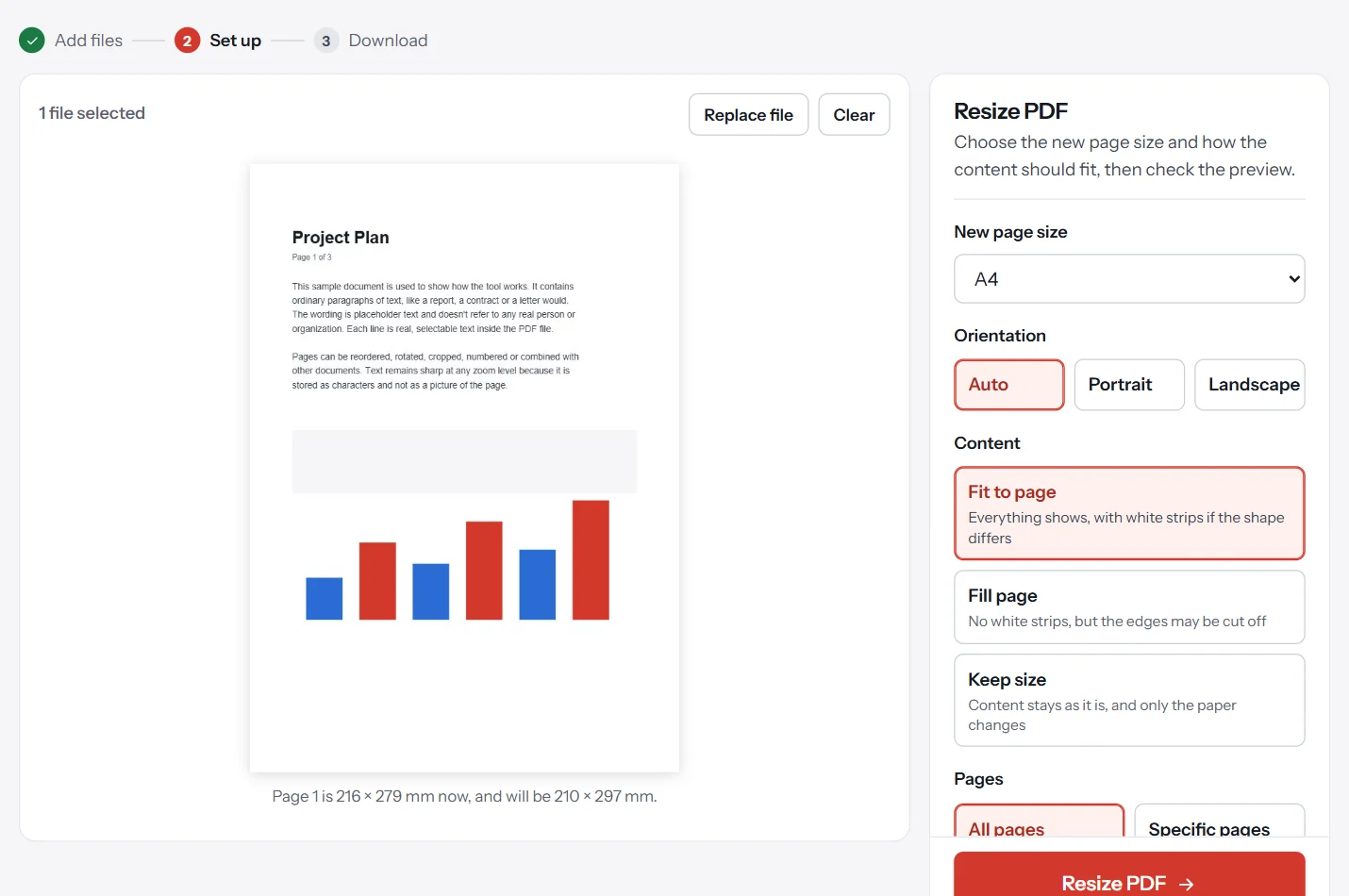
These tools run in your browser, so your file isn't uploaded. Our guide on how to resize a PDF explains the size options.
How to print to PDF
"Print to PDF" means using a virtual printer that creates a PDF instead of a paper copy. It's how you save web pages, emails and documents from apps that don't have a PDF option.
- Windows: choose Microsoft Print to PDF as the printer.
- Mac: open the PDF menu in the print dialog and choose Save as PDF.
- Chrome and Edge: choose Save as PDF as the destination.
Our guide on how to save a document as a PDF covers this in more detail.
How to print several PDFs at once
Print dialogs handle one file at a time. To print a stack of PDFs in one go, combine them first with Merge PDF, set the order, and print the merged file. You'll get one print job in the right order, which is much easier than printing each file separately and sorting the pages afterward.
How to print a large PDF as a poster
Acrobat Reader can split one large page across several sheets of paper, which you then tape together. In the print dialog, choose Poster under Page Sizing and Handling. Set the Tile scale to control how large the final poster is, and add Overlap so the sheets line up when you join them. Tick Cut marks and Labels to make assembly easier. It's handy for large charts, plans and signs when you don't have a large-format printer.
How to save paper and ink when printing PDFs
- Print double-sided. It halves the paper for long documents.
- Print two or four pages per sheet for drafts and slides, with the Multiple or Pages per sheet option.
- Print in black and white unless color matters. Convert the file with Grayscale PDF if your printer ignores the setting.
- Skip pages you don't need, such as covers and blank pages, by printing a range.
- Preview first. A quick look at the preview catches wrong scaling before it wastes a stack of paper.
How to print a PDF form you've filled in
Filled-in forms are one of the most common printing headaches, because some viewers don't print the answers in form fields. Before printing, save your answers and reopen the file to check them. Print from Acrobat Reader with Document and Markups selected, or flatten the form first with Flatten PDF, which turns the answers into ordinary page content that prints everywhere. Our guide on how to fill out a PDF form covers the rest.
Common problems when printing a PDF
The edges are cut off. Choose Fit to page or Shrink oversized pages. If the PDF's paper size doesn't match your printer, resize the PDF.
The print button is greyed out. The PDF may restrict printing. If you're authorized, see how to remove a password from a PDF, or ask the sender for an unrestricted copy.
Pages print blank or with strange characters. The fonts or graphics may be causing trouble. In Acrobat Reader, open Advanced in the print dialog and choose Print as image, or try another viewer.
Form answers don't print. Some viewers don't print form fields. Flatten the form, or use Acrobat Reader with Document and Markups selected.
It prints at the wrong size. Check that scaling is set to Actual size for exact documents, and that the paper size in the dialog matches the paper in the tray.
Printing is very slow. Large scans and complex graphics take time. Print fewer pages at once, or compress the PDF first.
Double-sided pages are upside down. Change the flip setting, usually Flip on long edge for portrait pages and Flip on short edge for landscape.
Questions and answers
How do I print a PDF document?
Open it in a browser or PDF reader, press Ctrl+P or Cmd+P, choose your printer and pages, and click Print. Check the preview first.
How do I print a PDF as a booklet?
In Adobe Acrobat Reader, choose Print, then Booklet under Page Sizing and Handling. Set the booklet subset and binding, and print double-sided. Fold the stack in the middle.
How do I print a PDF with comments?
In Acrobat Reader, choose Document and Markups in the print dialog. In other viewers, make sure annotations are turned on, or flatten the PDF first.
Why won't my PDF print?
The PDF may restrict printing, the printer may be offline, or the file may be too complex. Try another viewer, check the printer, or print as an image in Acrobat Reader's advanced settings.
How do I print to PDF?
Choose Microsoft Print to PDF on Windows, or the PDF menu and Save as PDF on a Mac, as the printer. That creates a new PDF instead of a paper copy.
How do I print only some pages of a PDF?
In the print dialog, choose a custom page range, such as 1-3, 7. You can also extract those pages into a new PDF first.
Tools from this guide
How we checked this guide
We ran the PDF Lemon steps ourselves on the live tools. Steps for other apps come from each vendor's own help pages and are worded to survive small interface changes, but menu names can differ between versions.
Sources we used:
Related guides
- How to Crop a PDF7 min read
- How to Convert Excel to PDF7 min read
- How to Cite a PDF in APA, MLA, and Chicago7 min read
- How to Copy Text from a PDF7 min read
- How to Remove a Signature from a PDF7 min read